
Getting Started Guides
Complete Beginner Guide
Complete Beginner Guide
This guide walks through the current WhoDB CE interface from login to data viewing, filtering, Scratchpad, export, and graph exploration.
1. Open WhoDB
Start WhoDB and open the web UI:
text
http://localhost:8080
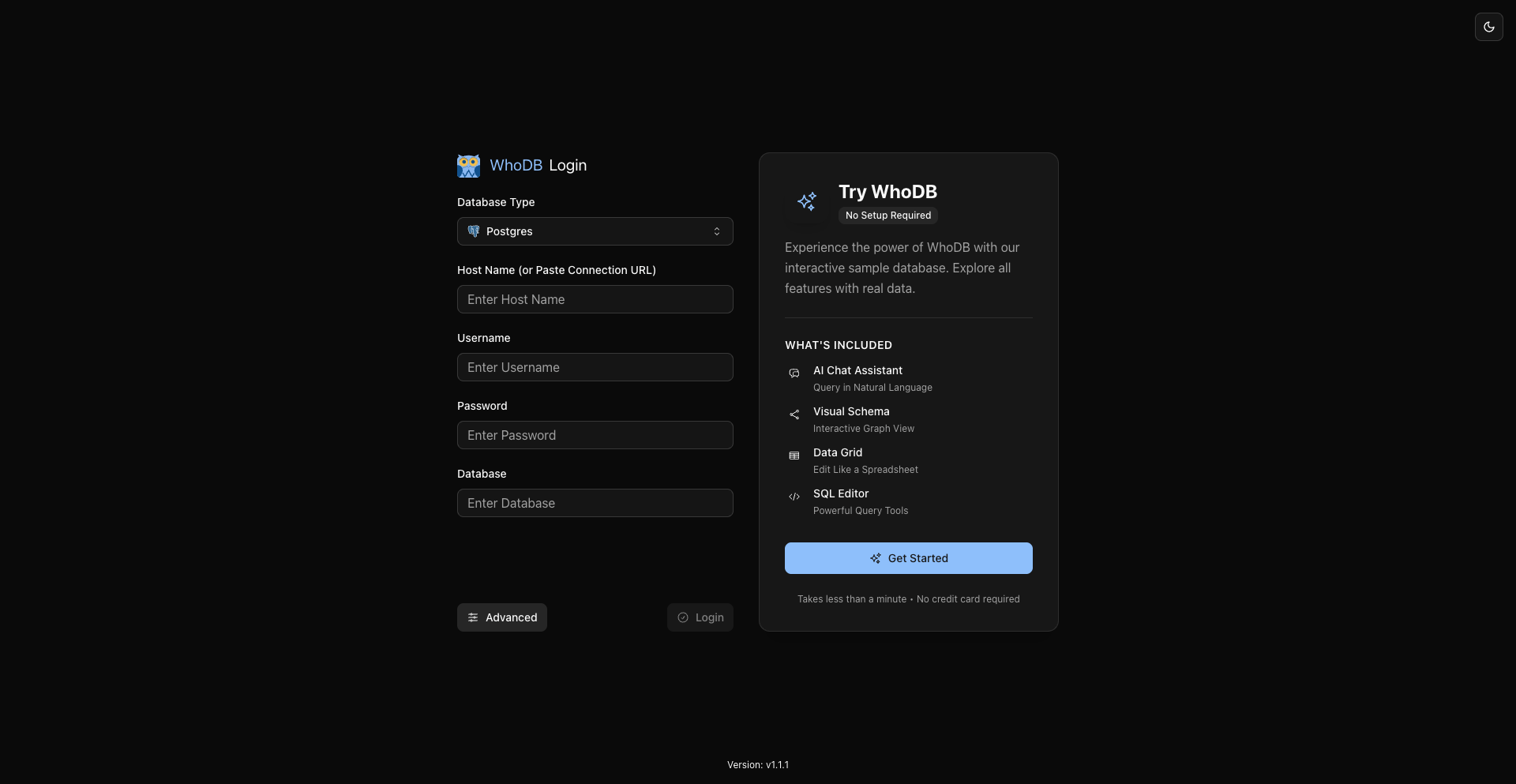
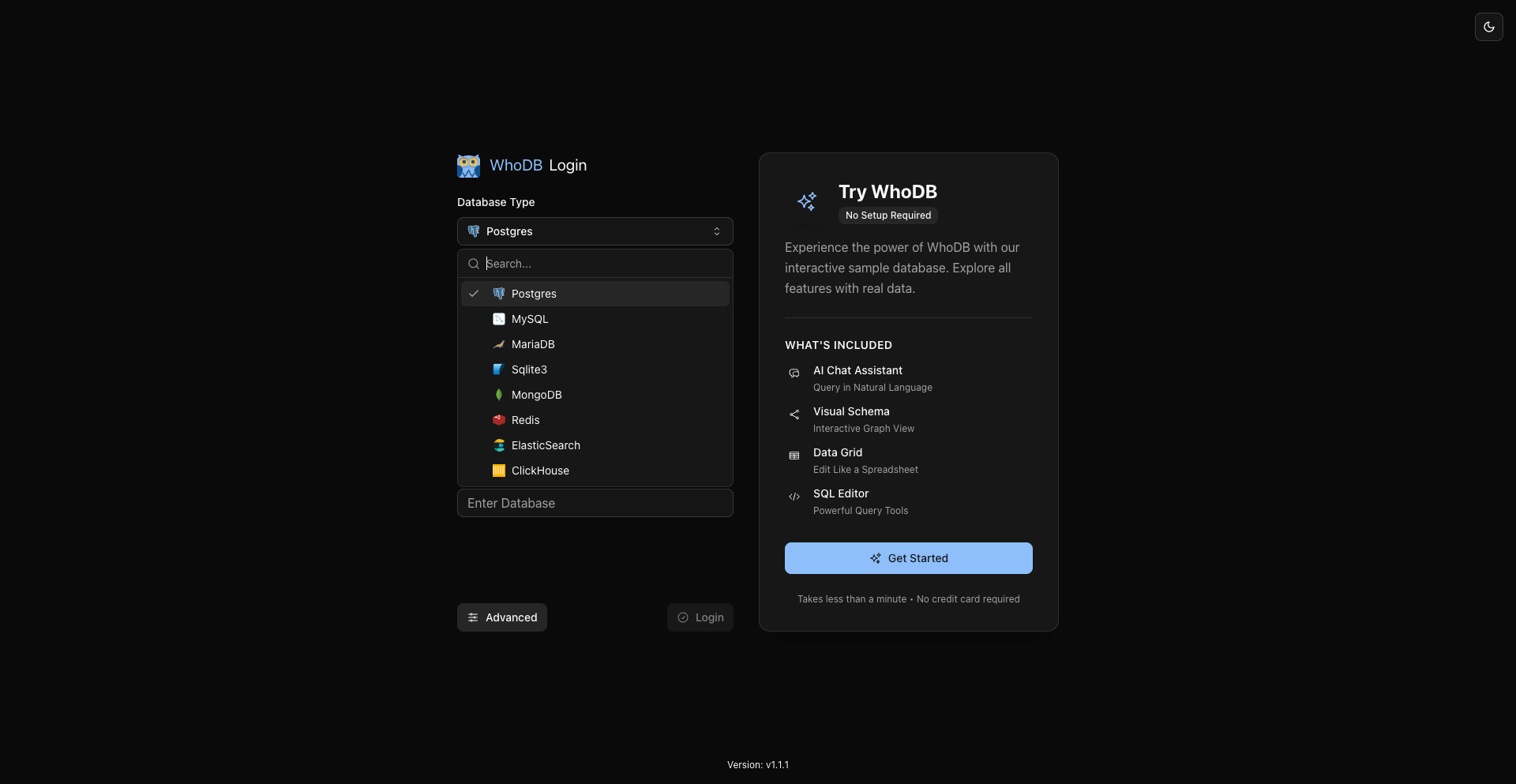
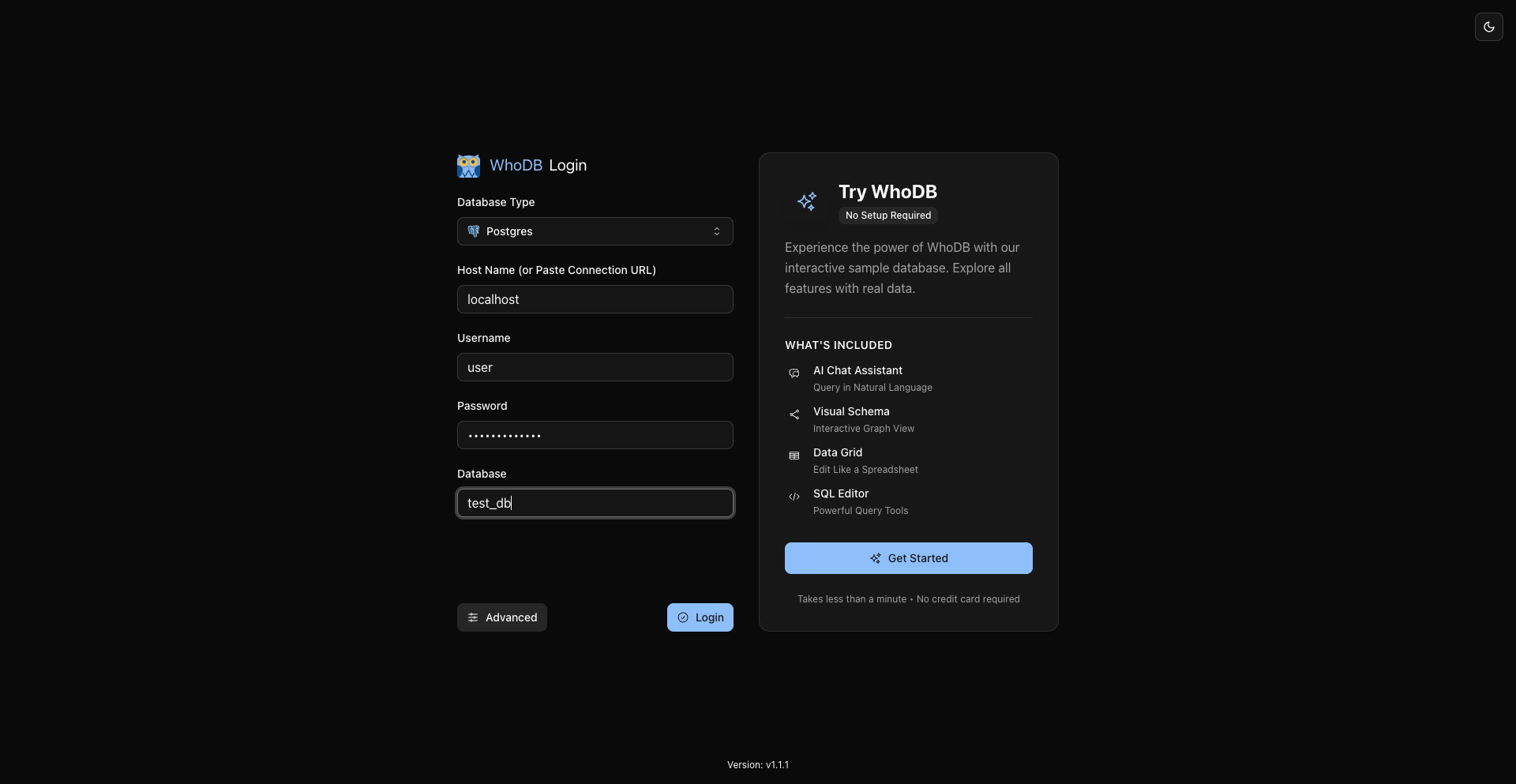
Choose a database type, enter connection details, and click Connect.
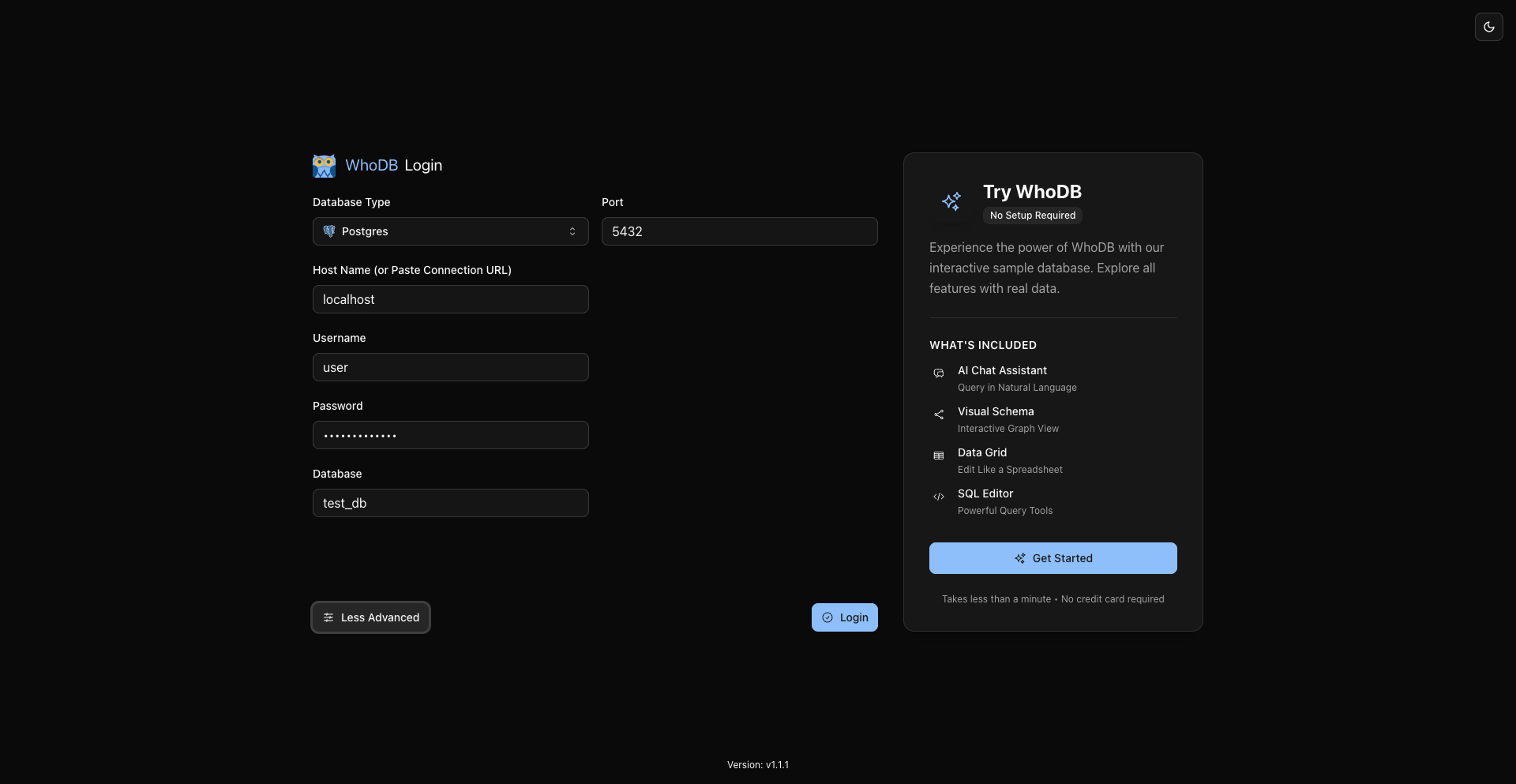
Advanced options are optional and depend on the selected database.
2. Understand The Sidebar
After connecting, the sidebar shows the active profile, optional database/schema selectors, and the primary routes available for the connected source.
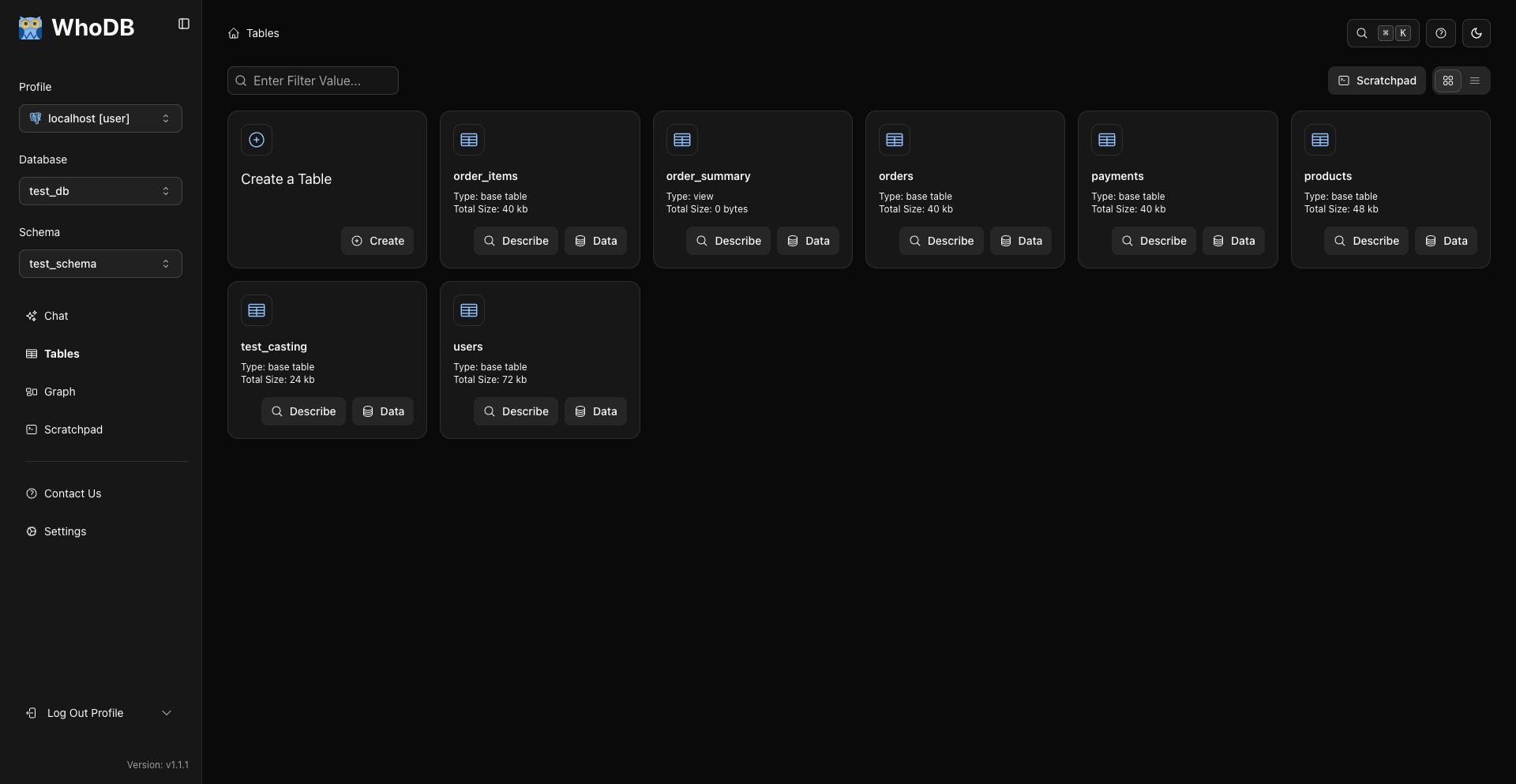
Common routes are:
- Chat when AI chat is available.
- Storage Units for objects such as tables, views, and collections.
- Graph when relationship metadata is available.
- Scratchpad for SQL queries.
- Settings in the lower sidebar.
Use Cmd/Ctrl + B to toggle the sidebar.
3. Browse Storage Units
Open Storage Units. Search filters object names on this page.
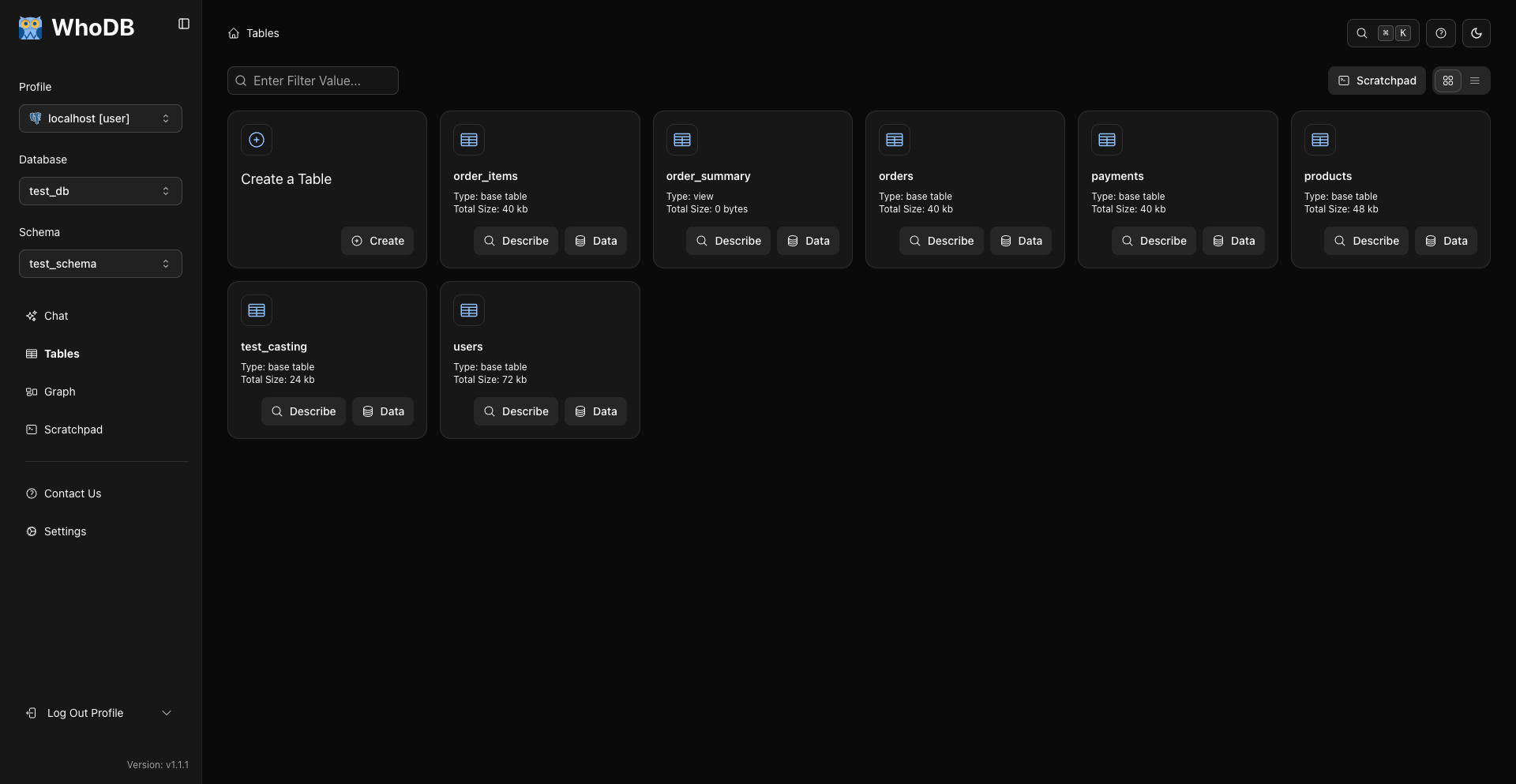
Each card has:
- Describe to expand object metadata and columns.
- Data to open rows for that object.
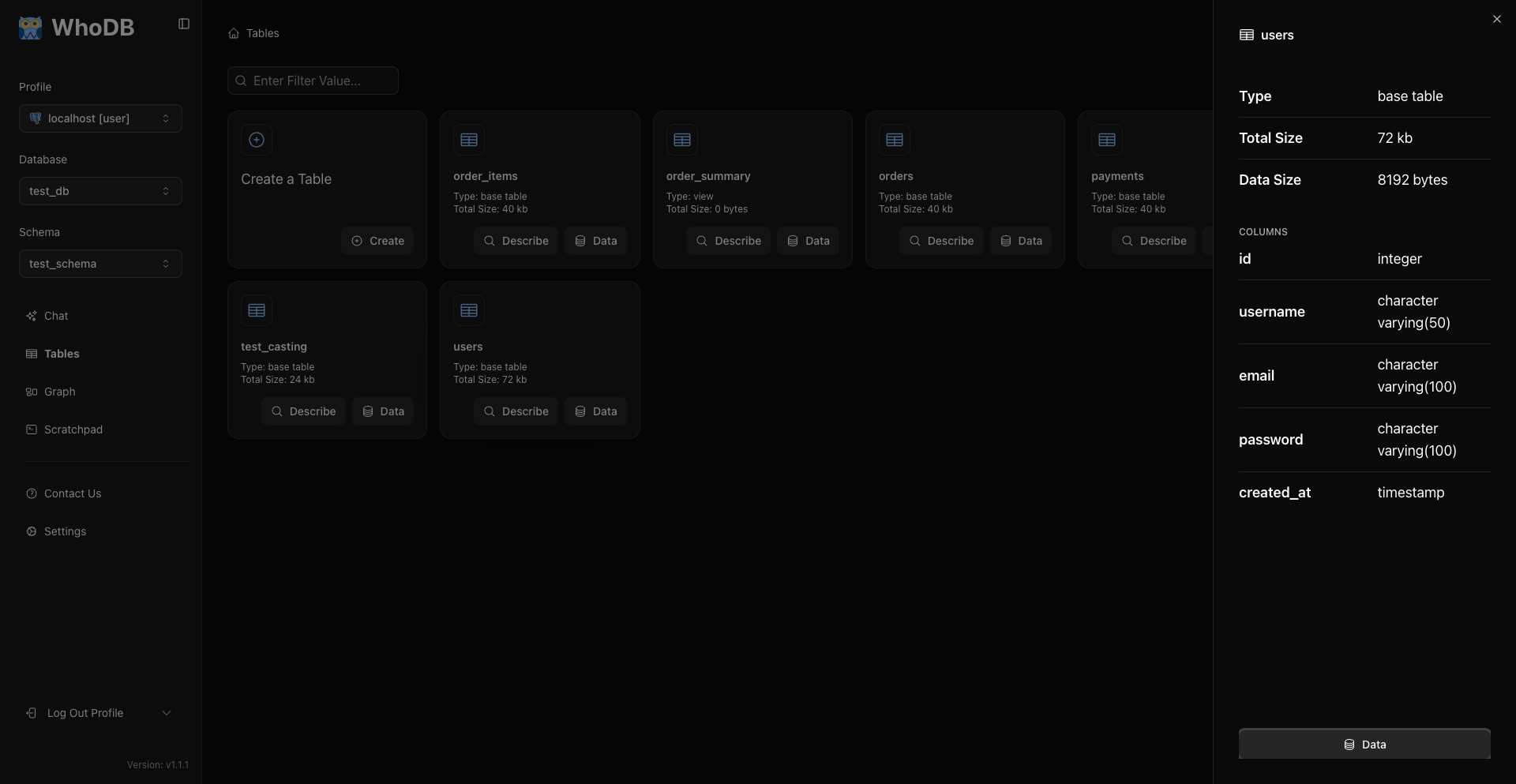
Use Describe for structure and Data for rows.
4. View Table Data
Click Data on an object card.
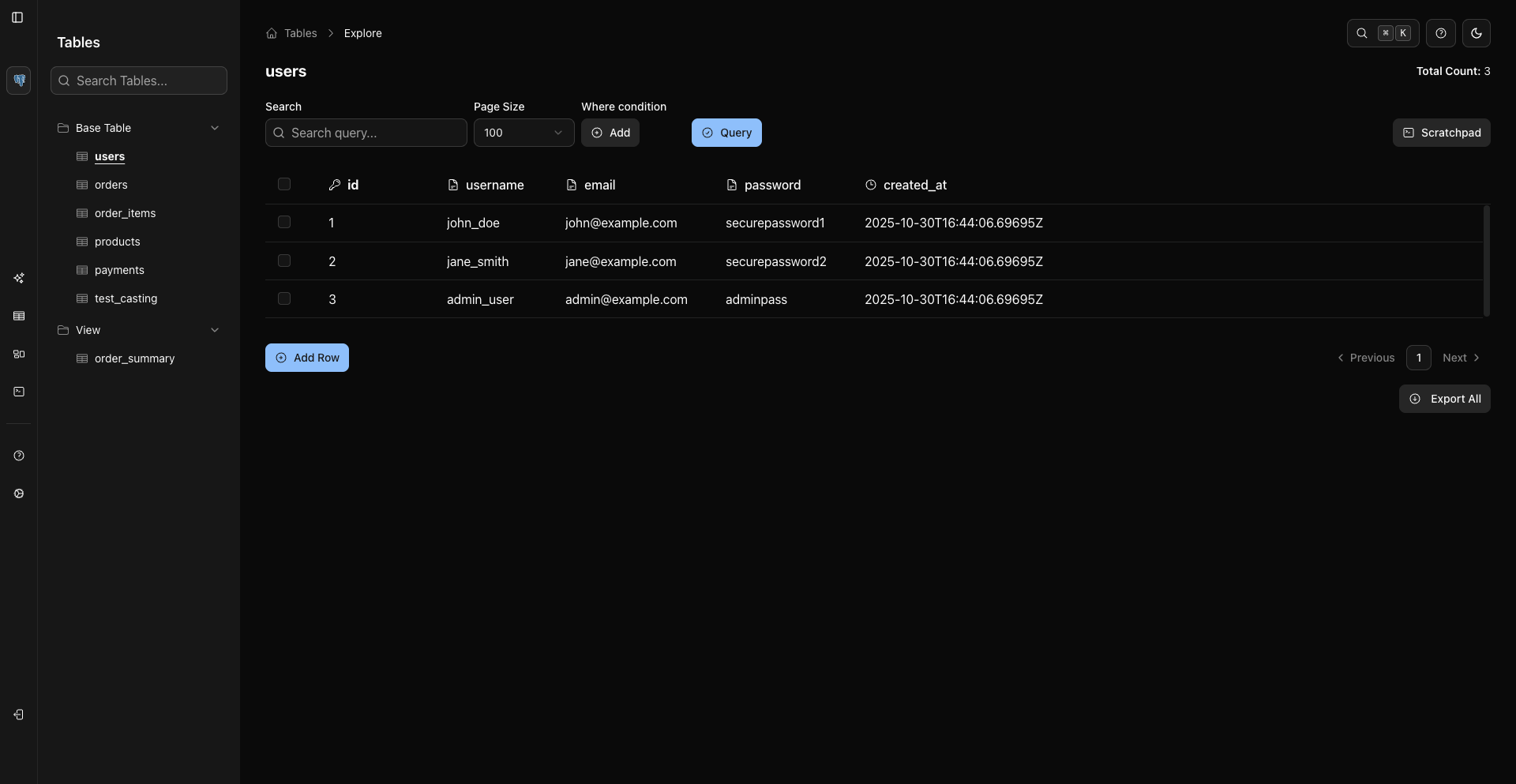
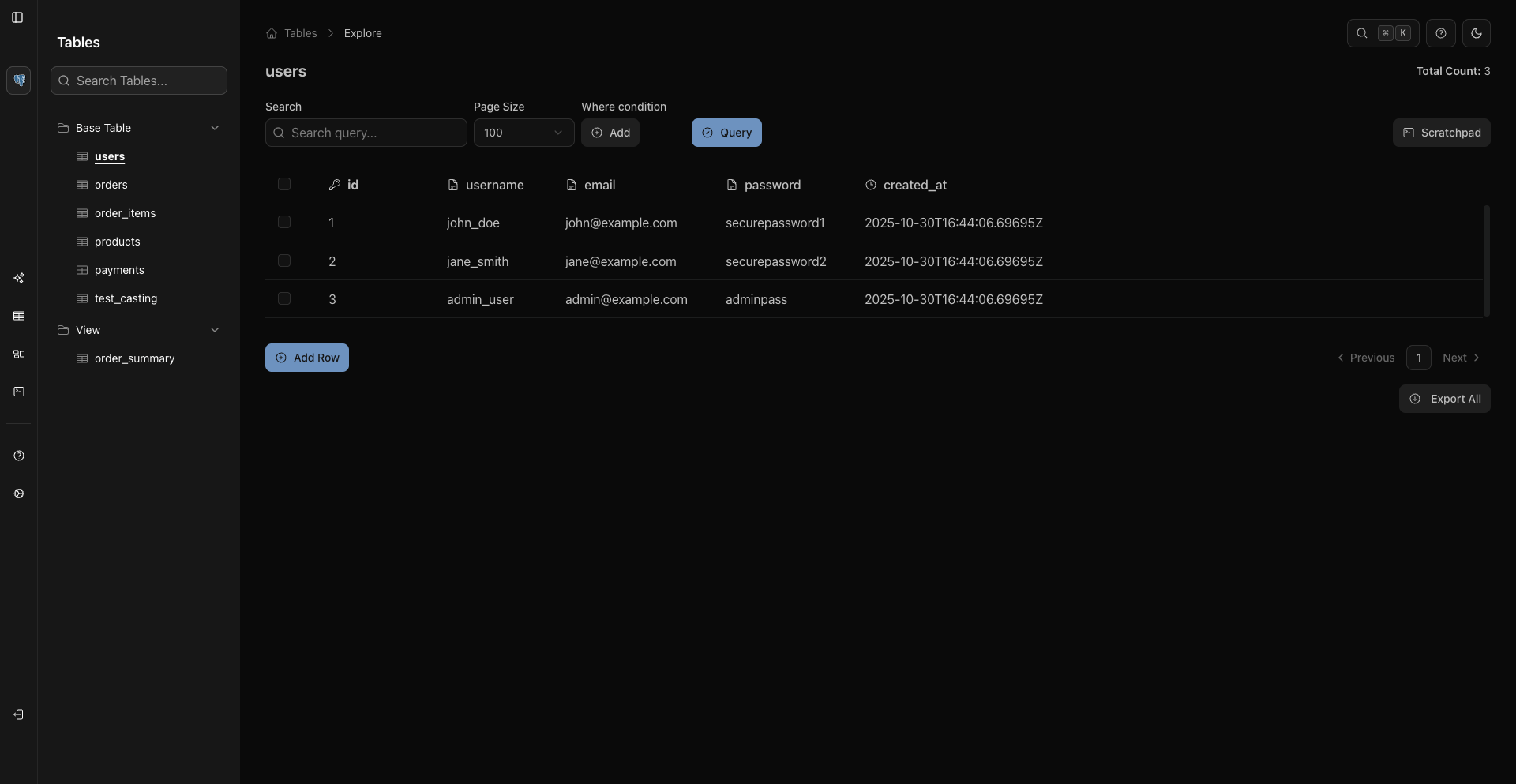
The data page includes:
- Search for currently loaded rows.
- Page size and pagination.
- WHERE conditions.
- Query button.
- Sortable columns.
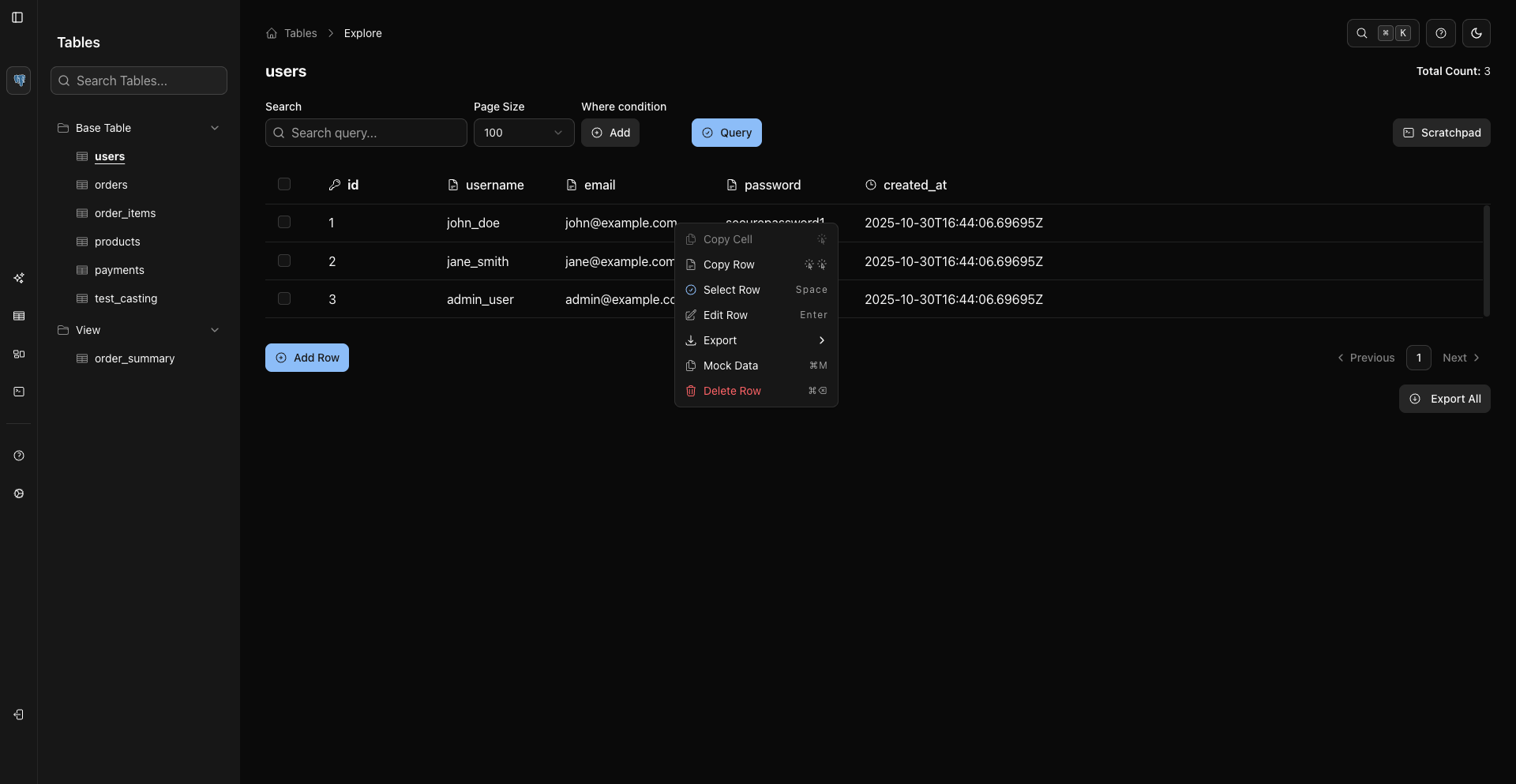
- Row context menu.
- Add Row when inserts are supported.
- Export and mock data actions when supported.
5. Search And Filter
Use the search field to find values in the rows currently loaded in the grid. Search scrolls/highlights matches; use WHERE conditions for server-side filtering.
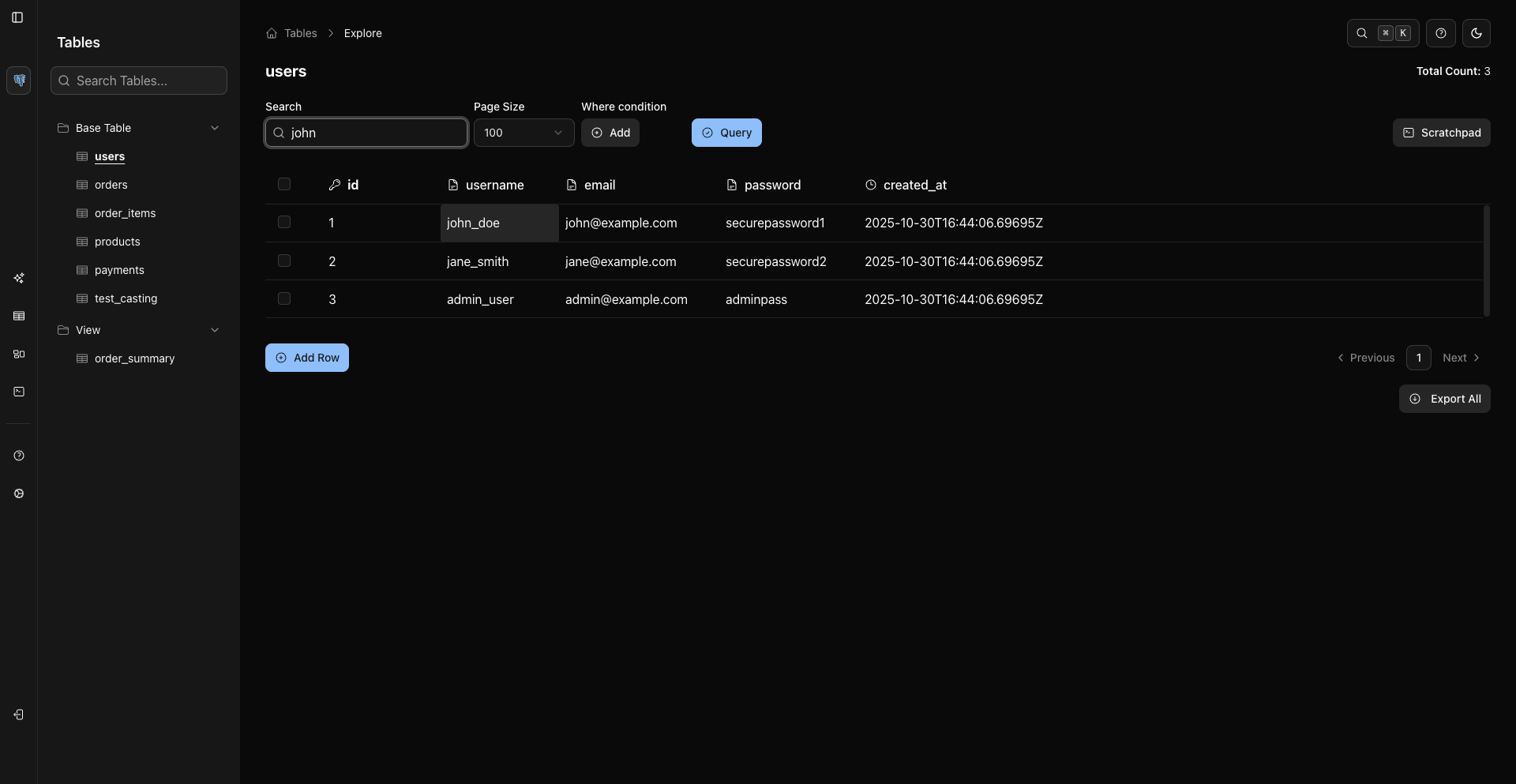
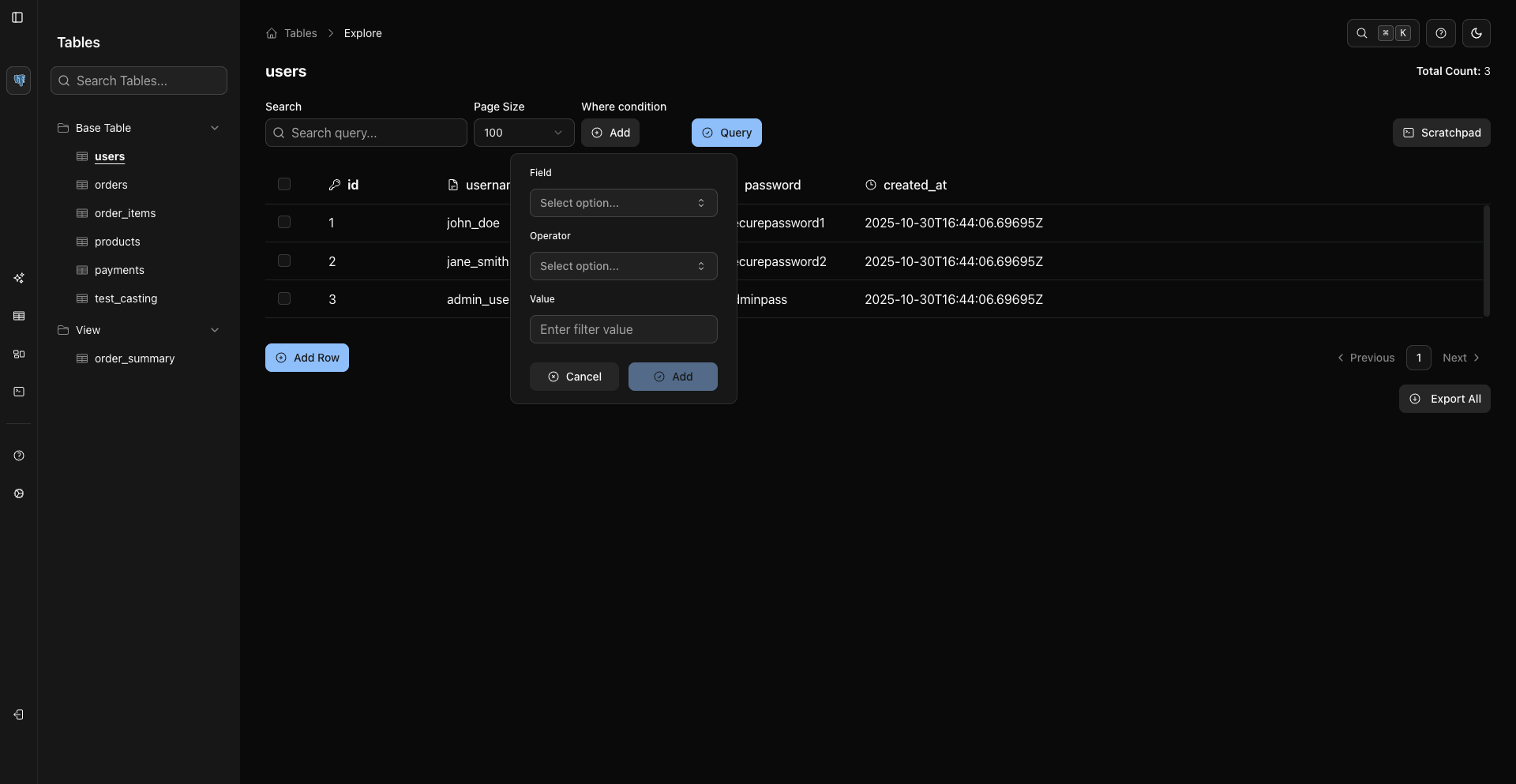
Use WHERE conditions for real filtering:
- Click Add beside Where condition.
- Select field, operator, and value.
- Add the condition.
- Click Query to reload the grid.
6. Sort And Paginate
Click a column header to sort. Shift-click another header to add a secondary sort.
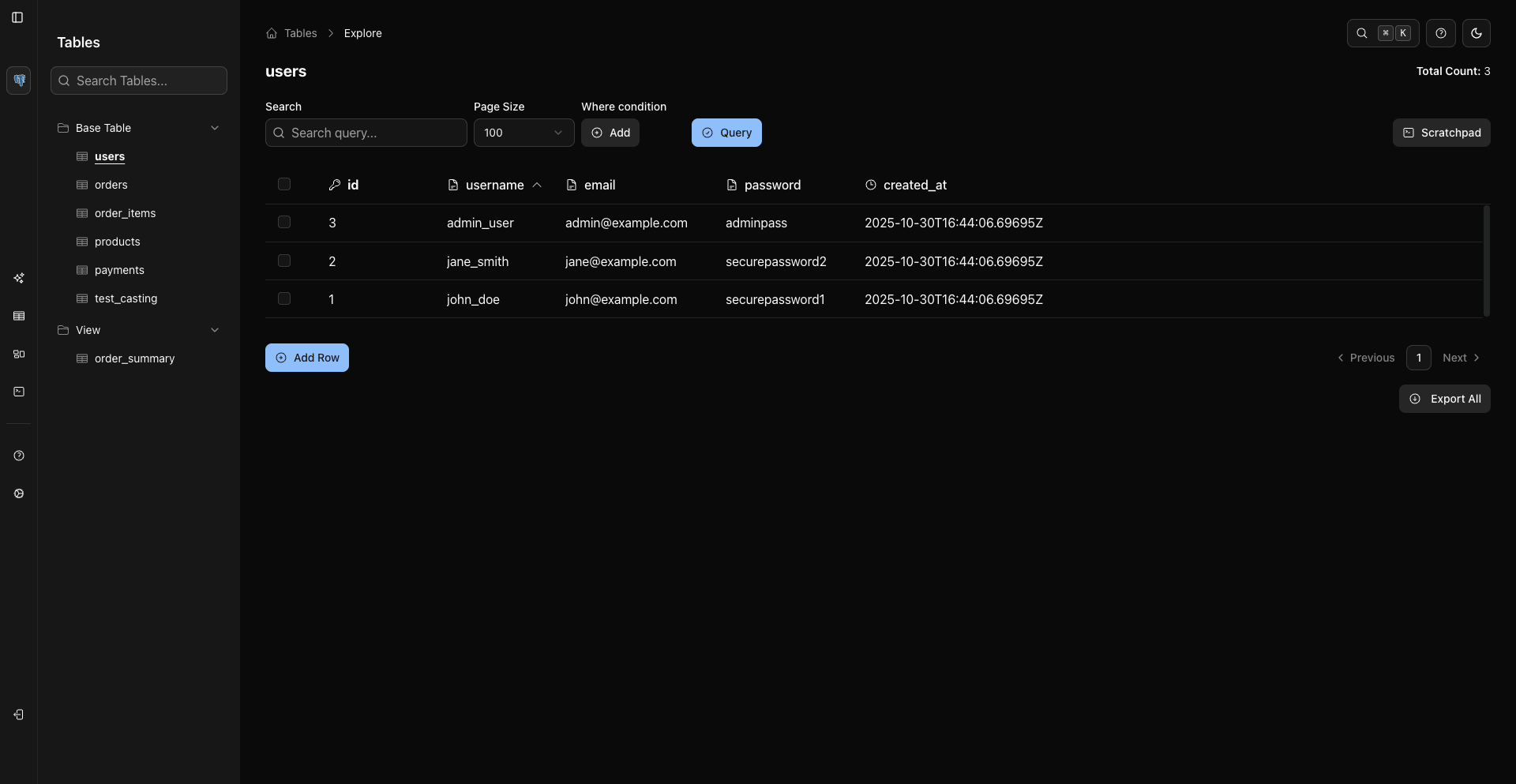
Use the page-size dropdown and pagination controls at the bottom of the grid.

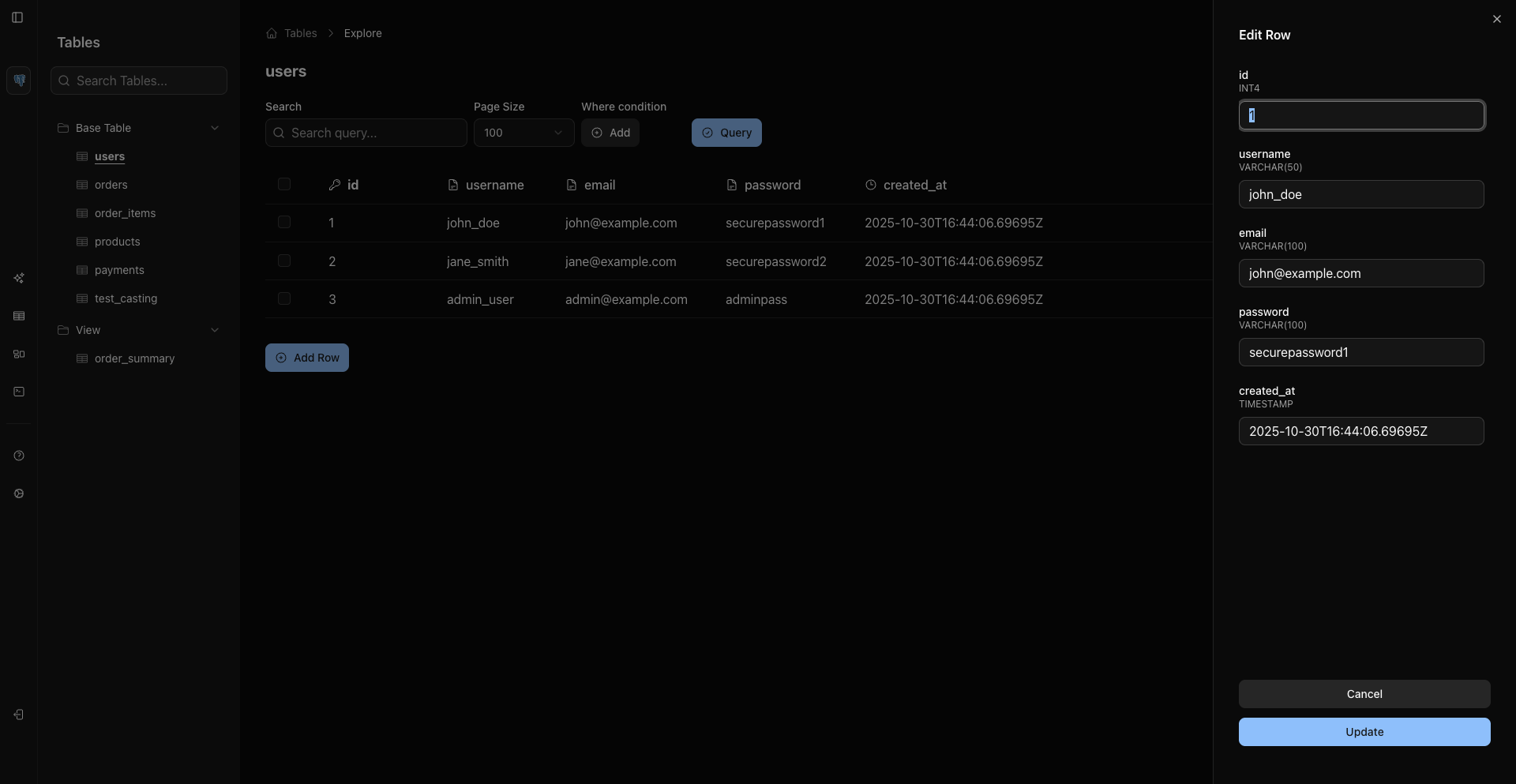
7. Add, Edit, And Delete Rows
When the source and credentials allow writes:
- Add Row opens a right-side sheet below the grid controls.
- Row context menu Edit Row opens an edit sheet.
- Row context menu Delete Row opens a confirmation dialog.
8. Use Scratchpad
Open Scratchpad from the sidebar.
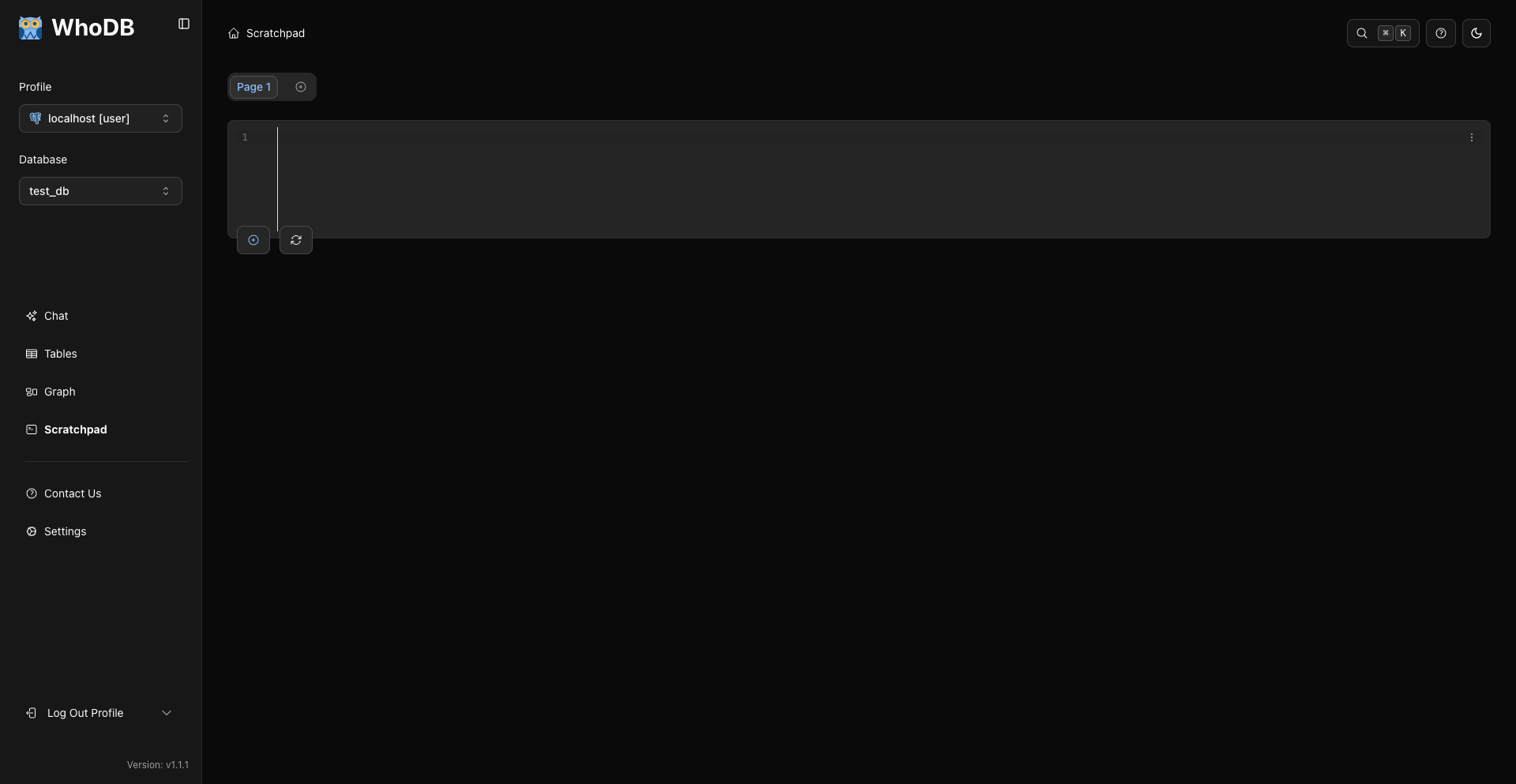
Type SQL and run it with the blue run button or Cmd/Ctrl + Enter.
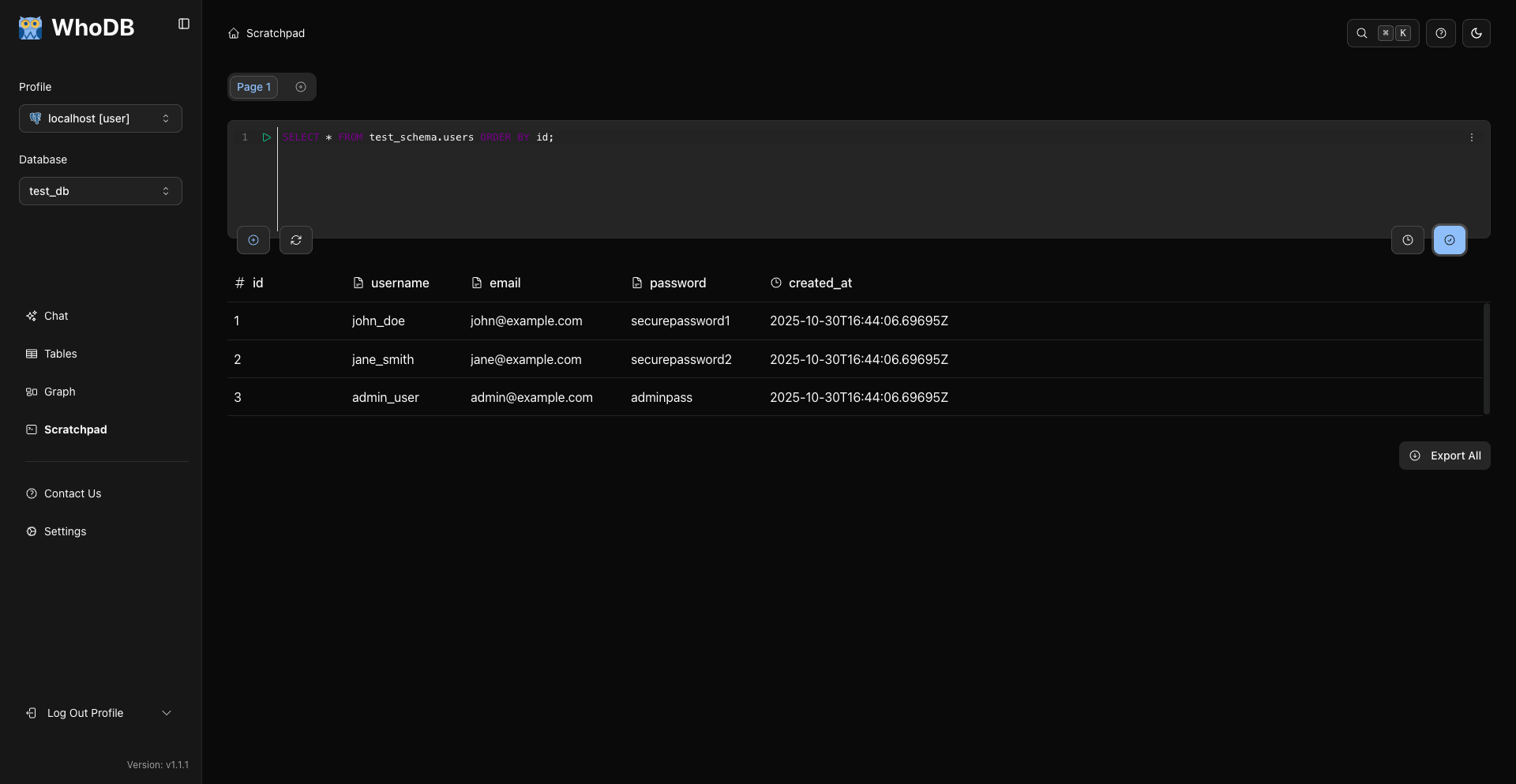
Scratchpad supports pages and stacked cells. Add pages with the plus tab. Add cells from the hover controls inside a page.
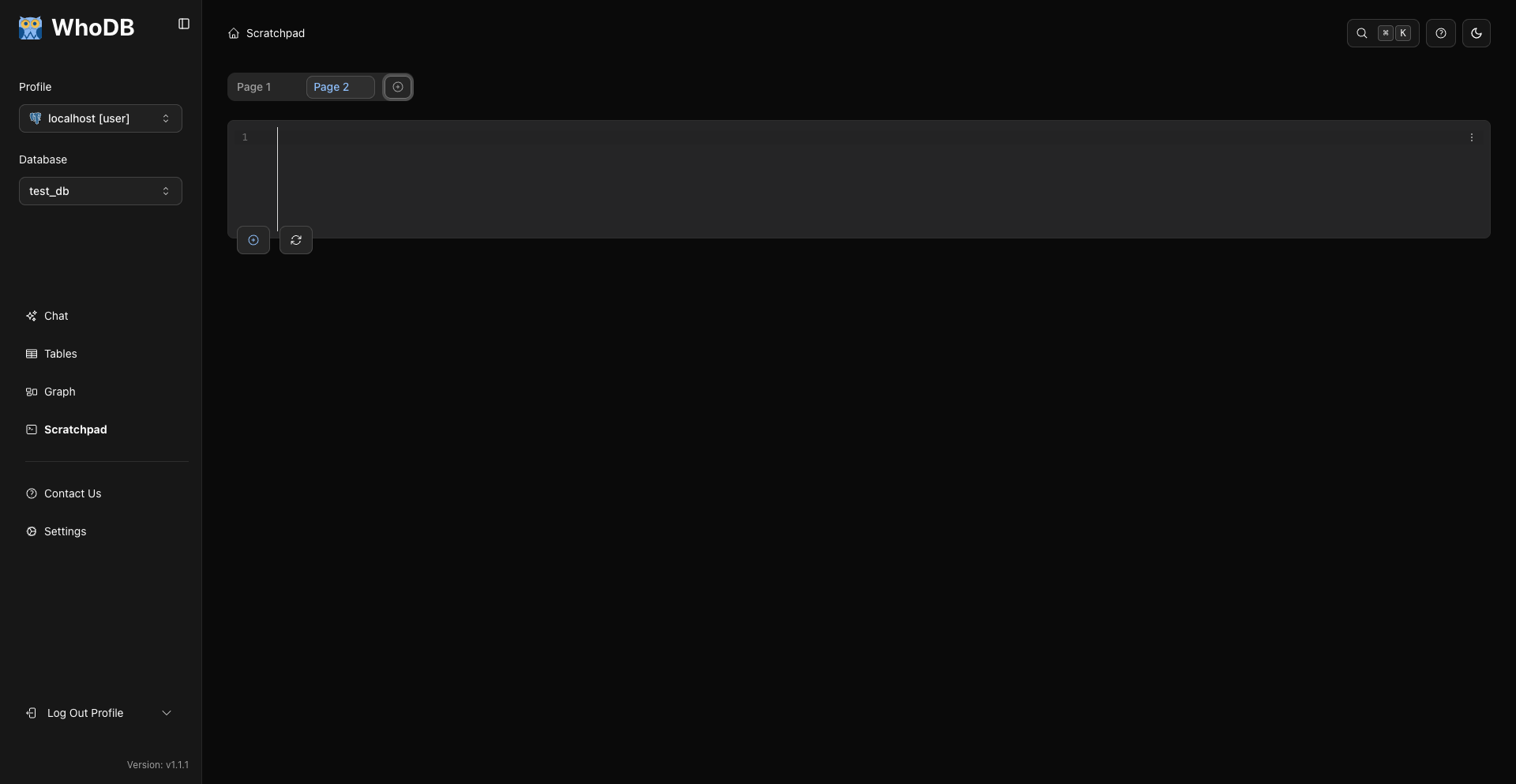
The main editor shortcuts are Cmd/Ctrl + Enter to run and Cmd/Ctrl + U to clear.
9. Export Data
Use export from the grid or Scratchpad result table.
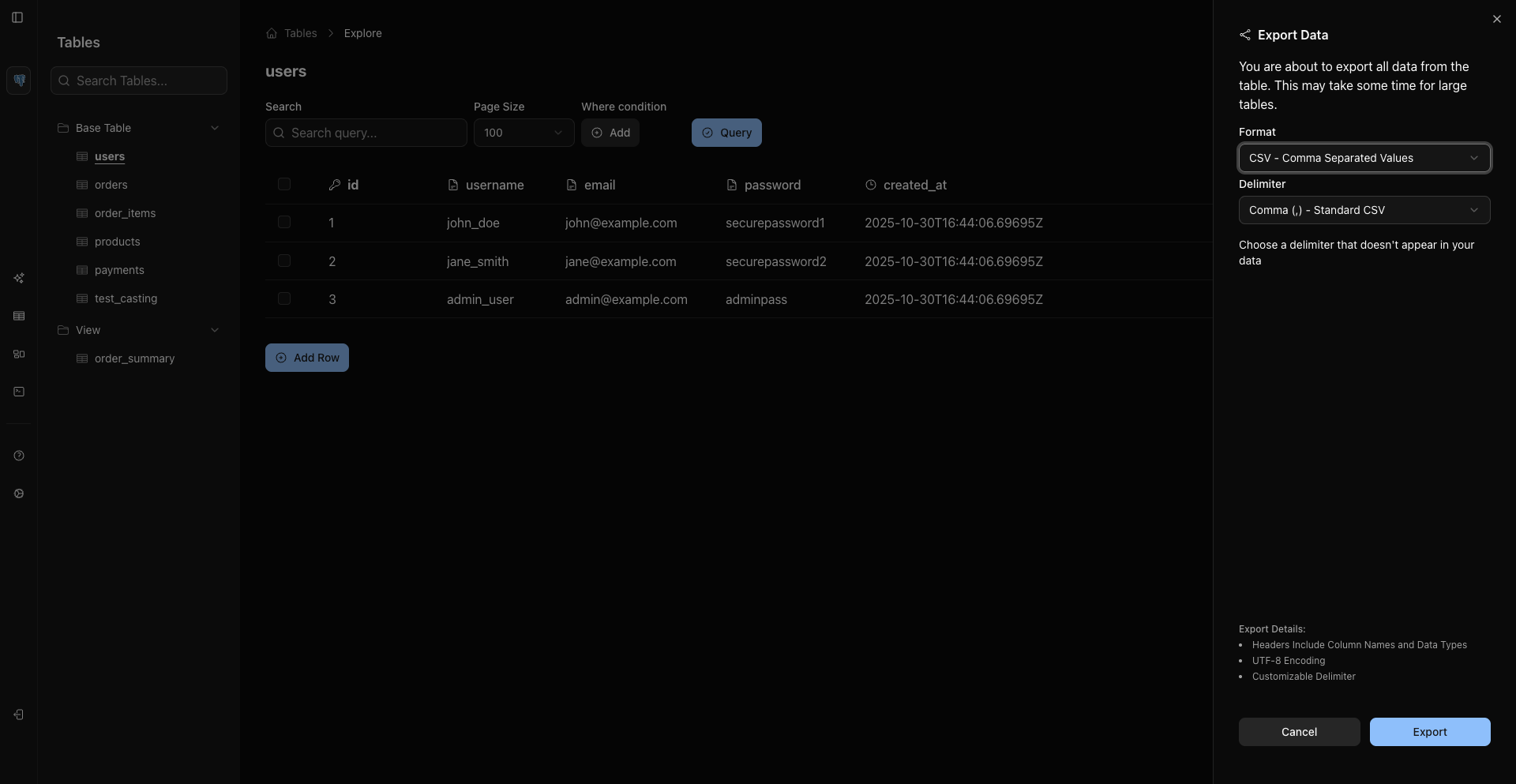
Current CE formats are:
- CSV.
- Excel
.xlsx. - JSON Lines for records from sources like MongoDB when supported.
For SQL backups and migration dumps, use native database tools.
10. Explore Graph
Open Graph from the sidebar.
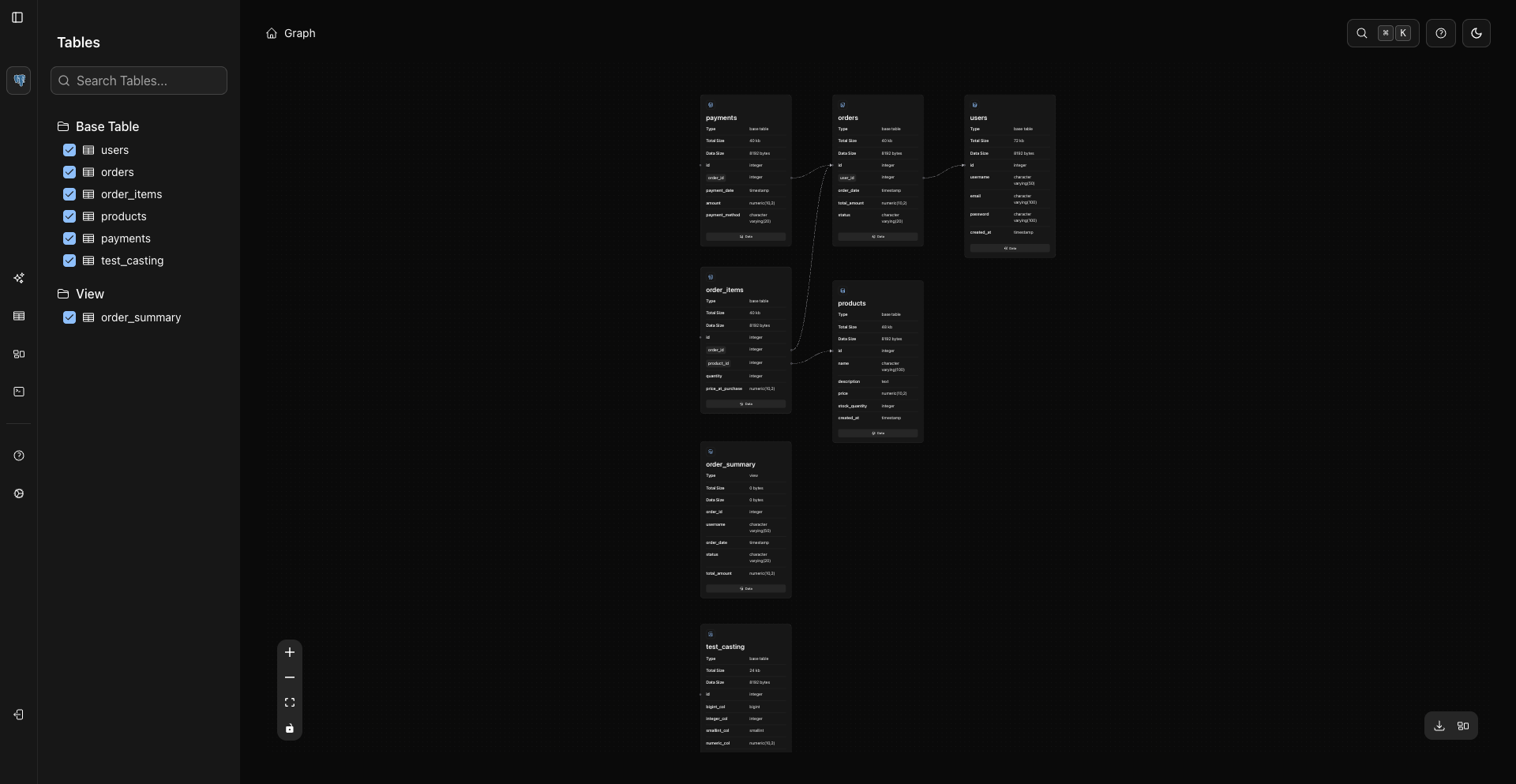
Use the graph sidebar to select objects. Nodes render metadata and loaded columns directly in the card. The lower-left controls zoom, fit view, and interaction mode. The lower-right actions include download/export and layout controls.
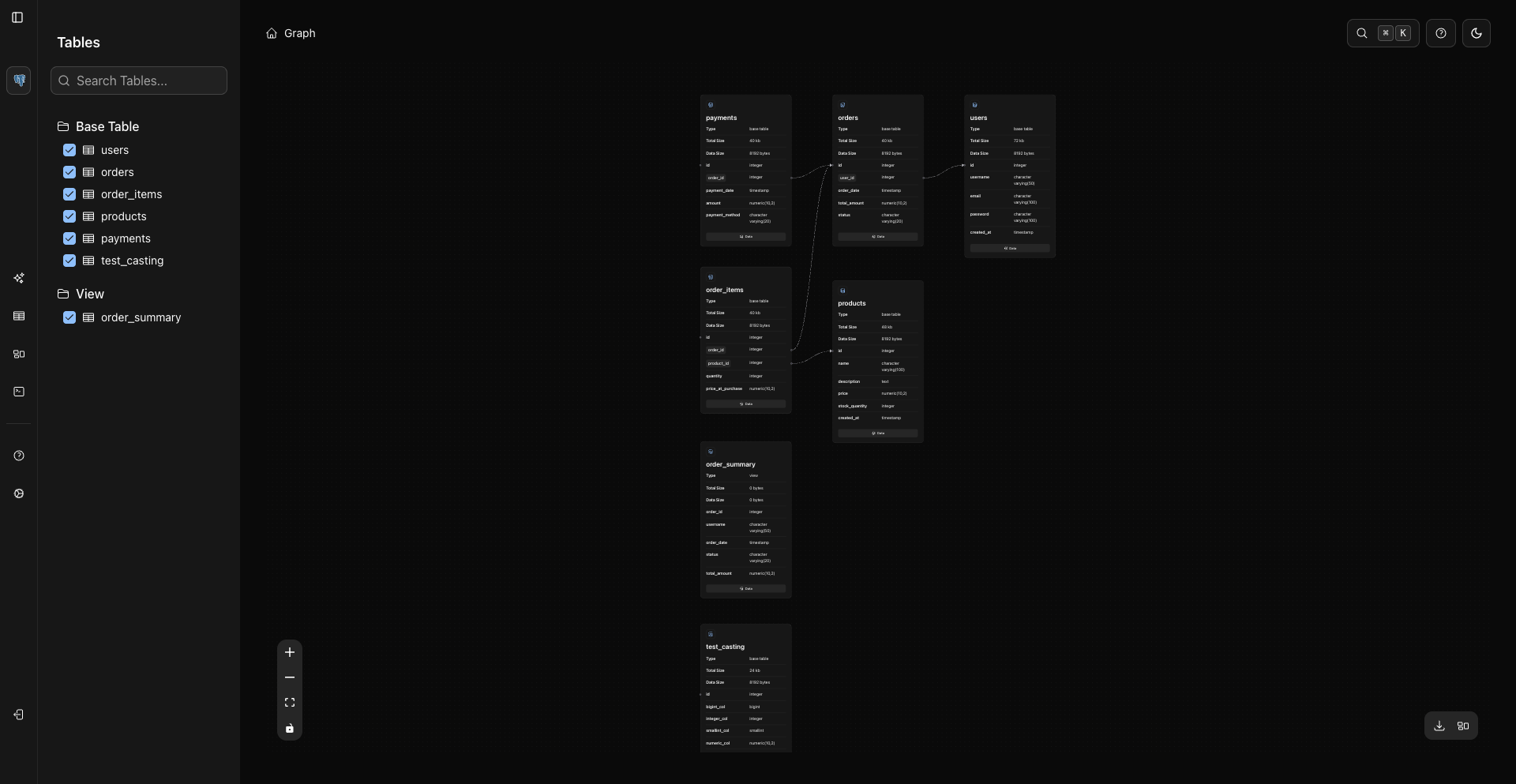
Clicking a graph node can load columns. Use the node's Data button to open the object's data page.
Related Pages
Previous