
Use Case Guides
Data Migration
Data Migration
WhoDB helps you inspect source and destination databases, run validation SQL, and export small or moderate datasets.
Migration Workflow
- Connect to the source database.
- Use Storage Units and Describe to inspect objects.
- Use Data and WHERE conditions to sample rows.
- Use Scratchpad for row counts, quality checks, and post-migration validation.
- Use native database tools for large exports/imports.
- Reconnect to the destination database and validate.
Inspect Source Structure
Open Storage Units and click Describe on important objects.
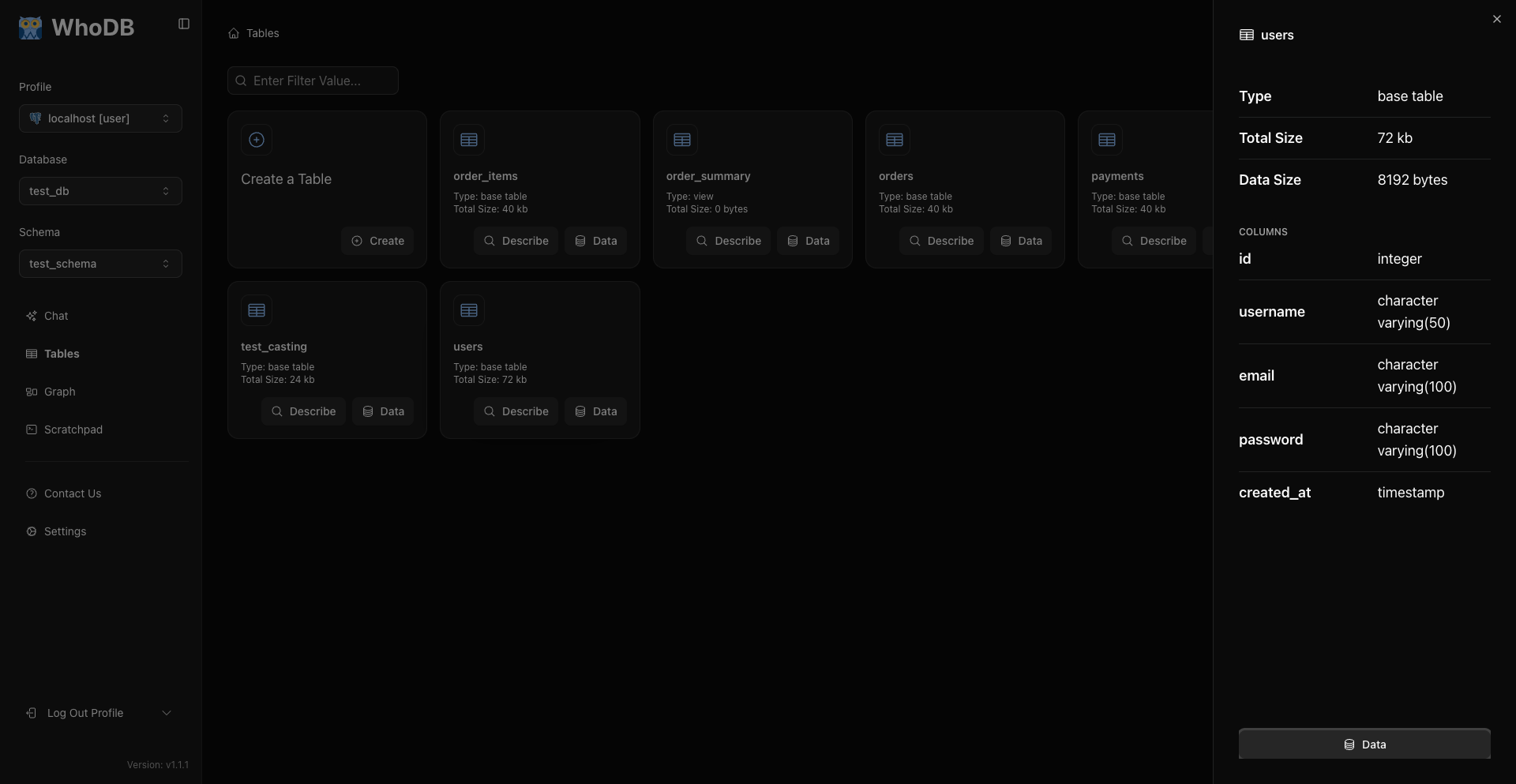
Use Describe for structure and Data for rows.
Run Pre-Migration Checks
Open Scratchpad and run source validation queries.
sql
SELECT COUNT(*) AS total_users
FROM users;
sql
SELECT email, COUNT(*) AS duplicates
FROM users
GROUP BY email
HAVING COUNT(*) > 1;
sql
SELECT COUNT(*) AS missing_email
FROM users
WHERE email IS NULL OR email = '';
Export From WhoDB
Use WhoDB export for grid-sized workflows.
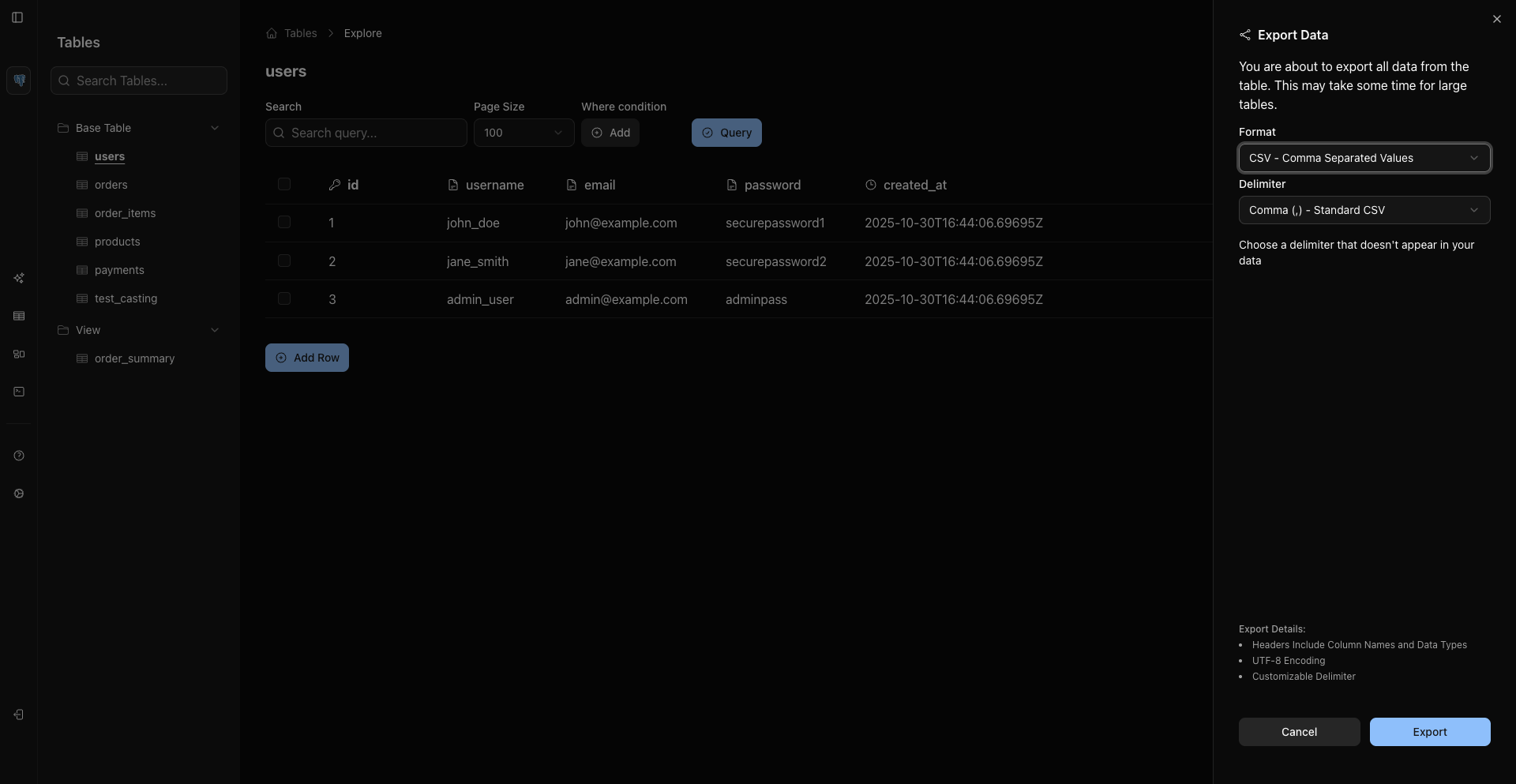
Current CE formats are:
- CSV.
- Excel
.xlsx. - JSON Lines for records from sources like MongoDB when supported.
For SQL dumps and large migrations, use native database tools.
For large migrations, prefer native tools:
- PostgreSQL:
pg_dump,pg_restore,COPY. - MySQL/MariaDB:
mysqldump,mysql,LOAD DATA. - SQLite:
.backup,.dump. - MongoDB:
mongodump,mongorestore.
Validate Destination
After importing into the destination, connect WhoDB to the destination database and run comparable checks:
sql
SELECT COUNT(*) AS total_users
FROM users;
sql
SELECT COUNT(*) AS orphan_payments
FROM payments p
LEFT JOIN users u ON u.id = p.user_id
WHERE u.id IS NULL;
sql
SELECT *
FROM users
ORDER BY id
LIMIT 20;
Document source and destination row counts, orphan checks, duplicate checks, and any known transformations.
Related Pages
Previous