
Role-Based Guides
Developers
Developers
WhoDB is useful during development for inspecting database state, running SQL, generating test data, and validating changes.
Recommended Setup
Use a dedicated development database separate from production.
Examples:
Bash
createdb myapp_dev
Bash
mysql -e "CREATE DATABASE myapp_dev;"
Bash
touch myapp_dev.sqlite
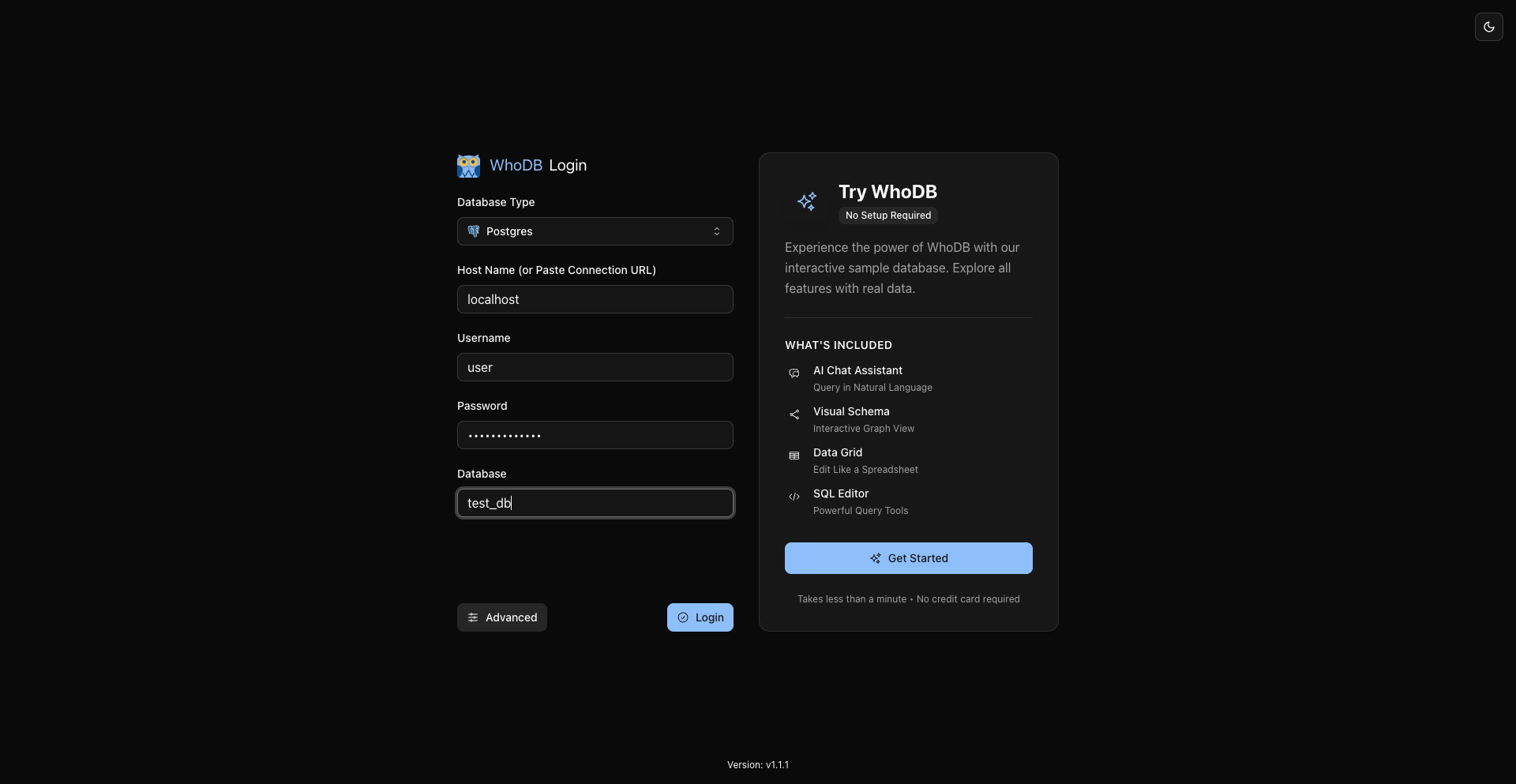
Connect WhoDB to development credentials, not production write credentials.
Inspect Schema And Rows
Open Storage Units.
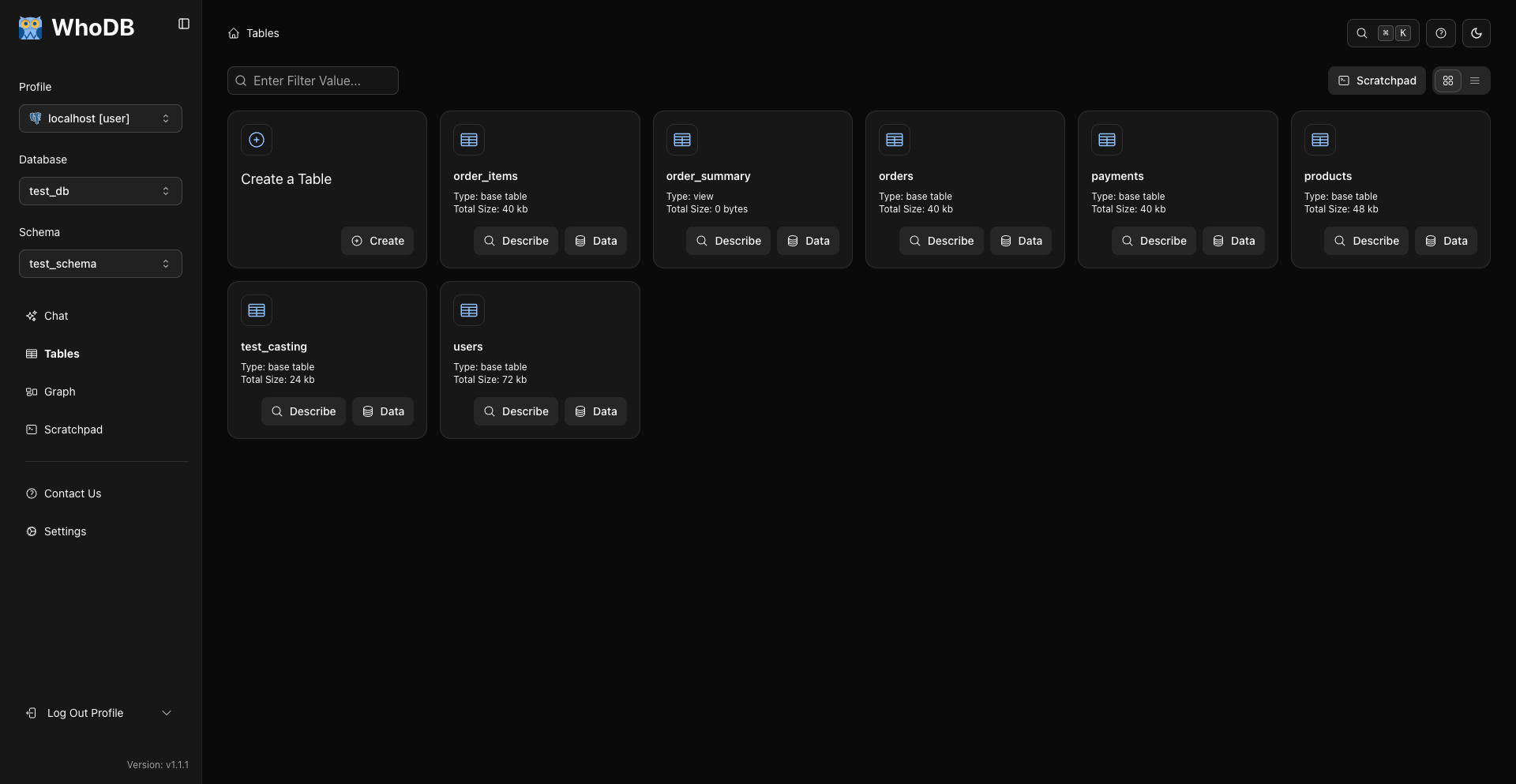
Use Describe to inspect metadata and columns. Use Data to inspect rows.
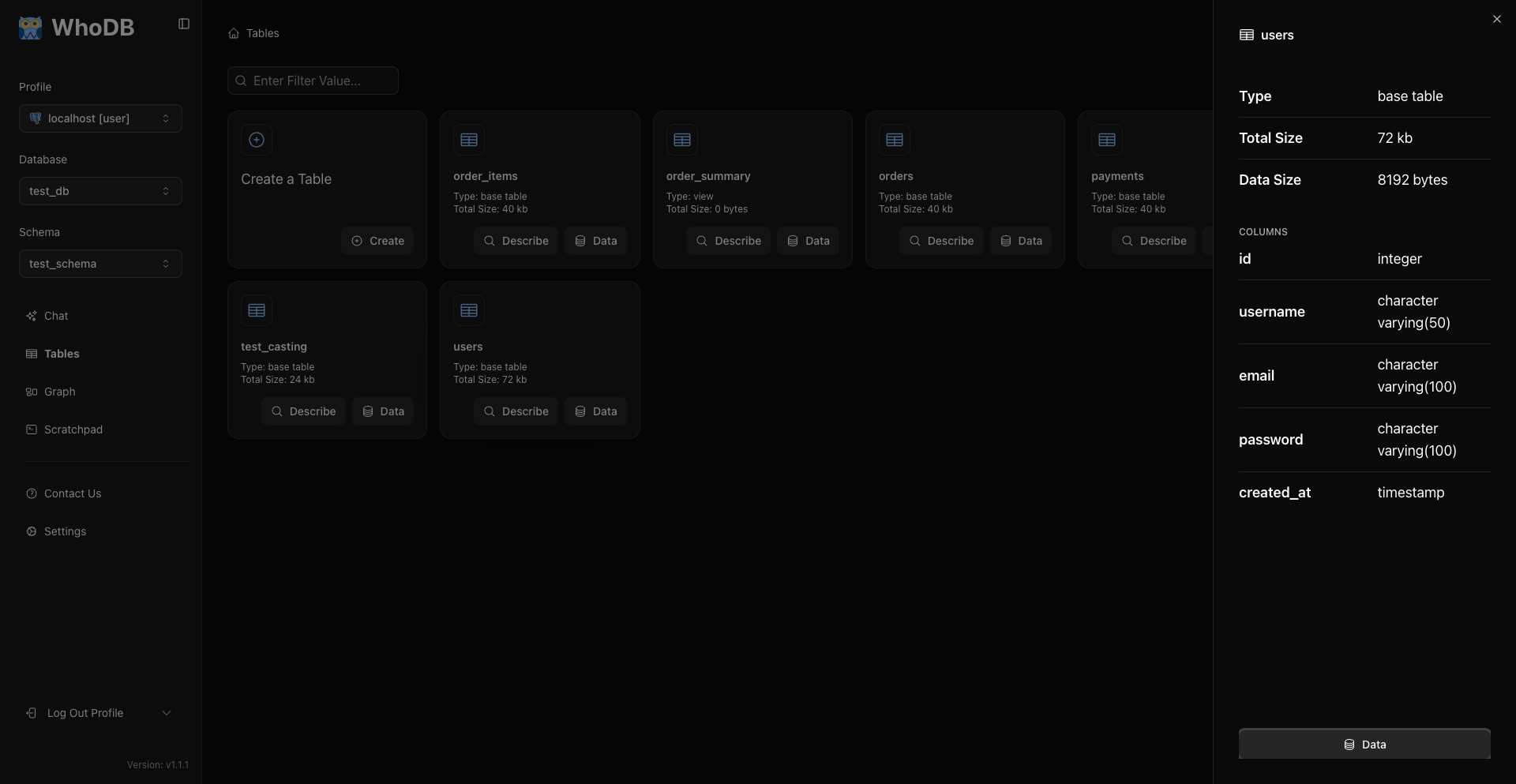
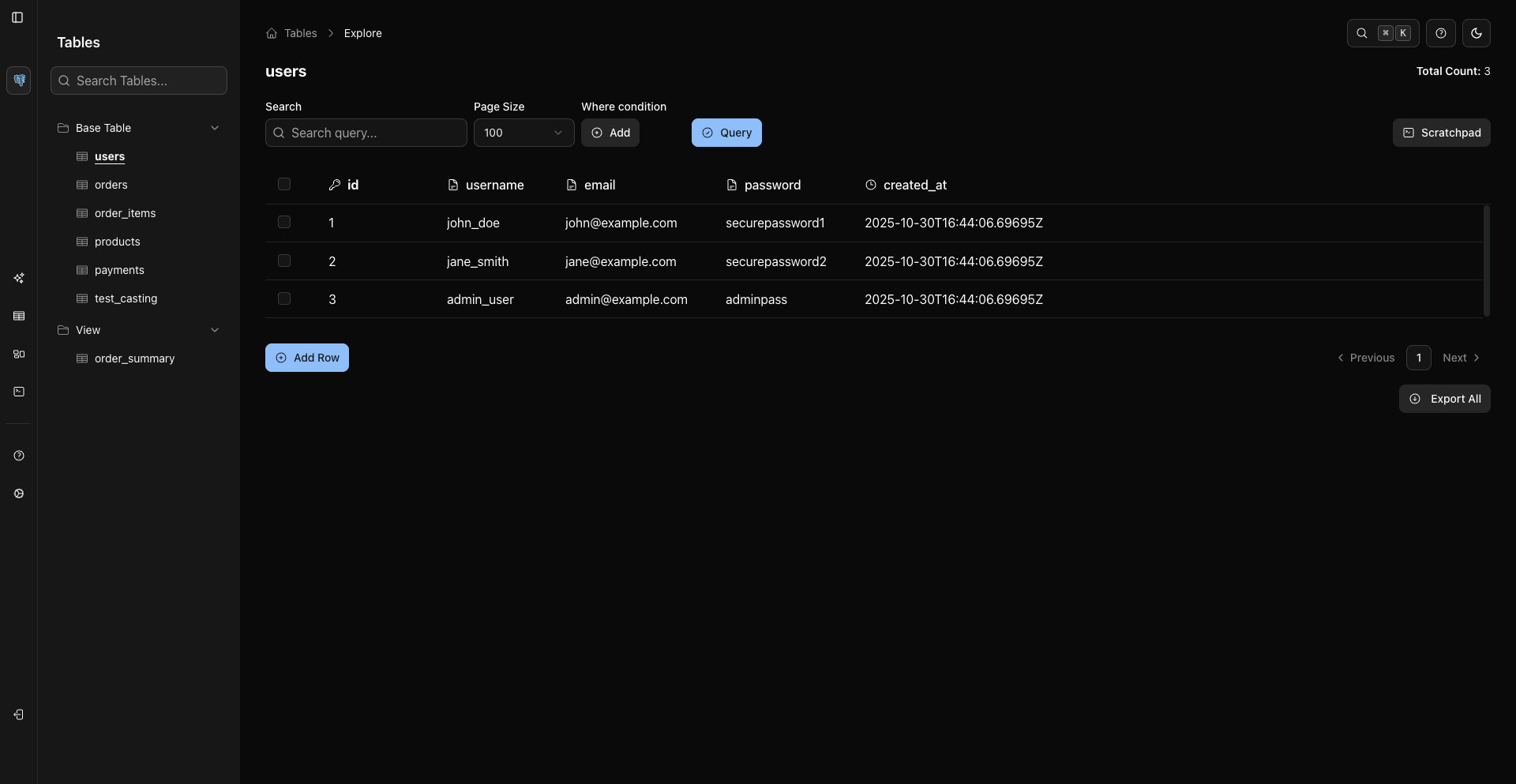
This is the main structure-and-data workflow.
Debug With Scratchpad
Open Scratchpad from the sidebar and run SQL with the blue run button or Cmd/Ctrl + Enter.
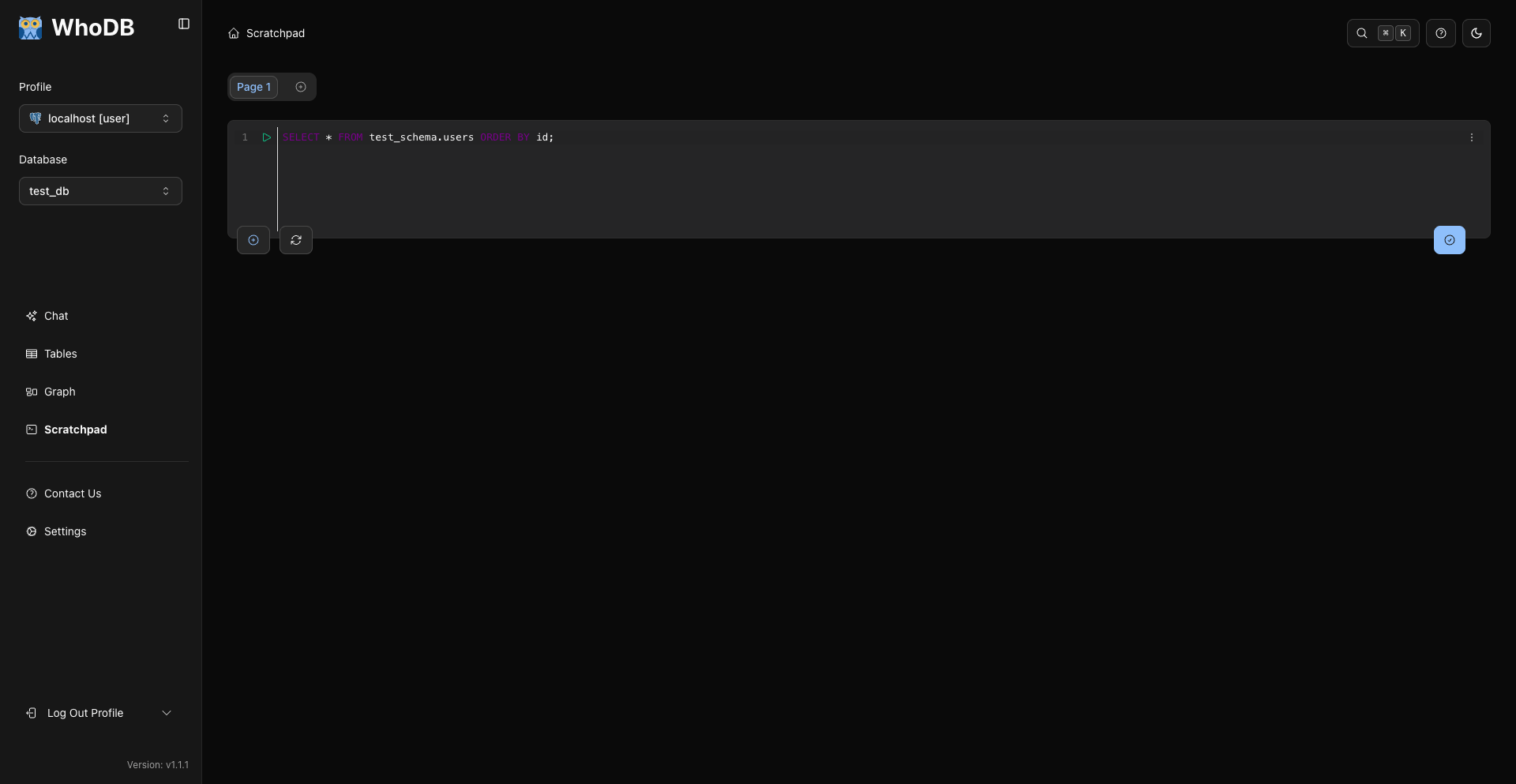
Useful development checks:
sql
SELECT COUNT(*) AS total
FROM users;
sql
SELECT *
FROM orders
WHERE status = 'failed'
ORDER BY created_at DESC
LIMIT 50;
Scratchpad history opens from the cell history button or the cell options menu.
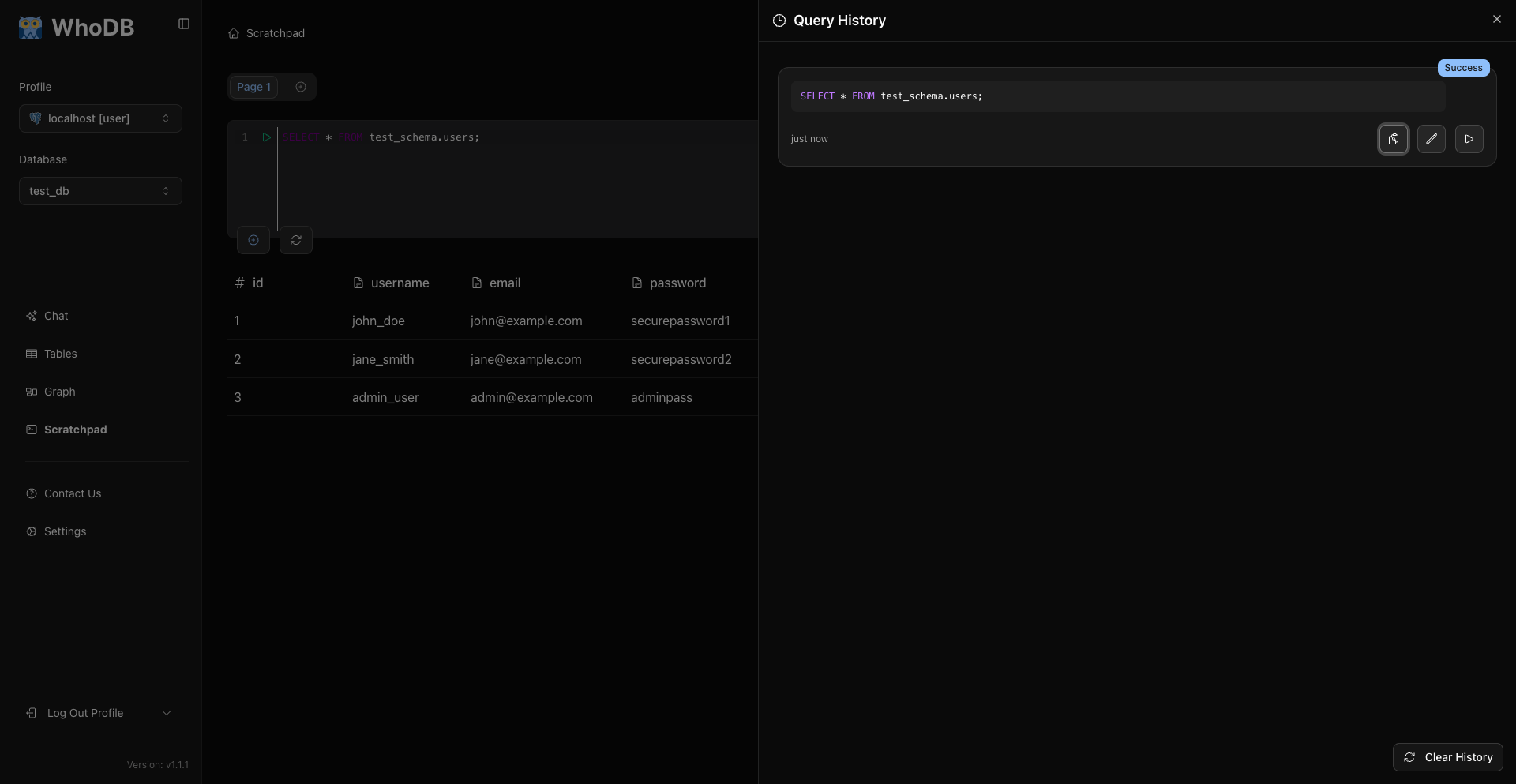
Generate Test Data
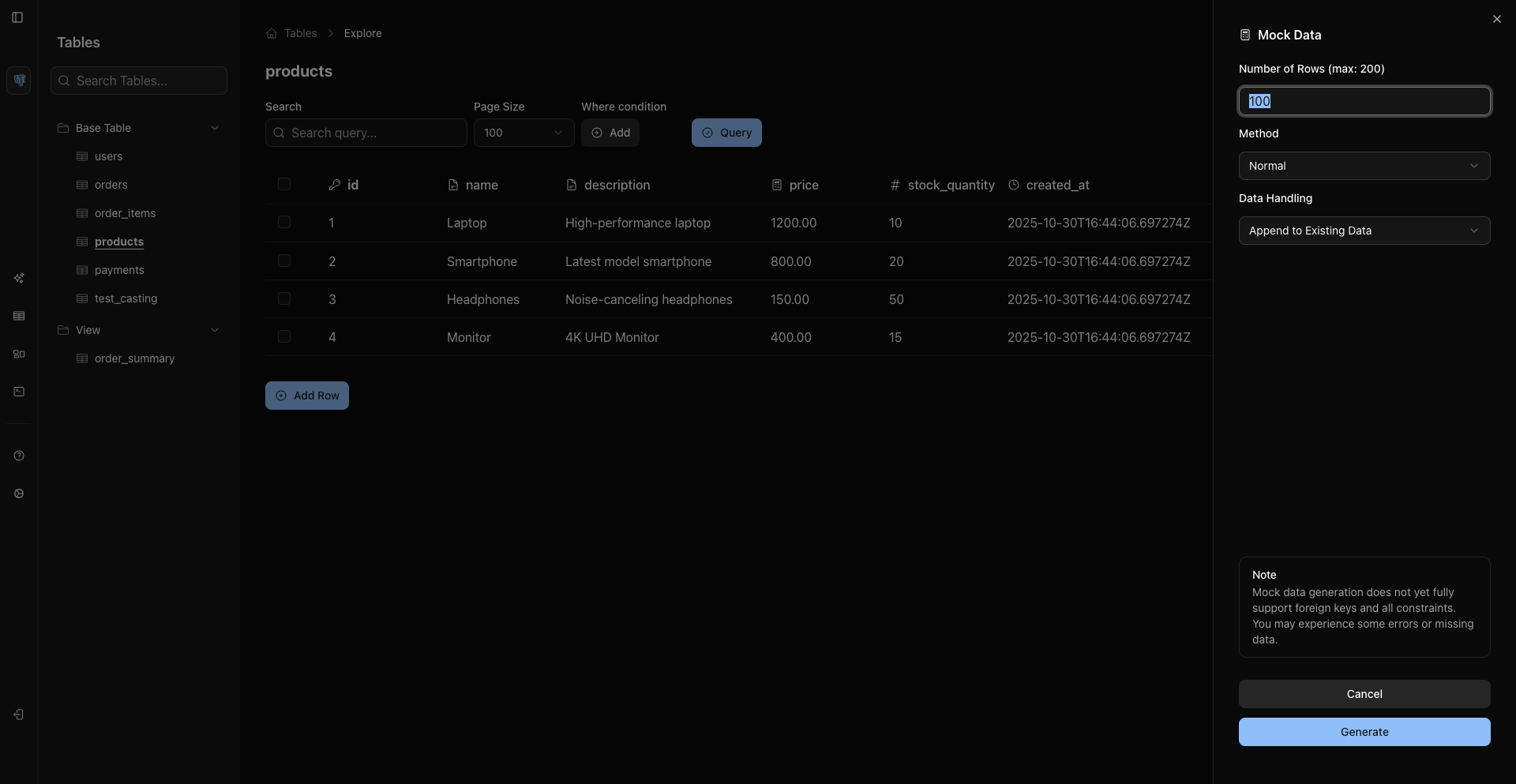
When supported for a table, open mock data generation from the table/header context menu or press Cmd/Ctrl + Shift + G while the table is focused.
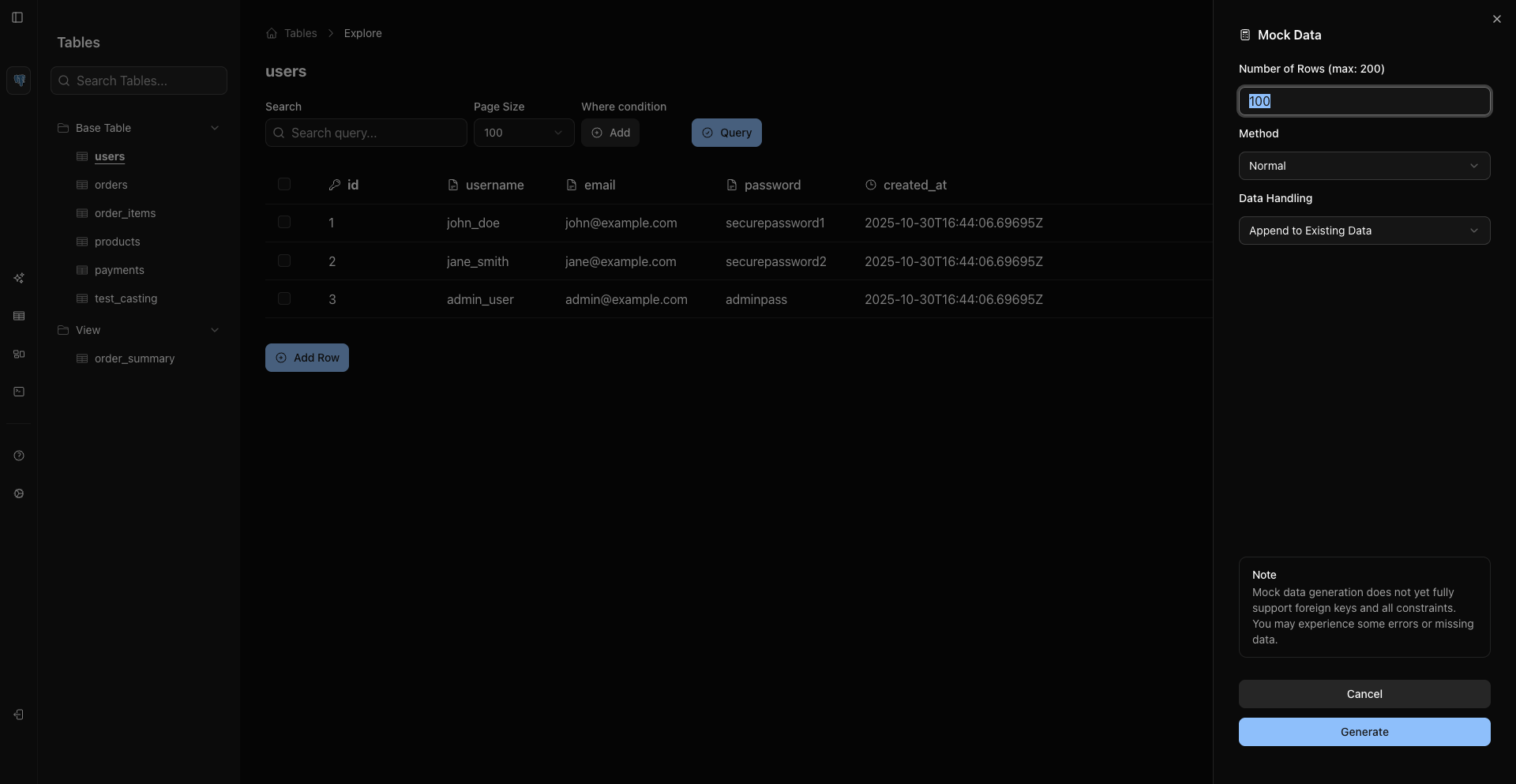
Use append for most development workflows. Use overwrite only when you intentionally want to replace existing rows.
Edit Development Data
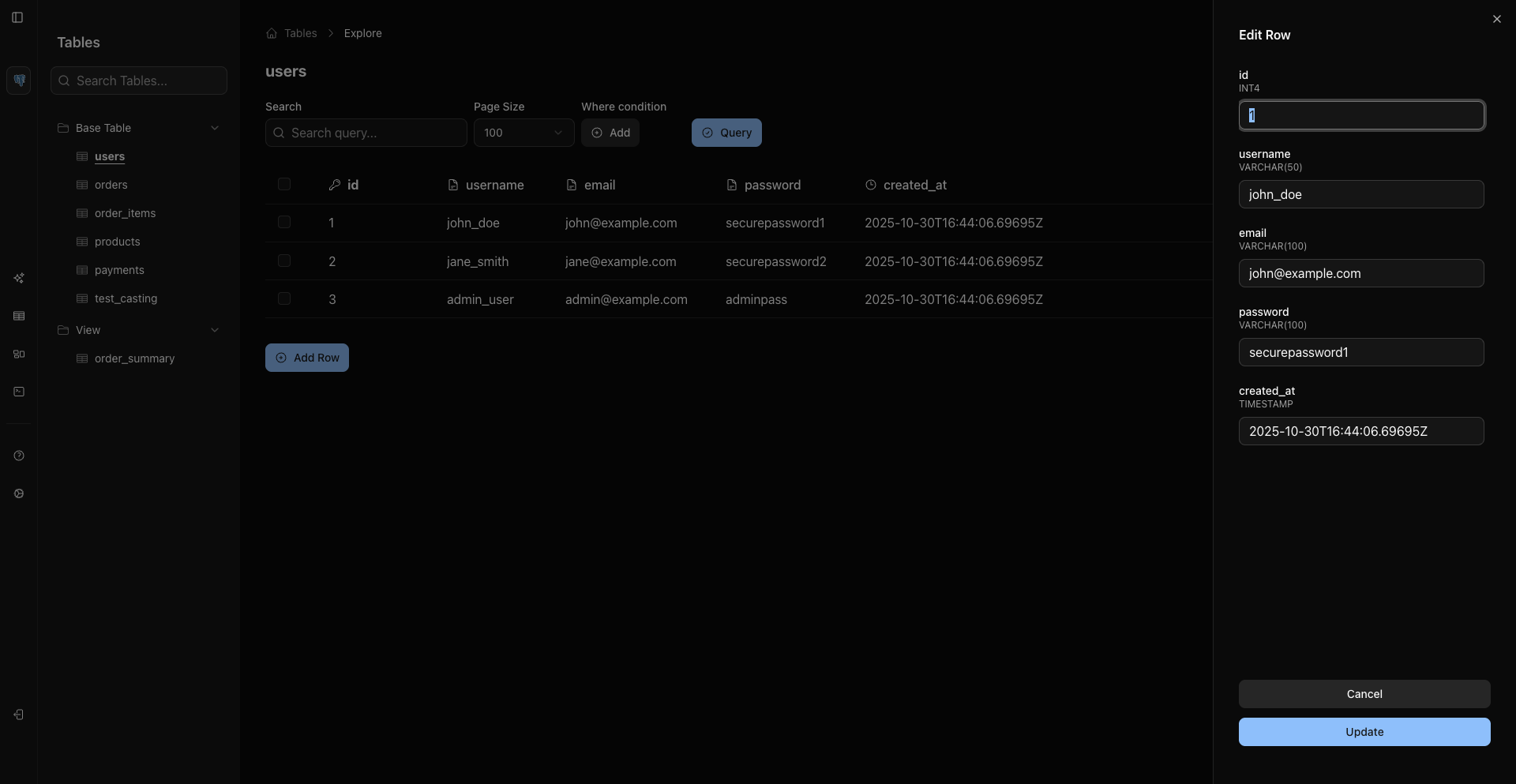
Use row context menus or keyboard shortcuts when your credentials allow writes:
EnterorCmd/Ctrl + Eedits the focused row.Cmd/Ctrl + DeleteorCmd/Ctrl + Backspacestarts delete for the focused row.- Add Row opens a right-side sheet from below the grid.
Export Samples
Use grid export for sample data.
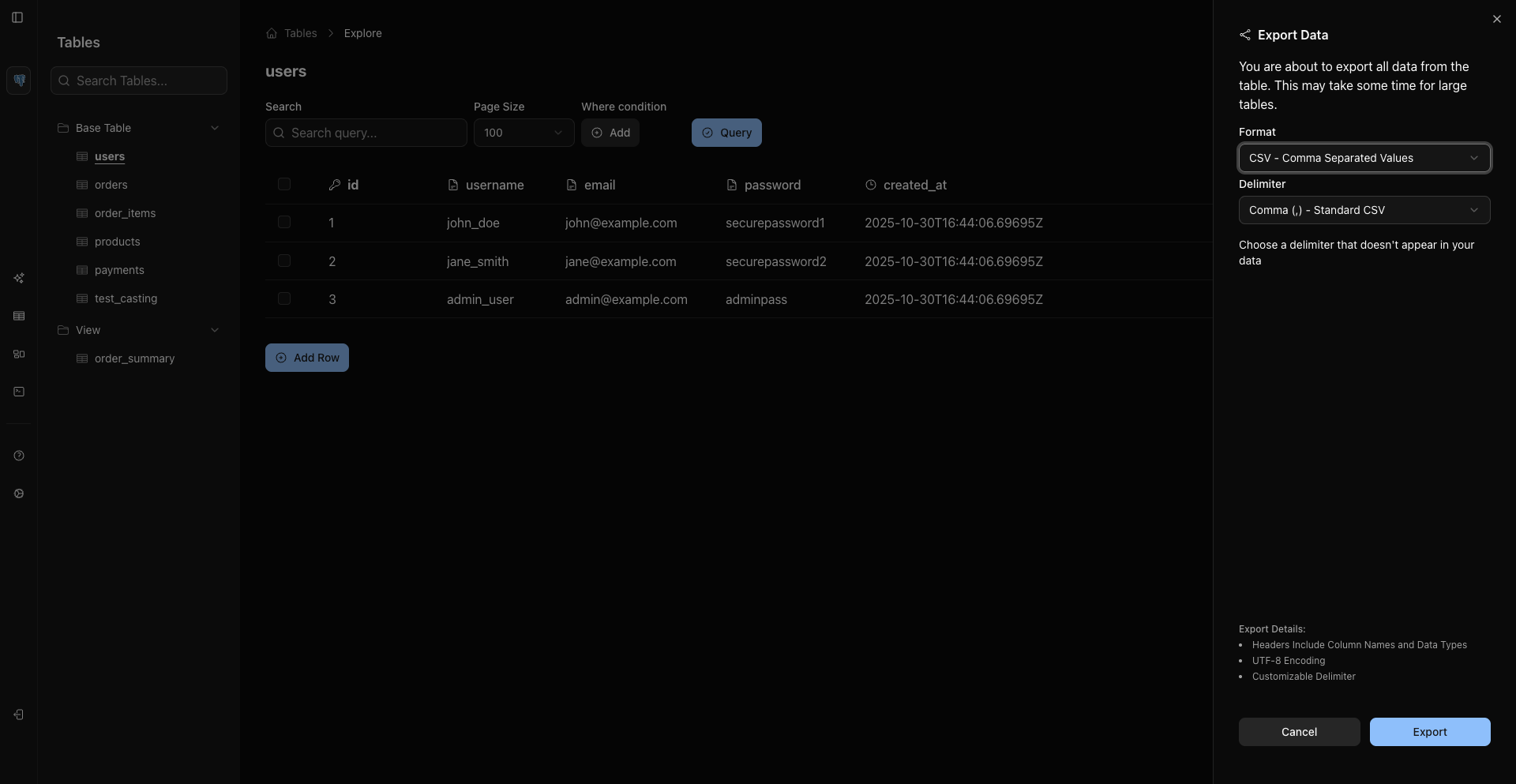
Export formats are CSV, Excel .xlsx, and JSON Lines for records from sources like MongoDB when supported.
For reproducible local fixtures, prefer native database tools or checked-in seed scripts.
Visualize Relationships
Use Graph to understand relationships before writing joins.
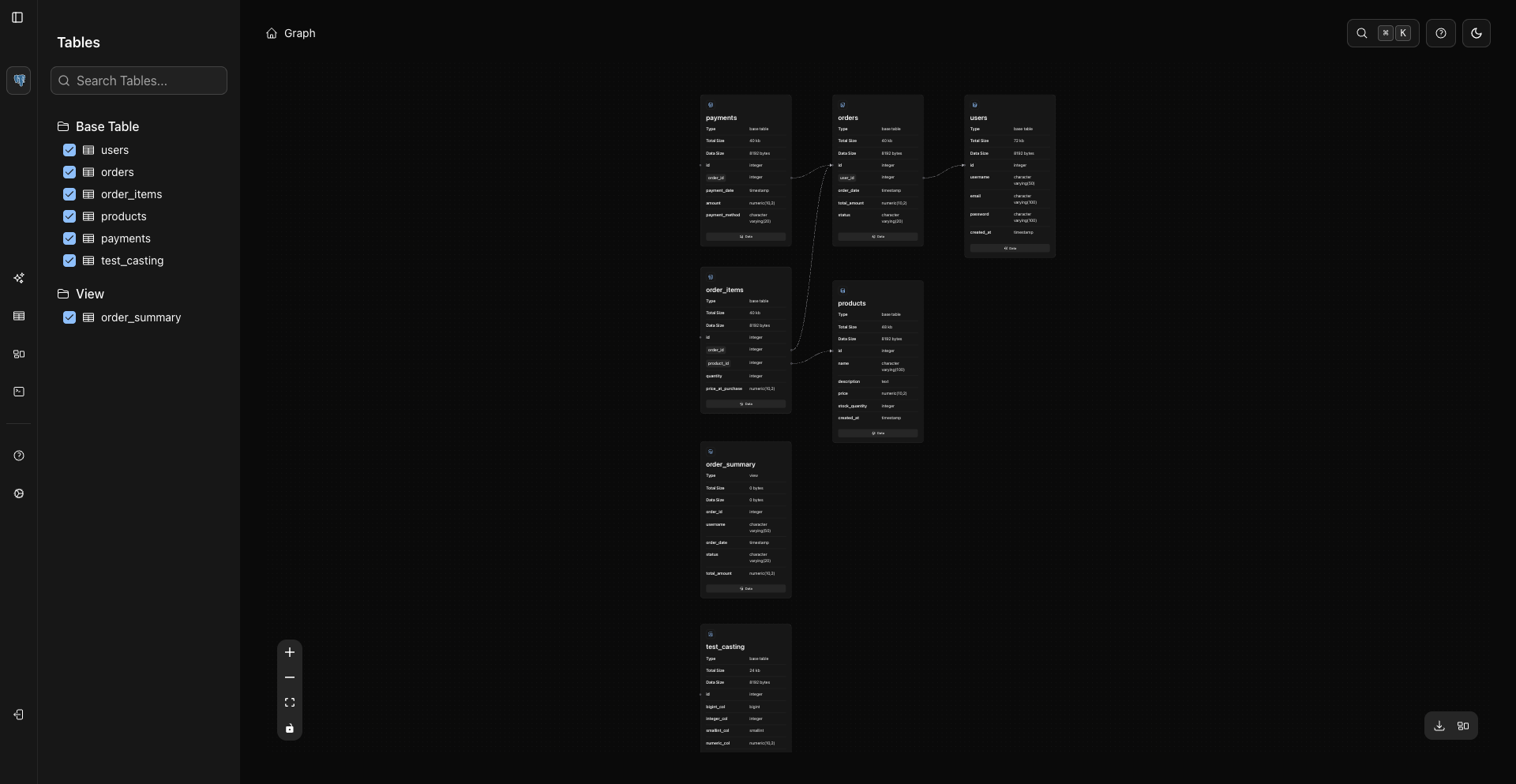
Graph nodes render metadata and loaded columns directly in each card.
Current Shortcuts To Know
Area | Shortcut | Action |
|---|---|---|
Global | Cmd/Ctrl + B | Toggle sidebar |
Global | Cmd/Ctrl + K | Command palette |
Table | Cmd/Ctrl + R | Refresh data |
Table | Cmd/Ctrl + A | Select visible rows |
Table | Cmd/Ctrl + E | Edit focused row |
Table | Cmd/Ctrl + Shift + E | Open export |
Table | Cmd/Ctrl + Shift + G | Open mock data |
Scratchpad | Cmd/Ctrl + Enter | Run query |
Scratchpad | Cmd/Ctrl + U | Clear editor |
Docker Development Example
YAML
services:
  db:
    image: postgres:16
    environment:
      POSTGRES_DB: myapp_dev
      POSTGRES_USER: dev
      POSTGRES_PASSWORD: dev123
    ports:
      - "5432:5432"

  whodb:
    image: clidey/whodb:latest
    ports:
      - "8080:8080"
    depends_on:
      - db
Use db as the host in WhoDB.