
Step-by-Step Tutorials
Building Complex SQL Queries
Building Complex SQL Queries
Once you're comfortable viewing data, the next skill is writing SQL queries that answer real questions about your data. This tutorial guides you through building increasingly complex queries, from simple SELECT statements to advanced JOINs, aggregations, and subqueries. You'll learn to think analytically about data and translate business questions into SQL.
What You'll Learn
By the end of this tutorial, you'll be able to:
- Write SELECT statements to retrieve specific columns
- Use WHERE clauses to filter data precisely
- Join data from multiple tables
- Aggregate data with GROUP BY and aggregate functions
- Filter aggregated results with HAVING
- Use subqueries to solve complex problems
- Optimize query performance
- Debug queries when something goes wrong
Info
This tutorial assumes you've completed the Data Exploration Workflow tutorial and are familiar with table structure and basic filtering.
Prerequisites
Before starting, ensure you:
- Have WhoDB connected to a database with multiple related tables
- Understand the data schema and relationships between tables
- Are familiar with the Scratchpad editor and query results
- Have basic SQL knowledge (SELECT, WHERE, JOIN concepts)
The Scratchpad Query Editor
Let's start with an overview of the Scratchpad, WhoDB's powerful query editor:

The Scratchpad provides:
Code Editor: The SQL editor at the top of each cell includes:
- Syntax highlighting for SQL keywords
- Line numbers for easy reference
- Multi-cell support for organizing complex analyses

Results Panel: Results appear below the cell after execution:
- Results shown in a paginated grid
- Column headers and data types
- Row counts and pagination controls
- Error messages for debugging
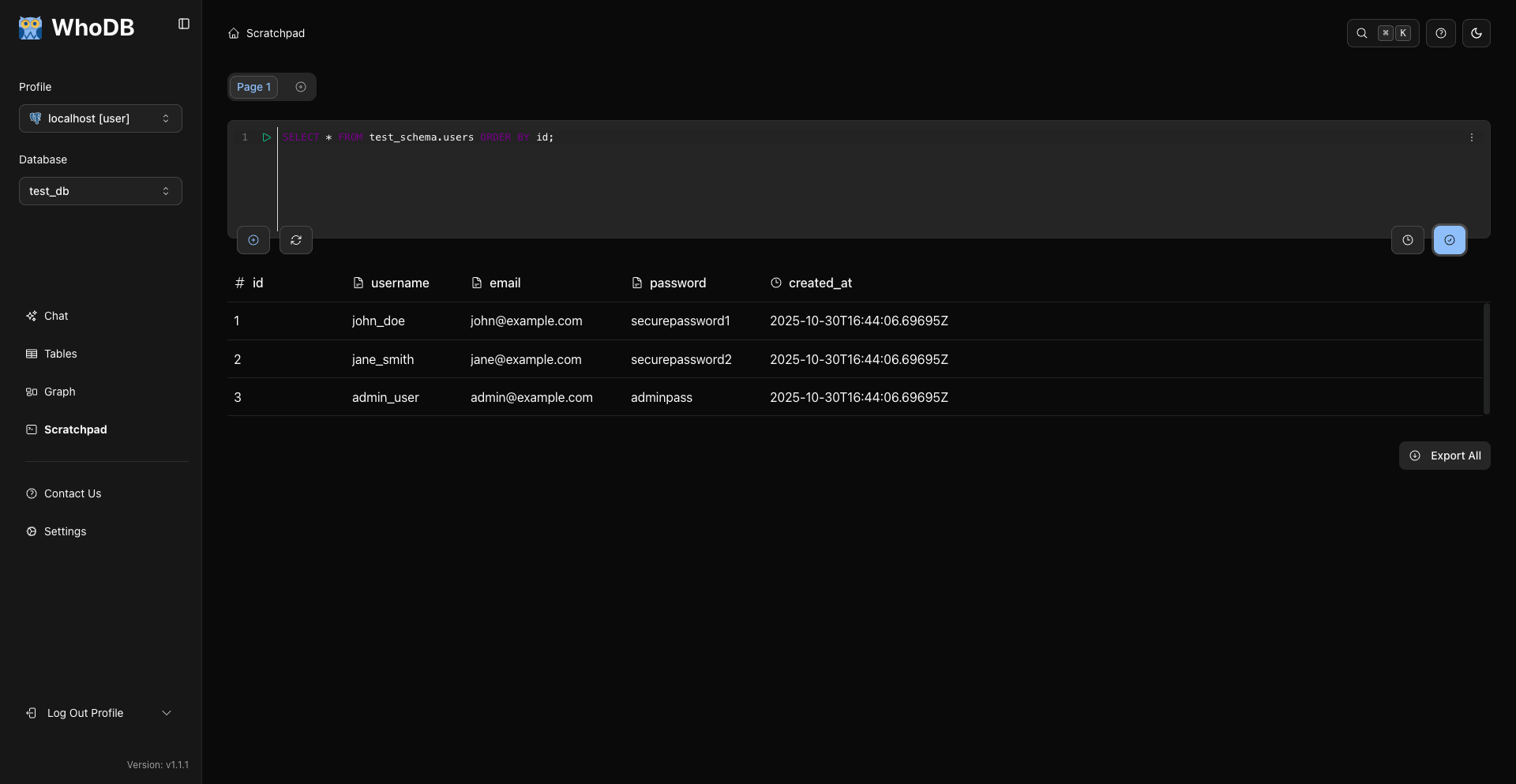
Cell Controls: Use the visible cell controls to:
- Run the current query
- Add another cell
- Clear the editor
- Open query history for SQL already executed in that cell
Step 1: Simple SELECT Statements
Start with the foundation—retrieving data from a single table:
Example 1: Select All Columns
sql
SELECT * FROM users;
This returns every column and row from the users table. Useful for quick exploration but generally not recommended for production as it can be slow on large tables.
Example 2: Select Specific Columns
sql
SELECT id, email, created_at FROM users;
Only return the columns you need. This is faster and cleaner. Notice:
- Column names are separated by commas
- Order matters—results appear in the order you specify
- You can rename columns with AS:
email AS user_email
Example 3: Alias Column Names
sql
SELECT
  id AS user_id,
  email AS user_email,
  created_at AS signup_date
FROM users;
Aliases make results clearer and easier to read. Use descriptive names that explain what the data represents.
Example 4: Remove Duplicates
sql
SELECT DISTINCT status FROM users;
The DISTINCT keyword removes duplicate values. Result: one row for each unique status value.
Tip
Queries become more readable when formatted with proper line breaks. Press Enter to add new lines as usual — queries only execute when you press Cmd+Enter (Ctrl+Enter on Windows/Linux) or click Run.
Step 2: Filtering with WHERE Clauses
SELECT without WHERE returns all rows. Add WHERE to filter:
Example 5: Simple Equality Filter
sql
SELECT id, name, email FROM users WHERE status = 'active';
Returns only rows where status equals 'active'. Notice the string value is in single quotes.
Example 6: Multiple Conditions with AND
sql
SELECT id, name, email, created_at
FROM users
WHERE status = 'active' AND created_at >= '2024-01-01';
AND requires all conditions to be true. This finds active users who signed up in 2024.
Example 7: Multiple Conditions with OR
sql
SELECT id, name, email
FROM users
WHERE status = 'active' OR status = 'pending';
OR requires at least one condition to be true. This finds users who are either active or pending.
Example 8: Combining AND and OR
sql
SELECT id, name, email
FROM users
WHERE (status = 'active' OR status = 'trial')
  AND created_at >= '2024-01-01';
Parentheses control evaluation order. Without them, the logic can be ambiguous. Always use parentheses for clarity.
Example 9: Text Pattern Matching
sql
SELECT id, name, email FROM users WHERE email LIKE '%@company.com';
LIKE enables pattern matching:
%matches any characters_matches a single character'%@company.com'finds emails ending with @company.com'john%'finds names starting with john'%smith%'finds names containing smith
Example 10: Numeric Comparisons
sql
SELECT id, name, age FROM users WHERE age >= 18 AND age < 65;
Numeric operators: =, !=, <, >, <=, >=
Warning
Date comparisons require proper date format. Use 'YYYY-MM-DD' format for compatibility across databases. Some databases also support comparison of timestamps.
Step 3: Sorting and Limiting Results
Example 11: Sort Results
sql
SELECT id, name, created_at
FROM users
ORDER BY created_at DESC;
ORDER BY sorts results:
ASC: Ascending order (default, A-Z, 0-9, earliest date)DESC: Descending order (Z-A, 9-0, latest date)
Example 12: Multi-Column Sorting
sql
SELECT id, name, status, created_at
FROM users
ORDER BY status ASC, created_at DESC;
Sort by status first (active users, then inactive), then by date within each group. Order matters—queries sort by the first column, then the second, etc.
Example 13: Limit Result Count
sql
SELECT id, name, created_at
FROM users
ORDER BY created_at DESC
LIMIT 10;
LIMIT restricts the number of rows returned. Useful for:
- Getting a sample of data
- Finding top N items
- Preventing huge result sets
Example 14: Pagination with OFFSET
sql
SELECT id, name, created_at
FROM users
ORDER BY created_at DESC
LIMIT 10 OFFSET 20;
OFFSET skips the first N rows. Combined with LIMIT, it enables pagination:
- Page 1:
LIMIT 10 OFFSET 0 - Page 2:
LIMIT 10 OFFSET 10 - Page 3:
LIMIT 10 OFFSET 20
Step 4: Aggregate Functions
Aggregate functions combine multiple rows into single summary values:
Example 15: Count Records
sql
SELECT COUNT(*) FROM users;
COUNT(*) returns the total number of rows. Alternative: COUNT(id) counts non-NULL values in the id column.
Example 16: Sum and Average
sql
SELECT
  SUM(amount) AS total_revenue,
  AVG(amount) AS average_order,
  COUNT(*) AS order_count
FROM orders;
Common aggregate functions:
COUNT(): Number of rowsSUM(): Total of numeric valuesAVG(): Average of numeric valuesMIN(): Smallest valueMAX(): Largest value
Example 17: Multiple Aggregates
sql
SELECT
  COUNT(*) AS total_orders,
  SUM(amount) AS total_amount,
  AVG(amount) AS average_amount,
  MIN(amount) AS smallest_order,
  MAX(amount) AS largest_order
FROM orders;
Combine multiple aggregates to get comprehensive statistics about your data.
Example 18: Find Minimum and Maximum
sql
SELECT
  MIN(created_at) AS earliest_user,
  MAX(created_at) AS latest_user
FROM users;
Useful for understanding data ranges—when did your data start and end?
Tip
Always use aliases (AS) with aggregate functions to make column names meaningful. SUM(amount) is unclear; SUM(amount) AS total_revenue is self-documenting.
Step 5: GROUP BY for Grouped Aggregates
GROUP BY lets you aggregate by categories:
Example 19: Count by Status
sql
SELECT
  status,
  COUNT(*) AS user_count
FROM users
GROUP BY status;
Result shows each unique status with the count of users in that status. Key point: When using GROUP BY, SELECT can only include:
- Grouped columns (status)
- Aggregate functions (COUNT)
Example 20: Revenue by User
sql
SELECT
  user_id,
  COUNT(*) AS order_count,
  SUM(amount) AS total_spent,
  AVG(amount) AS average_order
FROM orders
GROUP BY user_id
ORDER BY total_spent DESC;
Find each user's purchasing statistics. Sorted by total spending to see top customers first.
Example 21: Multiple GROUP BY Columns
sql
SELECT
  status,
  EXTRACT(YEAR FROM created_at) AS year,
  COUNT(*) AS user_count
FROM users
GROUP BY status, EXTRACT(YEAR FROM created_at)
ORDER BY year DESC, status;
Group by multiple columns for deeper analysis. This shows user counts by status and year.
Example 22: Filter Groups with HAVING
sql
SELECT
  status,
  COUNT(*) AS user_count
FROM users
GROUP BY status
HAVING COUNT(*) > 100;
HAVING filters grouped results (like WHERE for aggregates). This shows only statuses with more than 100 users.
Difference:
WHERE: Filters rows before groupingHAVING: Filters groups after aggregation
Example 23: Complex HAVING Clause
sql
SELECT
  user_id,
  COUNT(*) AS order_count,
  SUM(amount) AS total_spent
FROM orders
GROUP BY user_id
HAVING COUNT(*) >= 5 AND SUM(amount) > 500
ORDER BY total_spent DESC;
Find power users: those with 5+ orders AND over $500 spent. The WHERE/HAVING combination is crucial:
sql
SELECT
  user_id,
  COUNT(*) AS order_count,
  SUM(amount) AS total_spent
FROM orders
WHERE created_at >= '2024-01-01'  -- Filter rows before grouping
GROUP BY user_id
HAVING SUM(amount) > 500          -- Filter groups after aggregation
ORDER BY total_spent DESC;
Step 6: INNER JOIN - Combining Data
JOINs combine data from multiple tables:
Example 24: Simple INNER JOIN
sql
SELECT
  users.name,
  orders.id,
  orders.amount,
  orders.created_at
FROM users
INNER JOIN orders ON users.id = orders.user_id;
INNER JOIN returns rows that exist in both tables. This combines user names with their orders.
Structure:
FROM users: Start with the users tableINNER JOIN orders: Add data from orders tableON users.id = orders.user_id: Match rows where user IDs match
Example 25: JOIN with Aliases
sql
SELECT
  u.name,
  o.id AS order_id,
  o.amount,
  o.created_at
FROM users u
INNER JOIN orders o ON u.id = o.user_id
ORDER BY u.name, o.created_at;
Table aliases (u for users, o for orders) make queries shorter and clearer. Aliases become essential with multiple JOINs.
Example 26: Three-Table JOIN
sql
SELECT
  u.name,
  o.id AS order_id,
  oi.product_id,
  oi.quantity,
  oi.price
FROM users u
INNER JOIN orders o ON u.id = o.user_id
INNER JOIN order_items oi ON o.id = oi.order_id
ORDER BY u.name, o.id;
Chain multiple JOINs to combine data from many tables. This query flows through users → orders → order_items.
Example 27: JOIN with Filtering
sql
SELECT
  u.name,
  COUNT(o.id) AS order_count,
  SUM(o.amount) AS total_spent
FROM users u
INNER JOIN orders o ON u.id = o.user_id
WHERE o.created_at >= '2024-01-01'
GROUP BY u.id, u.name
HAVING COUNT(o.id) > 0
ORDER BY total_spent DESC;
Combine JOINs with WHERE, GROUP BY, and HAVING for powerful analysis.
Step 7: LEFT JOIN - Keeping All Rows
LEFT JOIN keeps all rows from the left table, even if no match exists in the right table:
Example 28: LEFT JOIN for Completeness
sql
SELECT
  u.name,
  COUNT(o.id) AS order_count,
  COALESCE(SUM(o.amount), 0) AS total_spent
FROM users u
LEFT JOIN orders o ON u.id = o.user_id
GROUP BY u.id, u.name
ORDER BY total_spent DESC;
This finds all users, including those with no orders. Result shows 0 for users with no spending.
Key differences from INNER JOIN:
- INNER: Only users with orders
- LEFT: All users, with 0/NULL for those without orders
The COALESCE() function converts NULL to 0 for cleaner display.
Example 29: Identifying Missing Data
sql
SELECT
  u.name,
  u.email,
  o.id
FROM users u
LEFT JOIN orders o ON u.id = o.user_id
WHERE o.id IS NULL;
Find users with no orders by checking for NULL values. This is a powerful data quality technique.
Step 8: Subqueries - Queries Within Queries
Subqueries solve complex problems by breaking them into smaller steps:
Example 30: Subquery in WHERE
sql
SELECT
  name,
  email,
  created_at
FROM users
WHERE id IN (
  SELECT user_id
  FROM orders
  WHERE amount > 1000
);
Find users who've placed orders over $1000. The subquery finds qualifying user IDs, then the outer query retrieves user details.
Example 31: Subquery with Aggregation
sql
SELECT
  name,
  email
FROM users
WHERE id IN (
  SELECT user_id
  FROM orders
  GROUP BY user_id
  HAVING SUM(amount) > 5000
);
Find users whose total spending exceeds $5000. Subqueries with GROUP BY handle complex aggregations.
Example 32: Correlated Subquery
sql
SELECT
  u.name,
  u.created_at,
  (SELECT COUNT(*) FROM orders WHERE user_id = u.id) AS order_count
FROM users u
ORDER BY order_count DESC;
A correlated subquery references the outer query. Here, for each user, we count their orders. More readable than a GROUP BY with coalesce.
Example 33: Subquery in FROM Clause
sql
SELECT
  status,
  AVG(order_count) AS avg_orders
FROM (
  SELECT
    status,
    COUNT(o.id) AS order_count
  FROM users u
  LEFT JOIN orders o ON u.id = o.user_id
  GROUP BY u.id, u.status
) user_stats
GROUP BY status;
Use a subquery result as a table. This calculates average orders per user, grouped by status.
Executing Queries in the Scratchpad
Let's walk through executing a complete query:
Step 1: Enter Your Query
Type or paste your SQL in the editor:
Step 2: Execute the Query
Click the "Run" button or press Ctrl+Enter (Cmd+Enter on Mac):
Results appear below the cell. The footer under the results grid shows how many rows are loaded out of the total (for example, "50 rows loaded of 1,200 total").
Step 3: Review Results
Examine the results grid:
- Each row represents one record
- Columns are sortable by clicking headers
- Numbers are right-aligned, text is left-aligned
- NULL values appear in gray
Step 4: Handle Errors
If your query has an error, you'll see:
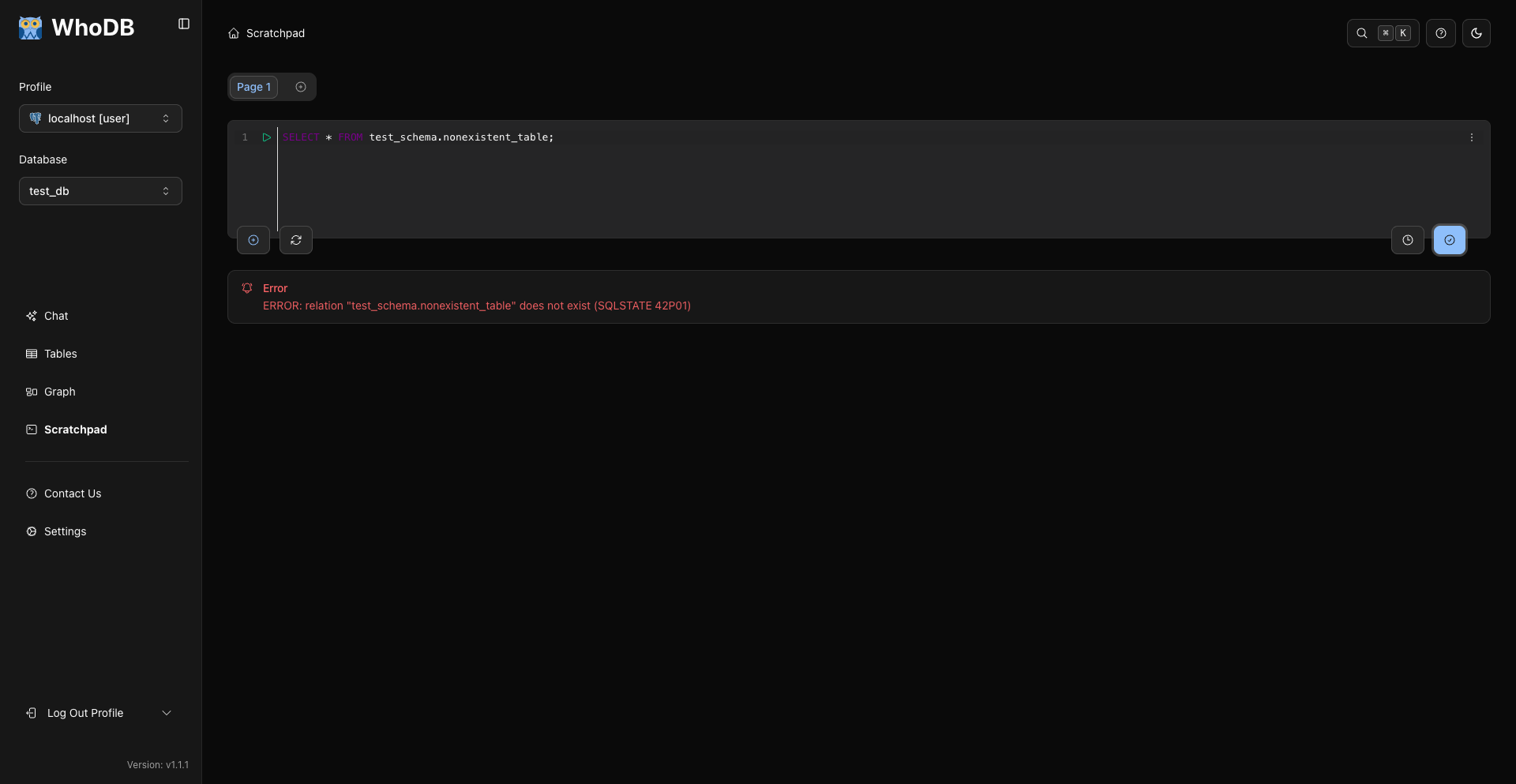
The error message explains what went wrong:
- Syntax errors (missing commas, quotes, keywords)
- Table/column doesn't exist
- Type mismatches
- Permission denied
Read the error carefully—it usually points to the exact problem line.
Query Optimization Tips
Use EXPLAIN to Understand Performance
sql
EXPLAIN SELECT * FROM users WHERE status = 'active';
EXPLAIN shows how the database will execute your query. Look for:
- Full table scans (slow on large tables)
- Index usage (fast)
- Join strategies
Index Awareness
sql
-- Fast: Filtering on indexed column
SELECT * FROM users WHERE id = 123;

-- Slow: Filtering on non-indexed column
SELECT * FROM users WHERE phone_number = '555-1234';
Use Describe on the Storage Unit card or query your database catalogs to check indexed columns. Filter on indexed columns for better performance.
Avoid SELECT *
sql
-- Slow
SELECT * FROM large_table;

-- Fast
SELECT id, name, email FROM large_table;
Selecting specific columns reduces data transfer and is clearer about your intent.
Aggregate Before Joining
sql
-- Inefficient: Join large tables, then aggregate
SELECT u.id, COUNT(o.id)
FROM users u
JOIN orders o ON u.id = o.user_id
GROUP BY u.id;

-- Better: Aggregate first, then join
SELECT u.id, orders_stats.order_count
FROM users u
LEFT JOIN (
  SELECT user_id, COUNT(*) AS order_count
  FROM orders
  GROUP BY user_id
) orders_stats ON u.id = orders_stats.user_id;
Pre-aggregating reduces intermediate result sizes.
Multi-Cell Queries
Use the Scratchpad's multi-cell feature to organize complex analyses:

Create multiple cells for:
- Data exploration queries
- Intermediate result calculations
- Final analysis queries
Organize your analysis logically, making it reproducible and understandable.
Reusing Frequently Used Queries
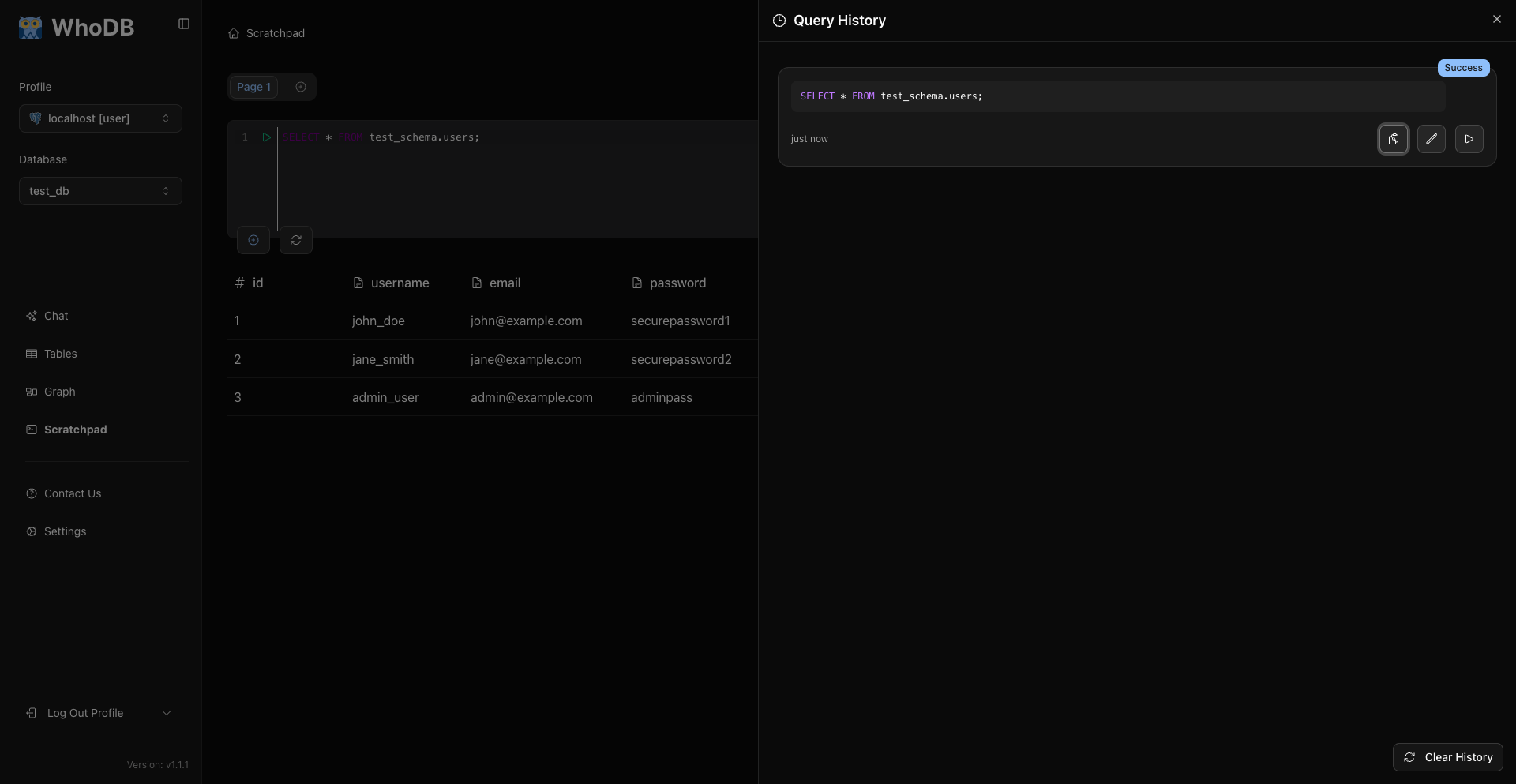
Scratchpad stores query history for each cell after you run SQL:

Use history for queries you run repeatedly:
- Common analysis queries
- Troubleshooting queries
- Performance monitoring queries
Access previous queries from the history panel:
Common Query Patterns
Find Top N Items
sql
SELECT category, SUM(revenue) AS total
FROM sales
GROUP BY category
ORDER BY total DESC
LIMIT 10;
Customers This Month vs. Last Month
sql
SELECT
  DATE_TRUNC('month', created_at) AS month,
  COUNT(*) AS new_customers
FROM users
WHERE created_at >= DATE_TRUNC('month', CURRENT_DATE - INTERVAL '2 months')
GROUP BY DATE_TRUNC('month', created_at)
ORDER BY month DESC;
Products Without Recent Sales
sql
SELECT p.id, p.name
FROM products p
LEFT JOIN order_items oi ON p.id = oi.product_id
WHERE oi.id IS NULL
OR oi.created_at < CURRENT_DATE - INTERVAL '90 days';
Query Debugging Checklist
- Column names spelled correctly and exist in the table
- Single quotes around text values:
WHERE status = 'active' - Proper join conditions with table aliases
- GROUP BY includes all non-aggregated columns
- HAVING used for post-aggregation filtering
- Table names and aliases match throughout
- Date formats consistent ('YYYY-MM-DD')
Next Steps
You've learned to write sophisticated queries. Continue your learning:
Summary
In this tutorial, you learned:
- Simple SELECT statements to retrieve specific columns
- WHERE clauses for precise data filtering
- ORDER BY and LIMIT for result control
- Aggregate functions (SUM, COUNT, AVG) for calculations
- GROUP BY for grouped analysis
- INNER and LEFT JOINs for combining tables
- Subqueries for complex problem-solving
- How to execute queries in the Scratchpad
- Query optimization and debugging techniques
- Multi-cell queries for organized analysis
Check
You now have the skills to write complex SQL queries that answer real business questions. Practice these patterns and adapt them to your specific data and analytical needs.
Previous