
Step-by-Step Tutorials
Data Export Analysis
Data Export Analysis
This tutorial shows the current export workflow.
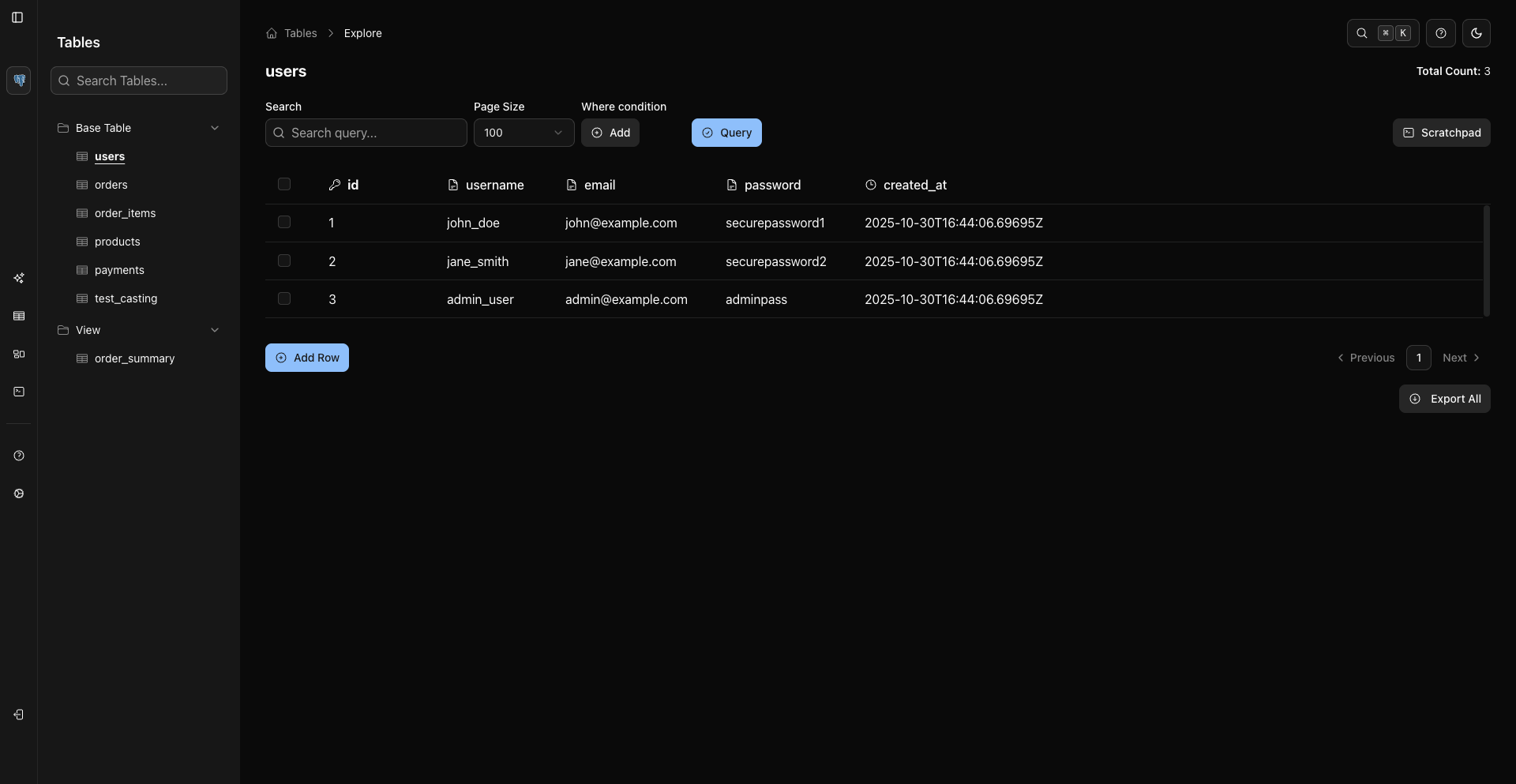
1. Open The Data Grid
Open Storage Units, then click Data for the object you want to export.
2. Narrow The Dataset
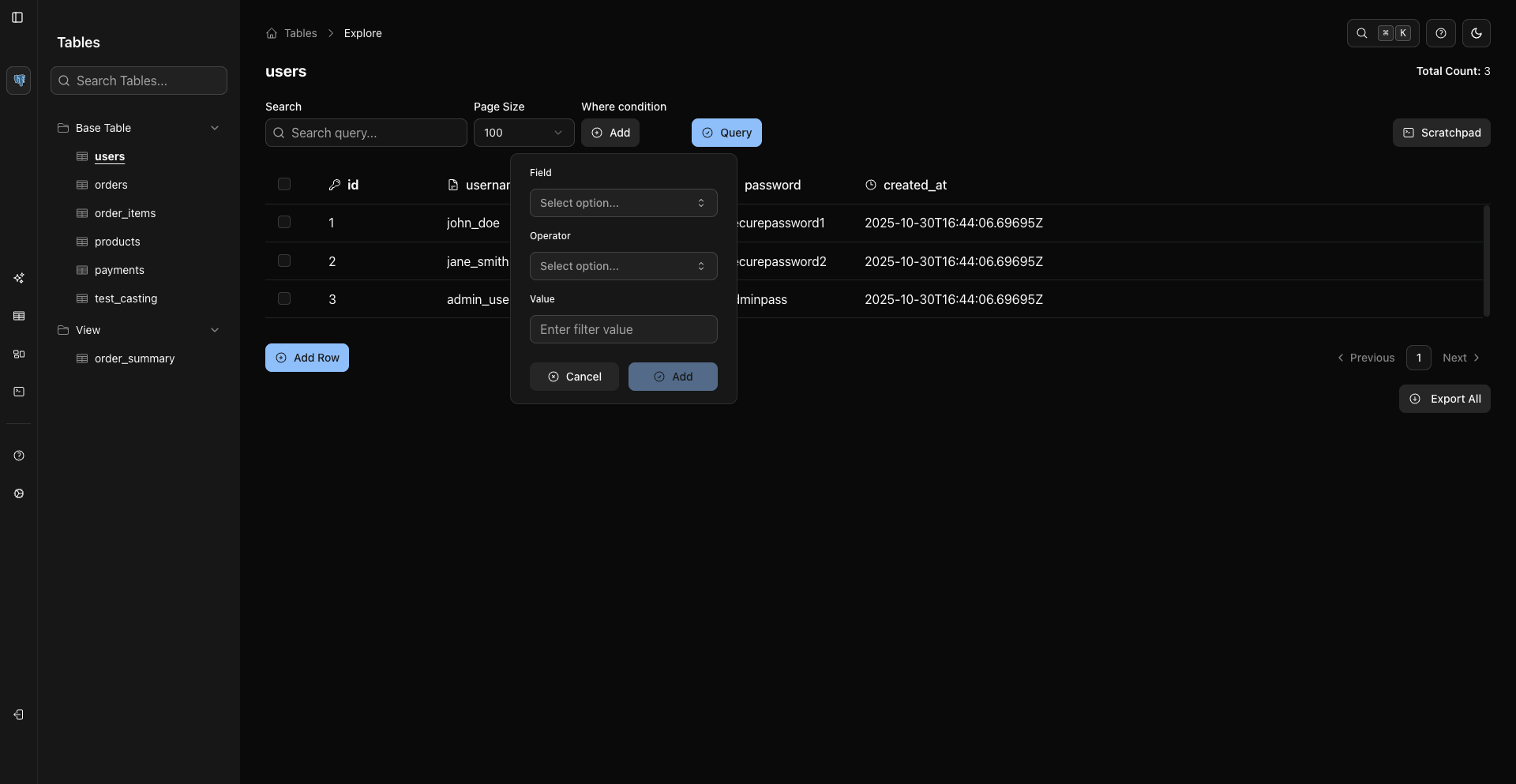
For server-side filtering:
- Click Add beside Where condition.
- Choose field, operator, and value.
- Add the condition.
- Click Query.
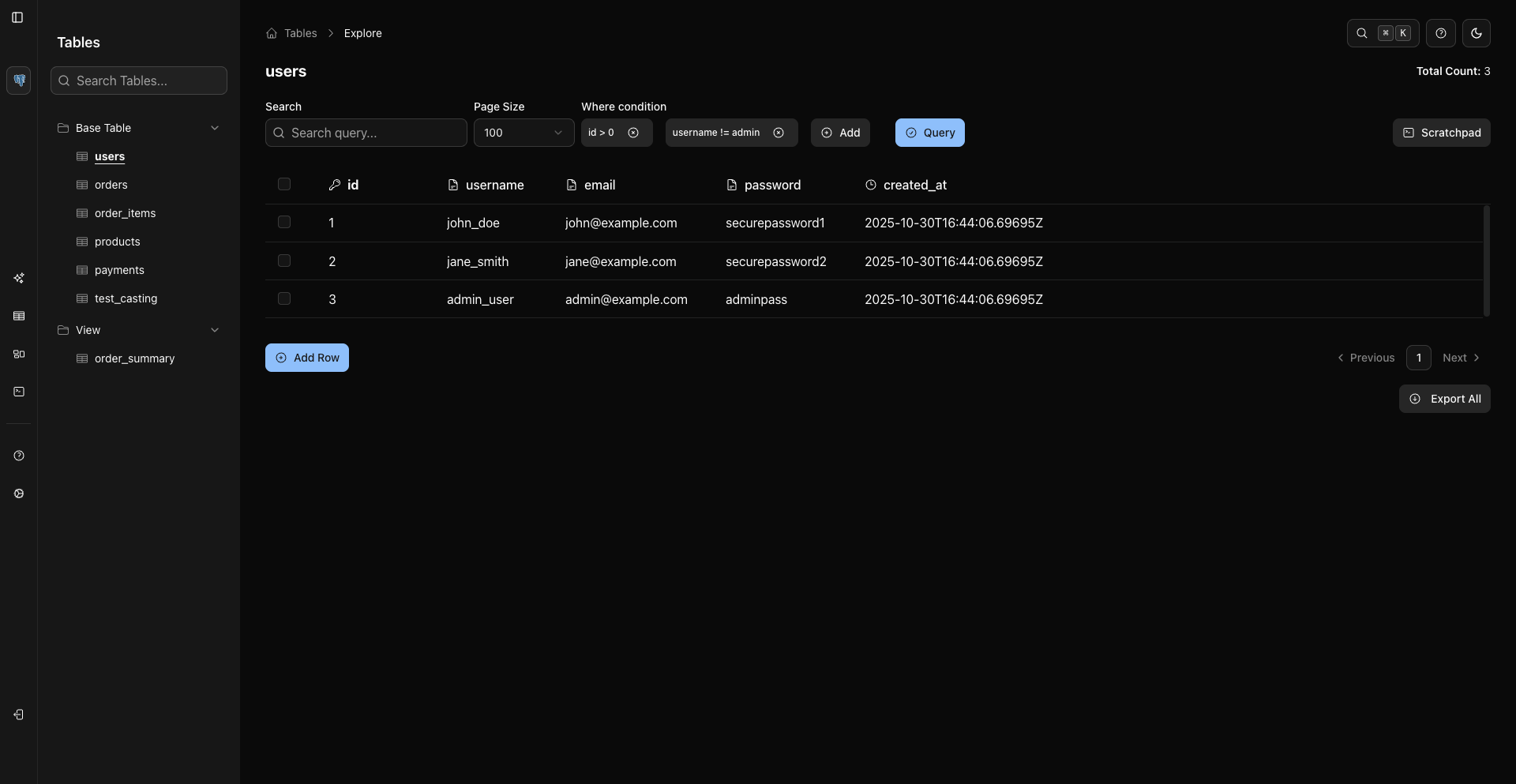
For quick visible-row lookup, use Search. For exports, apply WHERE conditions first so the grid contains the dataset you want.
3. Export All Filtered Rows
After the grid shows the data you want, click Export All.
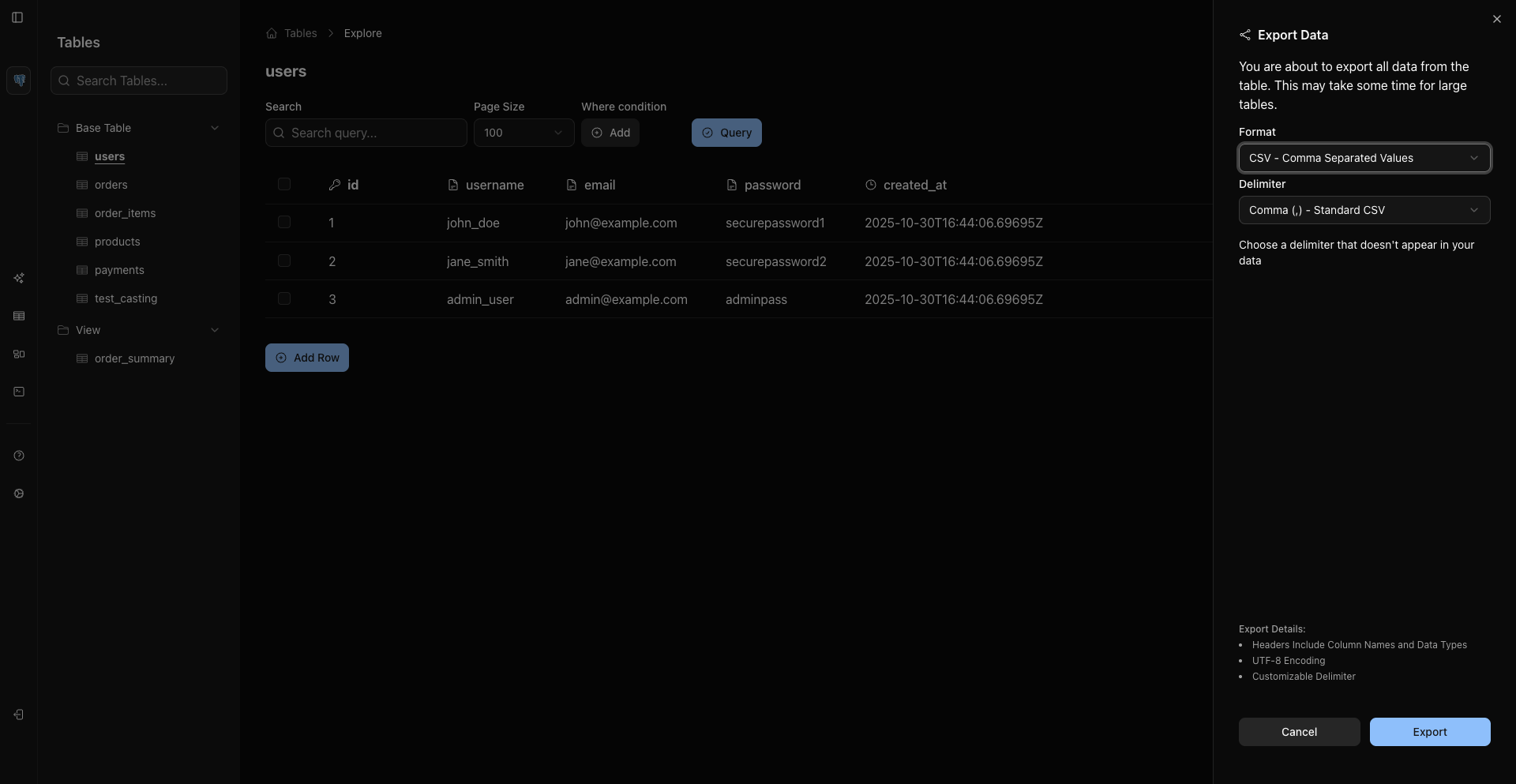
Choose a current CE format:
- CSV.
- Excel
.xlsx. - JSON Lines for records from sources like MongoDB when supported.
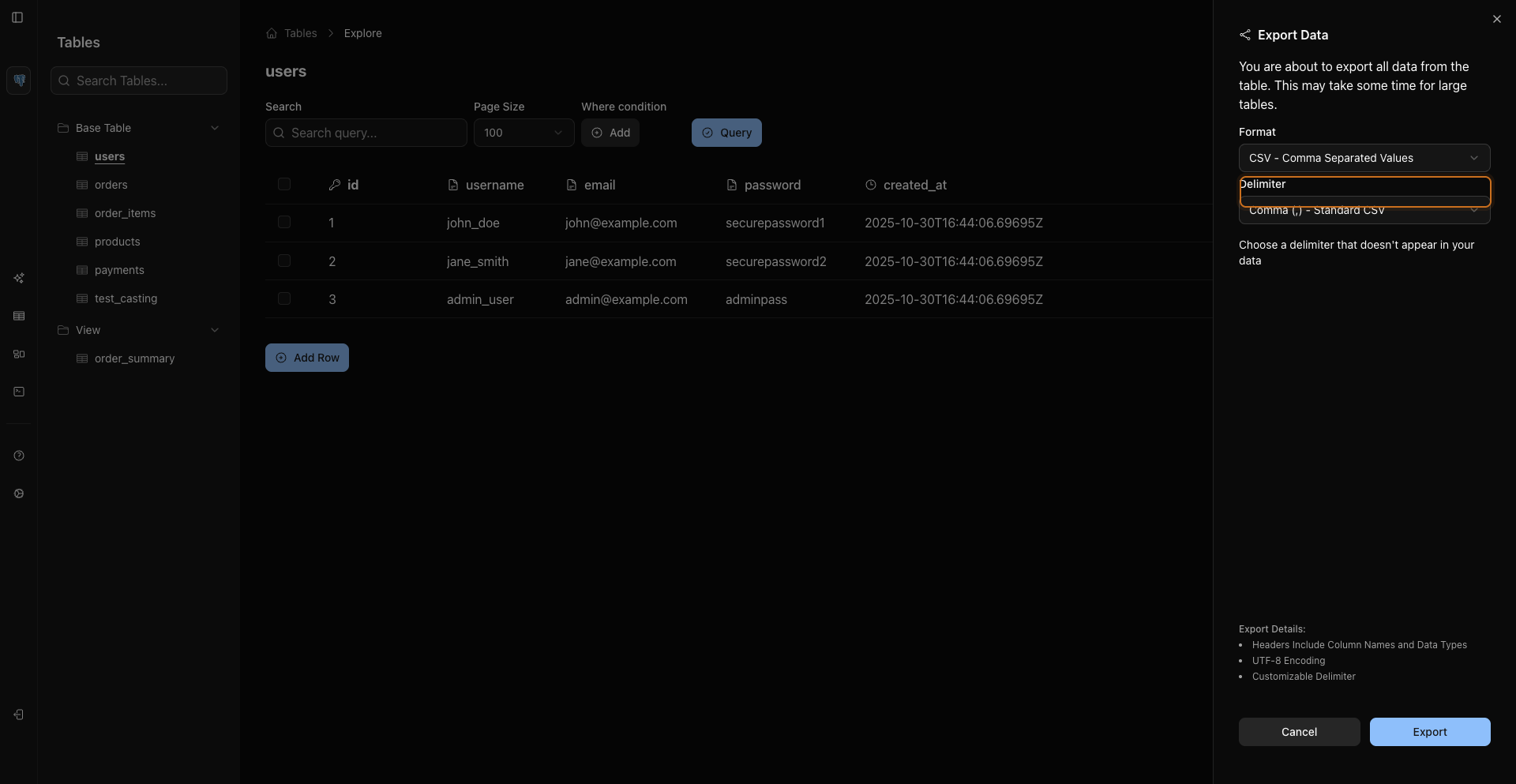
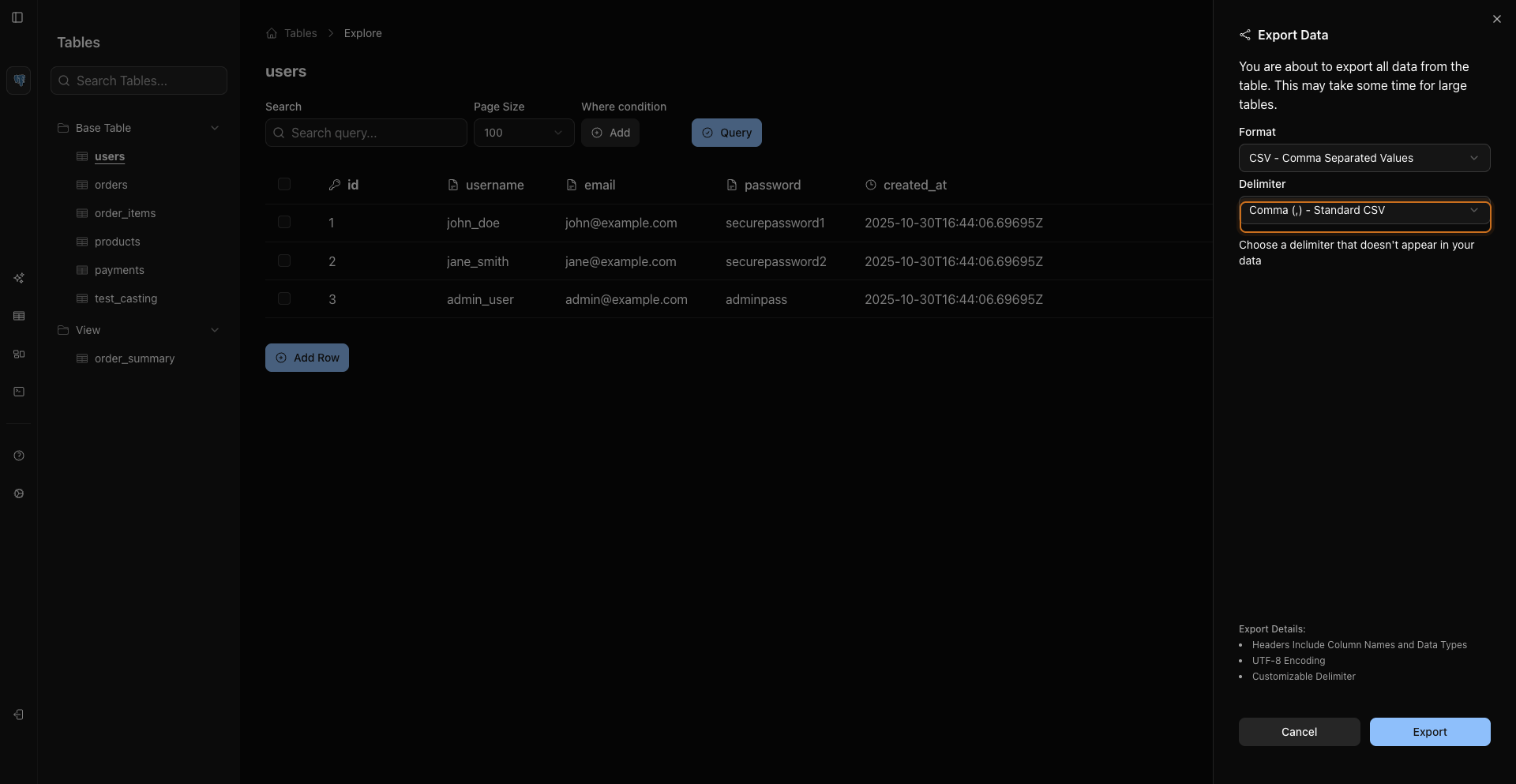
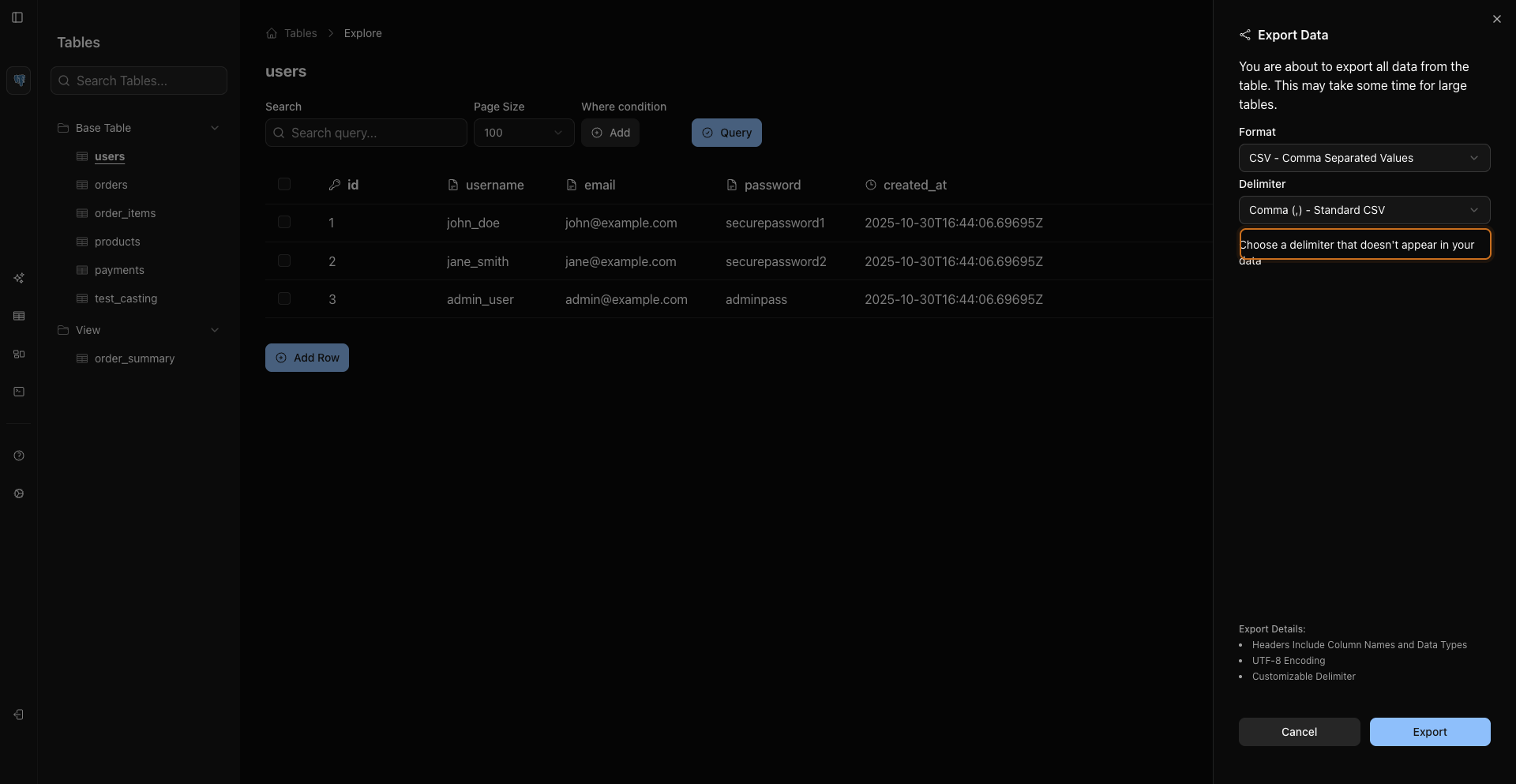
CSV delimiter options are comma, semicolon, and pipe.
4. Export Selected Rows
Select rows with checkboxes or table shortcuts, then use the selected-row export action.
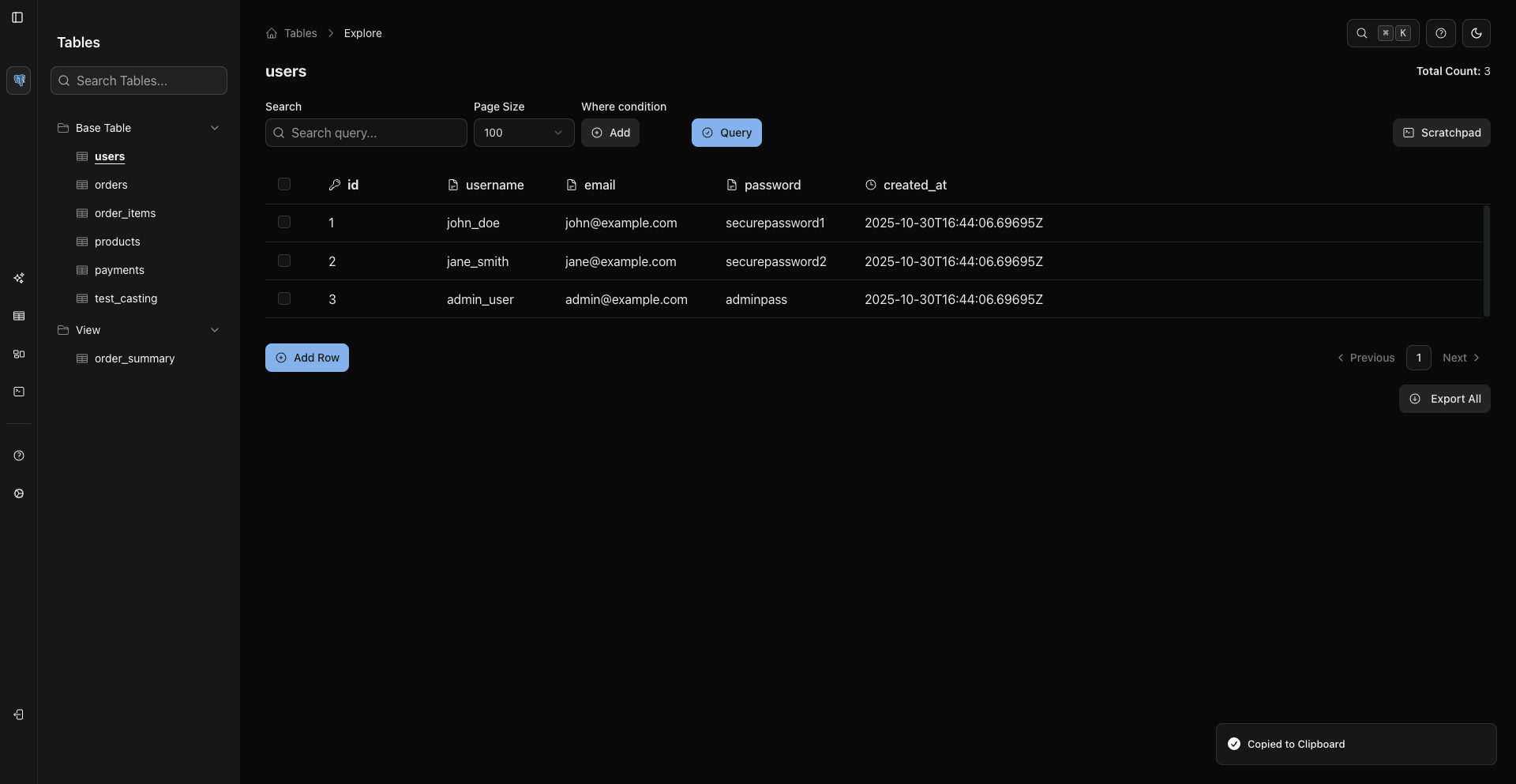
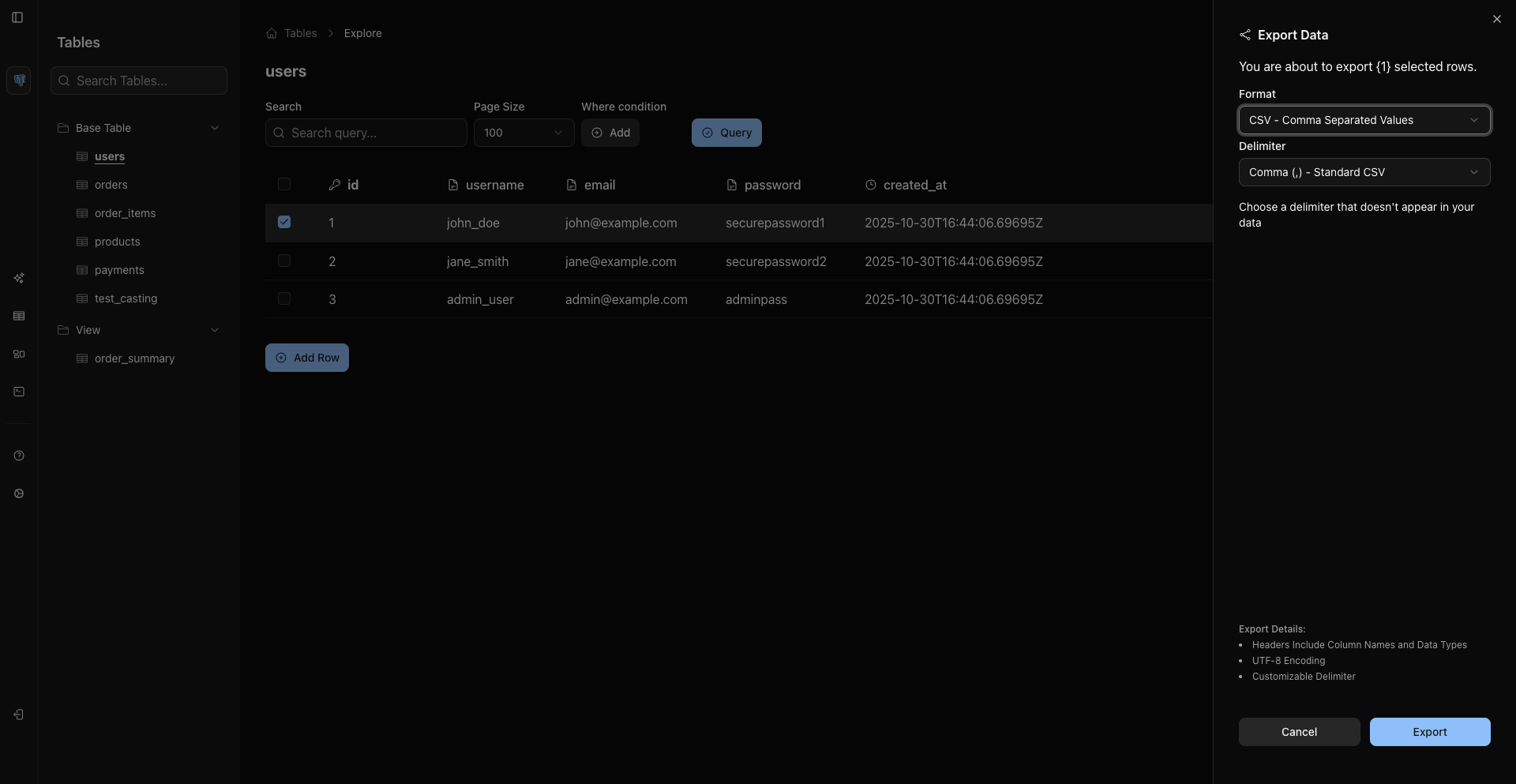
The export starts from the rows you selected in the grid.
Backups And Migration Dumps
Use database-native tools when you need a full backup, SQL dump, or migration archive:
Bash
pg_dump --format custom --file backup.dump "$DATABASE_URL"
Verify Downloads
Use local tools after download:
Bash
ls -lh downloads/
head -n 5 downloads/export.csv
wc -l downloads/export.csv
Adjust the path and filename to match your browser download location.
Related Pages
Previous