
Query Interface
Scratchpad Introduction
Scratchpad Introduction
Scratchpad is WhoDB's query workspace for connections that support raw queries — SQL databases, plus shell-style commands for MongoDB and commands for Redis. It gives you page-based query organization, one or more query cells per page, query execution, result grids, action-query confirmations, and per-cell query history.
Tip
Use Scratchpad for custom SQL. Use the Storage Unit data page when you want the guided grid, search, WHERE condition builder, row editing, export, and mock data actions.
Open Scratchpad
Open Scratchpad from the left sidebar. The route is /scratchpad.
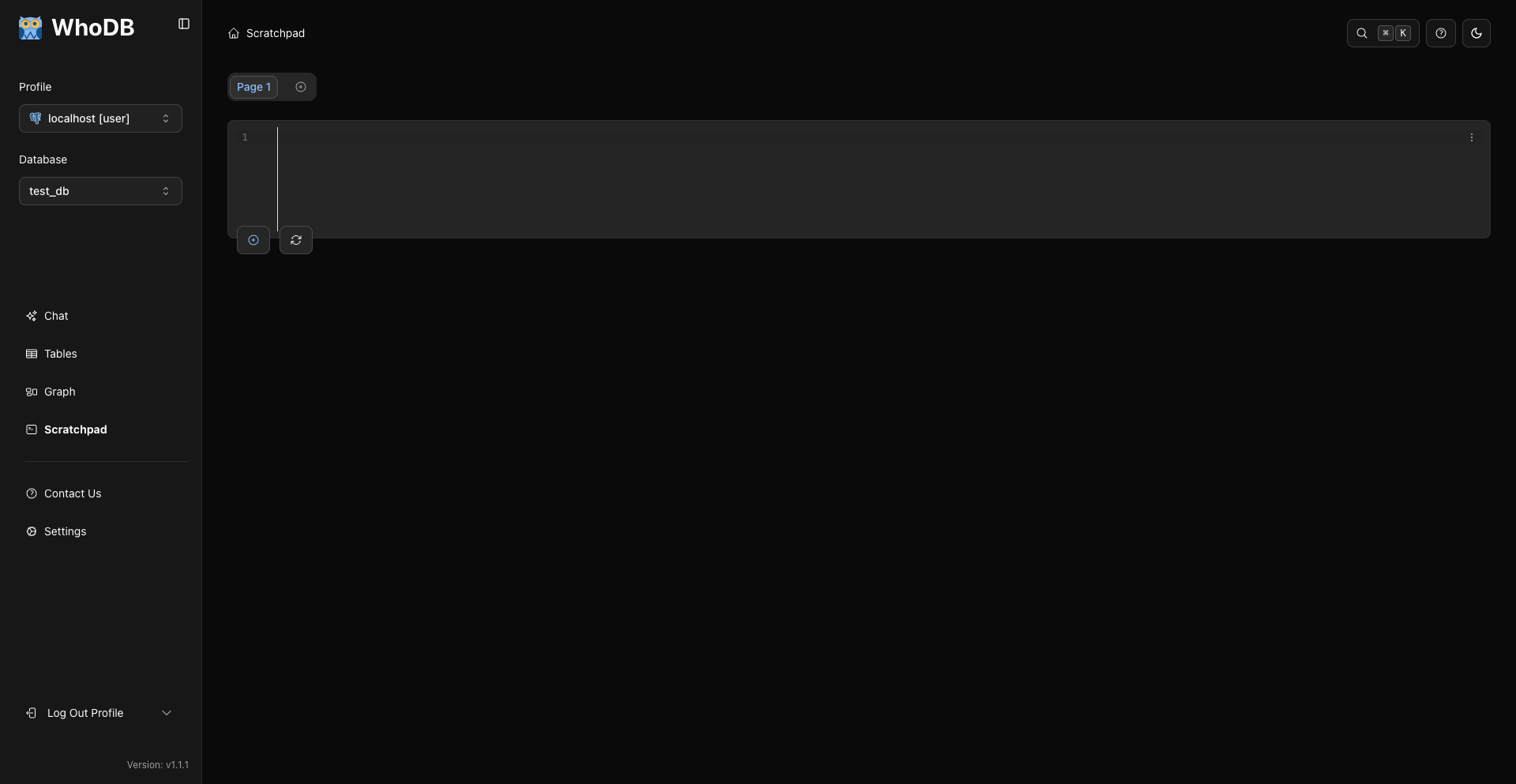
The current layout is vertical:
- The SQL editor is at the top of each cell.
- Query results or action status render below the editor.
- Multiple cells stack vertically within the active page.
- Scratchpad pages appear as tabs above the cells.
Run Queries
Type SQL into the editor and run it with any of:
- The run button at the bottom-right of the cell. It appears on hover (or when the page has a single cell) and is hidden while the editor is empty.
- The per-statement play buttons in the editor's left gutter, which run one statement at a time.
Cmd/Ctrl + Enter.
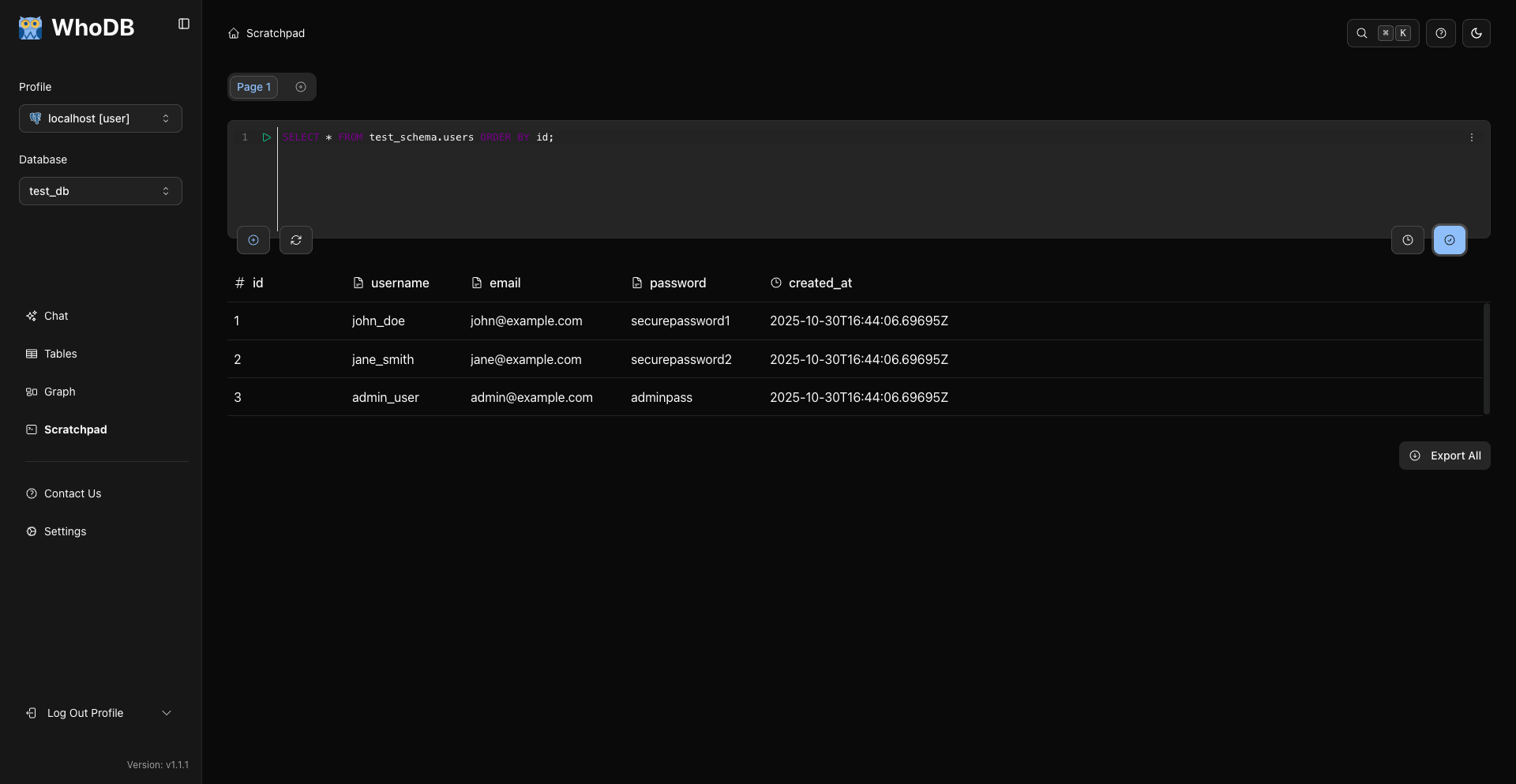
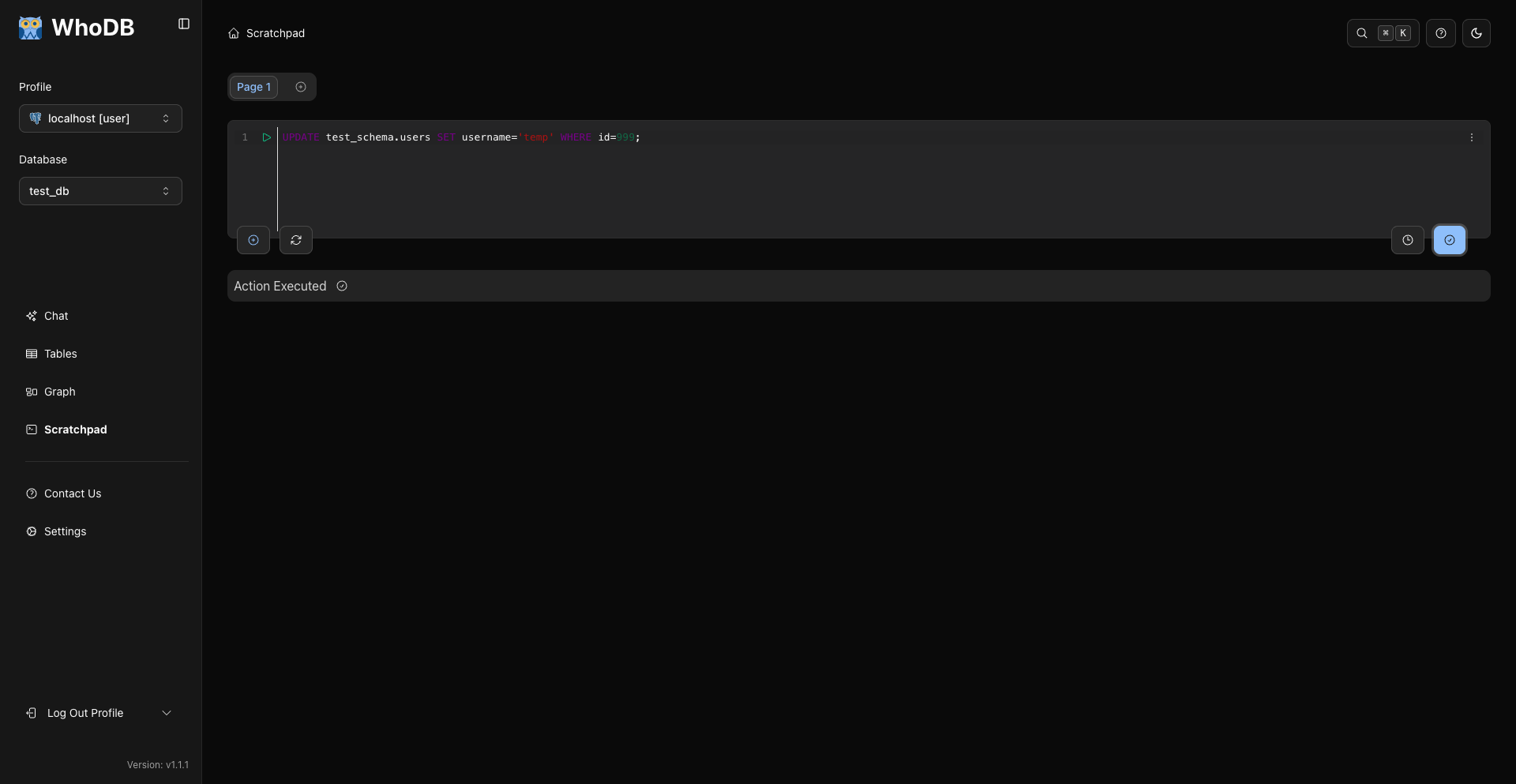
SELECT queries show a results grid below the editor. Action queries such as INSERT, UPDATE, and DELETE show an action result after confirmation.
Warning
WhoDB prompts before executing destructive SQL detected in Scratchpad. Review the SQL before confirming.
Errors
Database errors are shown below the editor for the cell that failed.
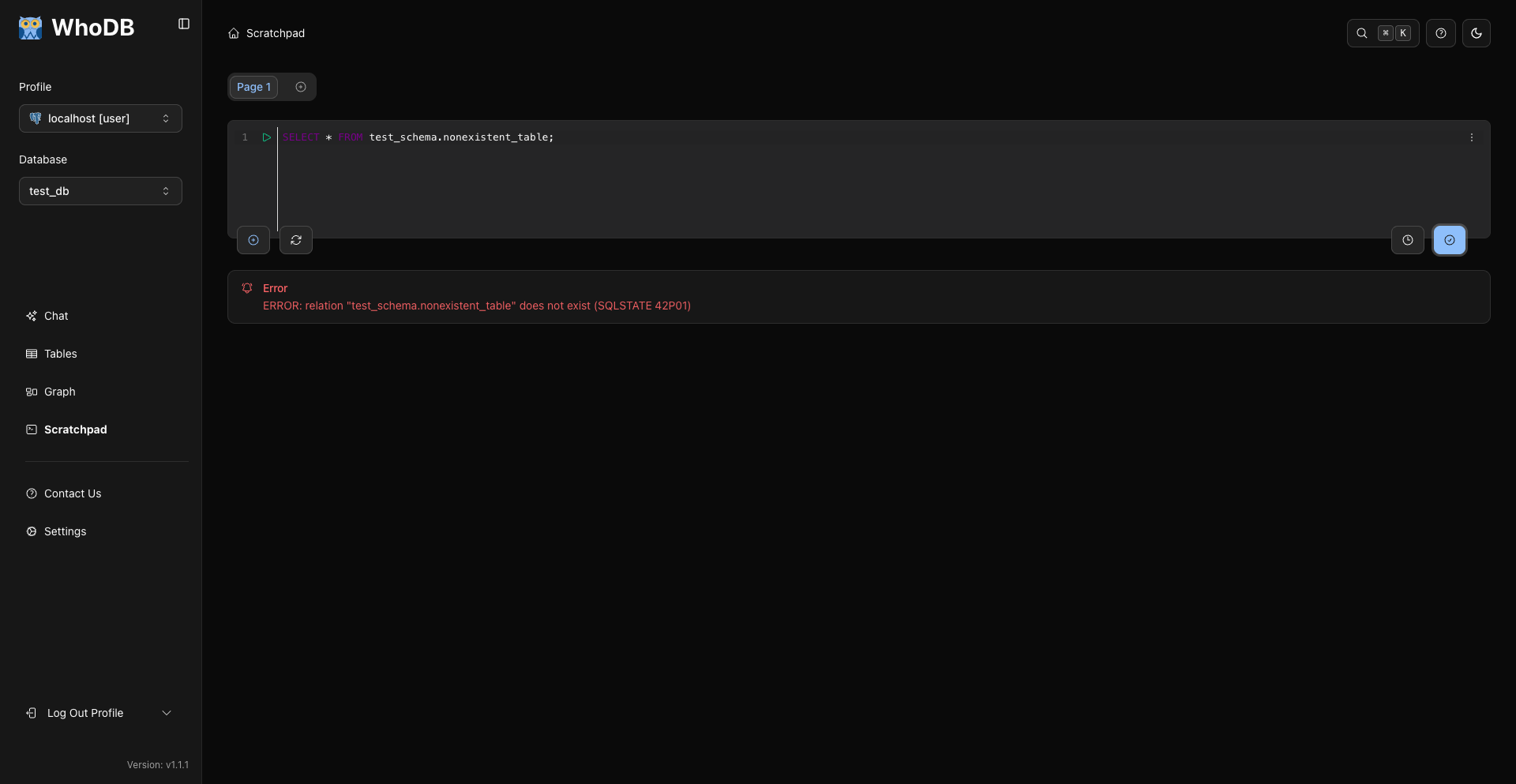
Start with a small query such as SELECT 1;, then add complexity back until the error is isolated.
Pages And Cells
Scratchpad has two levels of organization:
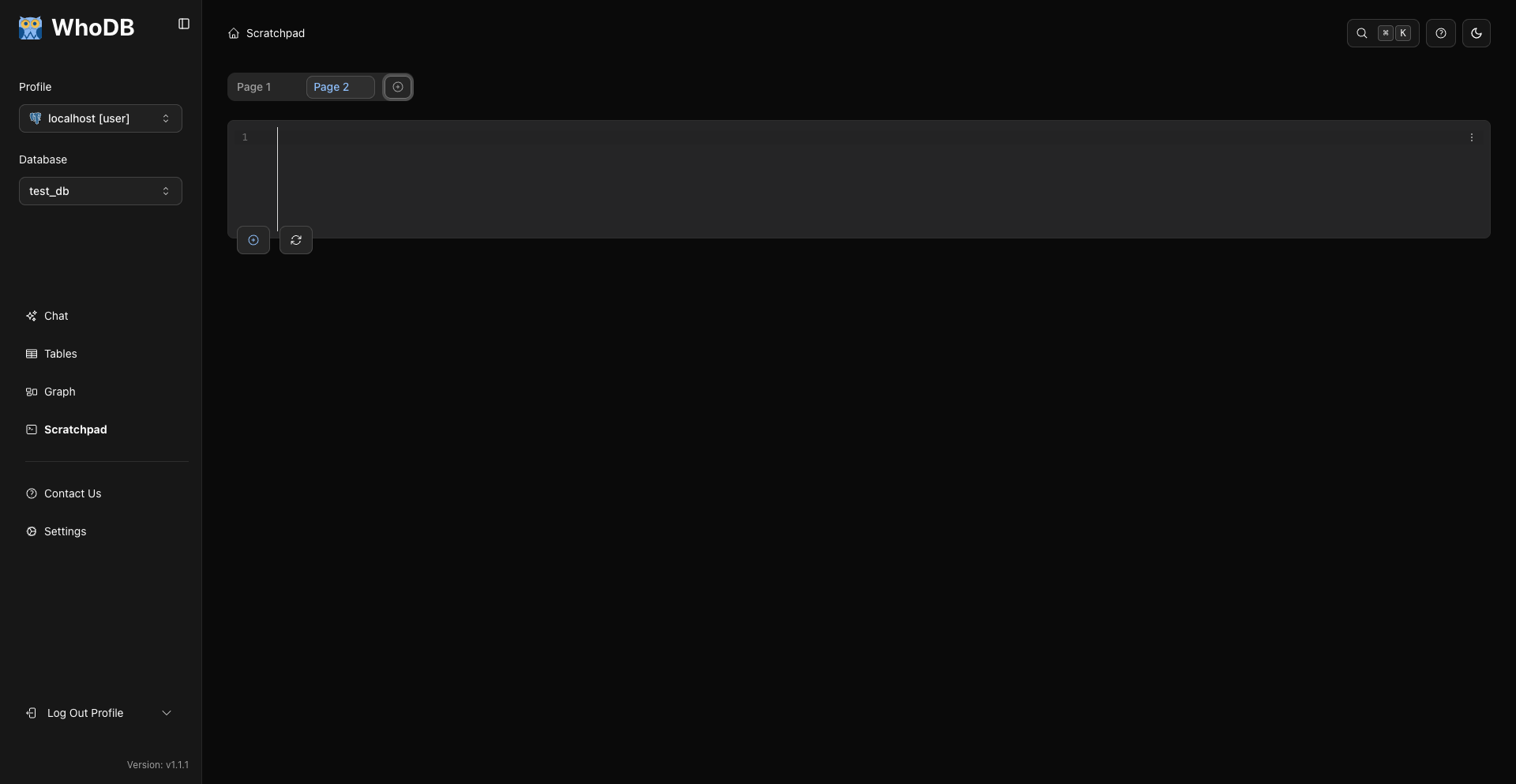
- Pages are tabs across the top. Use the plus tab to add a page. Double-click a page name to rename it. Use the close button on a page tab to delete it.
- Cells are query editors inside a page. Hover over a cell to reveal the add, clear, delete, and run controls.
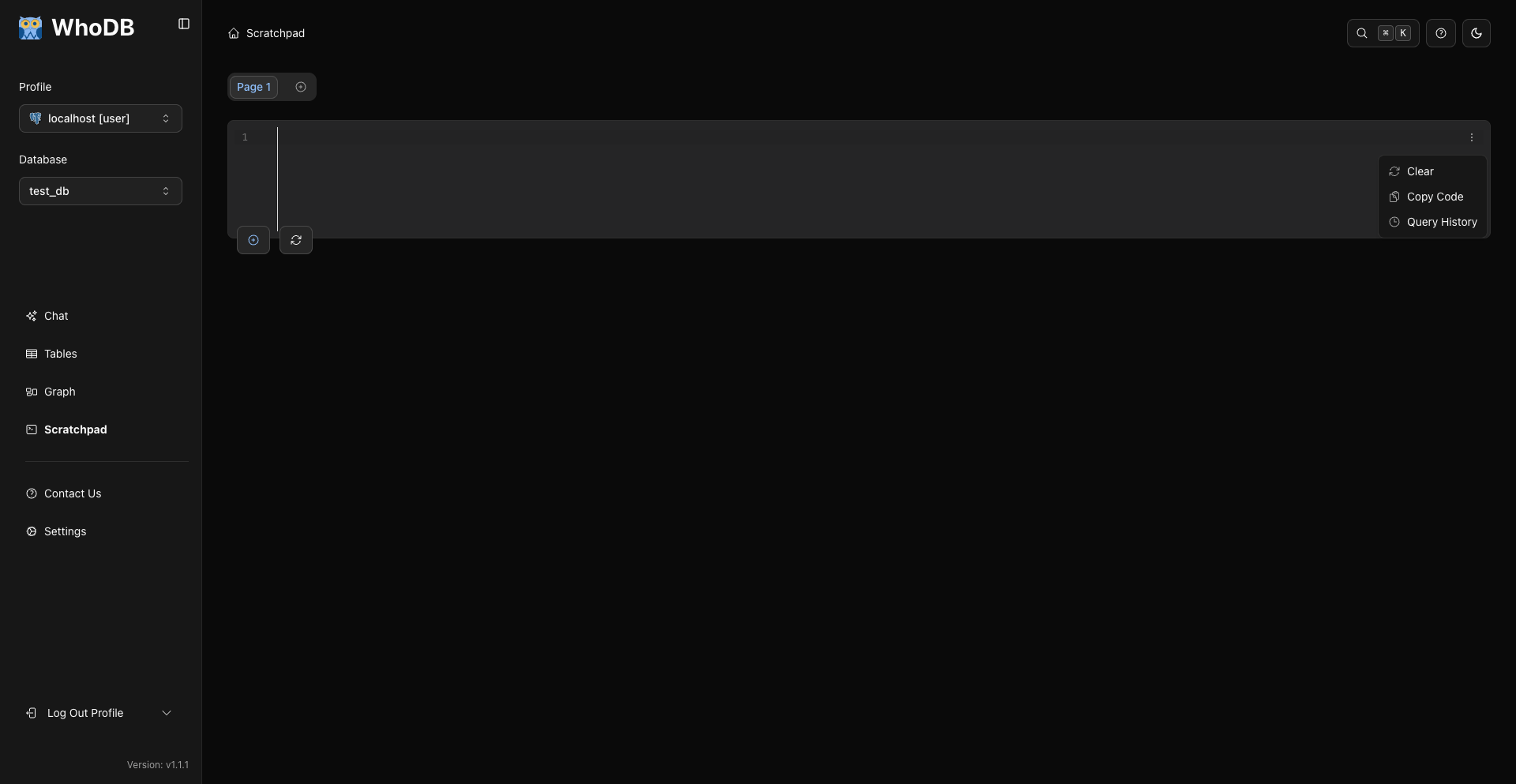
The cell options menu currently contains Clear, Copy Code, and Query History.
Use the visible page tabs and cell controls to organize Scratchpad work.
Query History
Open query history from the cell options menu or the history button on the cell.
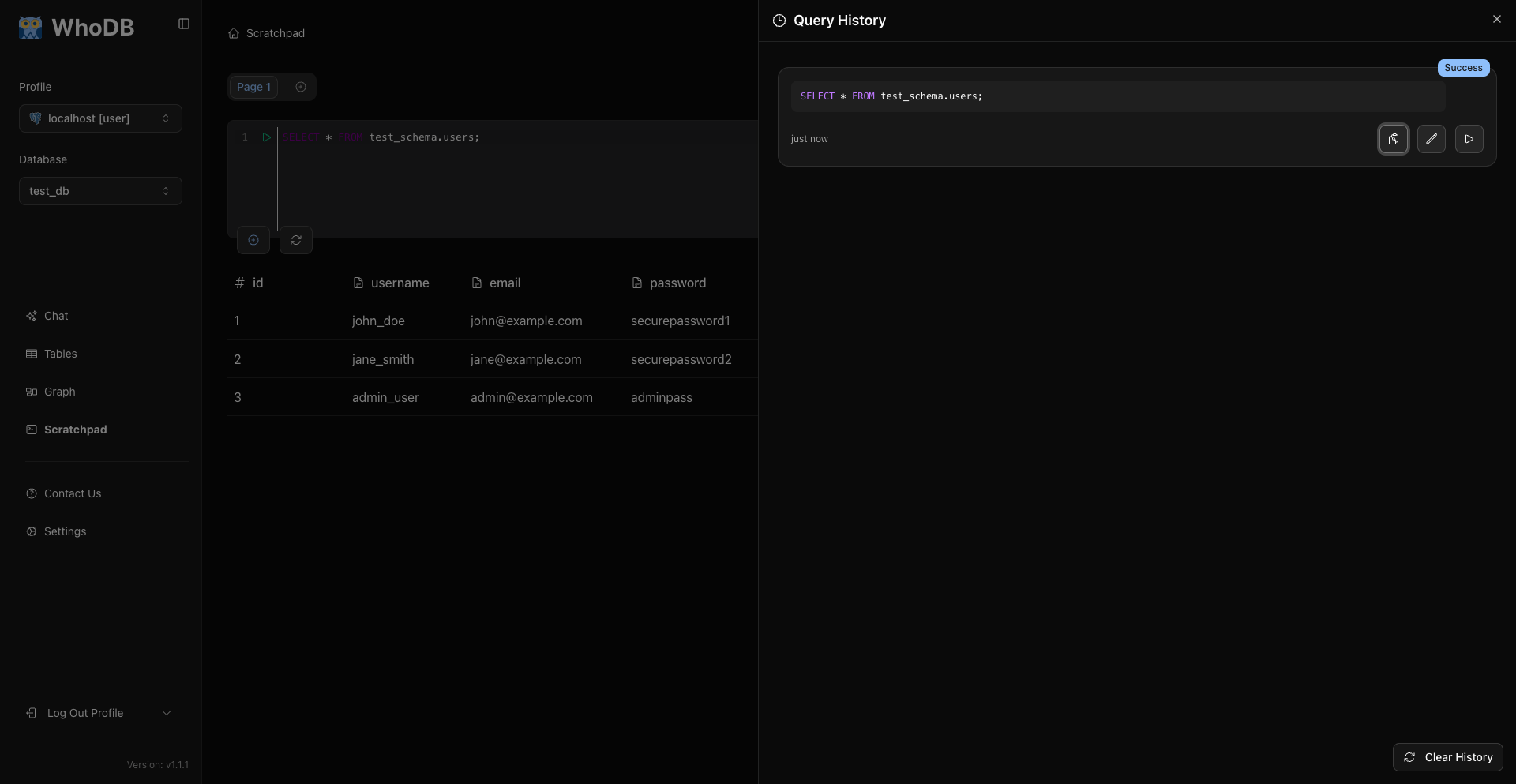
History is stored per cell. Entries show the query text, success/error status, and timestamp. From a history entry you can copy the SQL, load it back into the current editor, or run it again.
Note
Loading a history entry puts that SQL into the current editor.
Editor Shortcuts
Shortcut | Action |
|---|---|
Cmd/Ctrl + Enter | Run the current query or selected SQL |
Cmd/Ctrl + U | Clear the current editor |
Related Pages
Previous
Next