
AI Chat Assistant
Conversation Management & Advanced Features
Conversation Management & Advanced Features
WhoDB's AI Chat Assistant is designed for interactive, contextual conversations that build on previous exchanges. This guide covers advanced features that help you work more efficiently with the AI, including conversation history, chat navigation, scratchpad integration, and provider management.
Tip
The AI assistant maintains full context throughout your conversation, allowing natural follow-up questions without repeating information
Warning
Conversation features require a selected AI model. If the model dropdown is empty, configure a provider before testing chat history, generated SQL, or Move to Scratchpad.
Understanding Conversational Context
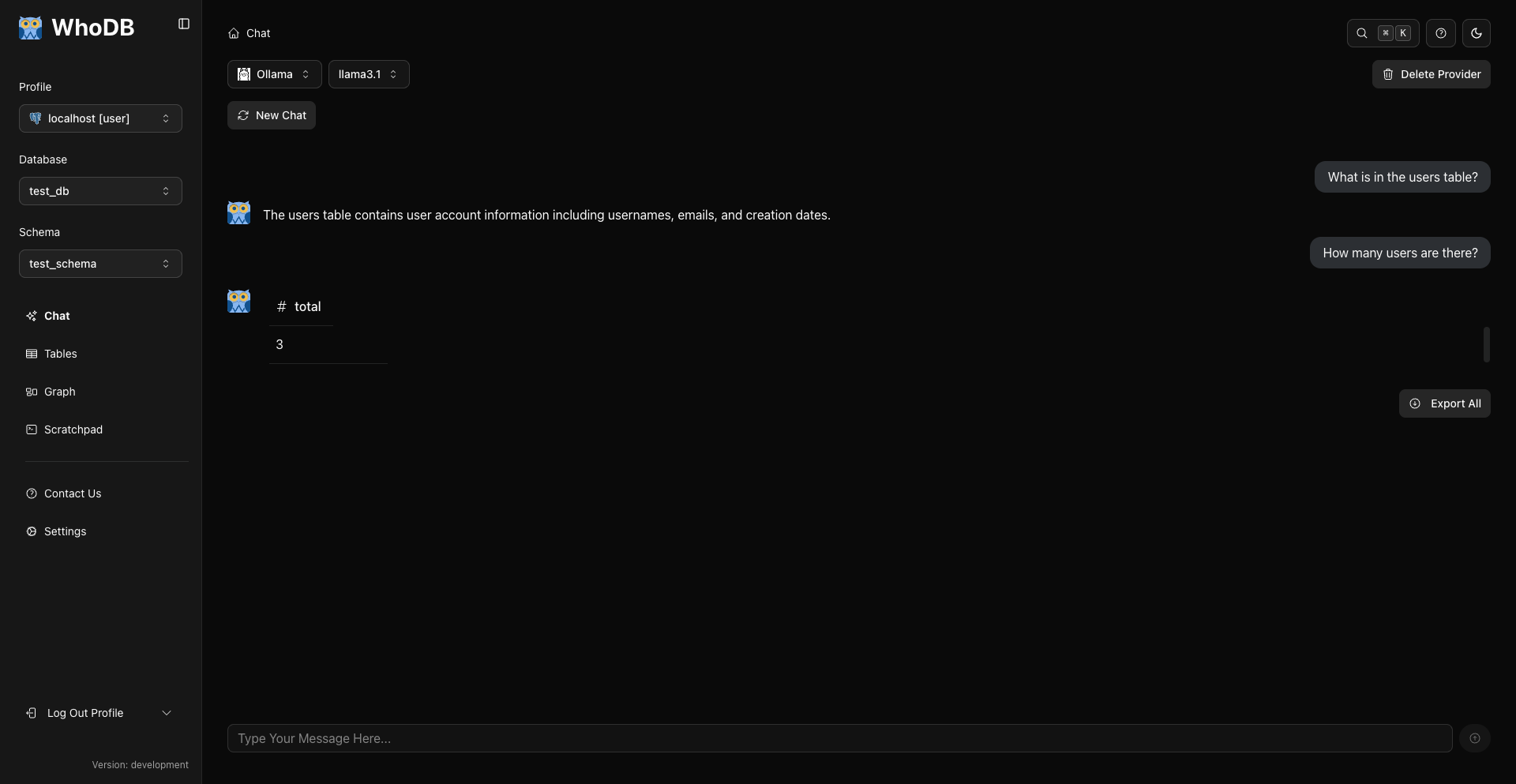
Unlike traditional SQL editors where each query is independent, WhoDB's AI assistant maintains conversational context throughout your session. This enables a natural, iterative approach to data exploration and analysis.
How Context Works
When you ask a question, the AI assistant considers:
- Your current question
- All previous messages in the conversation
- Your database schema
- Previous query results (implicitly)
This context awareness allows the assistant to:
- Understand pronouns and references ("show me that data", "what about the previous month?")
- Refine previous queries based on feedback
- Build complex analyses through multiple steps
- Maintain topic continuity across questions
Context Window Limitations
Each AI provider and model has limits on how much conversation history can be maintained. Context window sizes vary by model — check your provider's documentation for the models you use.
Info
One token is approximately 4 characters. Longer schemas and verbose queries consume more tokens
When the context window approaches its limit, consider starting a new conversation to maintain optimal performance.
Multi-Turn Conversations
Multi-turn conversations allow you to build complex analyses through natural dialogue, refining and iterating on results.
Follow-Up Questions and Refinement
After receiving initial results, ask follow-up questions that reference previous context:
text
You: Show me recent orders
AI: [Returns orders from the last 30 days]

You: Actually, just from the last week
AI: [Adjusts the query to show 7 days instead]

You: Sort by total amount descending
AI: [Adds ORDER BY clause to the refined query]
The assistant understands that "them", "those", or "that query" refer to results from earlier in the conversation.
Building Complex Analysis
Break down complex questions into multiple steps:
Each step builds on previous context, so you never repeat information the assistant already knows.
Conversation Patterns
Chat History Navigation
WhoDB provides keyboard shortcuts to quickly access your previous questions, making it easy to rerun or modify earlier queries.
Keyboard Shortcuts
Shortcut | Action | Description |
|---|---|---|
↑ (Arrow Up) | Previous message | Navigate backward through your message history |
↓ (Arrow Down) | Next message | Navigate forward through your message history |
Enter | Send message | Submit your current message to the AI |
Using Arrow Keys
This is useful for rerunning queries after data modifications, adjusting date ranges or filters in a previous question, and recalling phrasing that worked well.
Tip
Use ↑ to quickly access and modify your last query instead of retyping similar questions
Starting New Conversations
When you need to start fresh or when your current conversation becomes too long, use the New Chat feature to clear context and begin a new session.
When to Start a New Chat
You're switching to a completely different topic or database area
Your conversation has 30+ messages and performance is slowing
The AI seems confused by mixed context from different topics
You want to approach a problem with a clean slate
Creating a New Chat
Chat Sessions
WhoDB supports multiple chat sessions, shown in a chat history sidebar:
- Create: Click the add-session button in the sidebar to start a new session
- Switch: Click any session in the sidebar to resume that conversation with its context intact
- Rename: Edit a session's title directly; titles can also be auto-generated by the AI based on the conversation
Use separate sessions for separate topics instead of mixing everything into one long conversation.
Preserving Important Queries
Before clearing a session, consider saving important queries to Scratchpad:
- Hover over any query result
- Click the ellipsis (...) button and select Move to Scratchpad
- Choose or create a page for the query
- Start your new chat
Moving Queries to Scratchpad
The Scratchpad integration allows you to save generated SQL queries for later use, modification, or documentation. This bridges the gap between conversational exploration and traditional SQL editing.
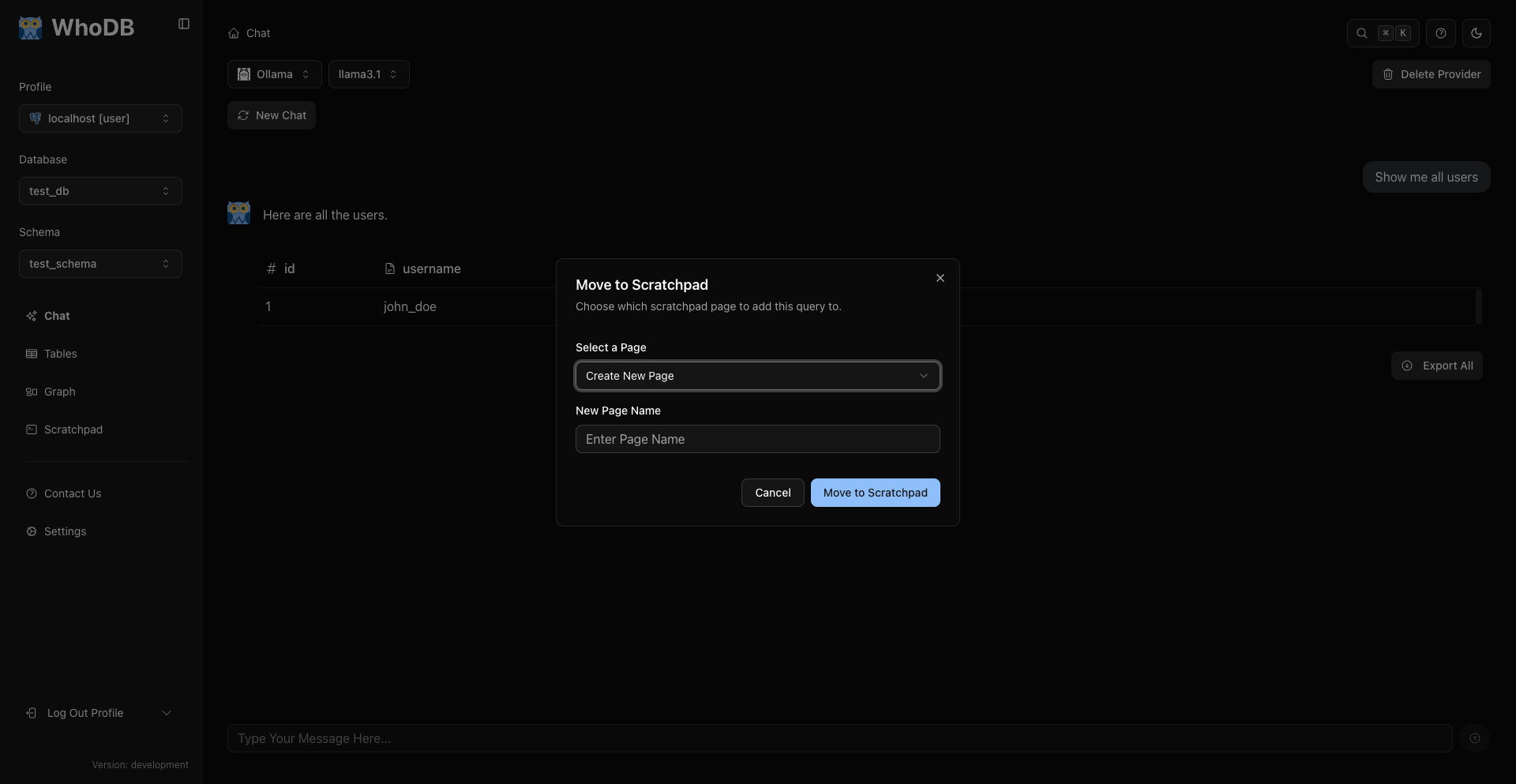
Moving a Query to Scratchpad
Database Support
The Move to Scratchpad option appears for SQL sources whose connection supports raw query execution — for example PostgreSQL, MySQL, MariaDB, SQLite, ClickHouse, and DuckDB. It is not shown for sources without a SQL query surface, such as Redis and MongoDB.
Info
For non-SQL sources, copy the generated query manually if needed for documentation
Organizing Scratchpad Queries
Develop a structure for organizing Scratchpad pages — by functionality (User Queries, Order Analysis, Data Cleanup), by frequency (Daily Reports, Monthly Summaries), or by complexity. Create descriptive page names that make it easy to find queries later, add comments documenting what each query accomplishes, and copy important SQL into your normal shared docs, runbooks, or repository.
Managing Conversation History
As you work with the AI assistant, managing your conversation history becomes important for maintaining clarity and performance.
Conversation Lifecycle
A conversation starts with minimal context and quick responses. As you build on previous questions, context accumulates — enabling sophisticated follow-ups but gradually increasing processing time. After 20-30 messages, performance may slow slightly; as you approach the model's context limit, consider starting a new chat or being more concise.
Signs You Should Start a New Chat
- Responses become noticeably slower
- The AI references incorrect previous context
- You're switching to a completely different task
- Error messages about context length
- You've had 50+ messages in one conversation
Strategies for Long Sessions
If you need extended conversations:
Use Models with Large Context Windows: Some models support much larger context windows than others — check your provider's documentation for context sizes.
Be Concise: Use shorthand in follow-ups ("show top 10" vs. "can you please show me the top 10 results") and reference previous results by position ("those top 3" instead of repeating criteria).
Periodically Summarize:
text
Summarize what we've learned about the users table so far
Save to Scratchpad: Move important queries to Scratchpad, then start a new chat with a fresh context.
Provider Management
Managing your AI providers allows you to switch between different AI services, update credentials, and remove unused providers.
Viewing Current Provider
Your active provider and model are displayed in two dropdowns at the top of the Chat interface:
- Left dropdown: AI Provider (OpenAI, Anthropic, Gemini, Ollama, LM Studio, etc.)
- Right dropdown: Specific model, from the list fetched from that provider
Switching Providers
Info
Switching providers does NOT clear your conversation history. The new provider will have access to previous messages
Adding New Providers
Click the AI Provider dropdown and select the green "Add a provider" option at the bottom. Choose the provider type, enter the required credentials, and click Submit. See Setting Up AI Providers for detailed configuration instructions, provider comparisons, and troubleshooting.
Deleting Providers
When you no longer need a provider (e.g., expired API key, switching to a different service), you can remove it:
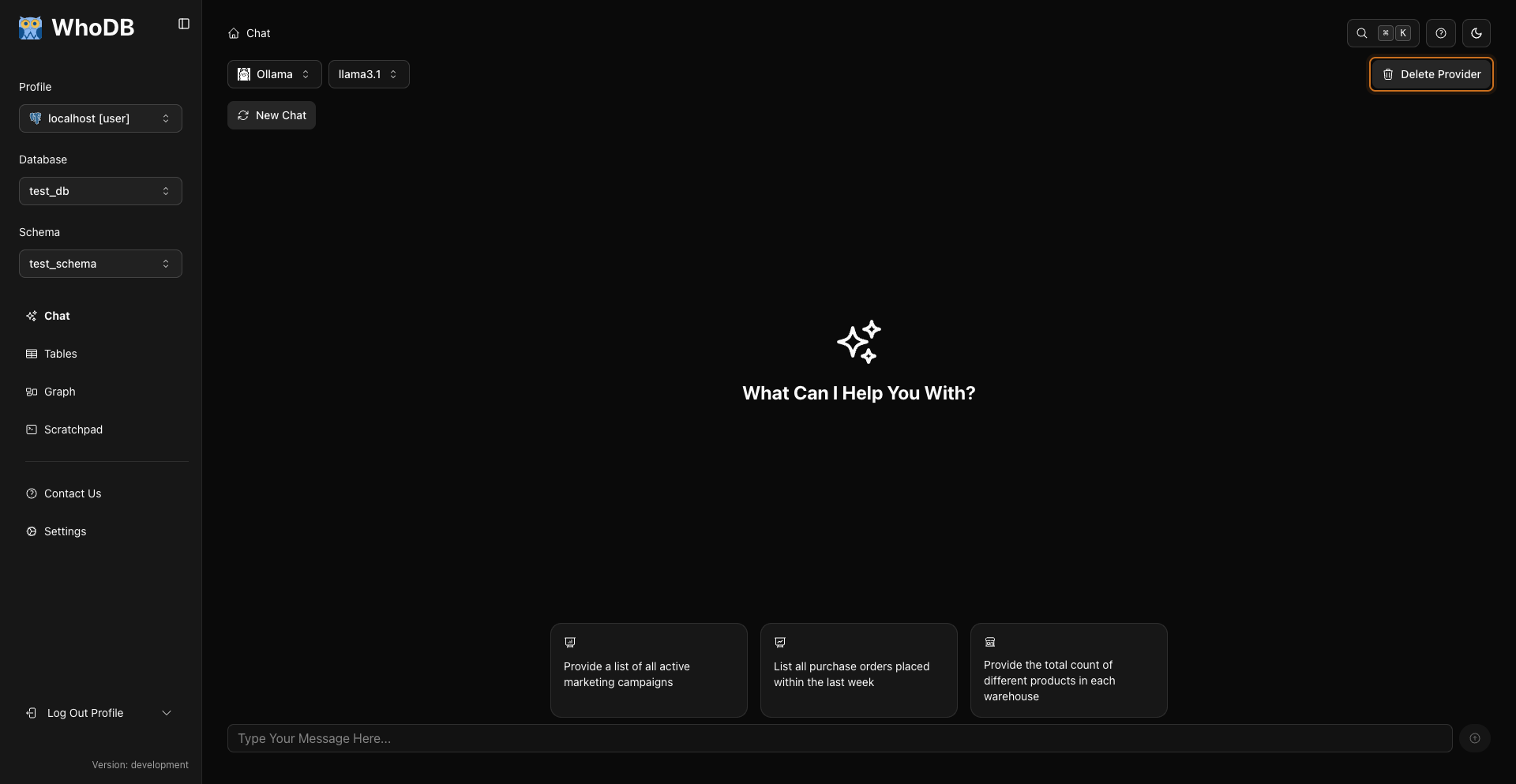
Note
Environment-defined providers are managed by deployment configuration.
Managing Multiple Providers
You can configure multiple providers simultaneously, useful for:
- Flexibility: Use a smaller, cheaper model for simple queries and a more capable model for complex analysis
- Redundancy: Have backup providers if the primary service is down or rate-limited
- Privacy: Use local models (Ollama, LM Studio) for sensitive queries and cloud providers for faster responses on non-sensitive data
For provider selection strategy and cost considerations, see AI Chat Assistant Best Practices; for setup details, see Setting Up AI Providers.
Tip
Keep at least two providers configured for reliability and flexibility
Advanced Conversation Patterns
Context Anchoring
Reference specific previous results:
text
Take that query and add a filter for...
Apply the same logic to the orders table instead
Explaining AI Decisions
Ask the AI to explain its query choices:
text
Why did you use a LEFT JOIN instead of INNER JOIN?
Is there a more efficient way to write this?
This helps you learn SQL while using the assistant.
Multi-Step Workflows
Combine conversation with Scratchpad for complex workflows:
- Explore with AI: Ask questions to understand data structure
- Generate Base Query: Get AI to create the initial query
- Move to Scratchpad: Save the query for refinement
- Refine Manually: Add complexity or optimization
- Iterate: Return to the AI with follow-up questions as needed
This hybrid approach combines AI speed with manual control.
Troubleshooting Conversation Issues
For provider connection issues (invalid API keys, rate limits, Ollama not running), see Setting Up AI Providers.
Next Steps
Now that you understand conversation management and advanced features:
Check
Mastering conversation features transforms the AI assistant from a query generator into a powerful collaborative partner for database work