
Visualization
Graph View
Graph View
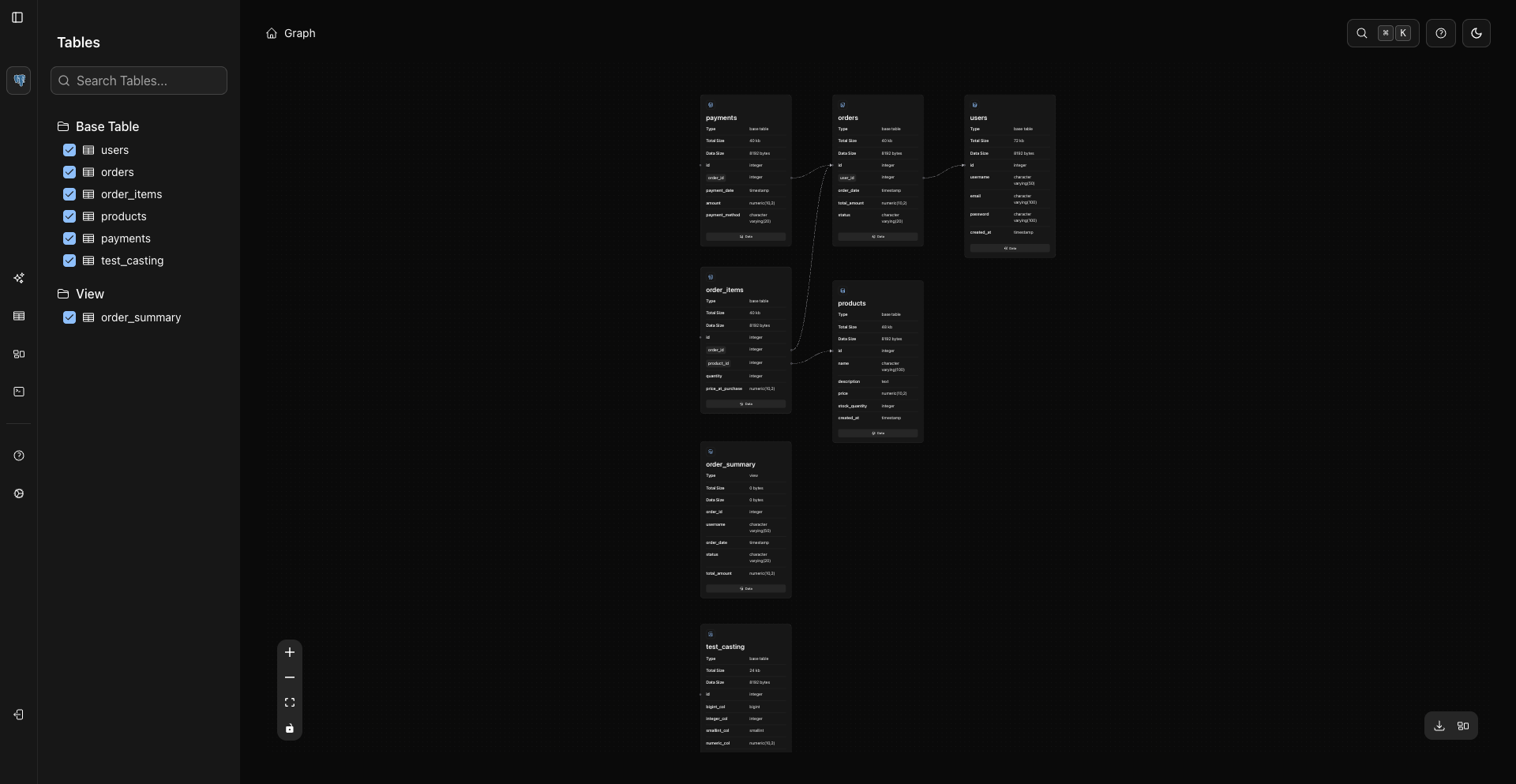
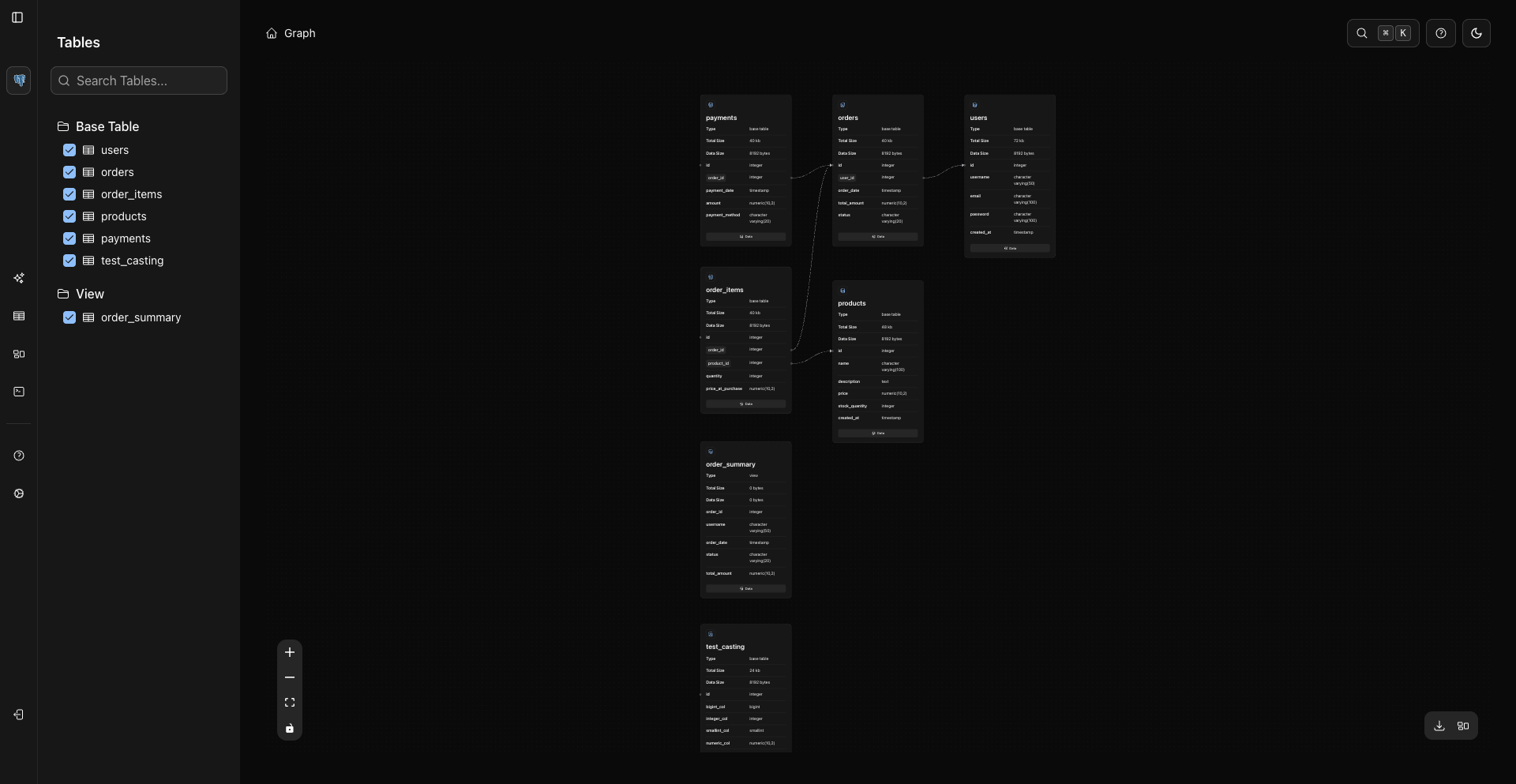
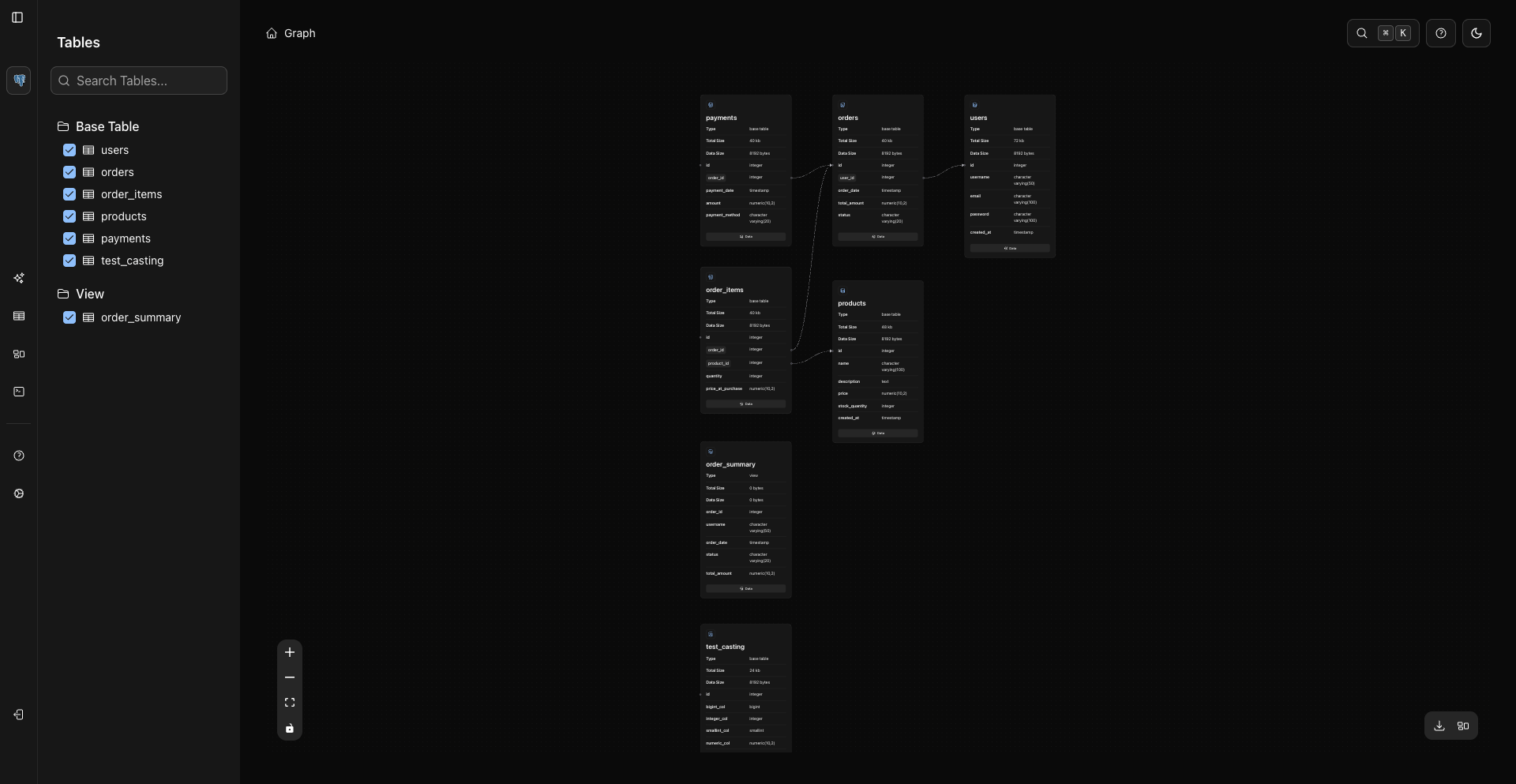
The Graph view visualizes database objects and relationships. It is useful for understanding how tables or collections connect before opening their data.
Open Graph
Open Graph from the left sidebar. The route is /graph.
The Graph page has two main areas:
- A left graph sidebar with search and object checkboxes grouped by type.
- A canvas with selected storage-unit nodes and relationship edges.
Selecting Objects
Use the graph sidebar to choose which objects appear on the canvas.
- Search filters the object list in the graph sidebar.
- Check or uncheck objects to add or remove them from the graph.
- WhoDB auto-selects an initial set of objects so small schemas render immediately.
Node Content
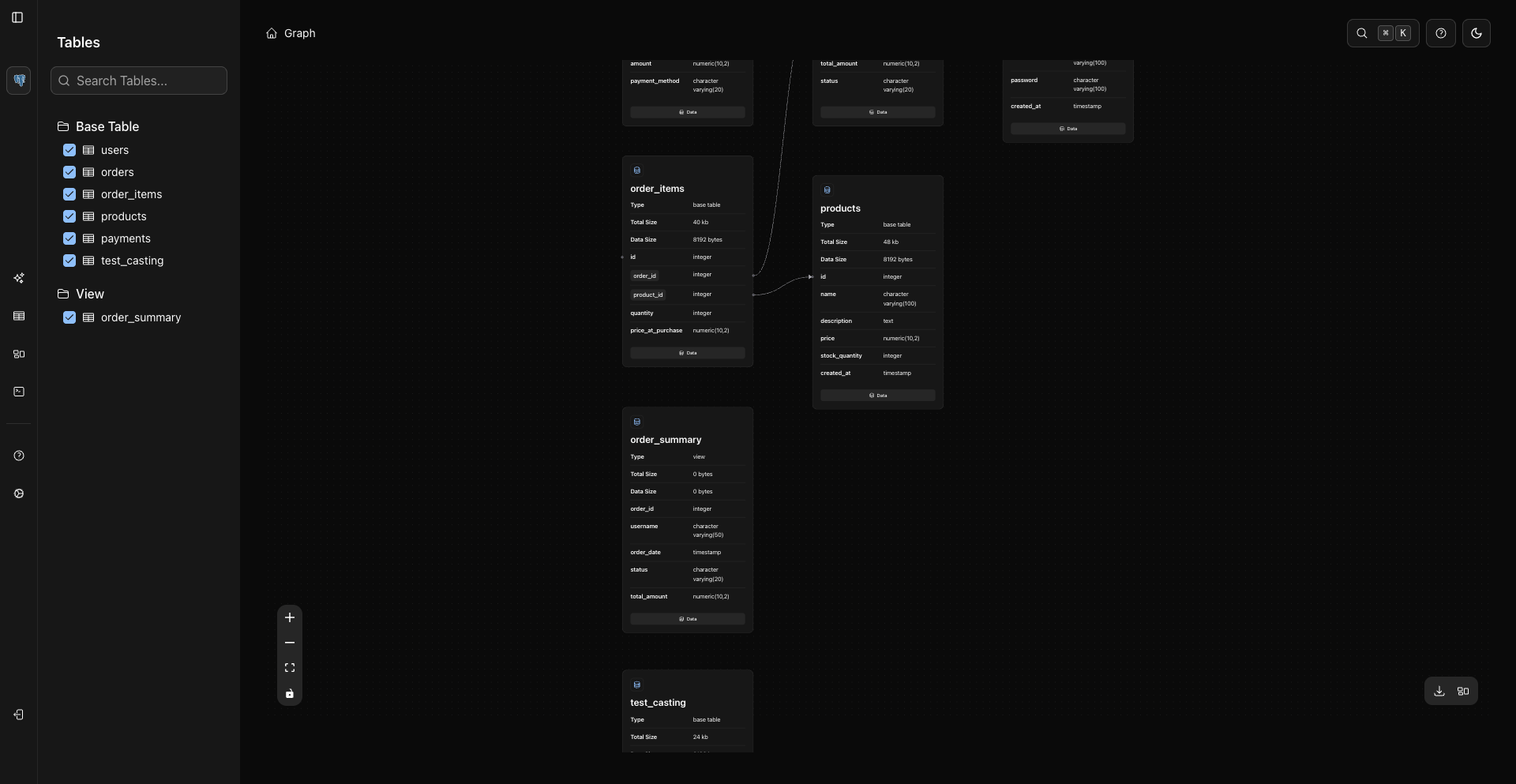
Each node renders object information directly in the card:
- Object name.
- Metadata attributes exposed by the source.
- Column or field names when they have been loaded.
- A visible Data button.
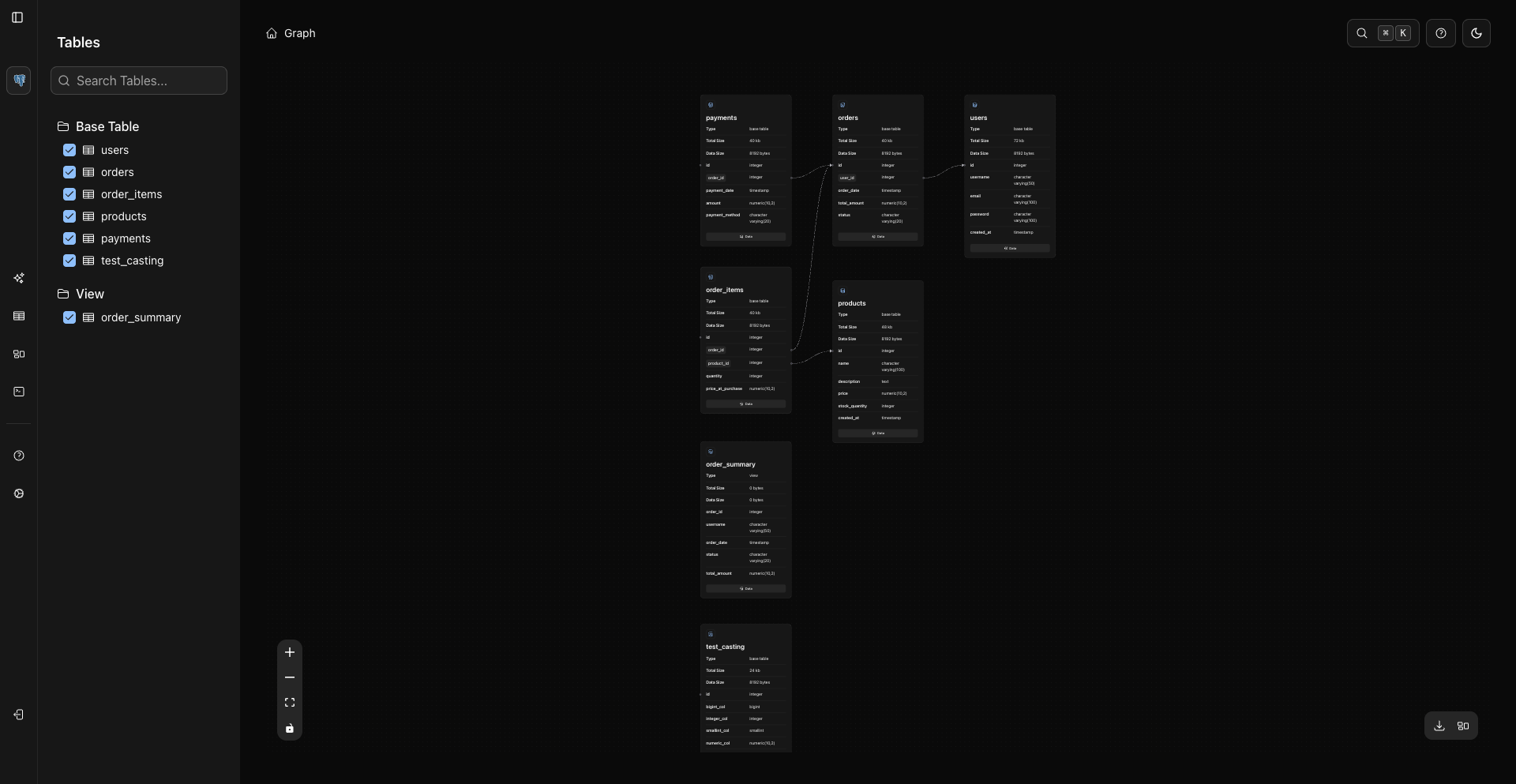
Clicking a node loads its columns when needed. Node details live directly in the card.
Opening Data From A Node
Use the Data button inside a node to open that object's Storage Unit data page.
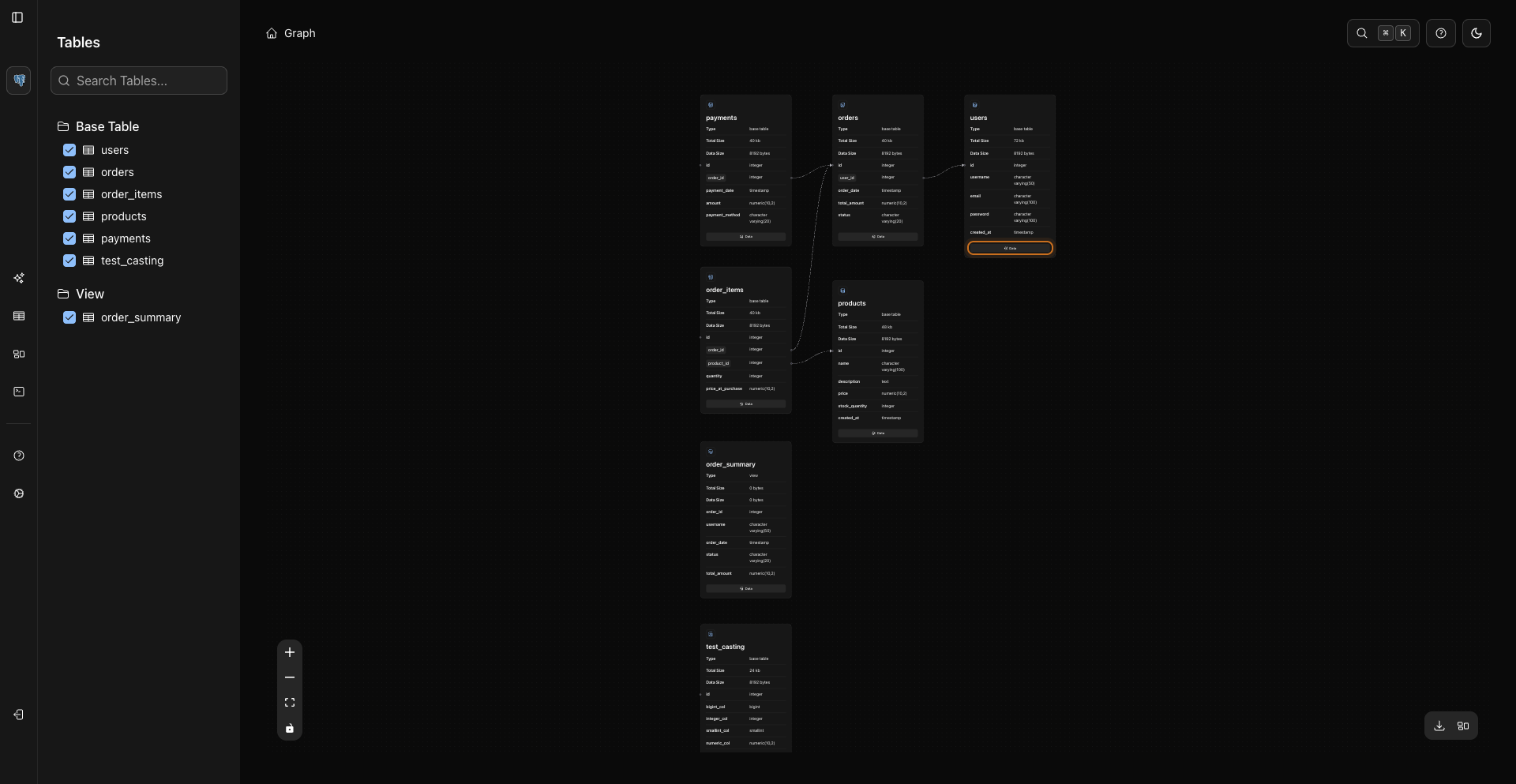
The button is part of the node card.
Canvas Controls
The graph uses React Flow controls:
- Zoom in.
- Zoom out.
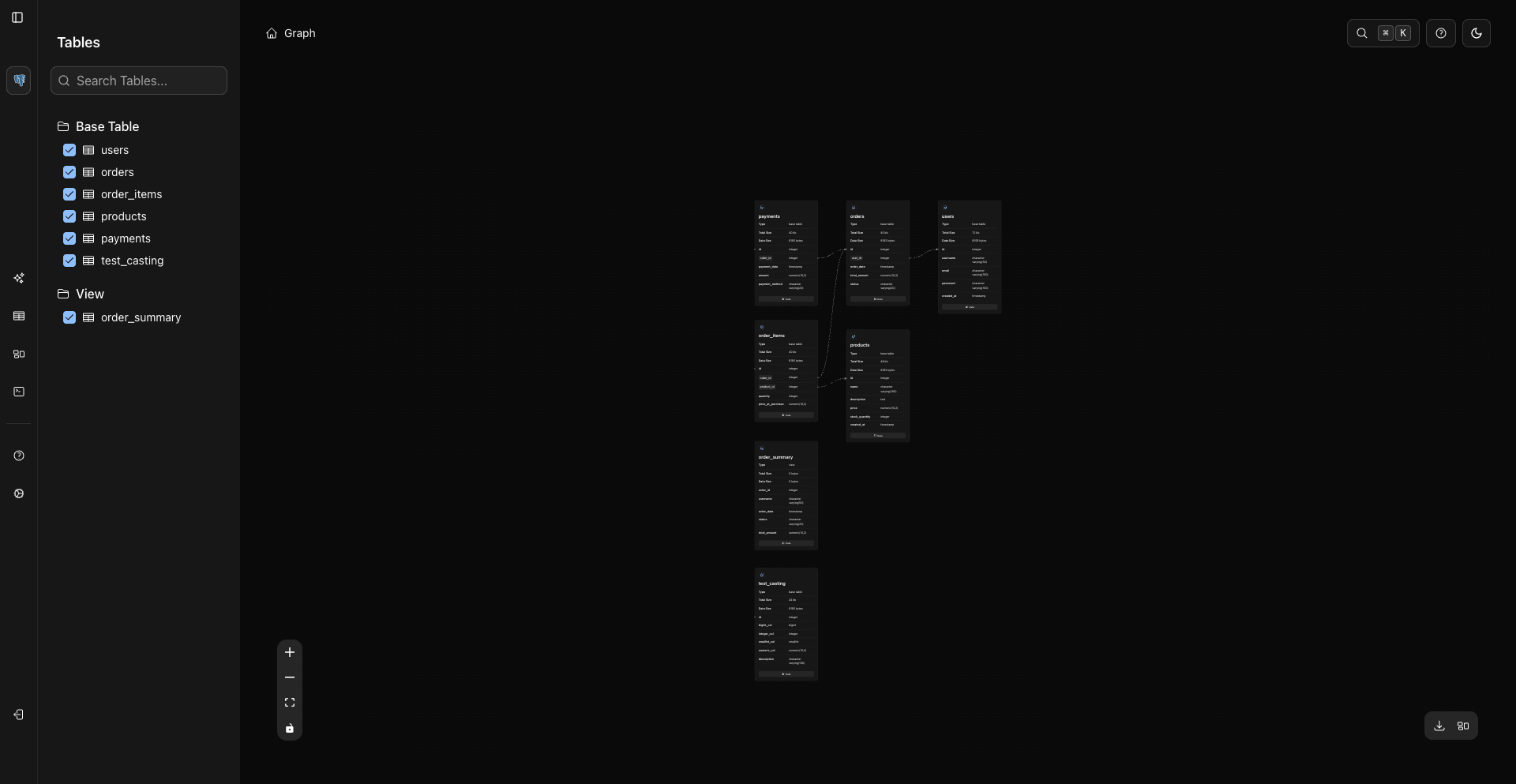
- Fit view.
- Toggle interaction lock/pan mode.
These controls are in the lower-left corner of the canvas.
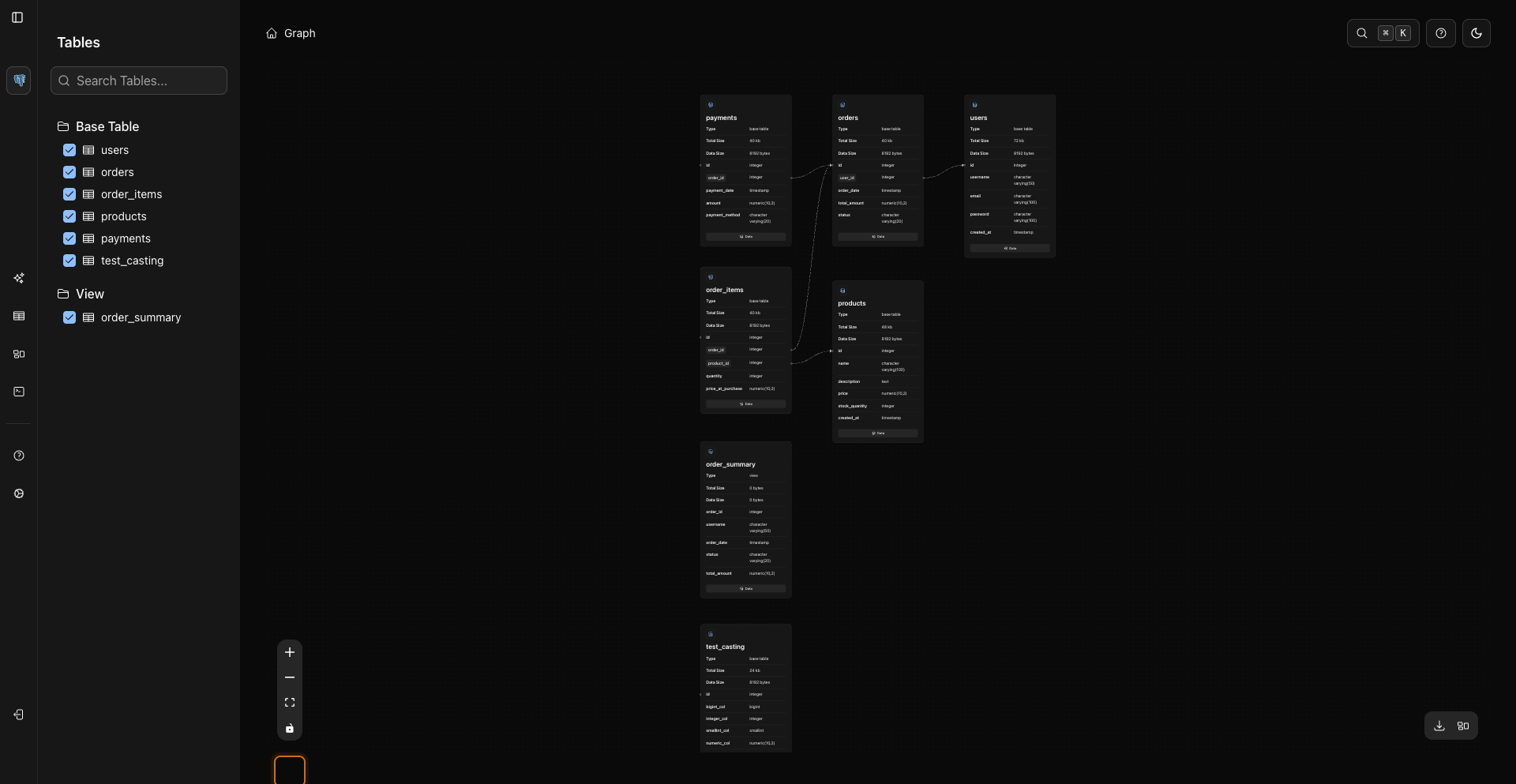
WhoDB also adds graph actions in the lower-right corner, including download/export and layout controls.
Note
Use Fit View when you want to recenter the graph.
Pan And Zoom
- Use the mouse wheel or zoom controls to zoom.
- Use fit view to center the selected graph.
- Drag the canvas to pan when interaction mode allows it.
- Hold Space while interacting if you need temporary drag-pan behavior.
Relationship Examples
Troubleshooting
If the graph is empty:
- Confirm the current connection supports graph data.
- Select objects in the graph sidebar.
- Verify your database has relationship metadata available to the connected user.
- Refresh the page after schema changes.
Related Pages
Previous
Next