
Core Features
Storage Units
Storage Units
Storage Units are the source objects WhoDB can inspect or open for data. Depending on the source, a storage unit can represent a SQL table, view, collection, keyspace object, or another object exposed by the source plugin.
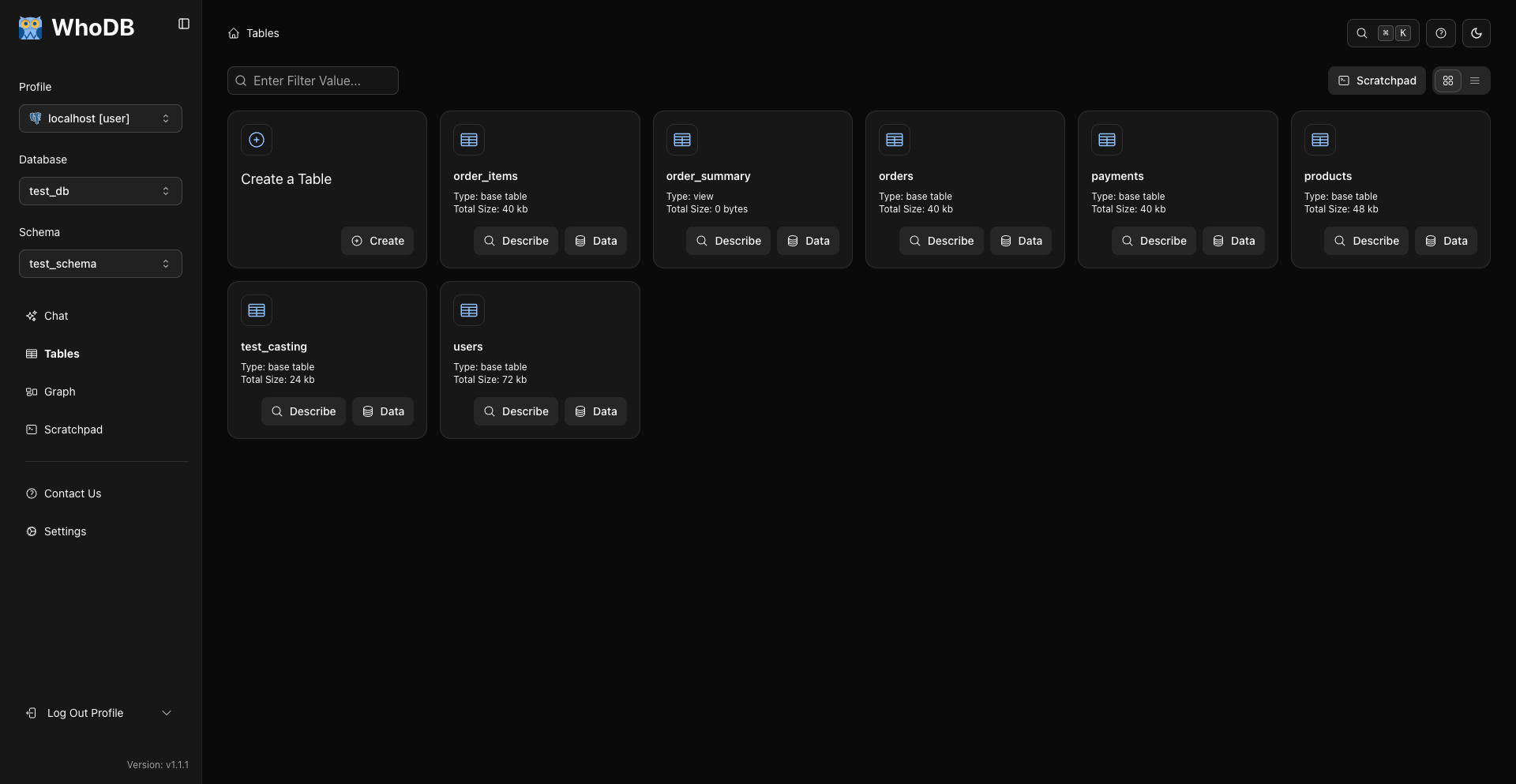
Open Storage Units
Use the left sidebar item named Storage Units, Tables, or the source-specific label shown for your database type. The route is /storage-unit.
The page includes:
- A search field for filtering visible storage-unit cards.
- A Scratchpad shortcut when the source supports Scratchpad.
- Card and list view toggles.
- Object cards with Describe and Data actions.
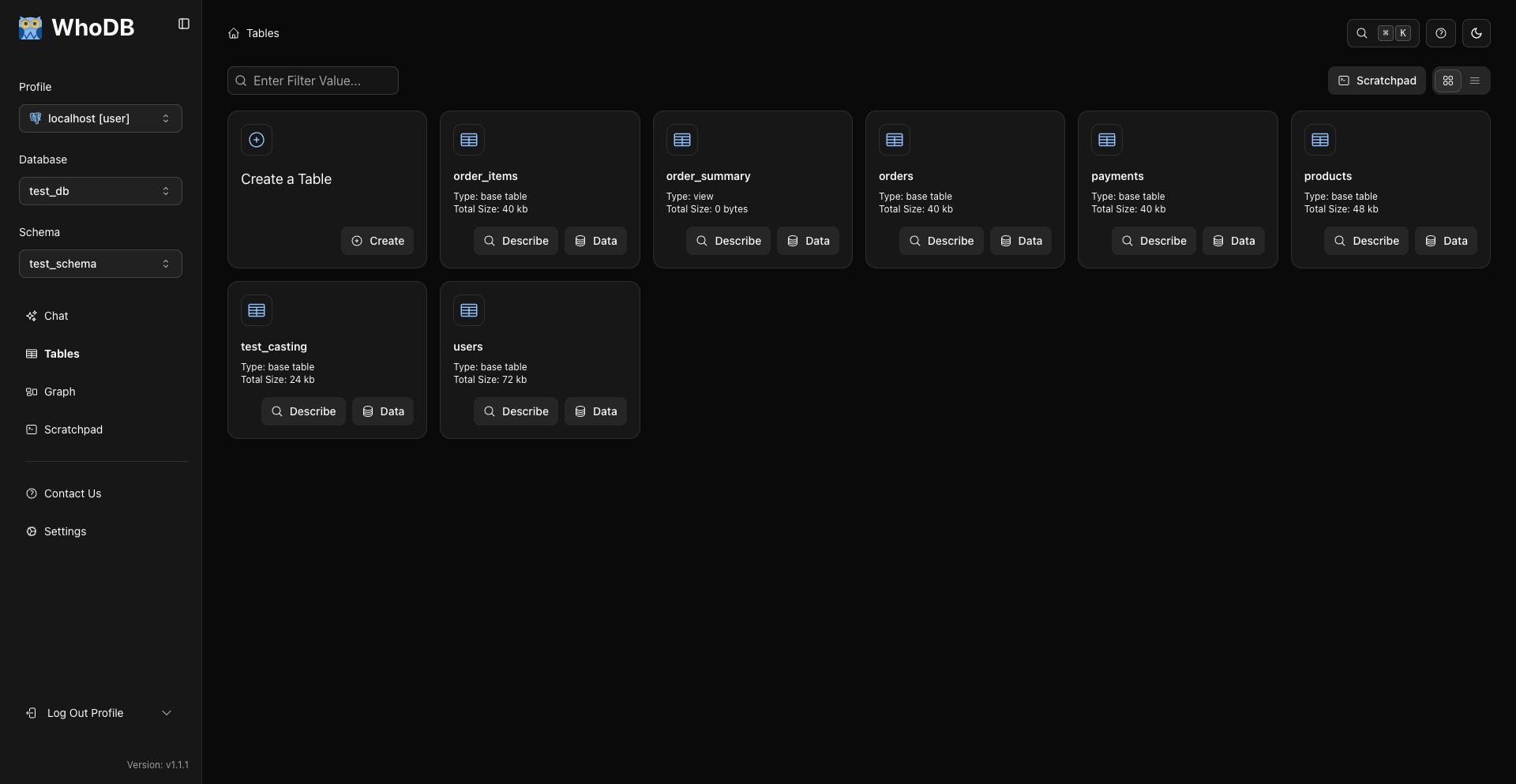
Card View
Card view shows each object as an expandable card.
Use Describe to expand the card and inspect metadata. For sources that expose columns or fields, WhoDB loads and displays them inside the expanded card.
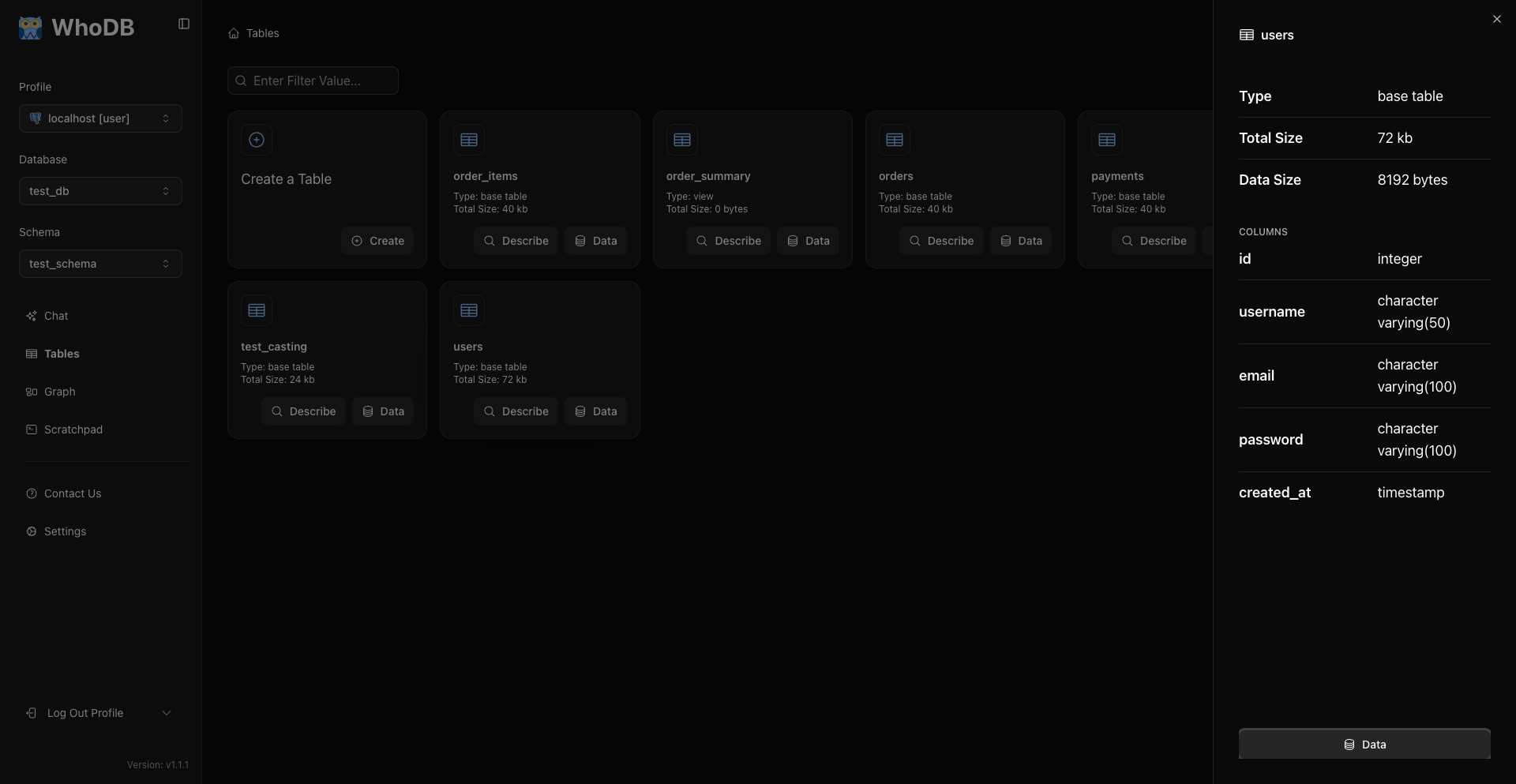
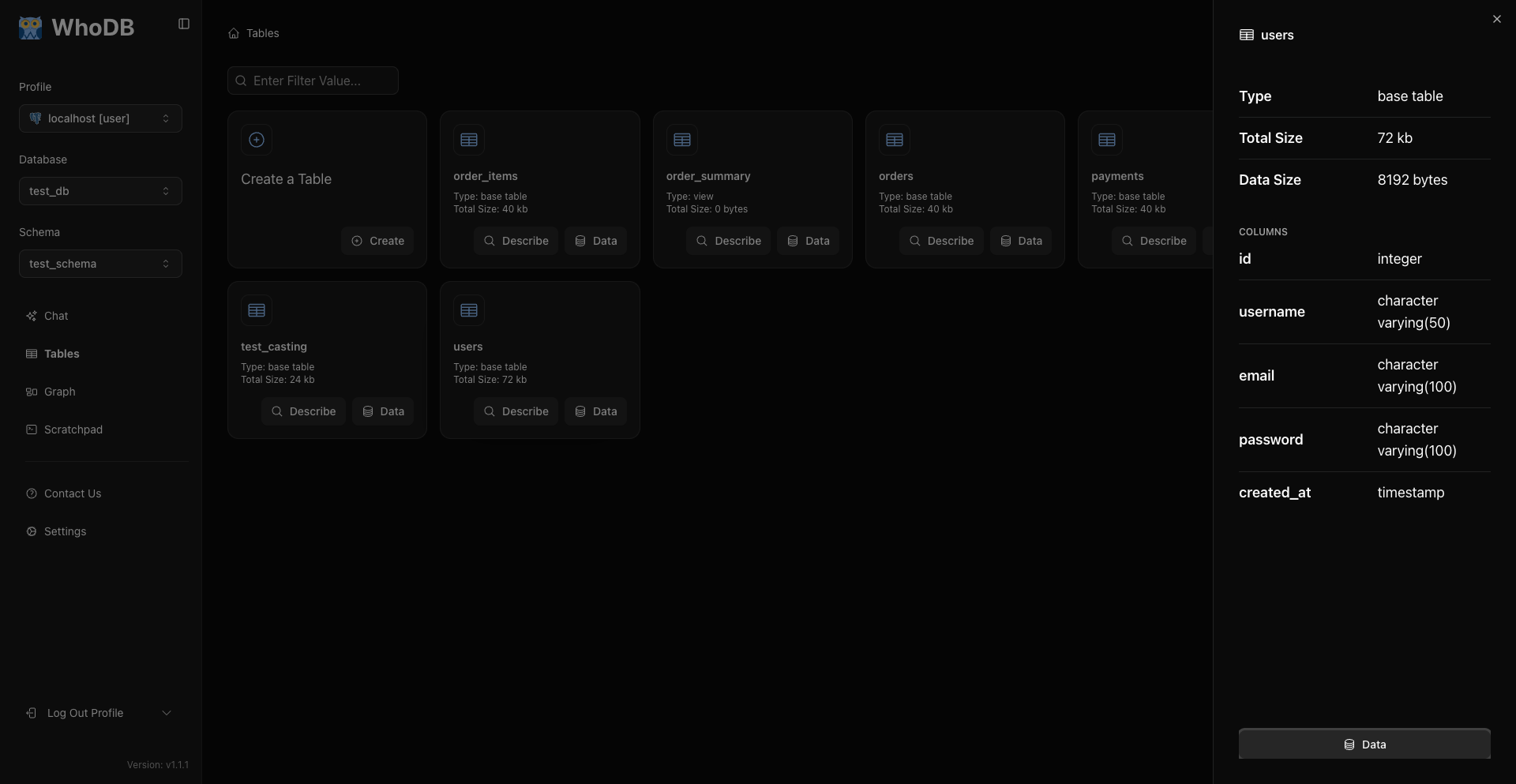
Use Data to open the object's data page.
List View
List view displays objects in a compact table. It includes shared metadata attributes and an action column. Hover a row to reveal the Data button.
If you need per-object attributes and columns, switch to card view and use Describe on the object's card.
Searching Storage Units
The Storage Units search box filters object names on the current page. It is for finding objects, not for filtering rows inside an object.
To filter rows, open an object's Data page and use WHERE conditions.
Data Page
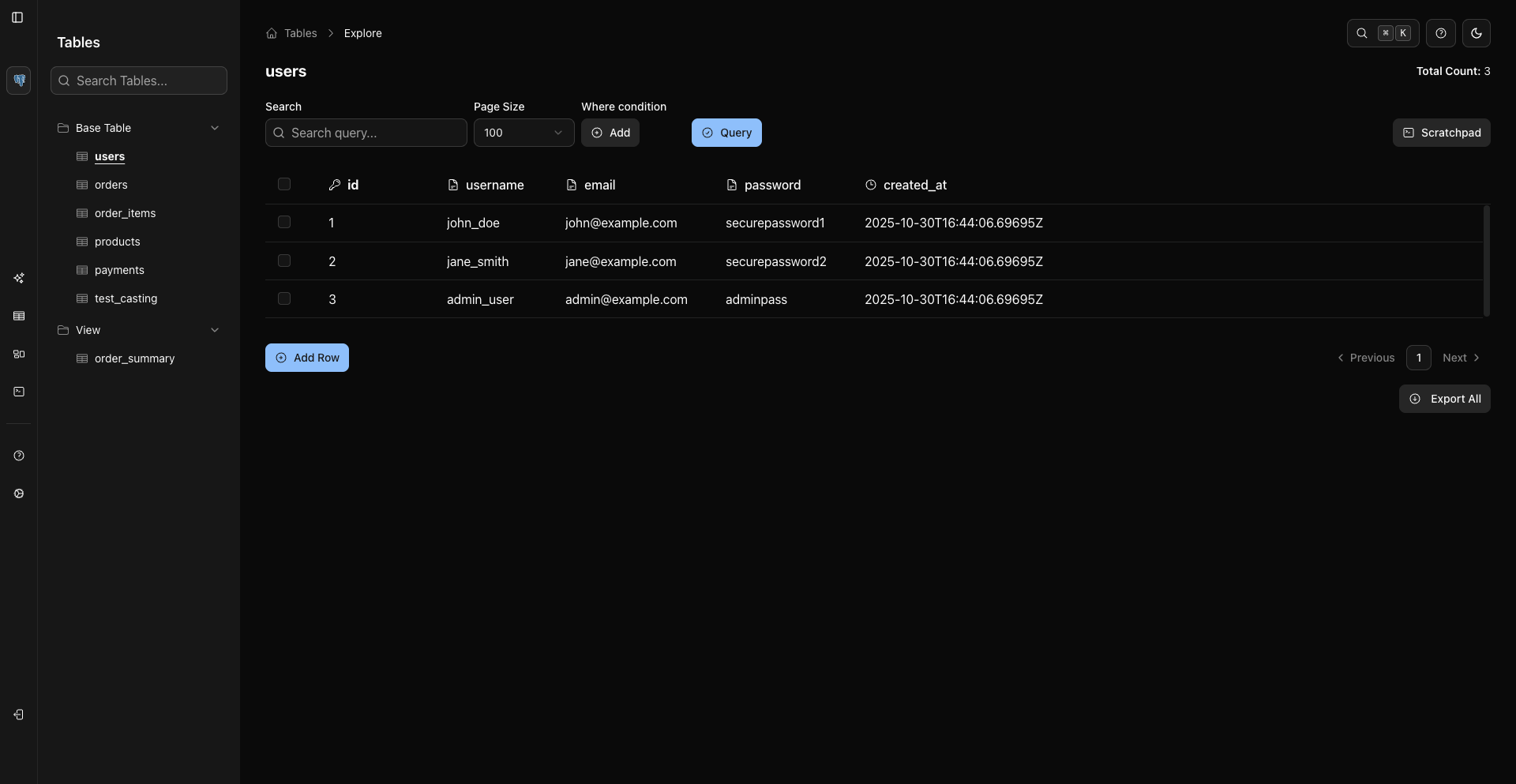
The Data button opens /storage-unit/explore for that object. The data page provides:
- Row grid.
- Search across currently loaded rows.
- Page size and pagination.
- WHERE condition builder.
- Sorting.
- Add Row, Edit Row, Delete Row when the source and credentials allow writes.
- Export and mock data actions when supported.
Pick The Right View
Use:
- Describe on a Storage Unit card for structure and metadata.
- Data for rows and grid actions.
- Sidebar Graph for schema visualization.
- Sidebar Scratchpad for SQL.
Related Pages
Previous
Next