
AI Chat Assistant
Querying Data with AI Chat
Querying Data with AI Chat
WhoDB's AI Chat Assistant transforms database querying from a technical task into a natural conversation. Ask questions in plain English and get instant results with interactive tables, generated SQL, and intelligent error handling.
Tip
The AI assistant understands your database schema and generates optimized queries specific to your database type
Warning
AI querying requires an active provider and selected model. If the Chat page shows no available model, configure a provider first; prompts cannot be sent without a model.
Getting Started with Simple Queries
Traditional database querying requires knowledge of SQL syntax, table structures, and join relationships. The AI Chat Assistant eliminates these barriers by translating natural language into accurate SQL queries.
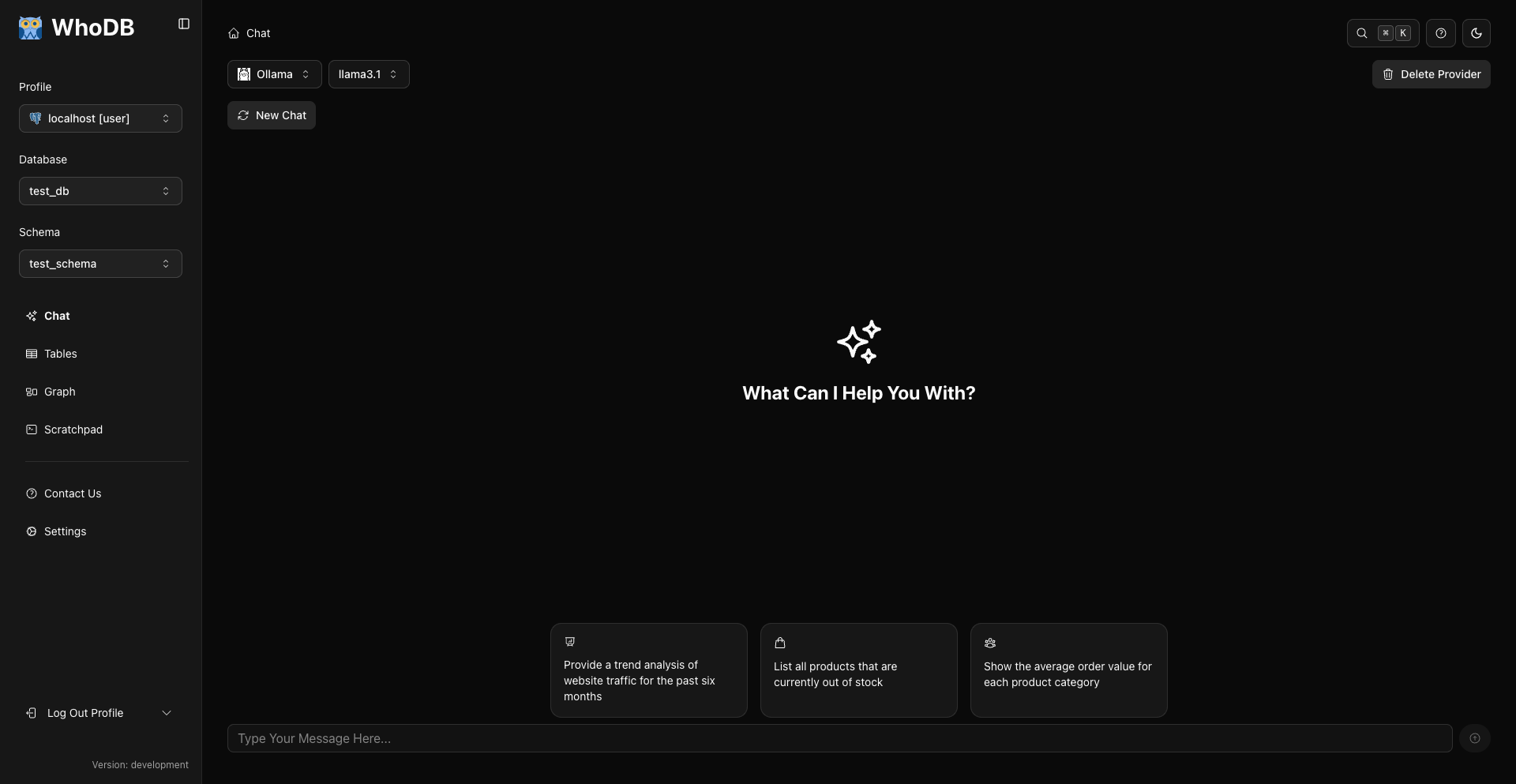
Asking Your First Question
Simple Text Responses
For general questions or informational queries, the assistant provides text responses:
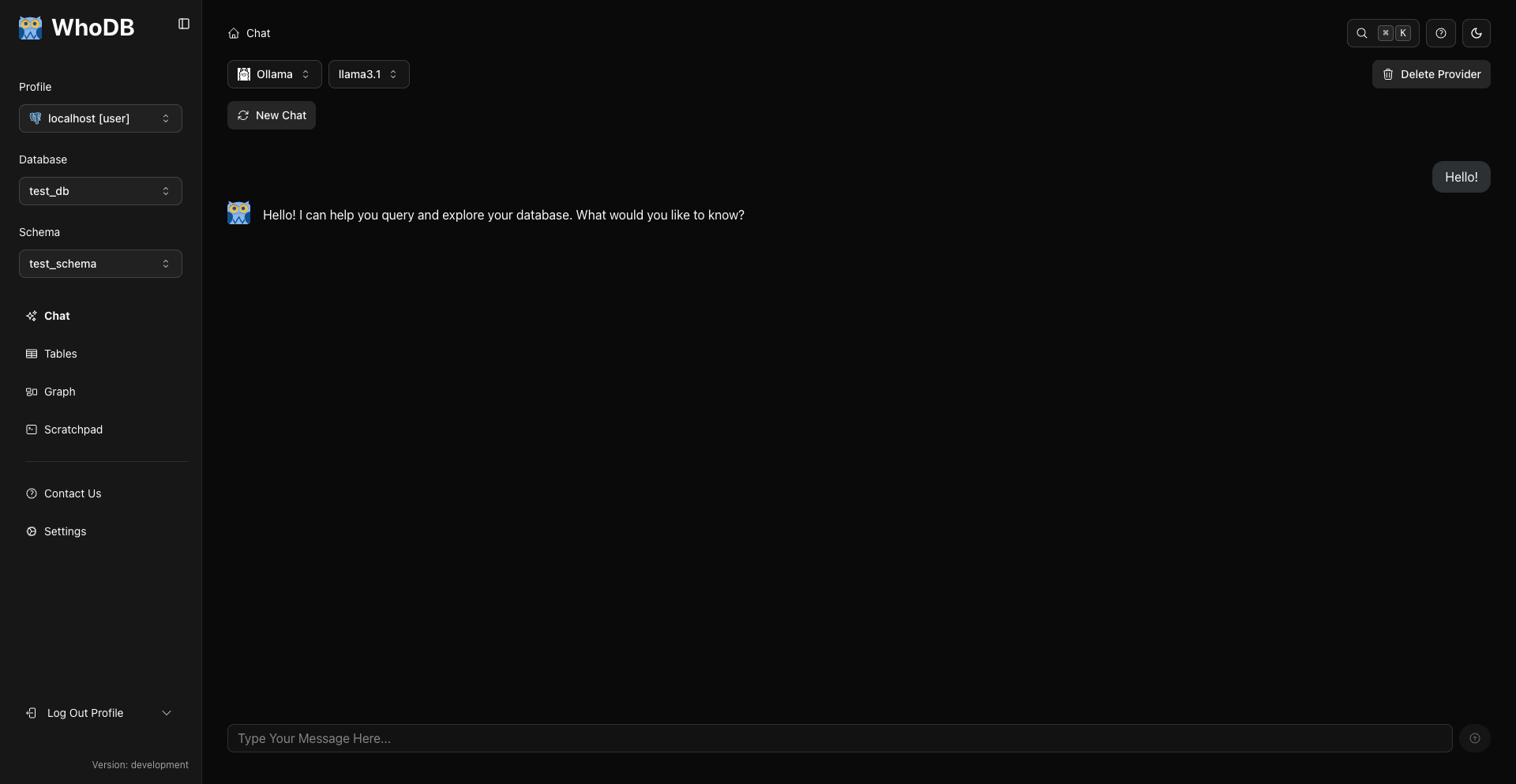
Example interactions:
- "Hello" - Gets a greeting and overview of capabilities
- "What tables are available?" - Lists your database tables
- "Explain what the users table contains" - Provides schema information
Info
Text responses are perfect for understanding your database structure before diving into queries
Retrieving Data with SELECT Queries
The AI assistant excels at generating SELECT queries. Describe what you want — including columns, filters, sorting, and limits — and it produces the SQL:
text
Show me usernames and emails from users created after 2024-01-01, sorted by most recent, limit 10
Generated SQL:
sql
SELECT username, email FROM users
WHERE created_at > '2024-01-01'
ORDER BY created_at DESC
LIMIT 10
You can phrase filtering, sorting, and limiting naturally: "the first 10 users", "products that cost more than $100", "orders with status 'completed'", "sorted by price descending".
Tip
Specify column names in your questions for more focused results
Viewing SQL Code
One of the most powerful features is the ability to toggle between table results and the generated SQL code.
SQL Code Toggle
When the assistant returns query results:
Why View SQL Code?
Complex Queries
The AI assistant handles sophisticated queries including aggregations, joins, and multi-step logic.
Aggregation Queries
Count, sum, average, and other statistical operations:
text
Count users by email domain
Generated SQL:
sql
SELECT
  SUBSTRING(email FROM POSITION('@' IN email) + 1) as domain,
  COUNT(*) as user_count
FROM users
GROUP BY domain
ORDER BY user_count DESC
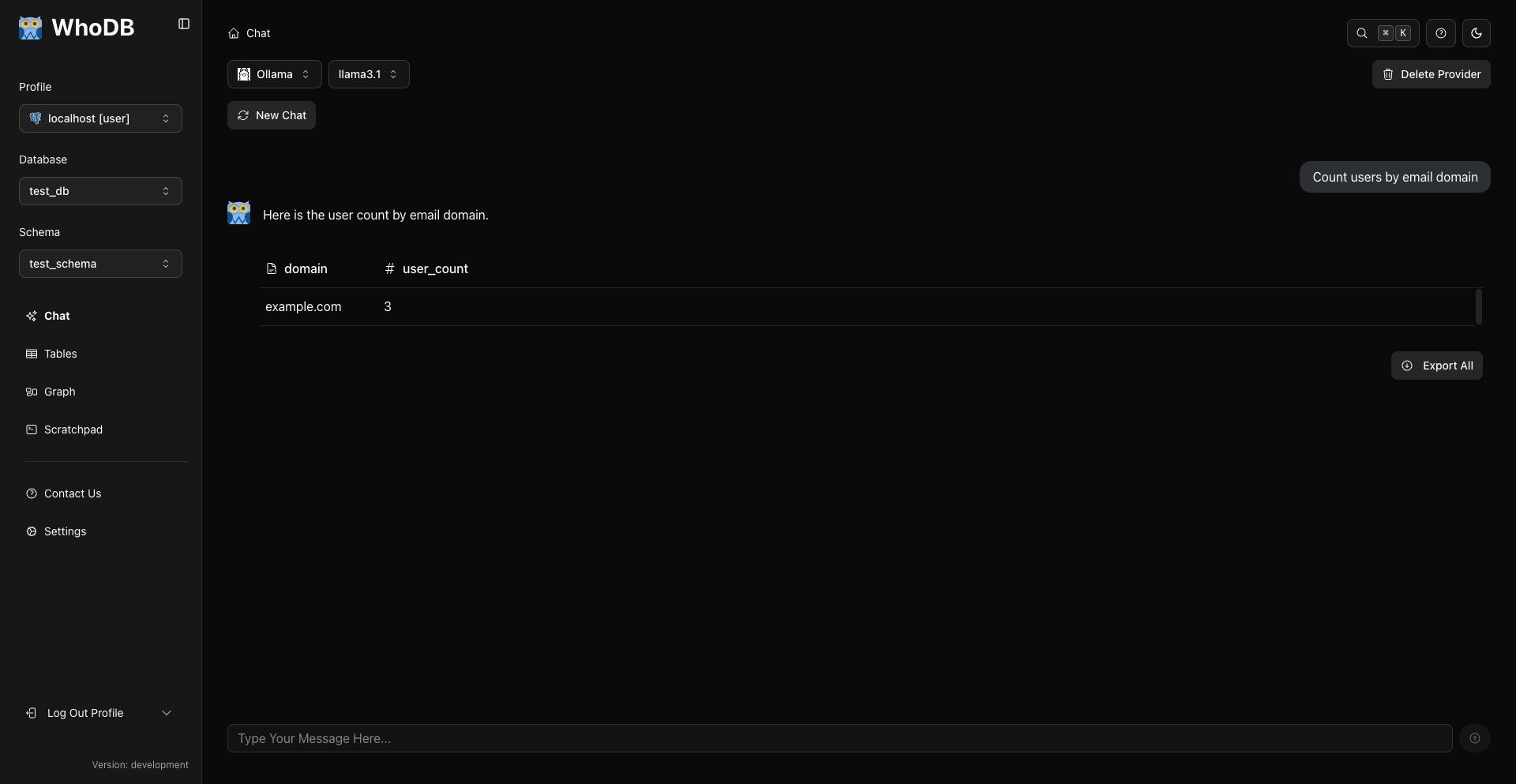
All the standard aggregation functions are available through natural phrasing: "How many users do we have?" (COUNT), "What's the total revenue?" (SUM), "Average order value" (AVG), "Highest and lowest prices" (MIN/MAX).
Multi-Table Queries (Joins)
Ask questions that span multiple tables:
text
Show me users and their order counts
Generated SQL:
sql
SELECT
  u.id,
  u.username,
  COUNT(o.id) as order_count,
  SUM(o.total) as total_spent
FROM users u
LEFT JOIN orders o ON u.id = o.user_id
GROUP BY u.id, u.username
ORDER BY total_spent DESC
Info
The AI assistant automatically determines the correct JOIN type and conditions based on your schema
Dates, Patterns, and Multiple Conditions
The same natural phrasing works for time filters, pattern matching, and combined criteria:
text
Show revenue grouped by month for 2024
Find users with gmail email addresses
Show me active users who joined after 2024-01-01 and have made at least 5 orders
The AI translates these into DATE_TRUNC/date-range filters, LIKE patterns, and combined WHERE conditions or subqueries as appropriate for your database type.
Understanding Query Results
When the AI assistant returns data, you get an interactive table with powerful features.
Interactive Results Table
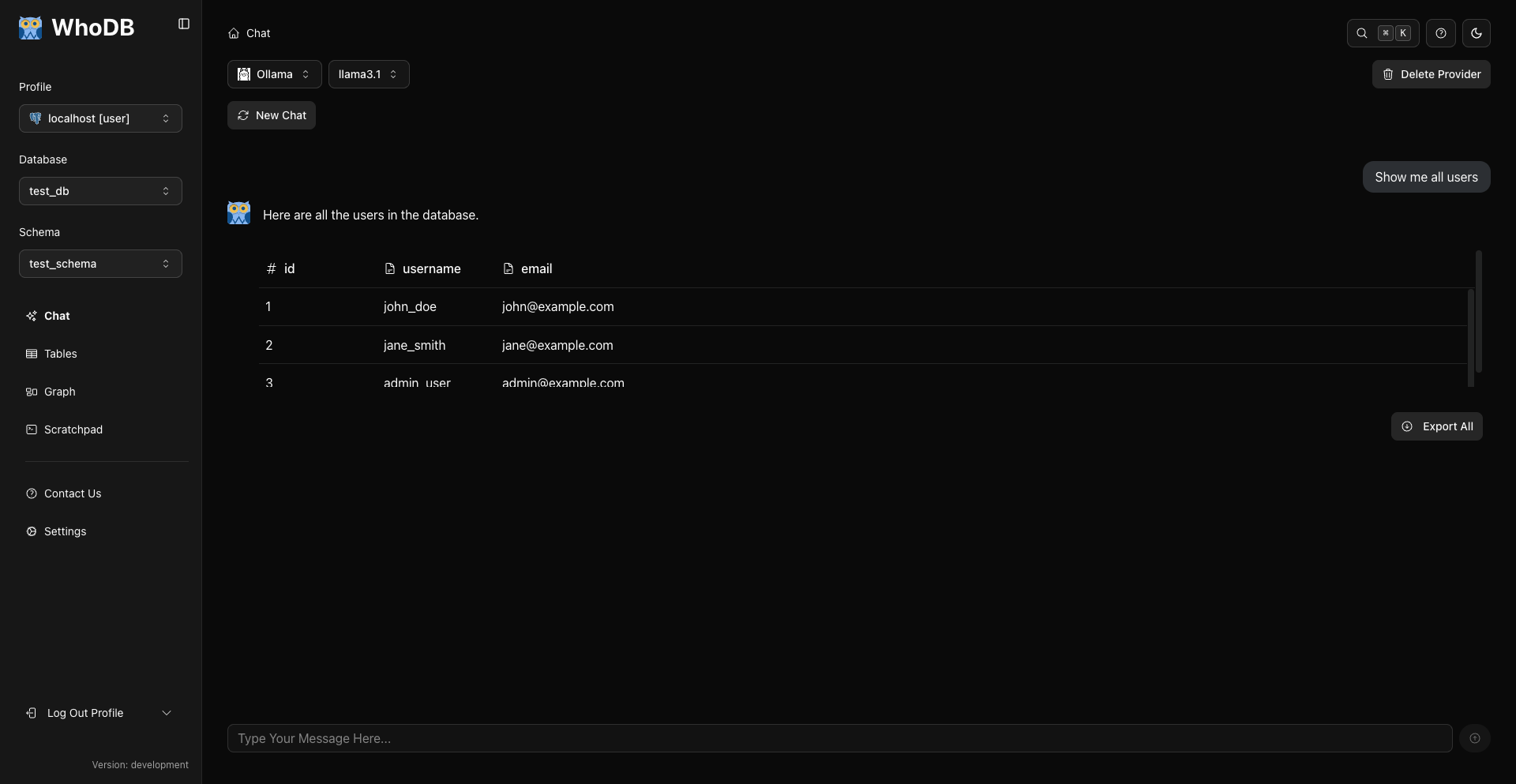
Table Features:
- Column Headers: Show field names from your query
- Scrollable: Navigate large result sets
- Readable Formatting: Data types displayed appropriately
The assistant also provides context about your results, such as the number of rows returned and the columns included. NULL values are clearly distinguishable from empty strings.
Large Result Sets
Chat results are shown in a fixed-height scrollable table containing all returned rows. For queries returning many rows:
- Scroll within the table to view all data
- Consider adding LIMIT in your question
Warning
Very large result sets may take longer to load. Ask the assistant to limit results if you only need a sample
Handling Errors
The AI assistant provides clear, helpful error messages when queries fail.
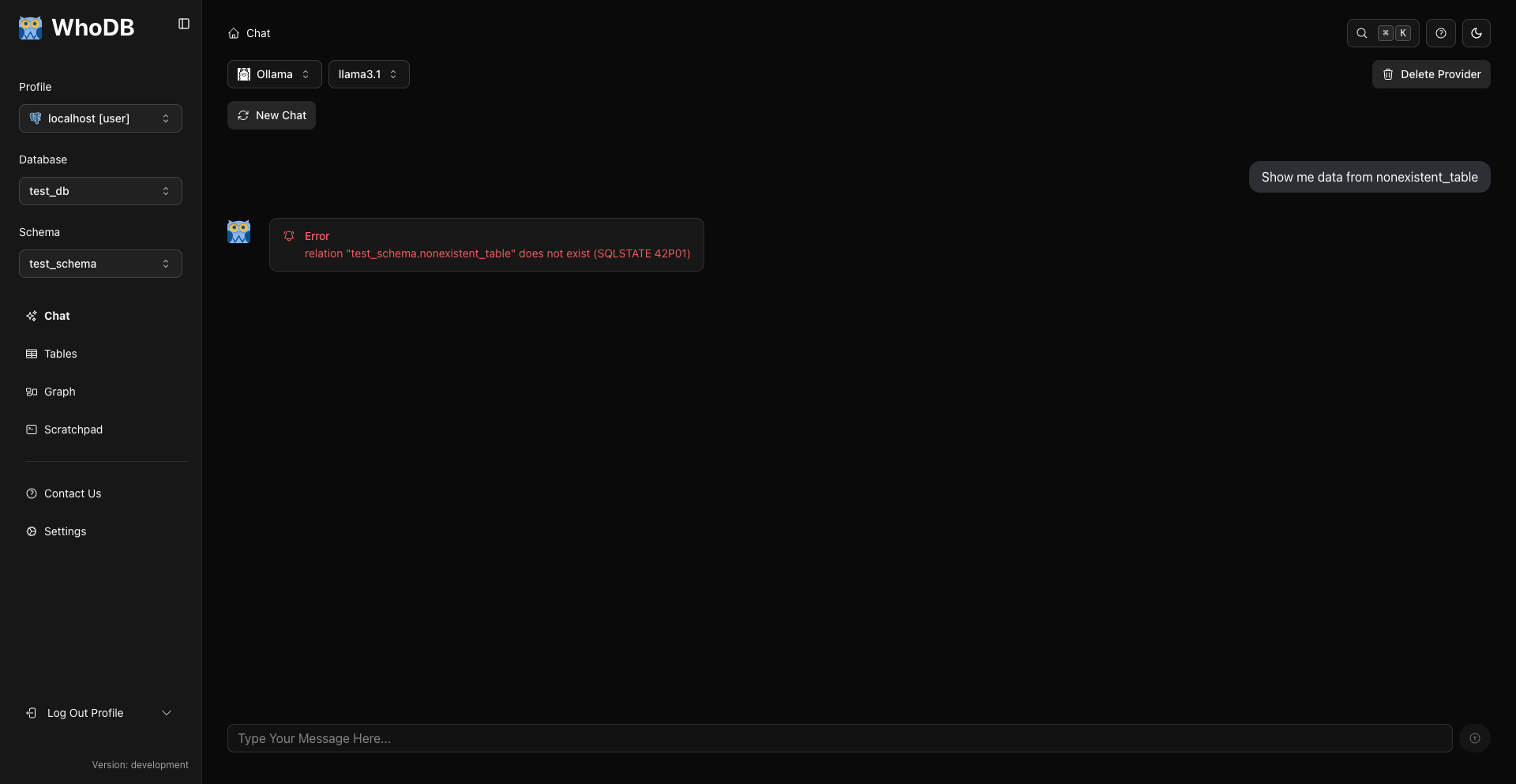
Common Error Types
Recovering from Errors
Multi-Turn Conversations
One of the AI assistant's most powerful features is maintaining conversation context for follow-up questions.
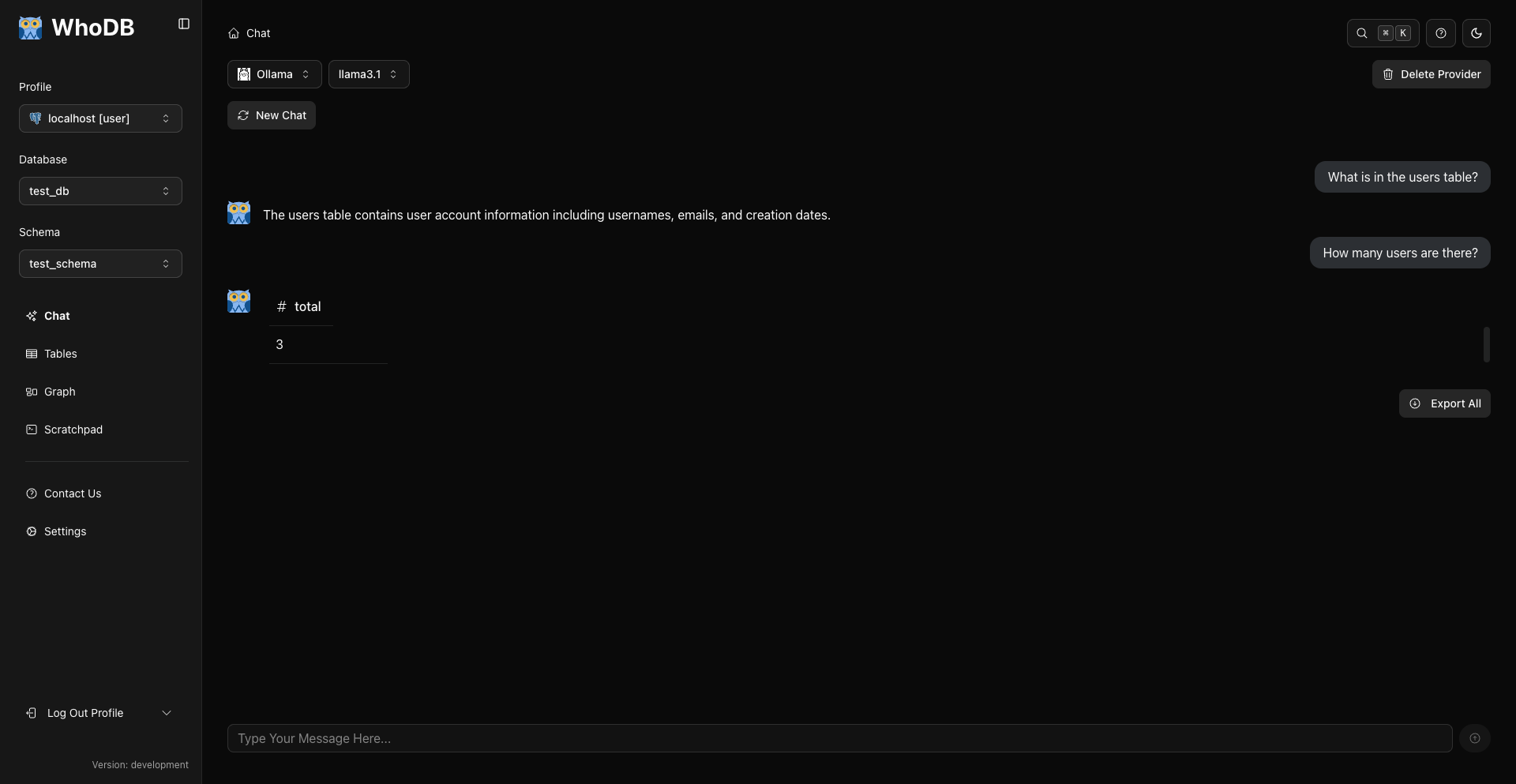
Building on Previous Queries
The assistant remembers your conversation, so each question can build on the last:
text
You: Show me all users
AI: [Returns 1000 users]

You: Just the first 10, sorted by most recent
AI: [Returns 10 users sorted by created_at DESC]

You: Only active ones
AI: [Adds the status filter, keeping earlier refinements]
Tip
Use pronouns like "them," "those," "these" naturally—the assistant understands what you're referring to
Chat History Navigation
Navigate through your previously sent messages using the arrow keys: press Up in the input field to load your previous message, keep pressing to go further back, and press Down to move forward. Edit the loaded message and press Enter to resend.
Example Workflow: Data Exploration
Explore an unfamiliar database systematically:
For a complete walkthrough of this approach, see AI-Powered Data Exploration.
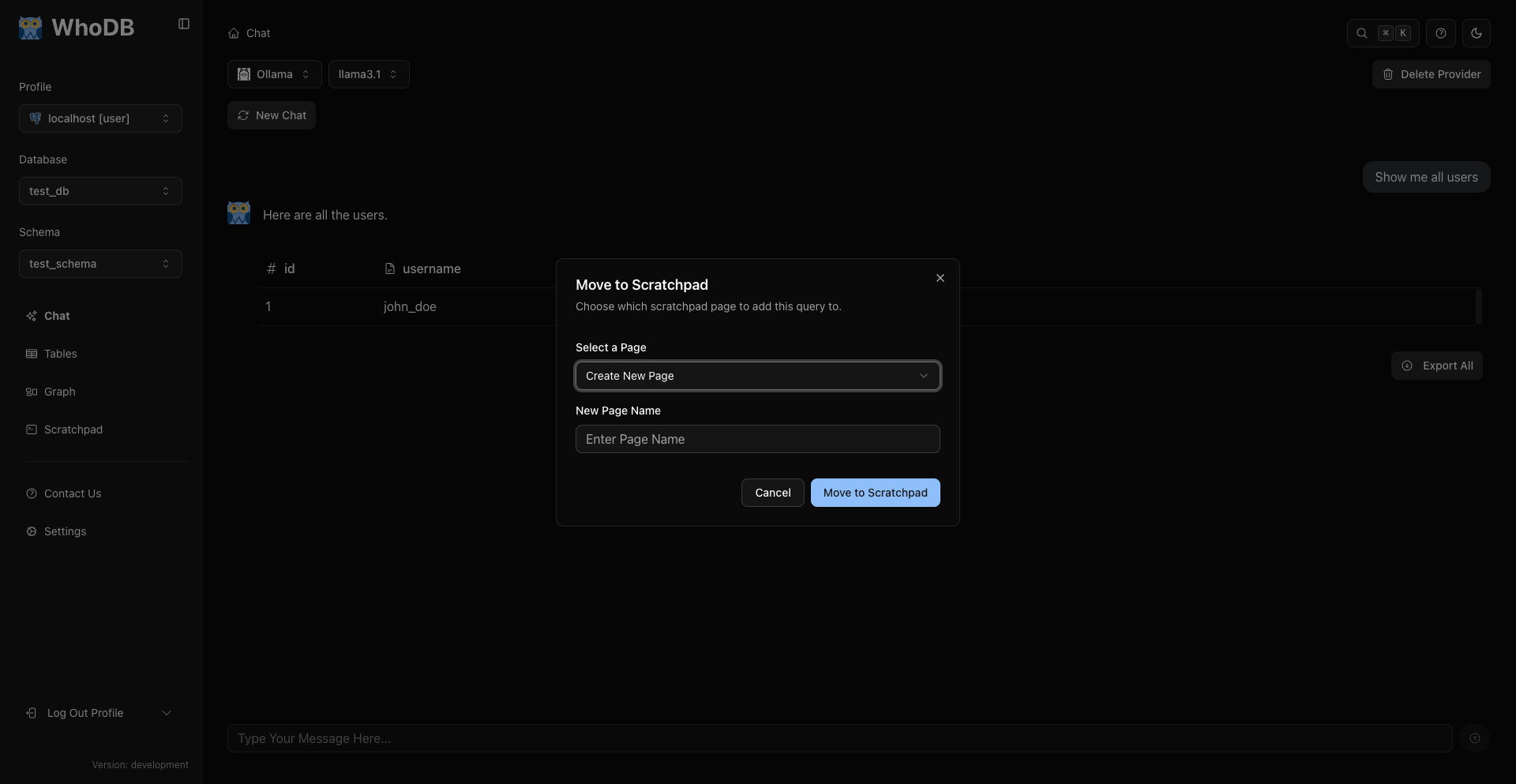
Moving Queries to Scratchpad
When you generate a useful query, save it for future use:
Info
Queries moved to Scratchpad retain their original SQL exactly as generated by the AI
For guidance on formulating effective questions, safety, and performance, see AI Chat Assistant Best Practices.
Keyboard Shortcuts
Shortcut | Action |
|---|---|
Up Arrow | Previous message in history |
Down Arrow | Next message in history |
Enter | Send message |
Arrow keys navigate through your previously sent messages, letting you quickly reload, edit, and resend earlier questions.
Troubleshooting
Limitations
Understanding limitations helps set appropriate expectations:
Privacy and Security
Warning
For sensitive data, consider using local AI models (Ollama, LM Studio) instead of cloud providers
Sent to AI:
- Your question text
- Database schema (table and column names)
- Database type (PostgreSQL, MySQL, etc.)
Never Sent:
- Actual data from your tables
- Query results
- Connection credentials
- Passwords or sensitive configuration
For sensitive data: use local models for complete privacy, review your organization's policies on external AI services, avoid sensitive schema names with cloud providers, and use read-only connections for exploratory querying. See AI Chat Assistant Best Practices for full guidance.
Next Steps
Check
You now have the skills to query databases naturally using AI, view and understand generated SQL, and handle complex data retrieval scenarios