
Getting Started
First Login
First Login
The login page is the entry point for the web app and desktop app. It adapts to the selected database type, can show saved profiles, and can also surface cloud-discovered connections when provider support is enabled.
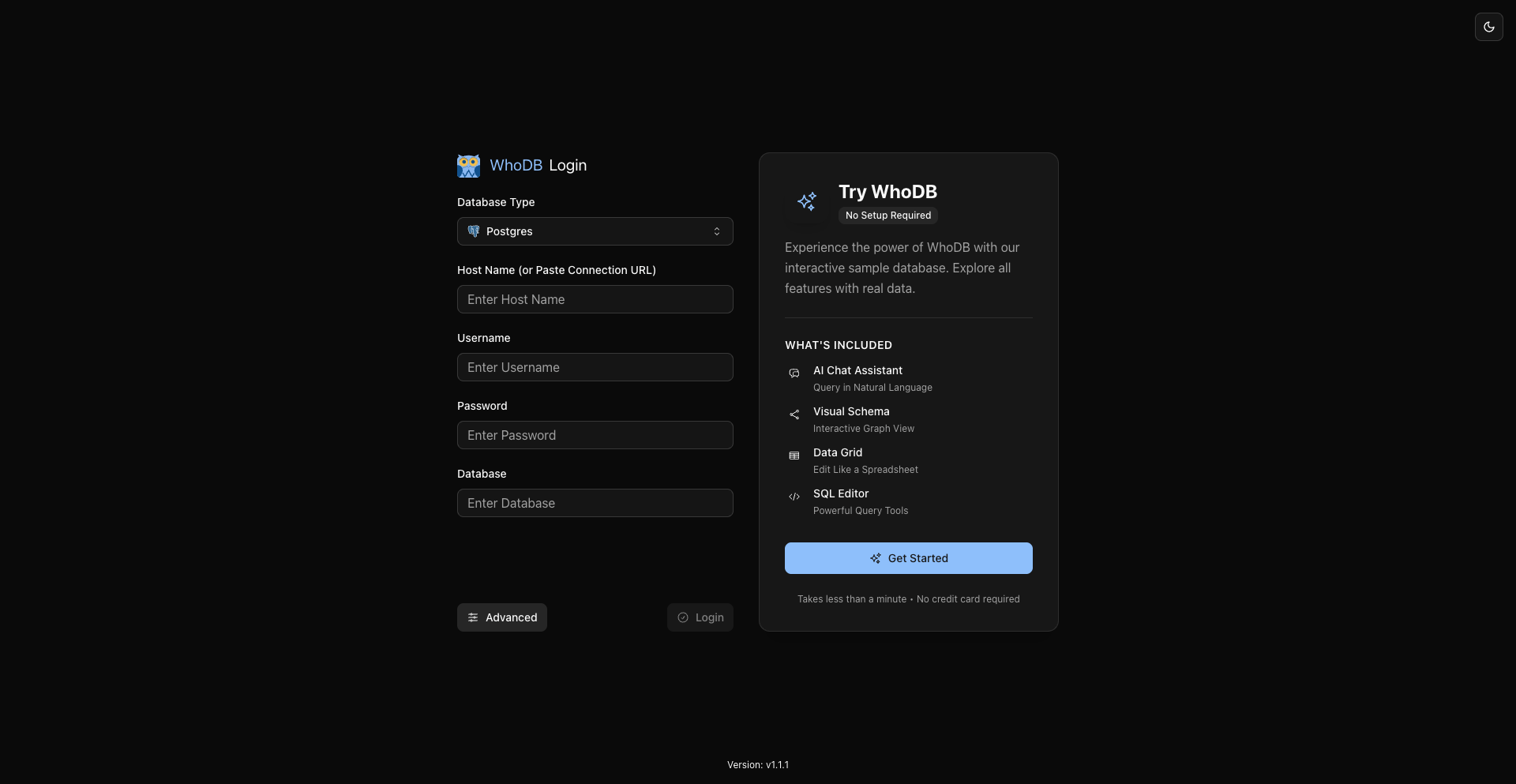
Info
In the web app, a successful login is kept server-side: WhoDB stores your database credentials encrypted in a local session database and gives your browser only an opaque, HttpOnly session cookie — the credentials themselves never reach browser storage. Non-secret display details (connection name, host, database) are kept in the browser so the profile switcher and login state survive a page reload.
The desktop app, which cannot rely on cookies, stores saved credentials in the OS keyring instead (for example, macOS Keychain); if no keyring is available, it warns and continues without persisting credentials. For shared or sensitive machines, prefer managed database accounts and environment-defined profiles either way.
Ways To Start A Connection
Pick a database type and fill in the fields shown for that type.
Choose from previously saved local profiles or profiles injected through environment variables.
When enabled, AWS, Azure, and GCP pickers can prefill the login form from discovered resources.
First-time users can be offered a built-in sample database flow and guided tour.
Step-By-Step
Saved Profiles
Profiles can appear from two places:
- Local profiles saved by the app
- Environment-defined profiles such as
WHODB_POSTGRES_1,WHODB_MYSQL_1, orWHODB_REDIS_1
When the manual credential form is disabled with WHODB_DISABLE_CREDENTIAL_FORM=true, the login page can still work through managed profiles and cloud pickers.
Cloud-Discovered Connections
When any of these flags are enabled:
WHODB_ENABLE_AWS_PROVIDER=trueWHODB_ENABLE_AZURE_PROVIDER=trueWHODB_ENABLE_GCP_PROVIDER=true
the login page can show provider-specific pickers below the standard form. Picking a discovered resource does not skip the normal connection flow; it prefills the same login form with the discovered endpoint and connection metadata.
File-Based Databases
SQLite3 and DuckDB behave differently from host-based systems:
- The required field is the database file path
- The desktop app can open a native file picker for these databases
- DuckDB is only available on supported builds
Next Steps
Previous