
AI Chat Assistant
Setting Up AI Providers
Setting Up AI Providers
Before you can use WhoDB's AI Chat Assistant, you need to configure at least one AI provider. This guide walks you through setting up each supported provider and choosing the right model for your needs.
Accessing the AI Configuration
Navigate to the Chat page in WhoDB to access AI provider settings:
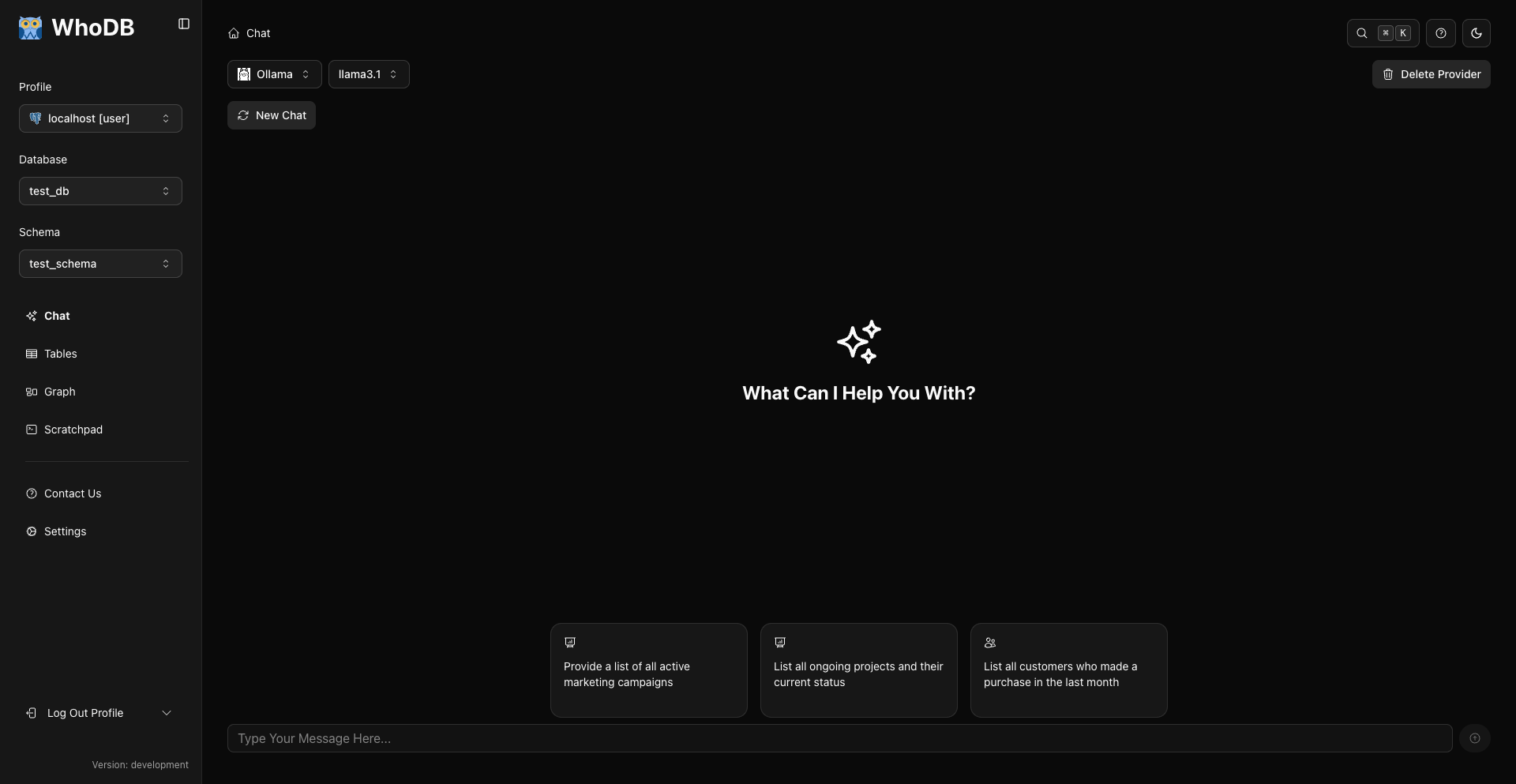
The provider configuration is located at the top of the Chat interface with two dropdowns:
- AI Provider: Select your provider (OpenAI, Anthropic, Gemini, Ollama, LM Studio, etc.)
- AI Model: Choose the specific model to use
Warning
Pick a provider and model before starting the query tutorials. The chat box becomes active once both are selected.
Choosing Your AI Provider
Different providers offer different trade-offs between accuracy, speed, cost, and privacy:
Best for: Most users, general-purpose queries
- Industry-leading accuracy
- Fast response times
- Pay-per-use pricing
Best for: Complex reasoning, large contexts
- Excellent with sophisticated queries
- Very large context windows
- Strong safety features
Best for: Google Cloud users, general-purpose queries
- Strong reasoning and SQL generation
- Competitive pricing
- Pay-per-use pricing
Best for: Privacy, zero API costs
- Complete data privacy
- No internet required
- Free to use
Best for: Enterprise deployments
- Self-hosted models
- Organization-specific configurations
- Complete control
Setting Up OpenAI
OpenAI provides GPT models that offer excellent SQL generation capabilities with fast response times.
Prerequisites
Before configuring OpenAI:
- Create an OpenAI account at https://platform.openai.com/
- Add payment method to your account
- Generate an API key from https://platform.openai.com/api-keys
Warning
Keep your OpenAI API key secure. Never share it or commit it to version control
Configuration Steps
Cost Considerations
OpenAI charges based on tokens used. Costs vary by model, schema size, and conversation length. See OpenAI's pricing page for current rates and monitor usage in your OpenAI dashboard.
Setting Up Anthropic (Claude)
Anthropic's Claude models excel at complex reasoning and handle large database schemas exceptionally well.
Prerequisites
- Create an Anthropic account at https://console.anthropic.com/
- Add payment method
- Generate an API key from the console
Configuration Steps
When to Use Claude
Claude excels in these scenarios:
- Large Schemas: Handles databases with hundreds of tables
- Complex Joins: Better at understanding multi-table relationships
- Contextual Queries: Superior at maintaining long conversation contexts
- Ambiguous Requests: Better at asking clarifying questions
Setting Up Google Gemini
Gemini models offer strong SQL generation with competitive pricing.
Prerequisites
- Create a Google AI Studio account at https://aistudio.google.com/
- Generate an API key from the AI Studio console
Configuration Steps
Note
To route Gemini requests through a custom endpoint (e.g., a proxy), set the WHODB_GEMINI_ENDPOINT environment variable.
Setting Up Ollama (Local Models)
Ollama allows you to run AI models locally on your machine, providing complete privacy with zero API costs.
Prerequisites
Configuring Ollama in WhoDB
Recommended Ollama Models for SQL
Model | Size | RAM Required | Best For | Download Command |
|---|---|---|---|---|
Llama 3.1 (8B) | 4.7 GB | 8 GB | General use, good balance | ollama run llama3.1 |
CodeLlama (7B) | 3.8 GB | 8 GB | Code/SQL generation | ollama run codellama |
Mistral (7B) | 4.1 GB | 8 GB | Fast responses | ollama run mistral |
Llama 3.1 (70B) | 40 GB | 64 GB | Maximum accuracy | ollama run llama3.1:70b |
Tip
Start with Llama 3.1 (8B) for the best balance of performance and resource usage
Ollama Performance Optimization
Ollama Privacy Benefits
Your database schema never leaves your machine
Works in air-gapped or offline environments
No API charges regardless of usage
Choose models, control updates, customize behavior
Check
Ollama is ideal for regulated industries, sensitive data, or organizations requiring complete data sovereignty
Setting Up LM Studio (Local Models)
LM Studio is another local option with a desktop app for downloading and managing models.
Note
If LM Studio runs on a non-default endpoint, set WHODB_LMSTUDIO_BASE_URL. Use WHODB_LMSTUDIO_API_KEY if your server requires a key, and WHODB_LMSTUDIO_NAME to change the display name.
Advanced Configuration
Multiple Providers
You can configure multiple AI providers and switch between them:
Removing Providers
Note
Providers configured by environment variables are managed through deployment configuration. Remove or change those providers by updating the deployment environment. As a security measure, a server-configured provider API key is never combined with a client-supplied endpoint — if a request overrides the endpoint, WhoDB uses the server-configured endpoint with the server key instead.
Built-In Providers via Environment Variables
You can preconfigure the built-in providers on the server so users don't need to enter API keys in the UI:
Variable | Description |
|---|---|
WHODB_OPENAI_API_KEY | OpenAI API key |
WHODB_OPENAI_ENDPOINT | Custom OpenAI-compatible endpoint (optional) |
WHODB_OPENAI_NAME | Display name override (optional) |
WHODB_ANTHROPIC_API_KEY | Anthropic API key |
WHODB_ANTHROPIC_ENDPOINT | Custom Anthropic endpoint (optional) |
WHODB_ANTHROPIC_NAME | Display name override (optional) |
WHODB_GEMINI_ENDPOINT | Custom Gemini endpoint (optional) |
WHODB_OLLAMA_HOST / WHODB_OLLAMA_PORT | Ollama host and port (default: localhost:11434) |
WHODB_OLLAMA_NAME | Display name override (optional) |
WHODB_LMSTUDIO_BASE_URL | LM Studio server URL (default: http://localhost:1234) |
WHODB_LMSTUDIO_API_KEY | LM Studio API key, if required (optional) |
WHODB_LMSTUDIO_NAME | Display name override (optional) |
WHODB_BLOCK_INTERNAL_AI_ENDPOINTS | Set to true to block AI requests to internal/private network endpoints (SSRF protection for hosted deployments) |
Custom Providers via Environment Variables
You can connect any OpenAI-compatible AI provider (LM Studio, OpenRouter, vLLM, etc.) using WHODB_AI_GENERIC_<ID>_* environment variables. This is useful for Docker deployments, self-hosted models, or providers not built into the UI.
Each provider needs a unique <ID> (e.g., LMSTUDIO, OPENROUTER) and up to six variables:
Variable | Required | Default | Description |
|---|---|---|---|
WHODB_AI_GENERIC_<ID>_NAME | No | <ID> | Display name shown in the provider dropdown |
WHODB_AI_GENERIC_<ID>_TYPE | No | openai-generic | Client type (leave default for OpenAI-compatible APIs) |
WHODB_AI_GENERIC_<ID>_BASE_URL | Yes | API base URL (e.g., http://localhost:1234/v1) | |
WHODB_AI_GENERIC_<ID>_API_KEY | No | API key if required by the provider | |
WHODB_AI_GENERIC_<ID>_MODELS | Yes | Comma-separated list of model names | |
WHODB_AI_GENERIC_<ID>_ICON | No | URL of an icon to show in the provider dropdown |
export WHODB_AI_GENERIC_LMSTUDIO_NAME="LM Studio"
export WHODB_AI_GENERIC_LMSTUDIO_BASE_URL="http://localhost:1234/v1"
export WHODB_AI_GENERIC_LMSTUDIO_MODELS="mistral-7b,llama-3-8b"
Info
You can configure multiple generic providers at the same time — each <ID> creates a separate entry in the provider dropdown. The BASE_URL and MODELS variables are required; all others are optional.
Provider Comparison
Choose the right provider for your needs:
Feature | OpenAI | Anthropic | Ollama |
|---|---|---|---|
Setup Complexity | Easy | Easy | Moderate |
Cost | Pay per use | Pay per use | Free |
Privacy | External | External | Complete |
Speed | Fast | Medium | Varies |
Accuracy | Excellent | Excellent | Good |
Internet Required | Yes | Yes | No |
Best For | General use | Complex queries | Privacy/Cost |
Troubleshooting
Security Best Practices
Next Steps
Info
With your AI provider configured, you're ready to start querying your database using natural language