
Core Features
Sidebar Navigation
Sidebar Navigation
The sidebar controls the active connection context and the primary WhoDB routes available for that source.
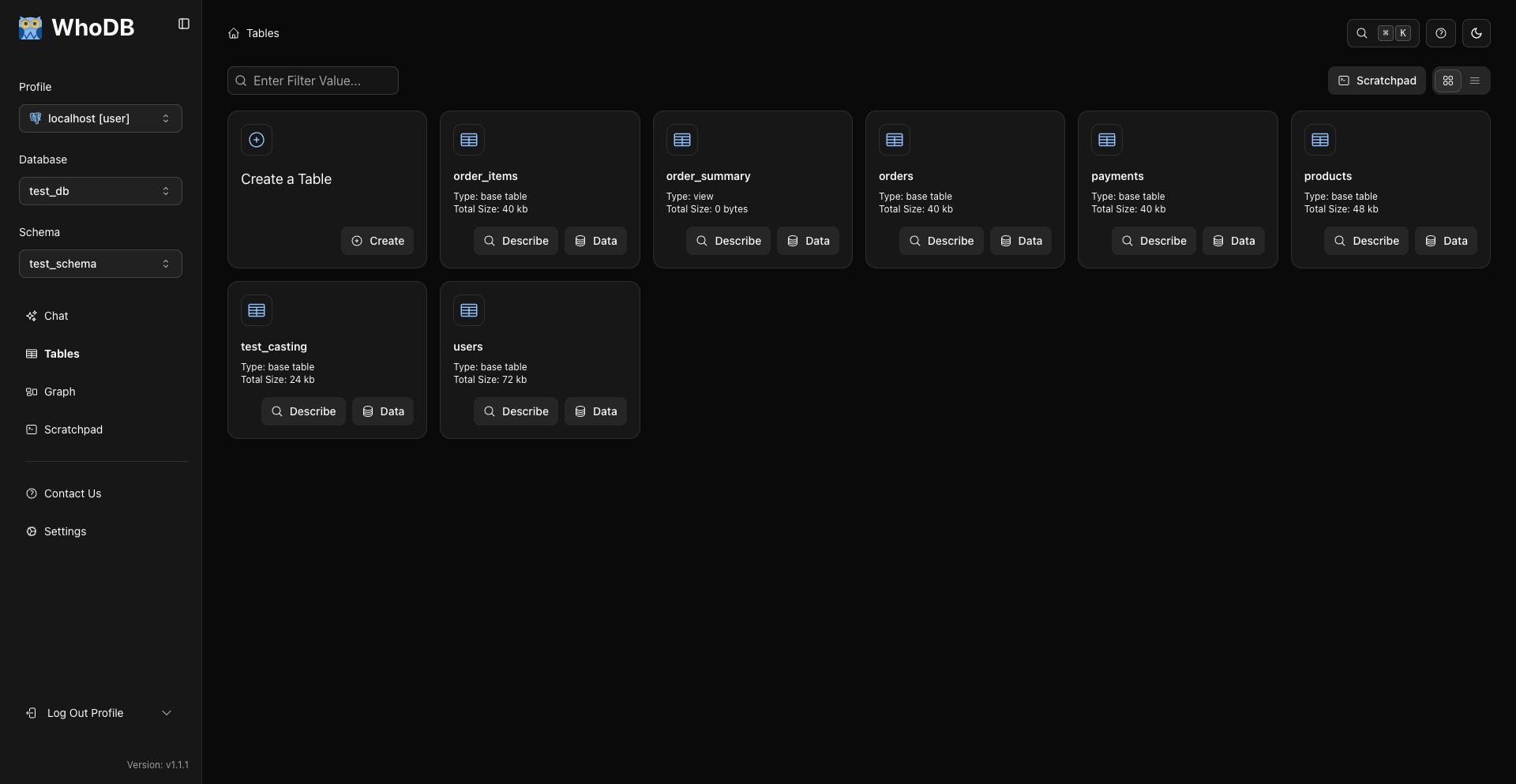
Collapse And Expand
Use the sidebar trigger or Cmd/Ctrl + B to collapse and expand the sidebar.
Profile Selector
The profile selector shows the active connection profile. Use it to switch profiles, add another profile, or leave the current connection.
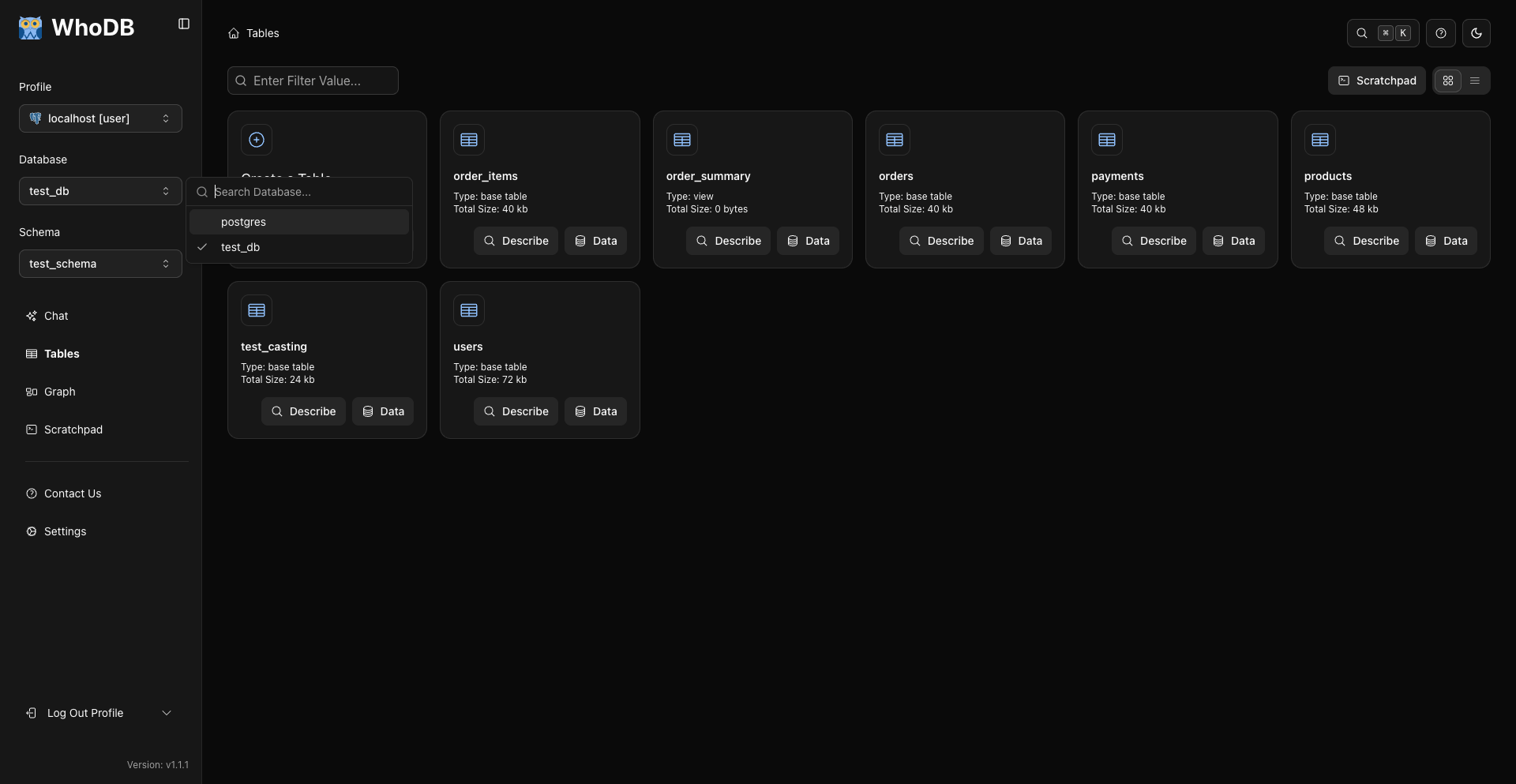
Profile labels are derived from saved profile name, hostname, database name, username, or source type depending on the source configuration.
Database Selector
Some source types support switching databases after connection. When supported, the sidebar shows a database selector.
Changing the database updates the current context and returns you to Storage Units when needed.
Schema Selector
Sources with schemas show a schema selector. PostgreSQL commonly exposes schemas this way.
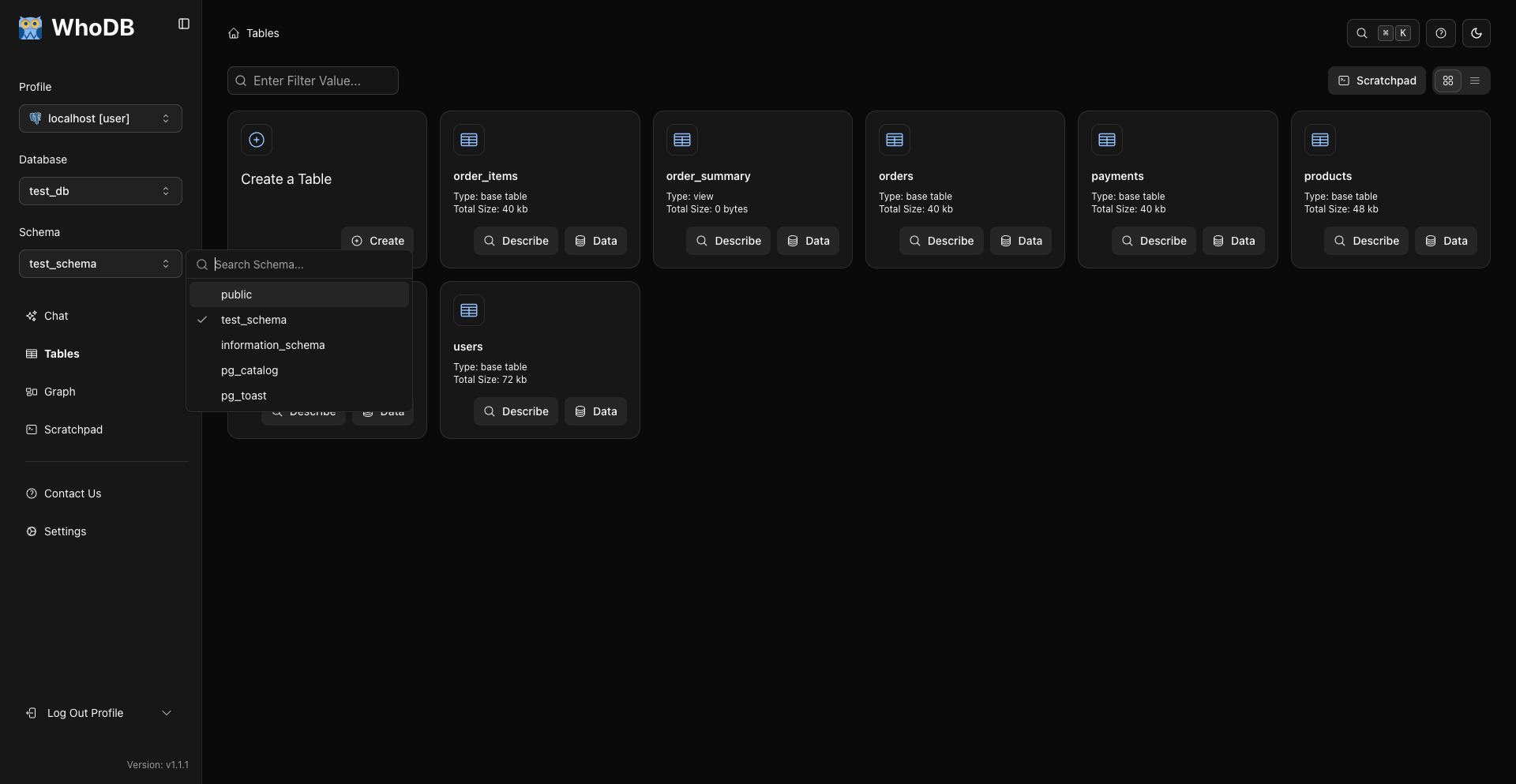
Changing schema updates the Storage Units list for the selected schema.
Primary Routes
The route list is capability-based. Not every source exposes every route.
Typical SQL-capable sources show:
- Chat when AI chat is supported.
- Storage Units or the source-specific object label.
- Graph when graph metadata is supported.
- Scratchpad when custom SQL execution is supported.
- Settings in the lower sidebar.

Navigation Shortcuts
Numbered route shortcuts are platform-specific:
- macOS:
Ctrl + 1throughCtrl + 4. - Windows/Linux:
Alt + 1throughAlt + 4.
Use Cmd/Ctrl + B for the sidebar.
Storage Unit Search
Use the search field on the Storage Units page to filter object names. Row search lives inside each data grid.
Related Pages
Previous
Next