
Configure and recover organization backups
Where: Organization → Backups. Organization owners can recover included content, including private resources and stored credentials. Admins can create/monitor backups but cannot download, restore, delete, or change backup settings.
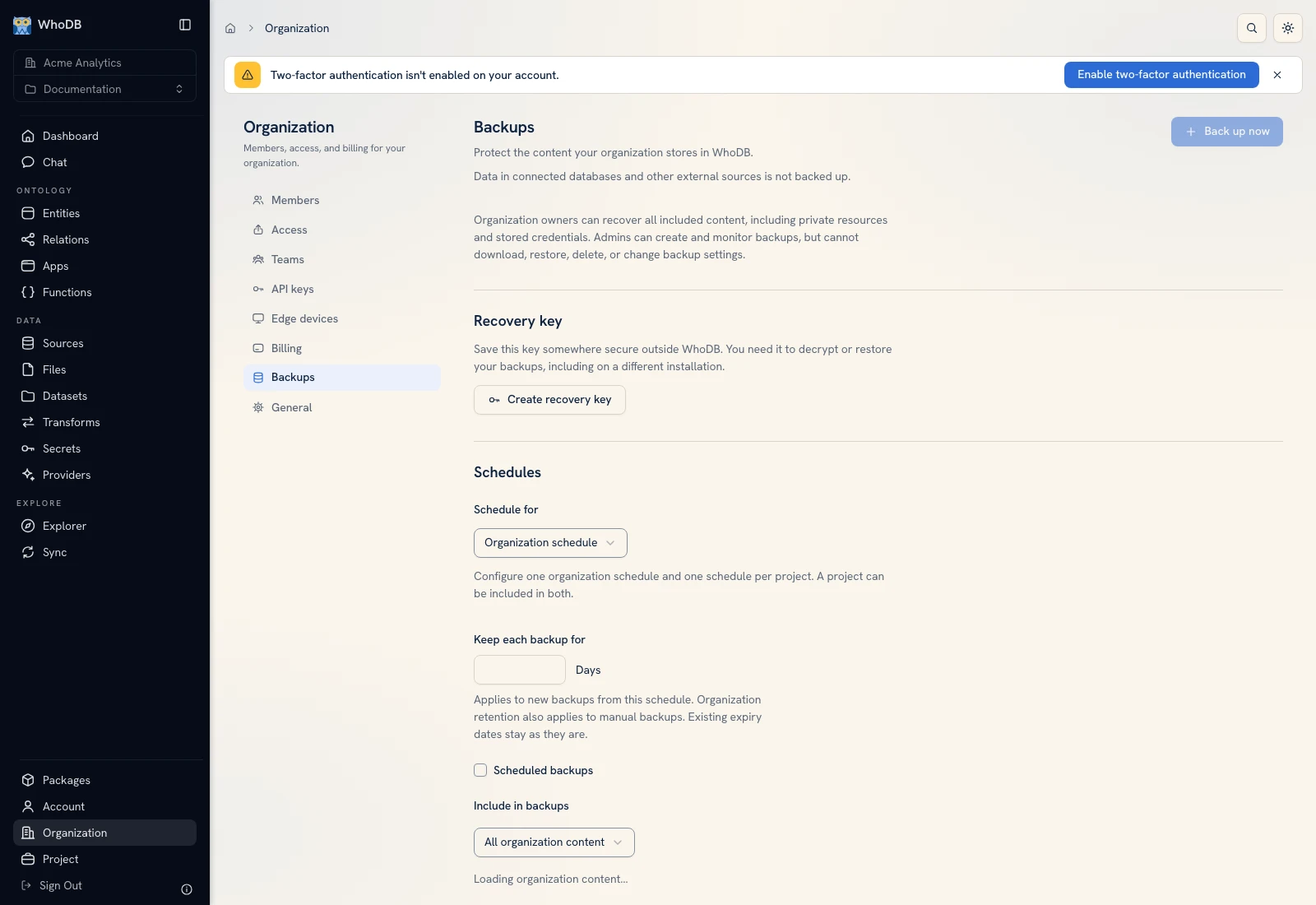 Backups exposes recovery-key setup, schedules, retention, scope, and history.
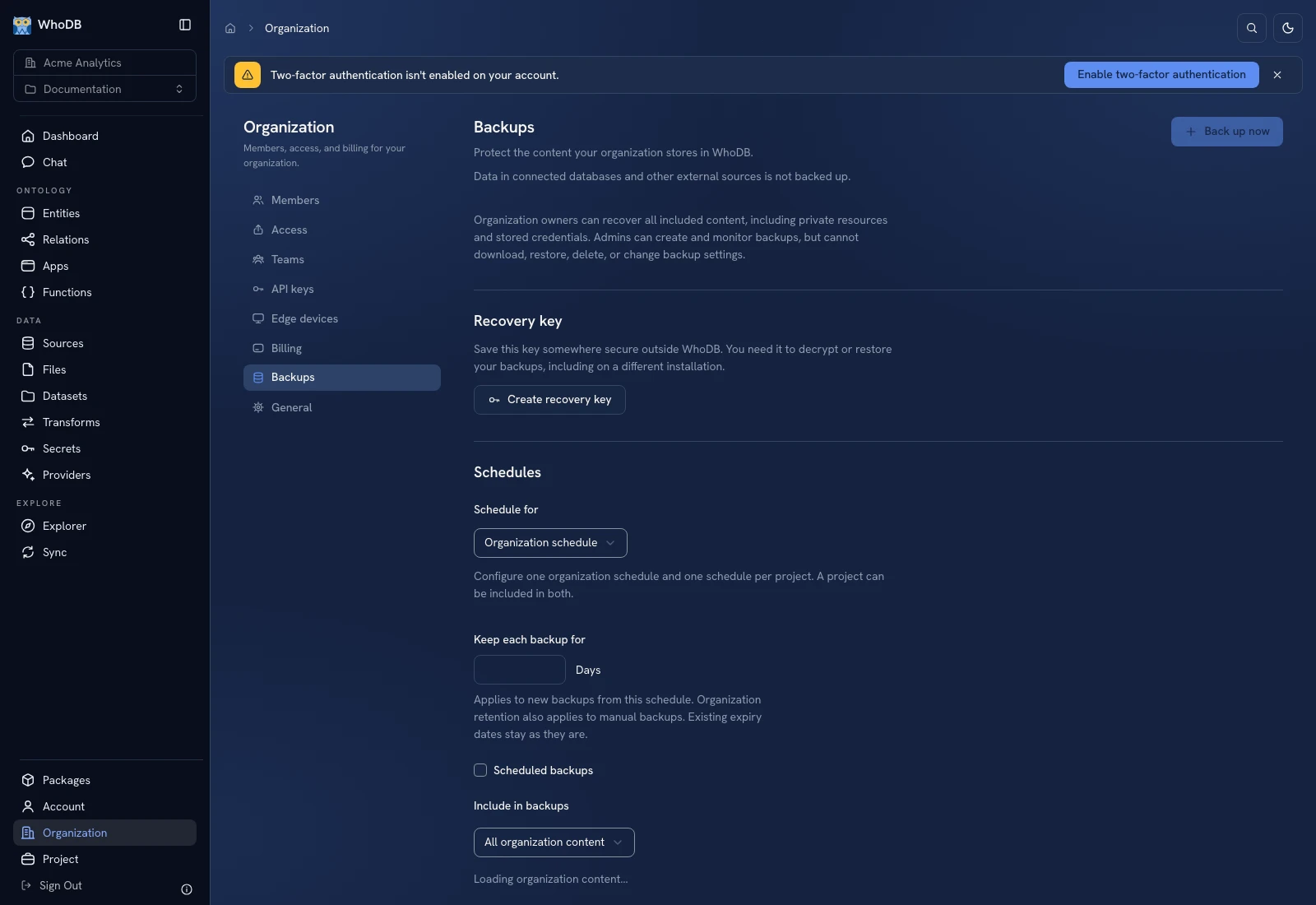 Backups exposes recovery-key setup, schedules, retention, scope, and history.
Understand the boundary#
Backups protect the included content stored by WhoDB. Data in connected databases and external sources is not backed up by this feature. Keep the external systems' backup process separately.
Save the recovery key#
Choose Create recovery key, save the private key outside WhoDB, and confirm I've saved this key outside WhoDB. The private key is shown once; WhoDB stores only the public recipient for encryption. Do not put the key in screenshots or project files.
A new key protects future backups. Keep previous keys for the archives encrypted to them. Possession of only the newer key does not establish that an older archive can be decrypted.
Configure protection#
- In Schedules, choose Organization schedule or a project scope.
- Set Keep each backup for in days.
- Enable/configure the schedule if recurring protection is required.
- Choose frequency, recovery time, timezone, or the five-field custom expression shown.
- Select all content or the desired projects/resources and review automatically included dependencies.
- Review email alerts and any message that email delivery is not configured.
- Click Save backup settings.
The screen explains recovery-time precision and daylight-saving behavior. Read those details when choosing a schedule. Existing backup expiry dates do not change merely because a retention setting changes.
Create and inspect a backup#
After key and retention setup, choose Back up now. Wait for completion in Backup history. Inspect the actual recovery point, included scope, encrypted size, expiry, and failure message where present. Requested time is not proof that a recovery point was captured.
Download, upload, and restore#
Owners can download an archive and use Upload a backup to bring an encrypted archive from another installation/storage location. Recovery still requires the original matching private key.
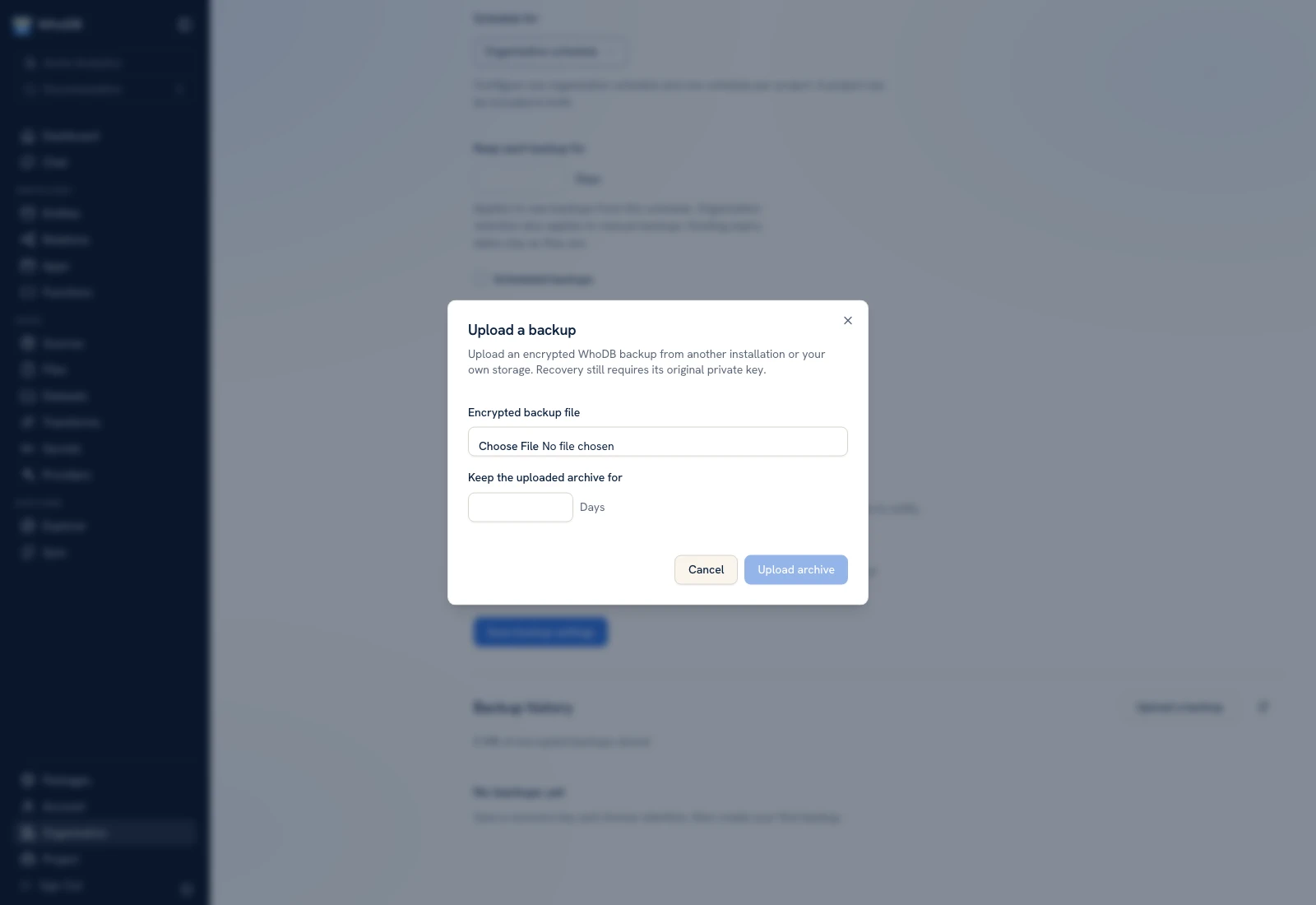 Upload a backup selects an encrypted archive and retention without exposing its recovery key.
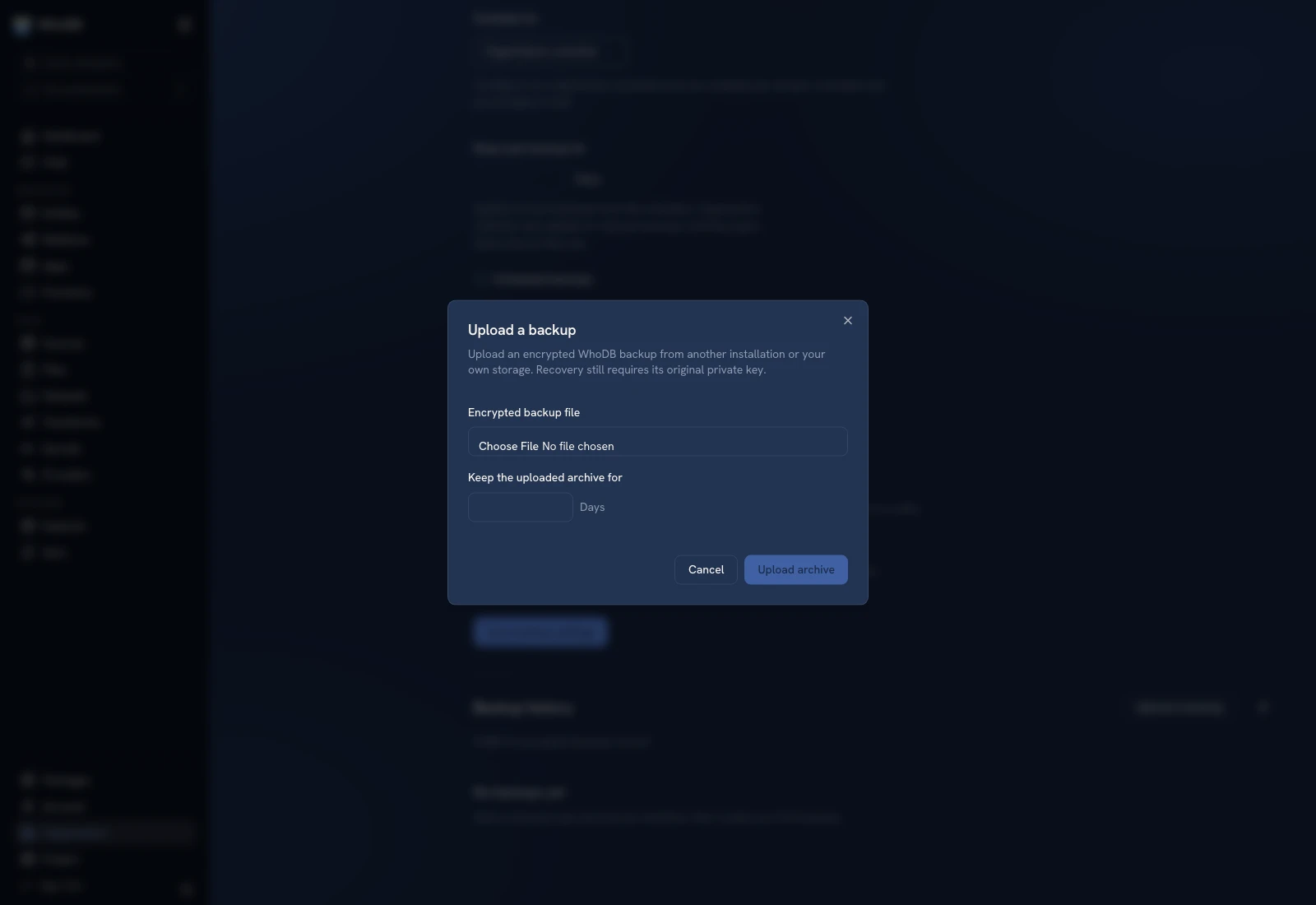 Upload a backup selects an encrypted archive and retention without exposing its recovery key.
Use Restore to open recovery, provide the required key, inspect the recovery preview, and resolve the destination/binding requirements before confirming. External sources and hidden package implementations can need authorized reconnection or reinstallation after recovery. Test restored resources before treating recovery as complete.
Deletion#
Deleting a backup starts the UI's 24-hour cancellation window. Deleting the organization or confirming account deletion of owned organizations also deletes their backups and does not preserve that cancellation window. Read the separate backup acknowledgement before those destructive actions.
Was this page helpful?