
Build, preview, and save a transform
Where: sidebar → Transforms → New transform. You need access to the inputs and write access to the intended output. Build on desktop; the phone view can inspect resources but the editor requires a wider screen.
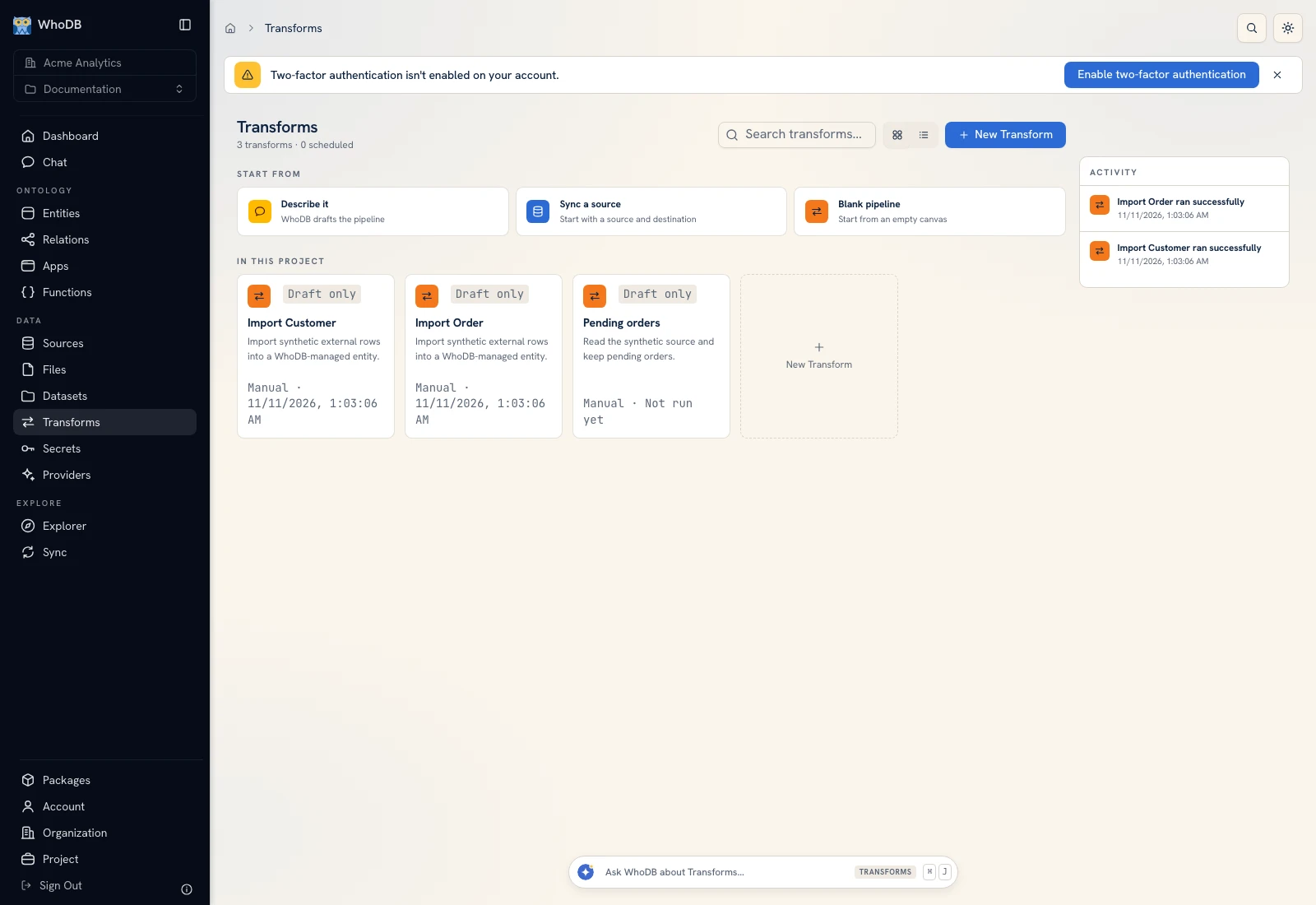 Transforms lists the project's pipelines and their latest run status.
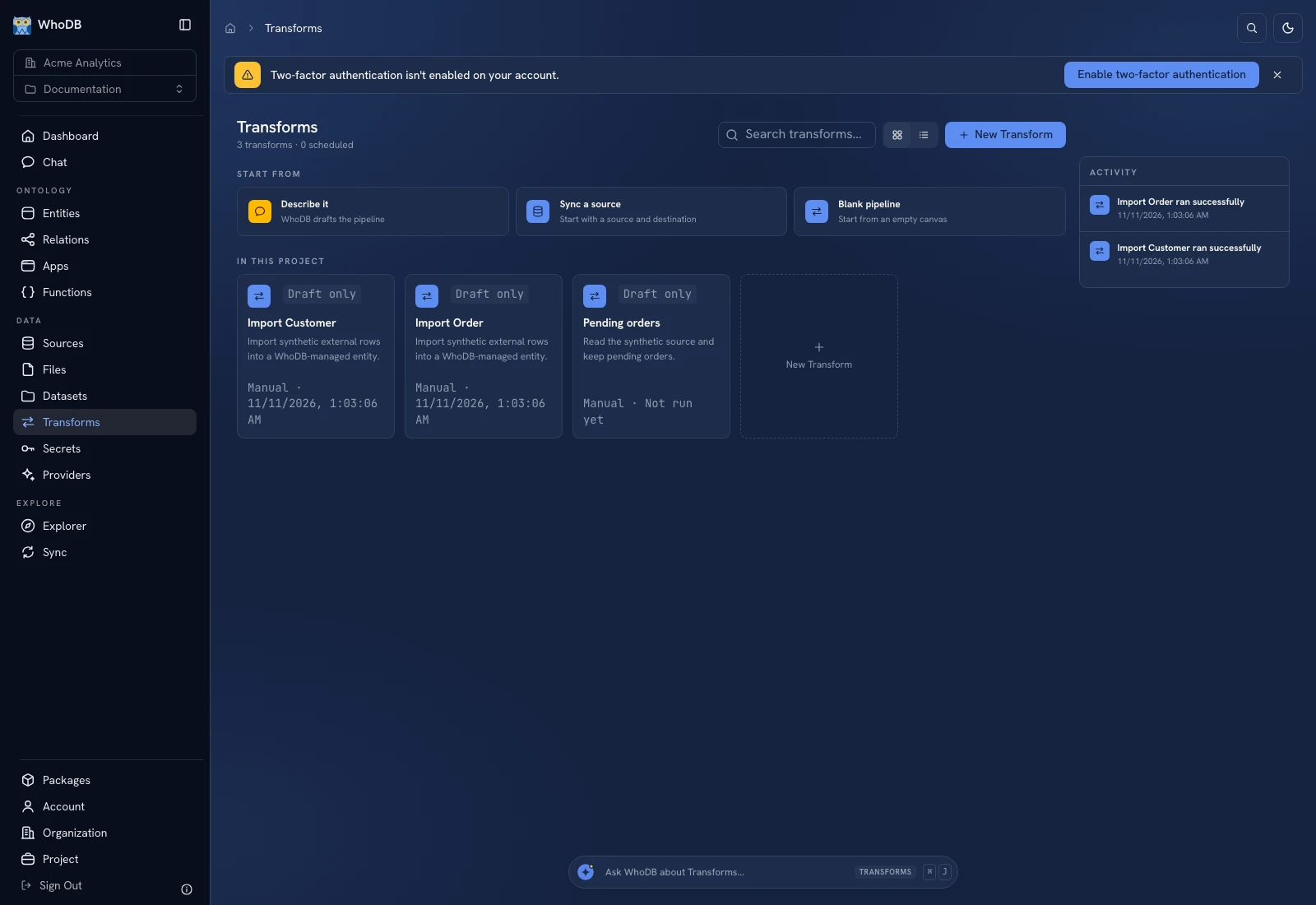 Transforms lists the project's pipelines and their latest run status.
Create or open the graph#
Choose New transform, enter a name and description, then open its builder. To edit an existing graph, click its card. The builder gives you a node library, a canvas, a layers list, a selected-node configuration panel, and preview controls.
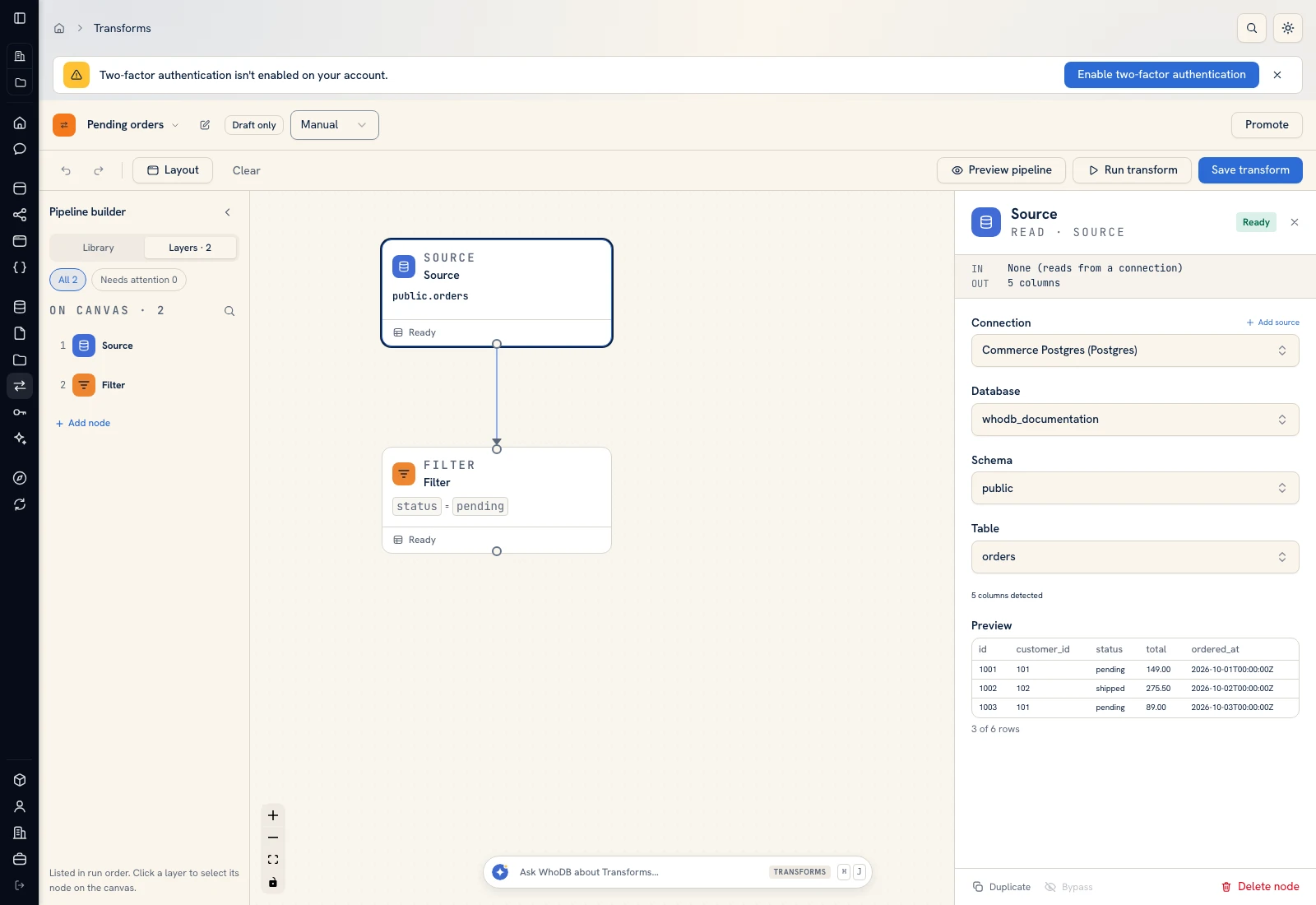 The pipeline builder shows connected nodes and the selected Source configuration.
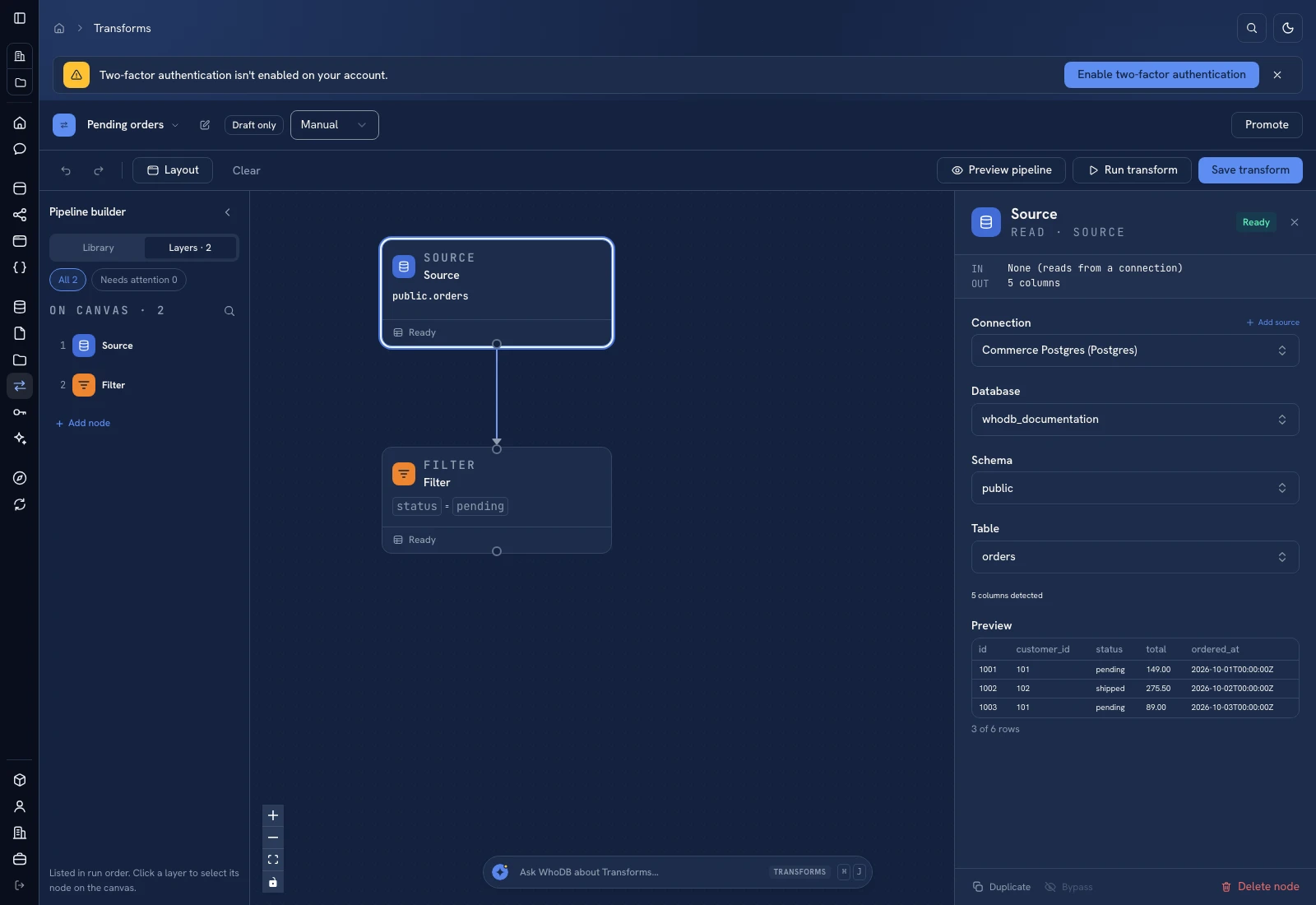 The pipeline builder shows connected nodes and the selected Source configuration.
The example Pending orders reads public.orders from Commerce Postgres, filters status = pending, and can write the result to a chosen destination. Start with a read and preview before adding a write.
Add and connect nodes#
- Open Library or Add node.
- Add an input such as Source, File, Dataset, Entity, or Seed.
- Click the node and complete the right-hand configuration panel.
- Add a processing step and connect the input's output handle to its input handle.
- Click the new step and configure its columns, conditions, or logic.
- Add Output only when you are ready to define where rows will be written.
Use Layers to select nodes in run order and see which need attention. Layout rearranges the graph; it does not change the meaning of the connected steps. Duplicate, Bypass, and Delete node act on the selected node. Review connections after changing the graph.
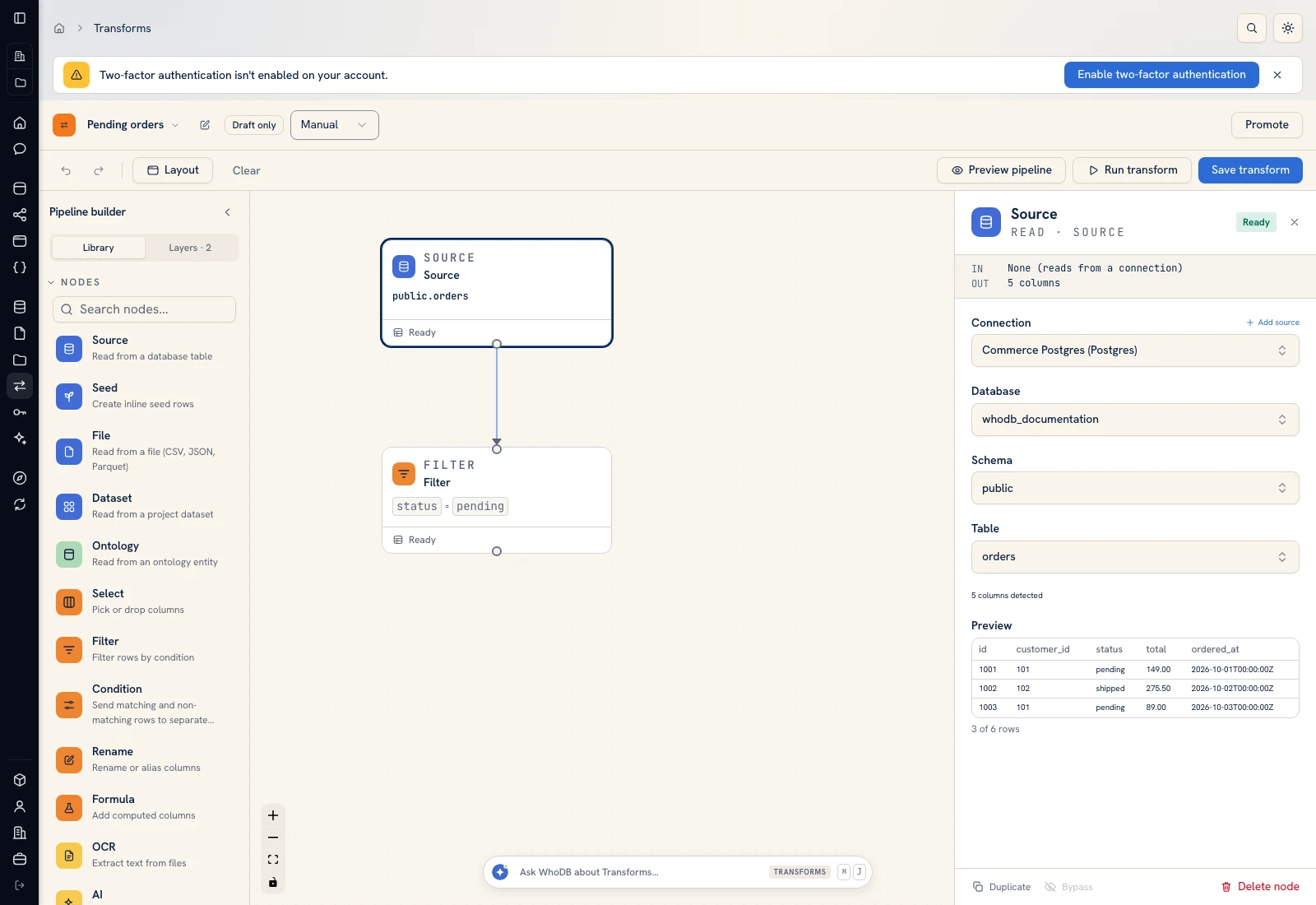 The Library provides inputs, row transformations, custom logic, and output nodes.
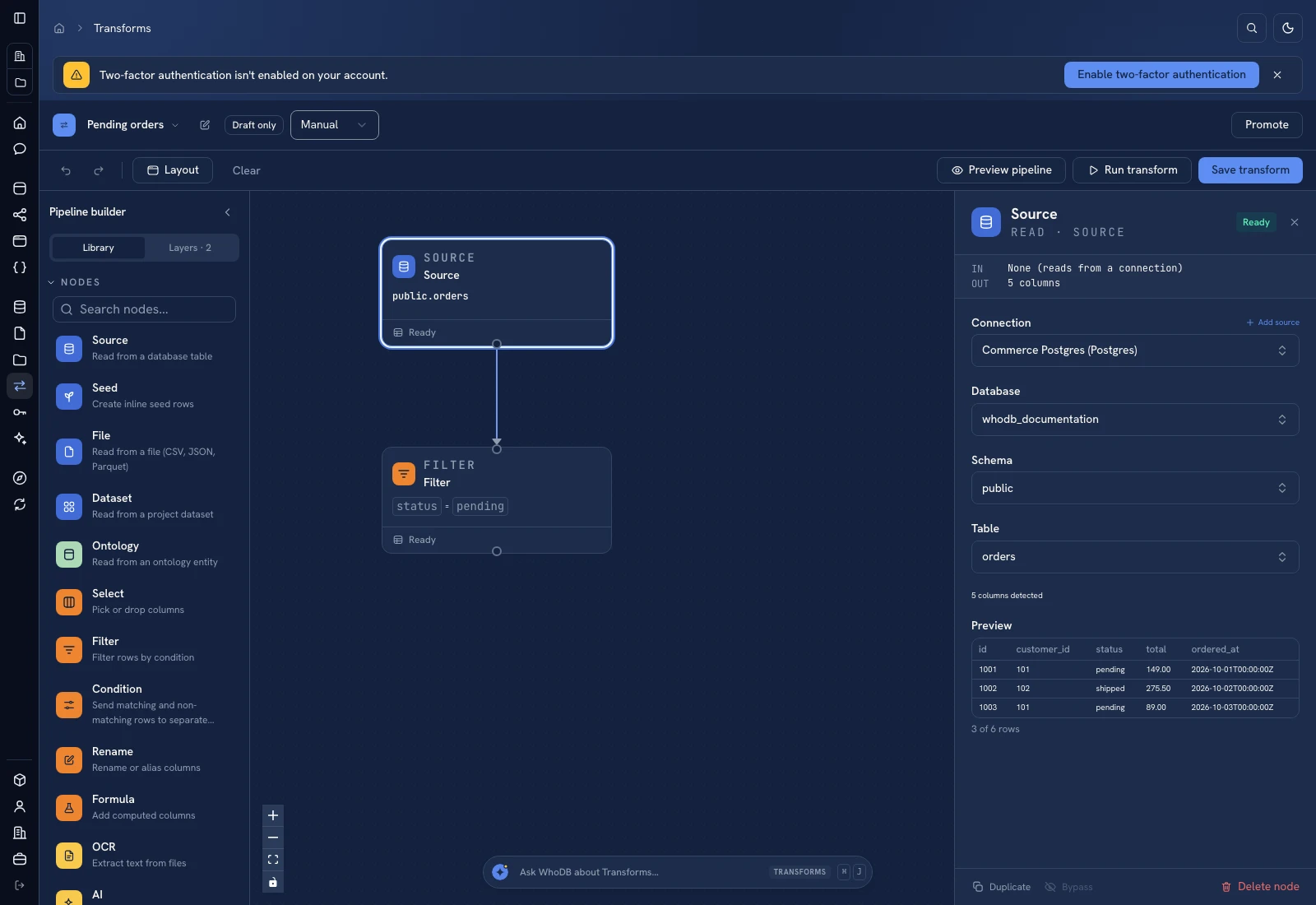 The Library provides inputs, row transformations, custom logic, and output nodes.
Preview before writing#
Click Preview pipeline. Inspect columns and a known record, then verify a filter or calculation against your expected result. A preview is distinct from running the graph's outputs. Error panels can show missing columns, available columns, and technical details; correct the configuration at the failing step.
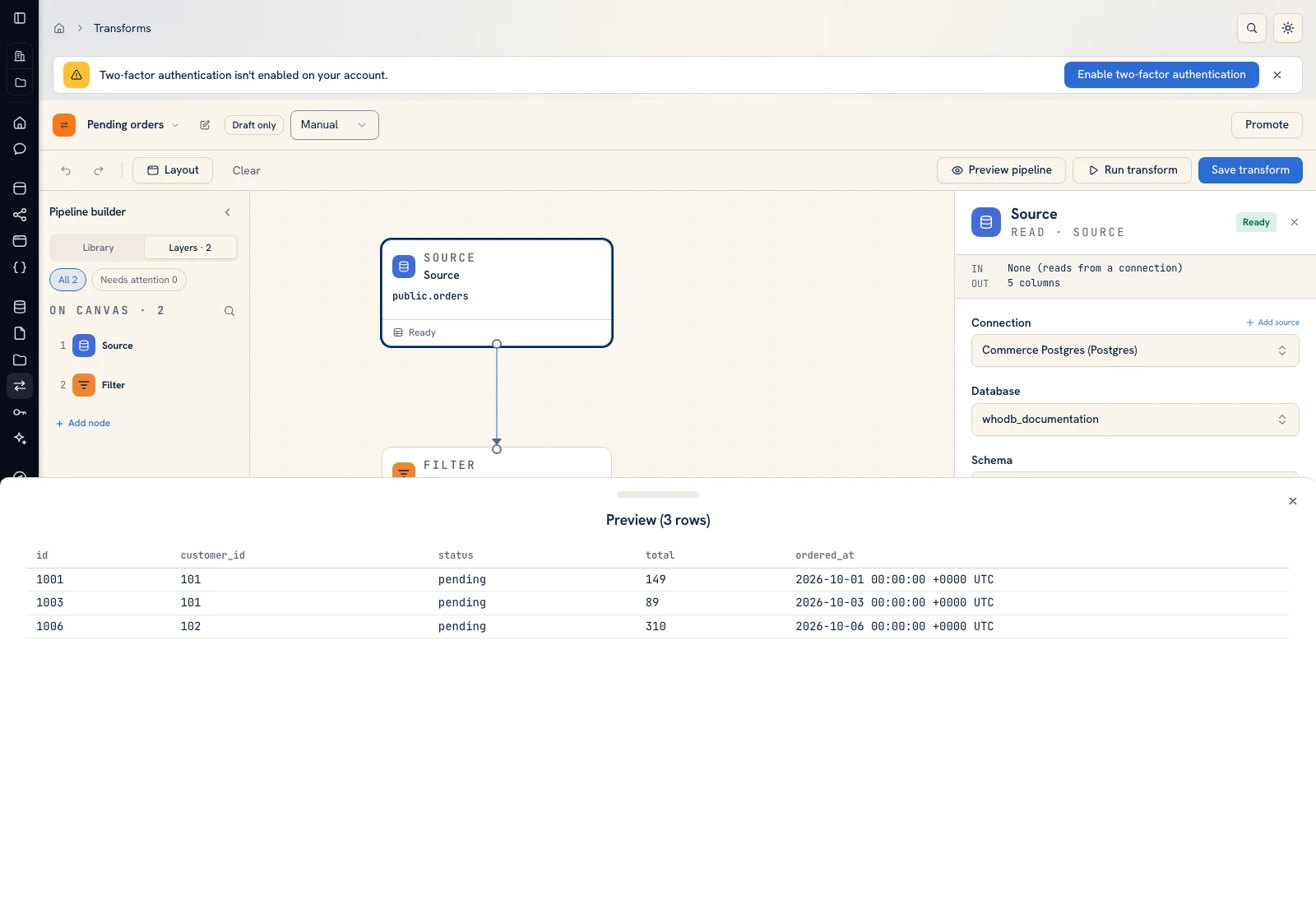 A pipeline preview displays the result without treating it as a completed destination write.
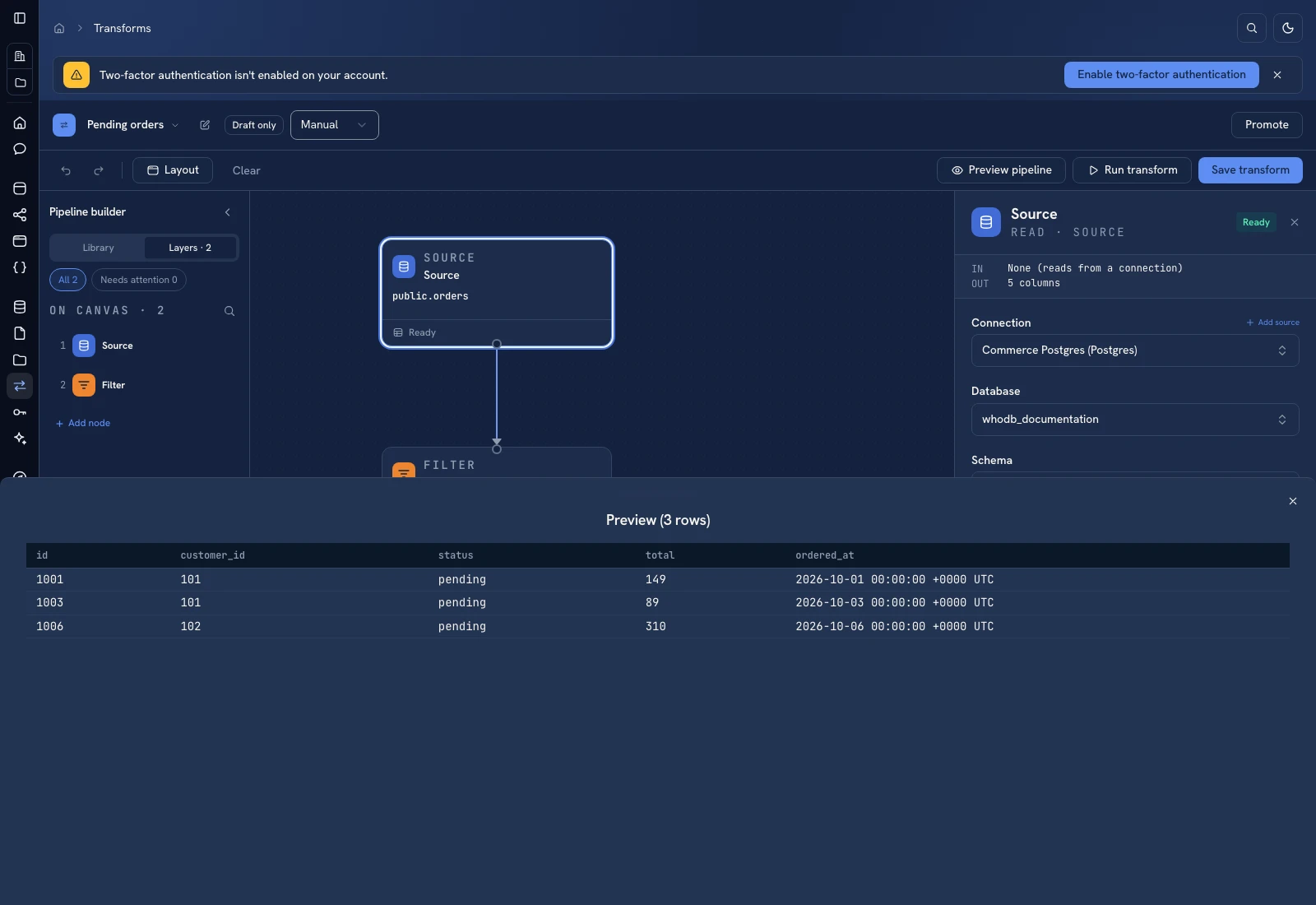 A pipeline preview displays the result without treating it as a completed destination write.
Click Save transform to retain the graph. A correct unsaved preview does not prove that the saved draft contains your latest changes. Use Runs and schedules when executing it and Output modes before selecting a write behavior.
Was this page helpful?