
Extract text and enrich rows with AI
Where: Transforms → builder → Library → OCR or AI. OCR needs its worker/runtime; AI needs a configured provider and accessible model.
Extract document text with OCR#
- Add a File input and select a supported document or image.
- Add OCR and connect the file input.
- Choose whether the output is one row per Document, Page, or Line.
- Review model, device, engine, maximum pages, and acceleration options offered by your instance.
- Preview the result and compare the extracted text with the original document.
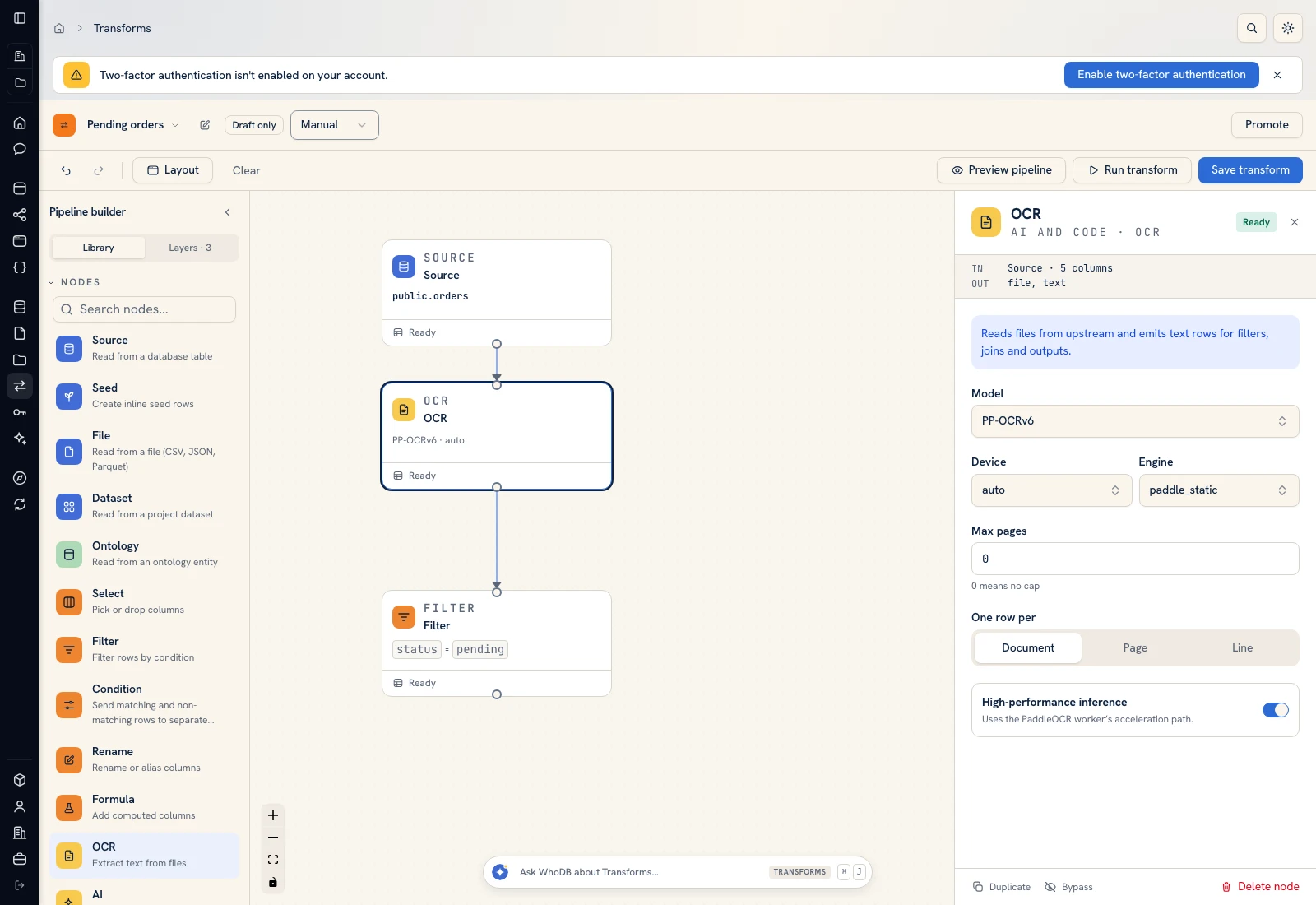 OCR configuration controls extraction granularity and worker options.
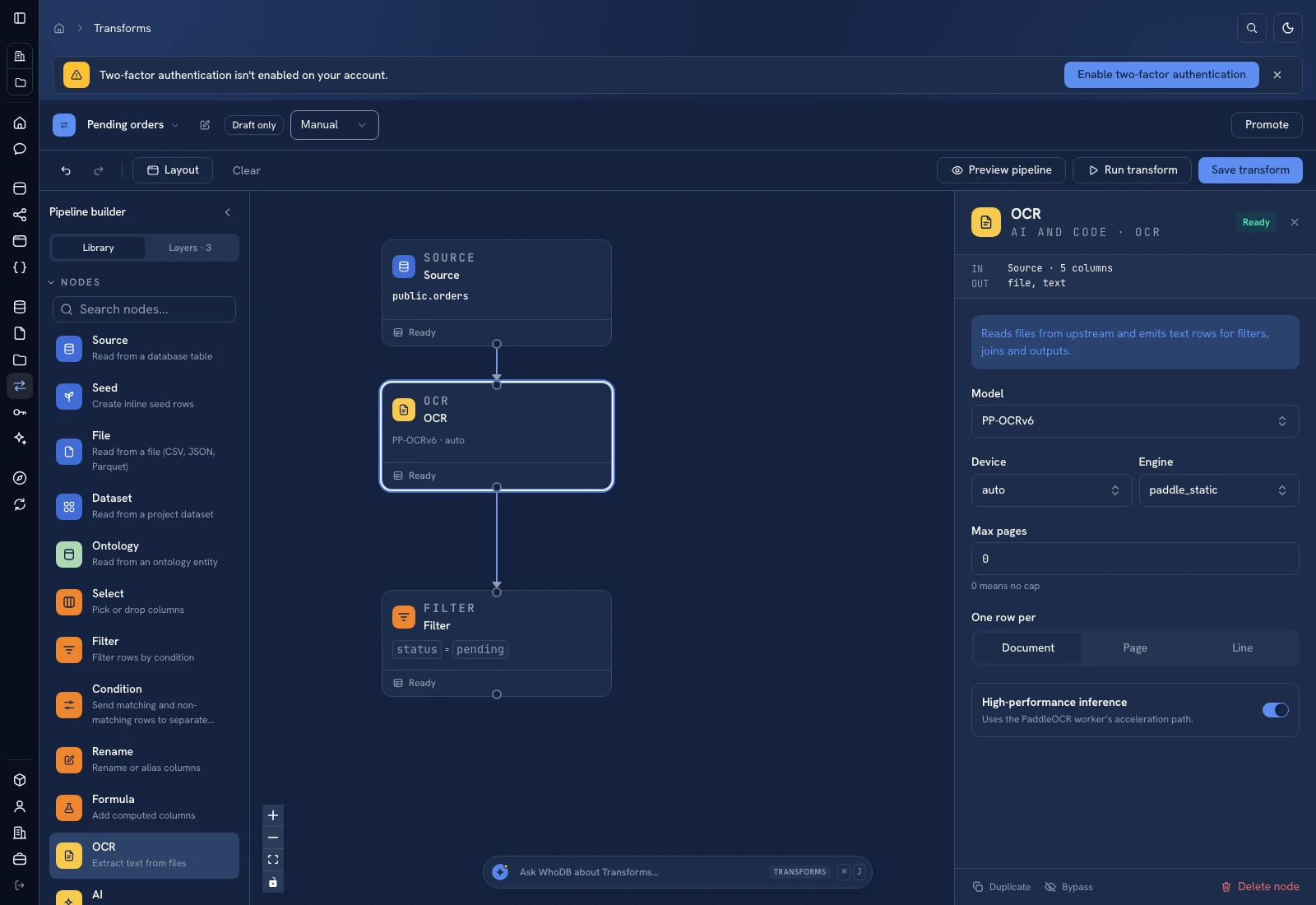 OCR configuration controls extraction granularity and worker options.
Document output exposes file/text; page and line output add the corresponding position fields. Maximum pages of zero is described as no cap. Choose a bounded input for a first test and verify numbers, dates, and low-quality text manually.
Add structured AI fields#
- Add AI after a row-producing input or OCR step.
- Select Provider, then Model. Wait for the model list before choosing.
- Choose Each row or Batch rows and set the batch size when relevant.
- Write Instructions describing the task and expected fields.
- Define Output schema fields with names, descriptions, and types.
- Choose Keep input columns when the original fields should remain alongside the generated ones.
- Use Test on 3 rows after the required setup and an input are connected.
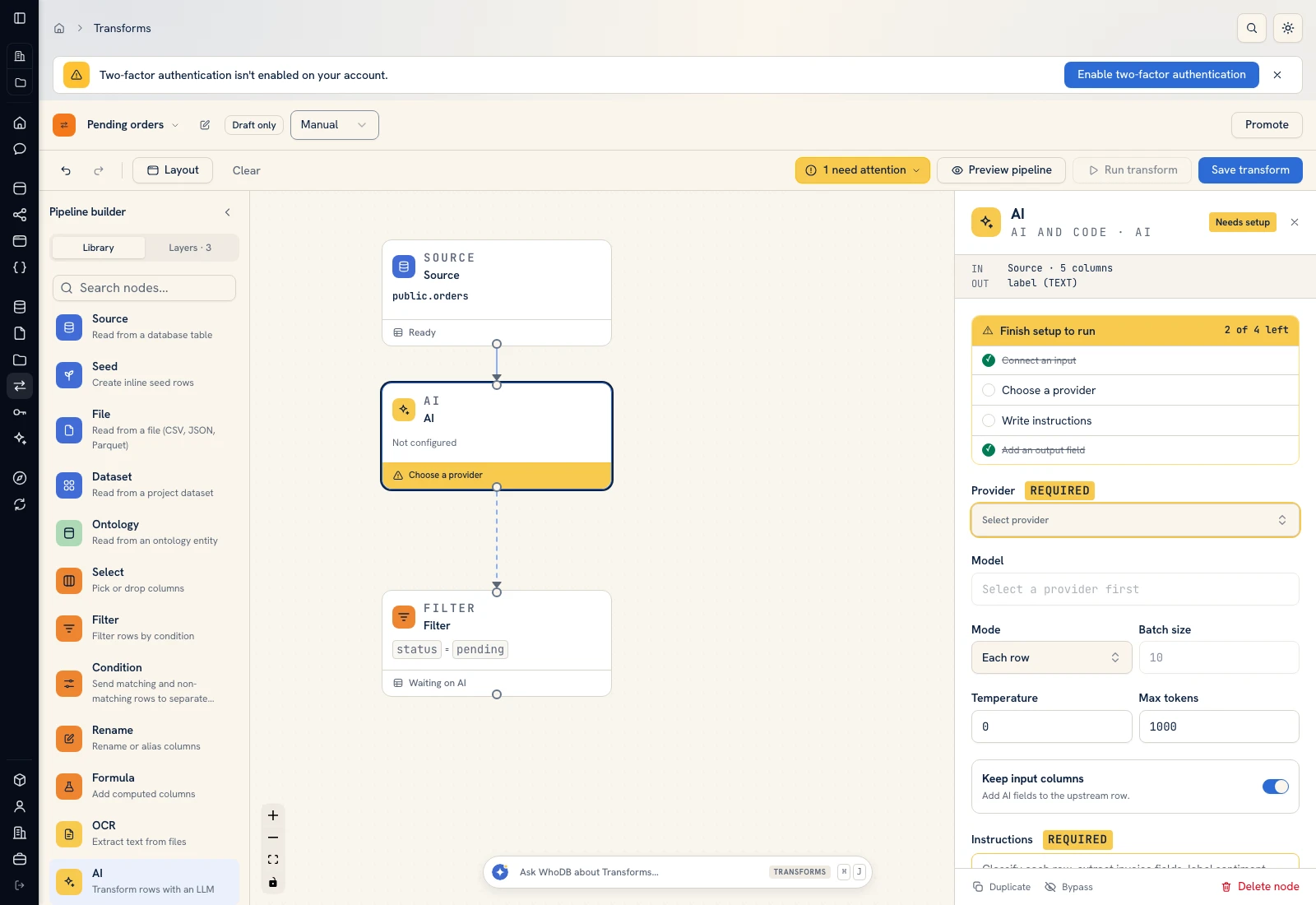 AI configuration selects the provider and model, instructions, and typed output fields.
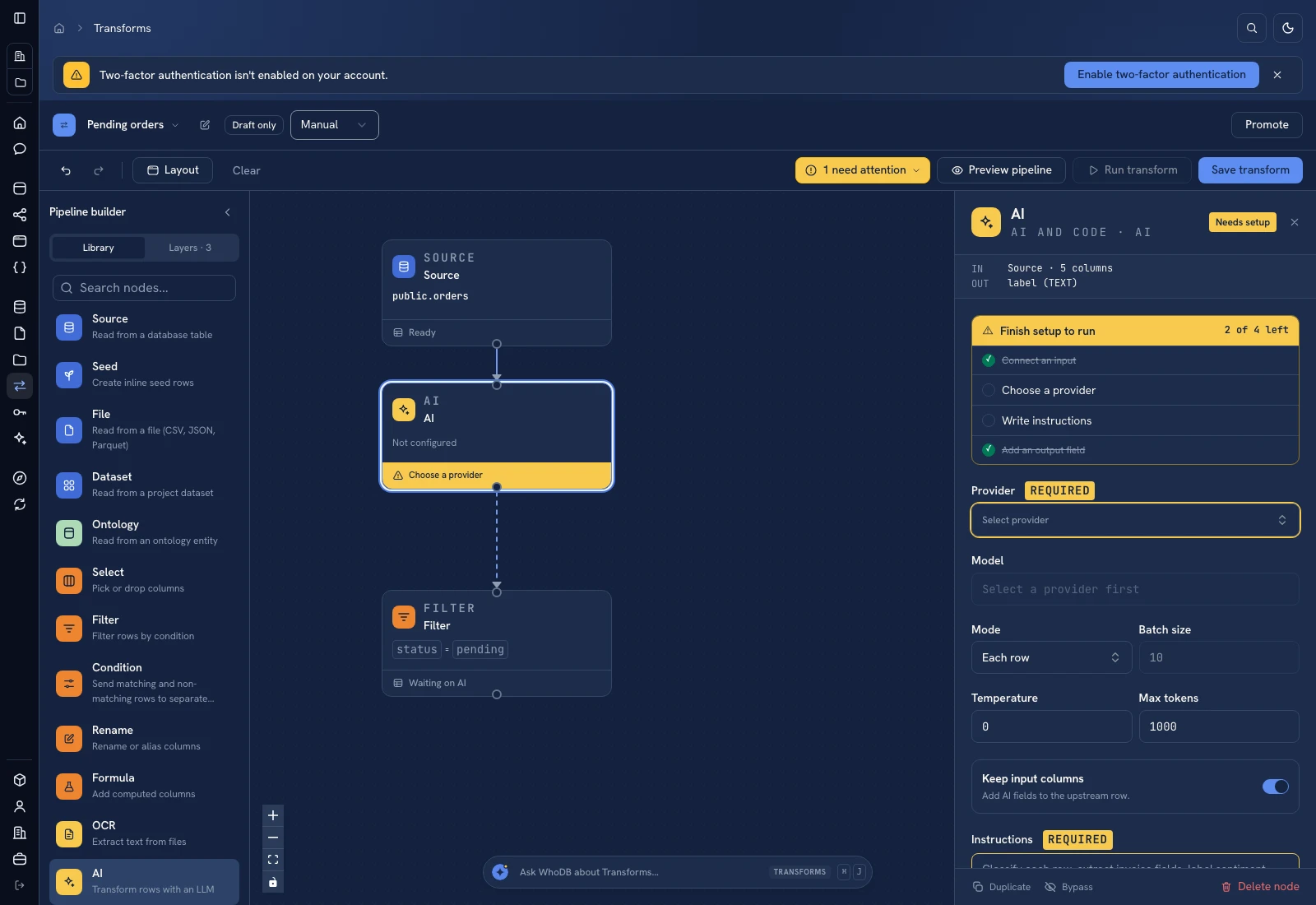 AI configuration selects the provider and model, instructions, and typed output fields.
For example, classify an order note into a category text field. State the allowed categories and what to return when evidence is missing. Do not use a free-form answer as a database key without validation.
Review advanced options#
Check Temperature, Max tokens, Columns to send, and any System prompt when those options matter. Send only the fields needed by the task. Provider/model choices and costs come from your configured service; screenshots demonstrate the interface and do not establish model quality or pricing.
Verify the output#
Compare the first few outputs with their source records or document regions. Inspect missing fields, unexpected types, and empty text. Keep the original key or filename so every generated value can be traced back. A successful model request does not verify the truth of its output.
Was this page helpful?