
Create pages and navigation
Where: open an app builder → Pages. Use distinct pages for distinct tasks rather than hiding every screen inside one large component tree.
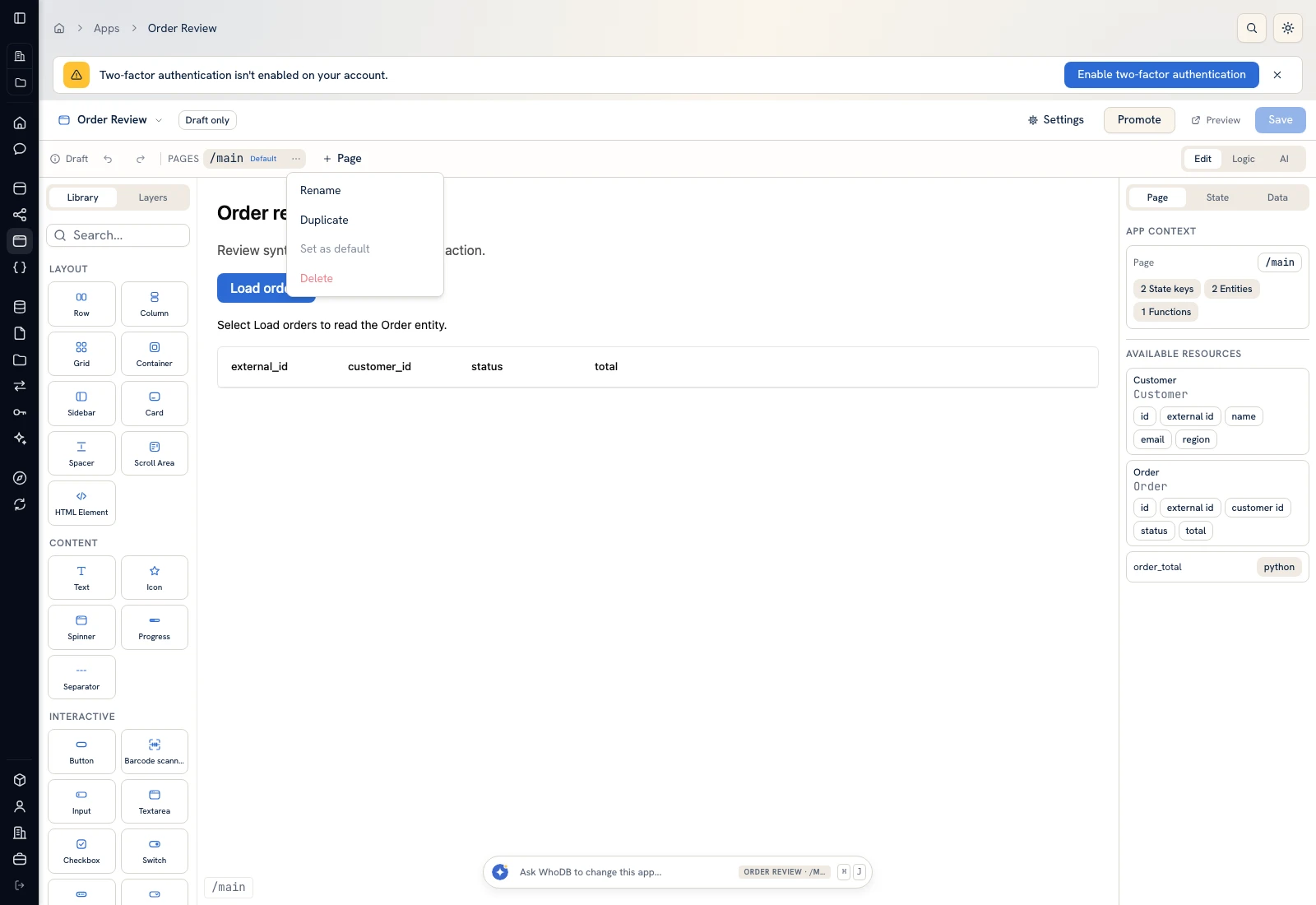 The page list identifies the current route and default page.
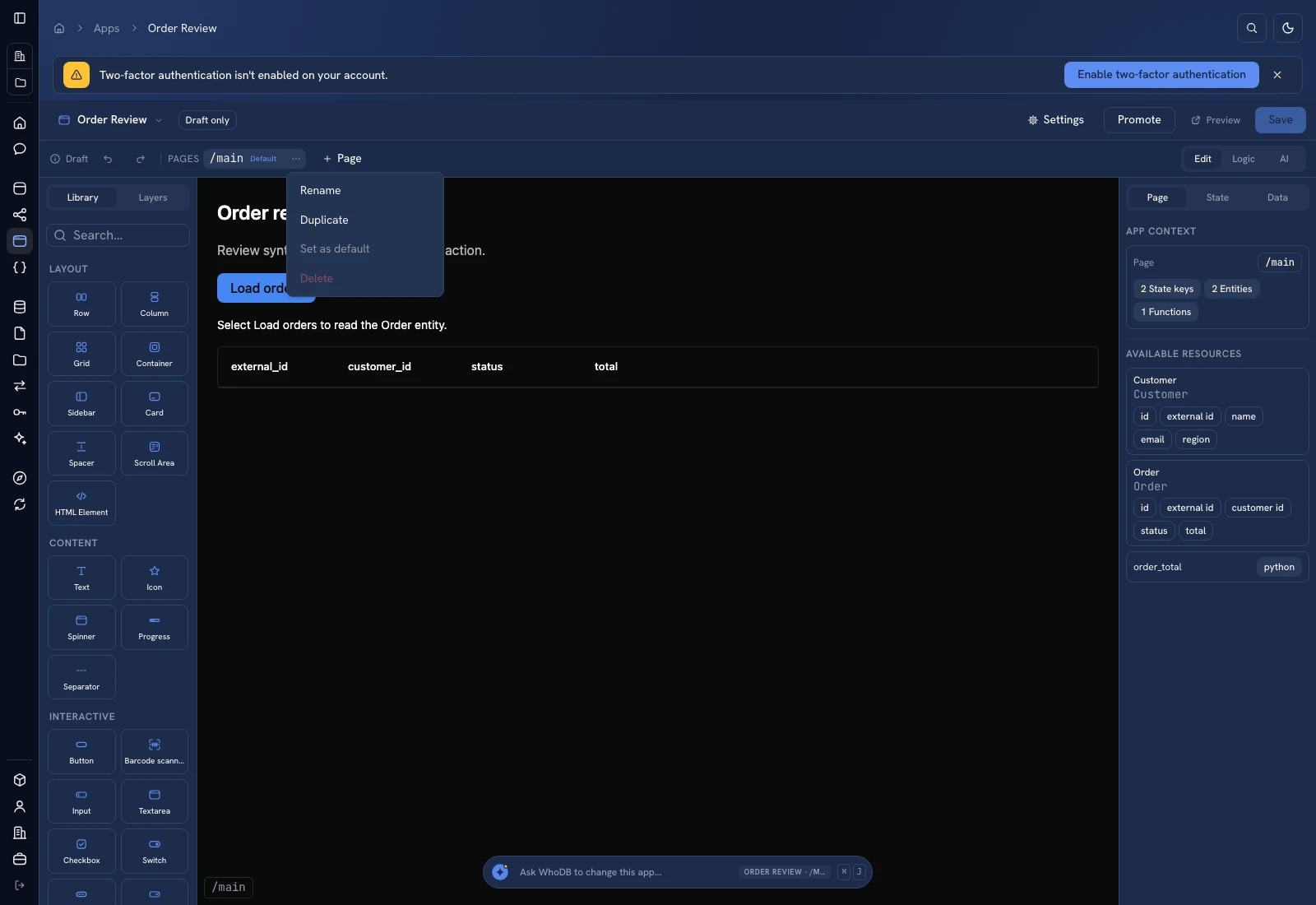 The page list identifies the current route and default page.
Add and select a page#
Open the page actions menu and use the available add/create action. Give the page a task-oriented name such as orders, order-detail, or settings. Select it in the page list to edit its own layout, state, and scripts.
Use the page's Default action when it should be the landing page. Verify a fresh opening of the app lands there. Deleting a page removes its page files; review whether it is the current default and whether other pages navigate to it.
Build list-to-detail navigation#
- Put a Data Table or list on the orders page.
- Bind it to the loaded order records.
- Configure the row-selection event to store the selected record's stable key in shared state.
- Navigate to the detail page.
- On the detail page, load or display the selected record and provide navigation back to the list.
A minimal page script can use:
JavaScript
(event, ctx) => {
  ctx.set('shared.selectedOrderId', event.id);
  ctx.navigate('order-detail');
}
Use the actual event shape produced by your chosen component. Inspect it in the app's logic/state tools rather than assuming every click event contains a record.
Keep state in the right scope#
Page-local state belongs to that page. Use shared for information that must survive navigation, such as a selected key. Prefer storing a stable ID and reloading current details when a stale full-record copy could mislead the user.
Test an empty selection, returning to the list, and selecting a different row. A detail page should not silently keep showing the previous record when the user expected another.
Verify after saving#
Save the app, reopen Preview, and repeat the navigation from a fresh start. Check its phone navigation and both themes. Follow State and bindings for data loading and Versions before publishing the changed route structure.
Was this page helpful?