
Tutorial: source to managed orders to an app
This tutorial builds a small Order Review workflow. You will connect a source, inspect its records, create managed Customer/Order models, import the rows with transforms, inspect their relation, and load them in an app.
Before you begin: select a project where you can create resources, arrange a reachable source, and use synthetic data. The checked-in local fixture is commerce.sql with orders.csv. It contains four customers and six orders; the documented local development database is a convenience for local capture, not a hosted connection recipe.
1. Connect and browse#
Open Sources → Add Source, select Postgres, and complete Connect with your own reachable endpoint. Use Test connection, then Create Source. Select the source, choose its database/schema, and inspect orders.
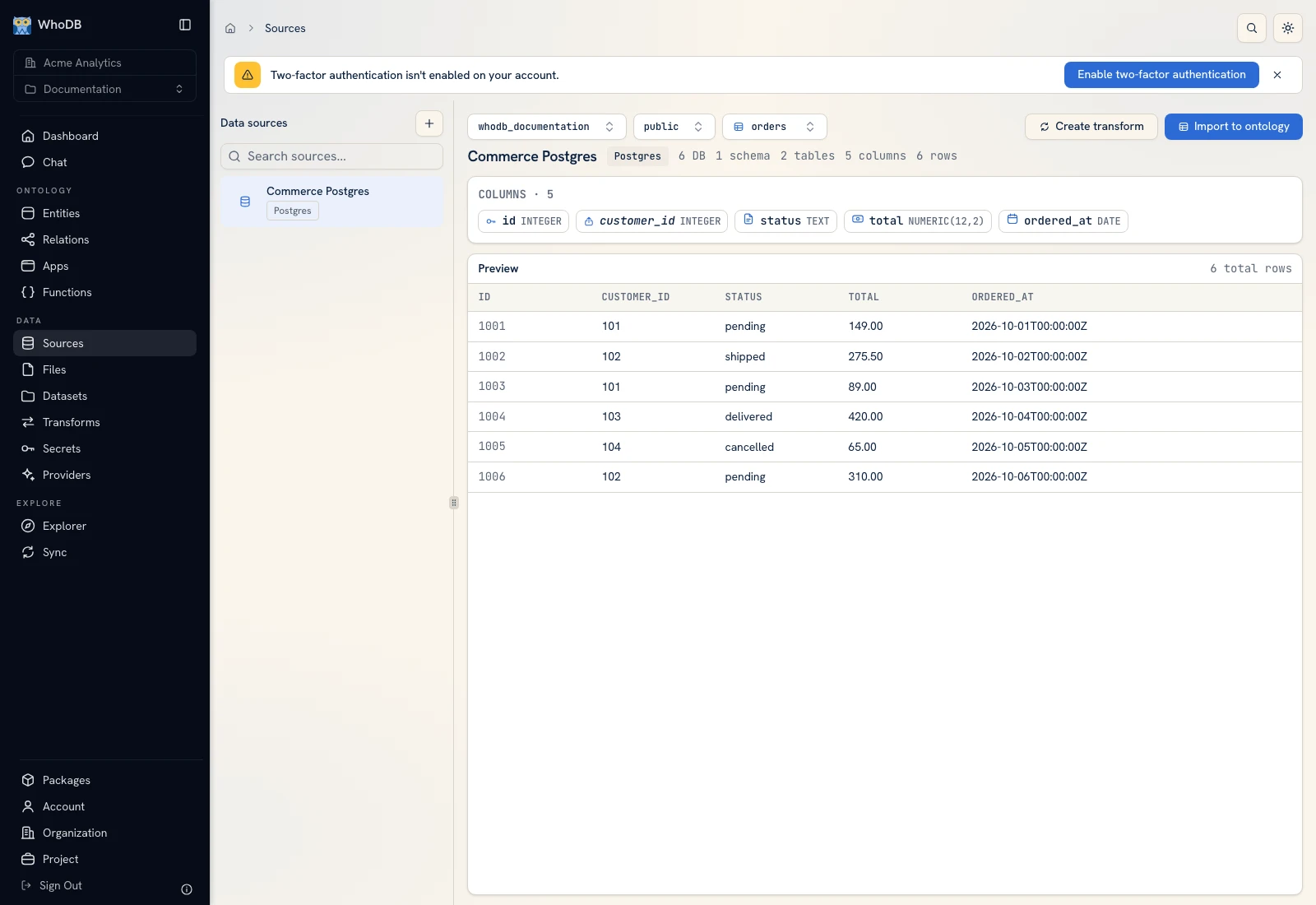 The source orders contain external IDs 1001 through 1006 and their known statuses and totals.
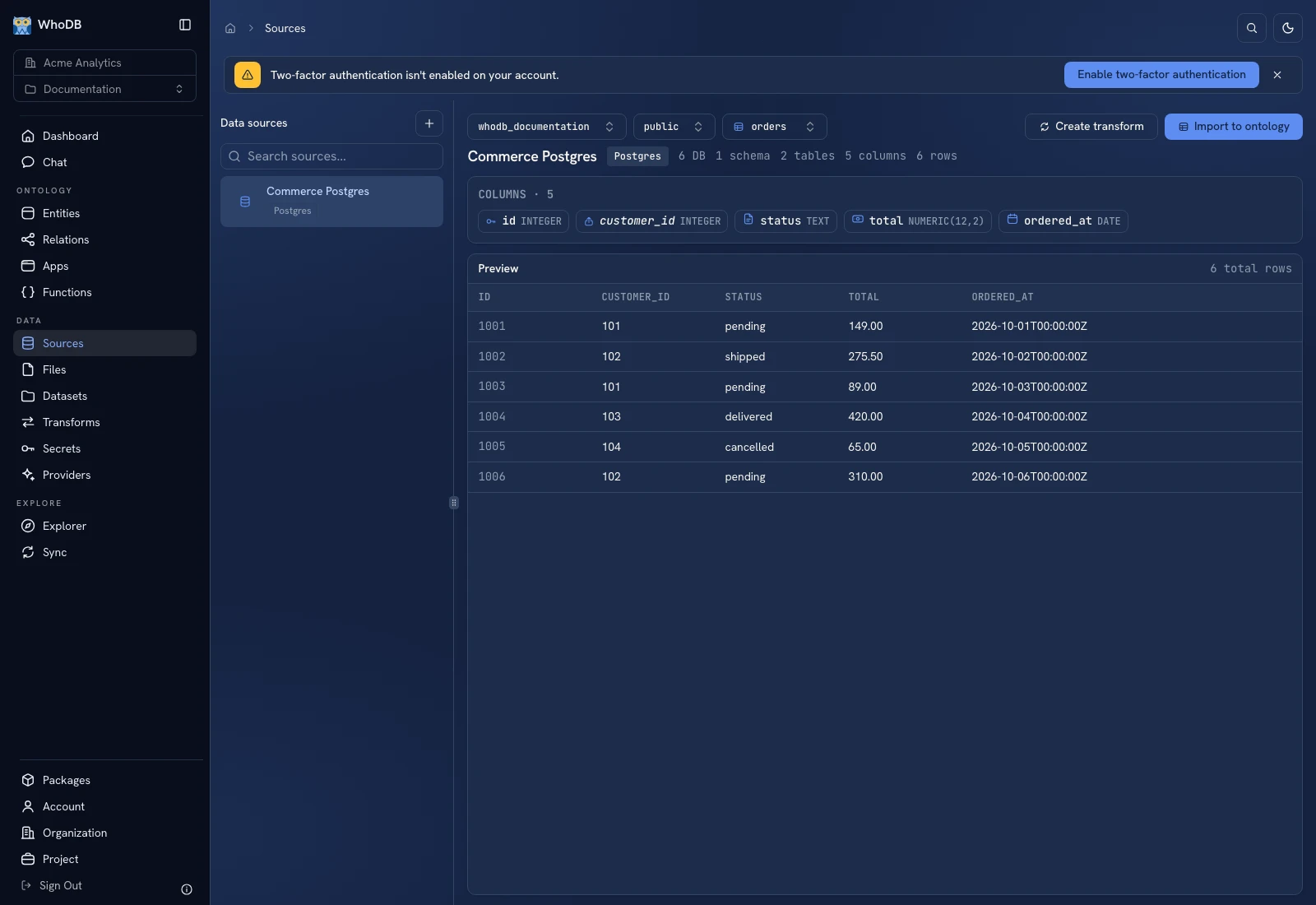 The source orders contain external IDs 1001 through 1006 and their known statuses and totals.
Check order 1001: customer 101, status pending, total 149.00. Check that six rows exist. Repeat for the four customers records.
2. Create managed Customer and Order entities#
Open Entities → Create and configure Customer with its generated UUID identity plus external_id, name, email, and region. Create Order with its generated UUID identity plus external_id, customer_id, status, total, and ordered_at.
Use Integer for the external IDs/customer key, String for status/name/email/region, Double for total in this example, and Date for ordered_at. Real financial workflows should choose their exact value representation according to their data contract.
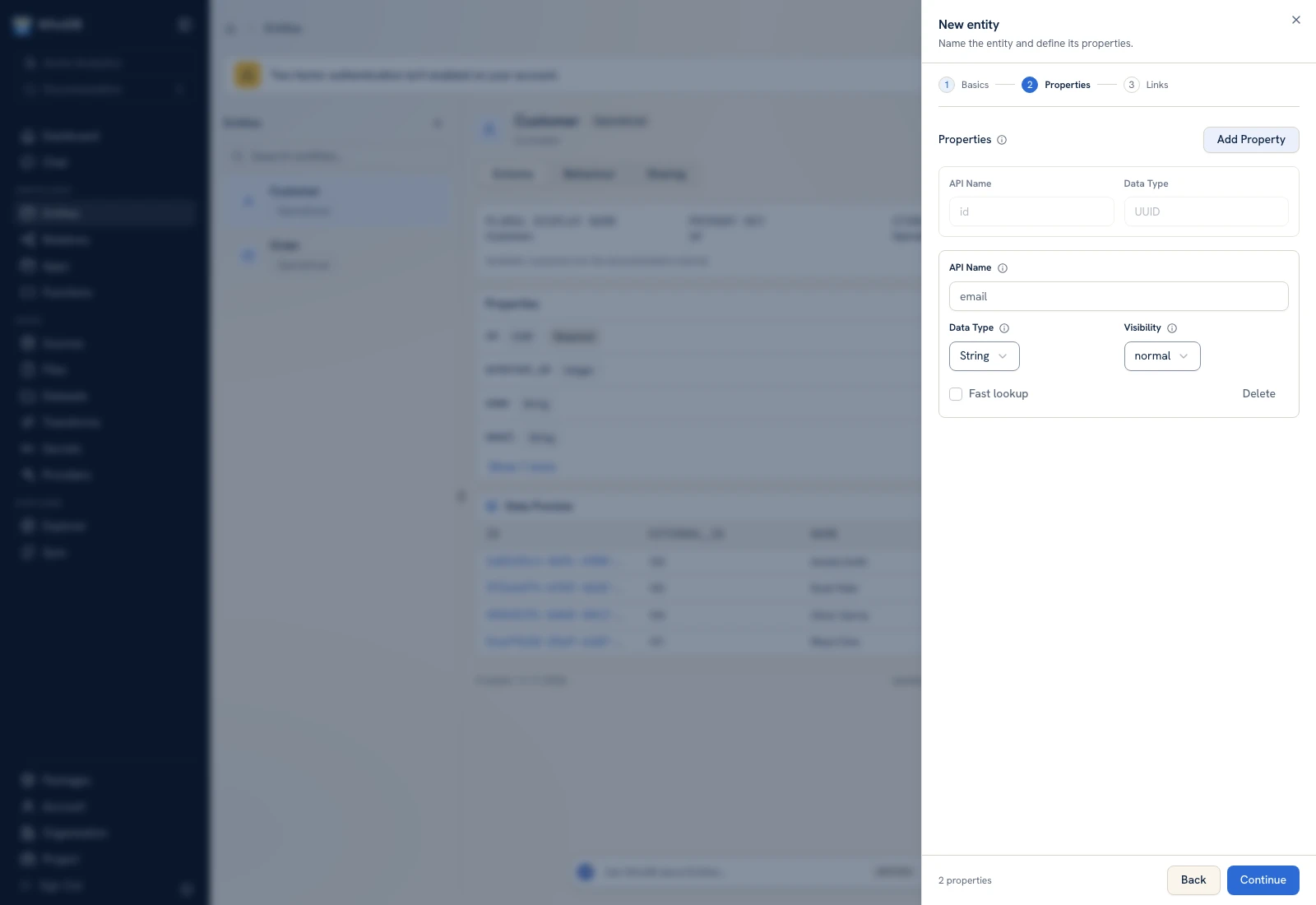 Define business fields alongside the managed identity rather than mapping source integers into UUID storage.
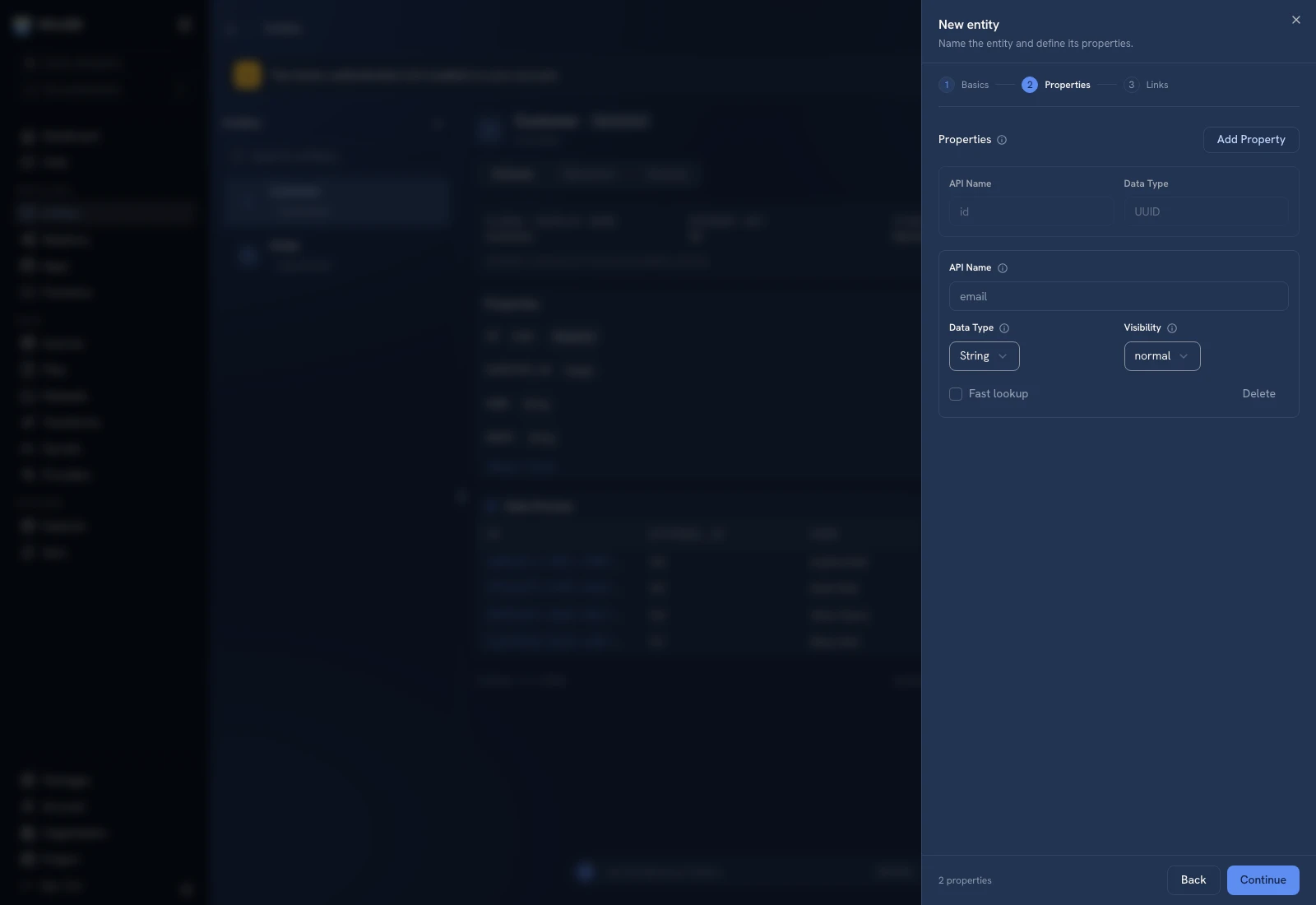 Define business fields alongside the managed identity rather than mapping source integers into UUID storage.
3. Import Customers, then Orders#
Create an import transform for each model. Configure Source with the appropriate table and Output with the managed entity. Map source id to destination external_id; map the remaining fields by name. Select the intended initial replacement mode and review required fields.
Preview, save, and run the import. Inspect run history for success, then inspect the entity's Data Preview. The verified fixture produces 4 Customer rows and 6 Order rows. A definition with zero records is not a completed import.
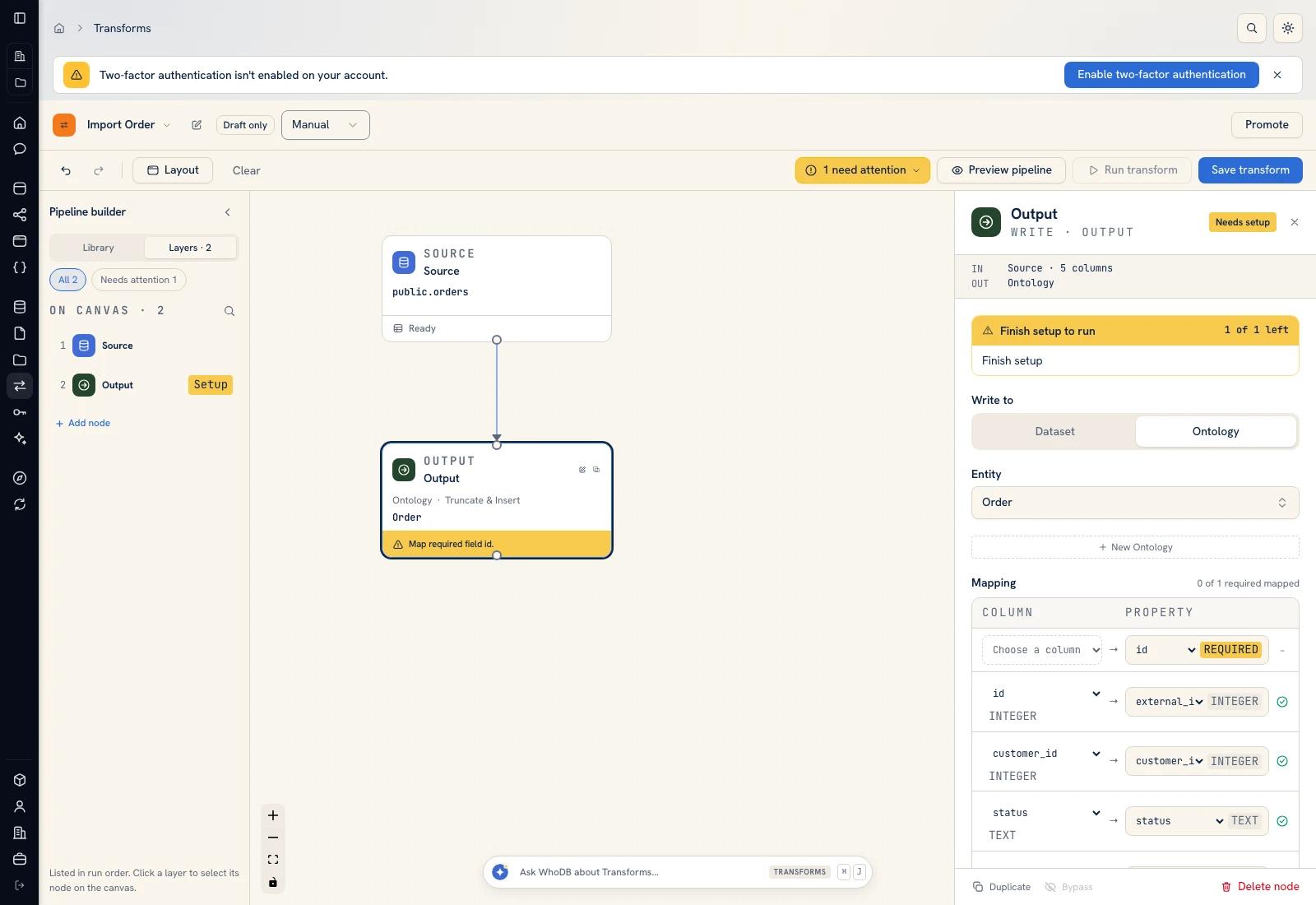 The import output maps external source fields to the managed entity's properties.
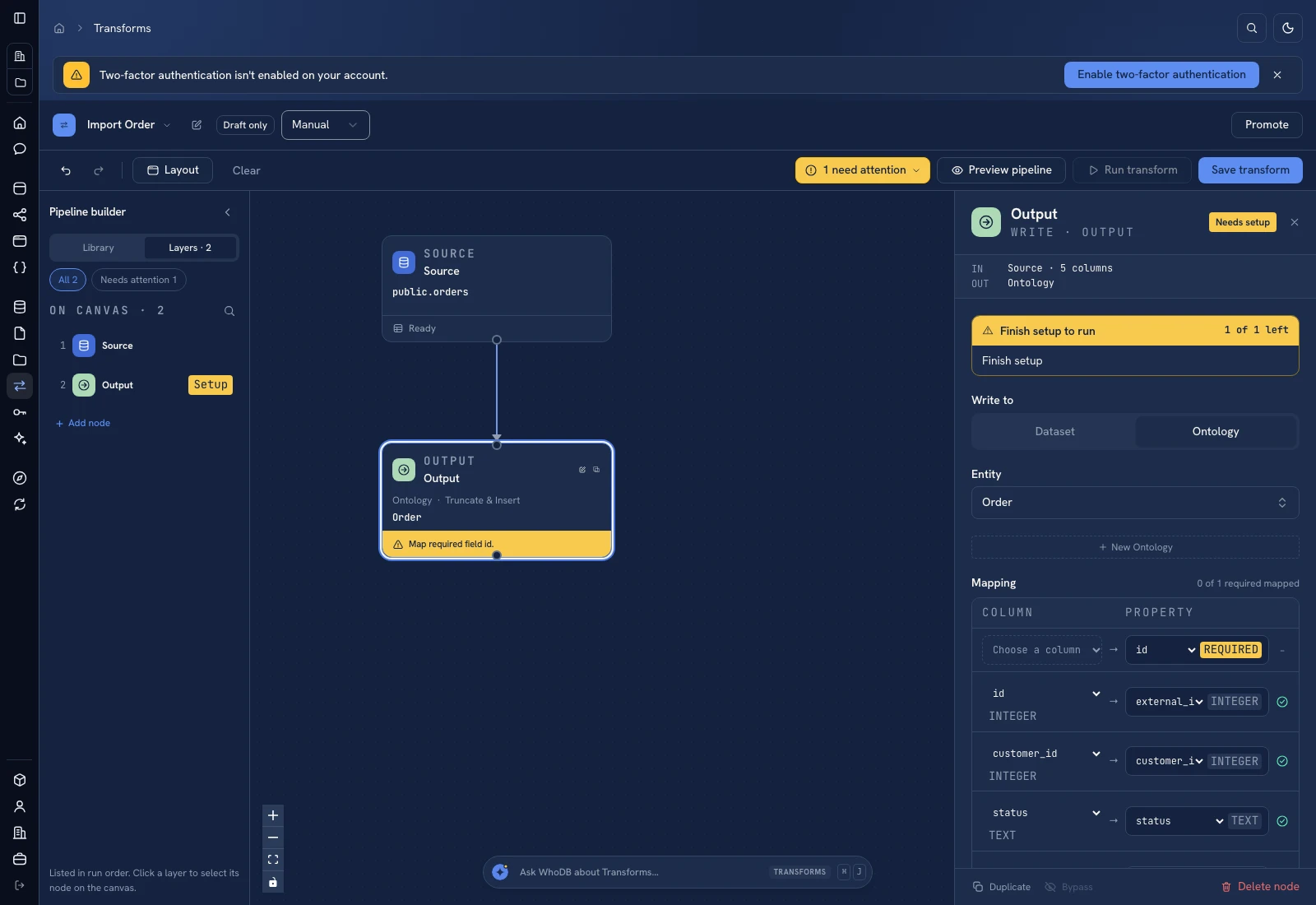 The import output maps external source fields to the managed entity's properties.
4. Link Orders to Customers#
Edit Order → Links → Add Link. Target Customer with many-to-one cardinality, matching Order's customer_id to Customer's external_id. Save and inspect Relations. Verify order 1001 matches the customer with external ID 101.
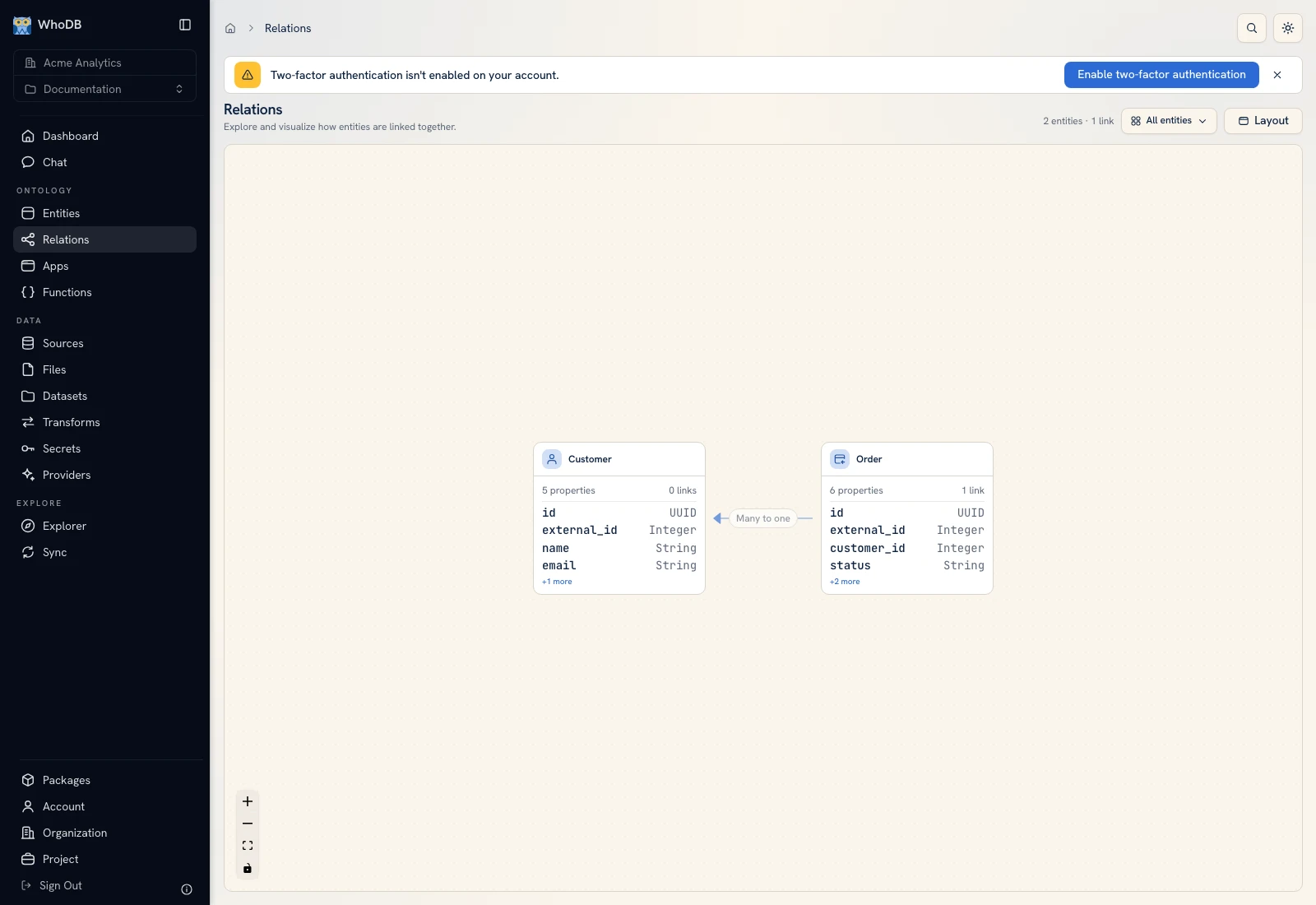 The model's Order-to-Customer relation represents the business-key connection.
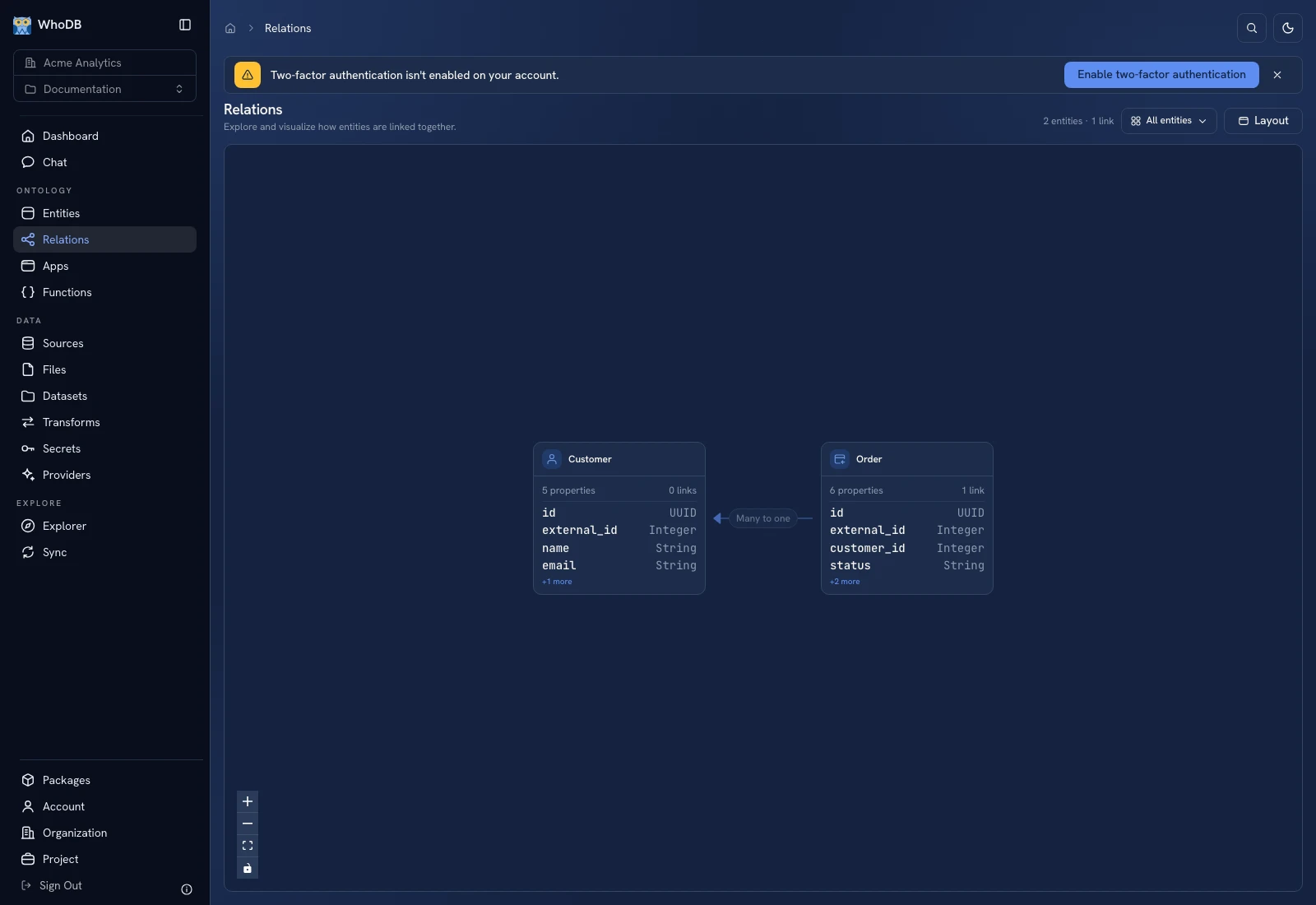 The model's Order-to-Customer relation represents the business-key connection.
5. Preview pending orders#
Create Pending orders with Source → Filter. Configure status equals pending using the filter operator provided by the form. Preview the pipeline. The expected external IDs are 1001, 1003, 1006 and their totals sum to 548.00.
If you want a stored result, add Output and choose an appropriate dataset/entity destination. A preview alone does not write that destination.
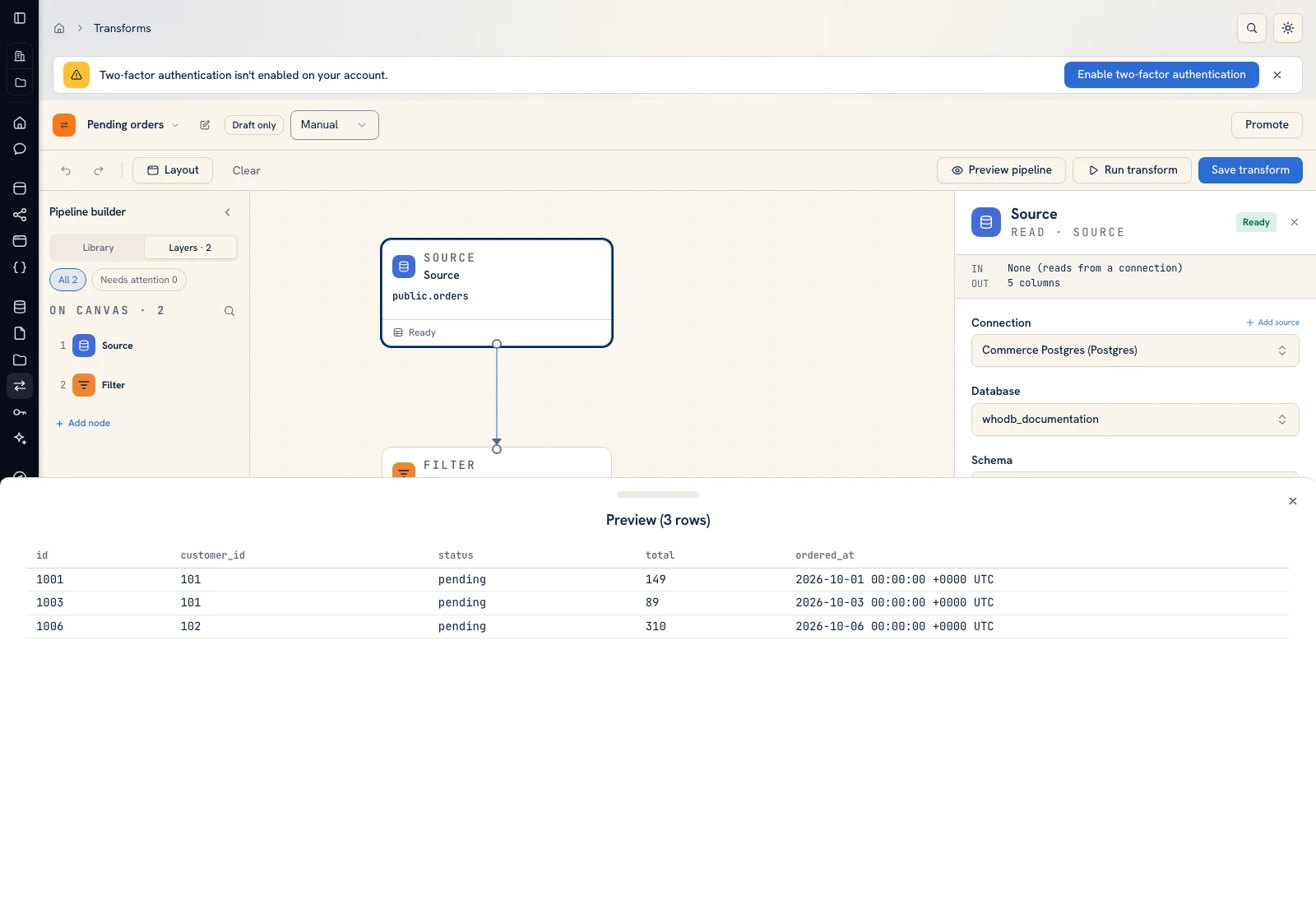 Inspect the filtered result before adding or running a write.
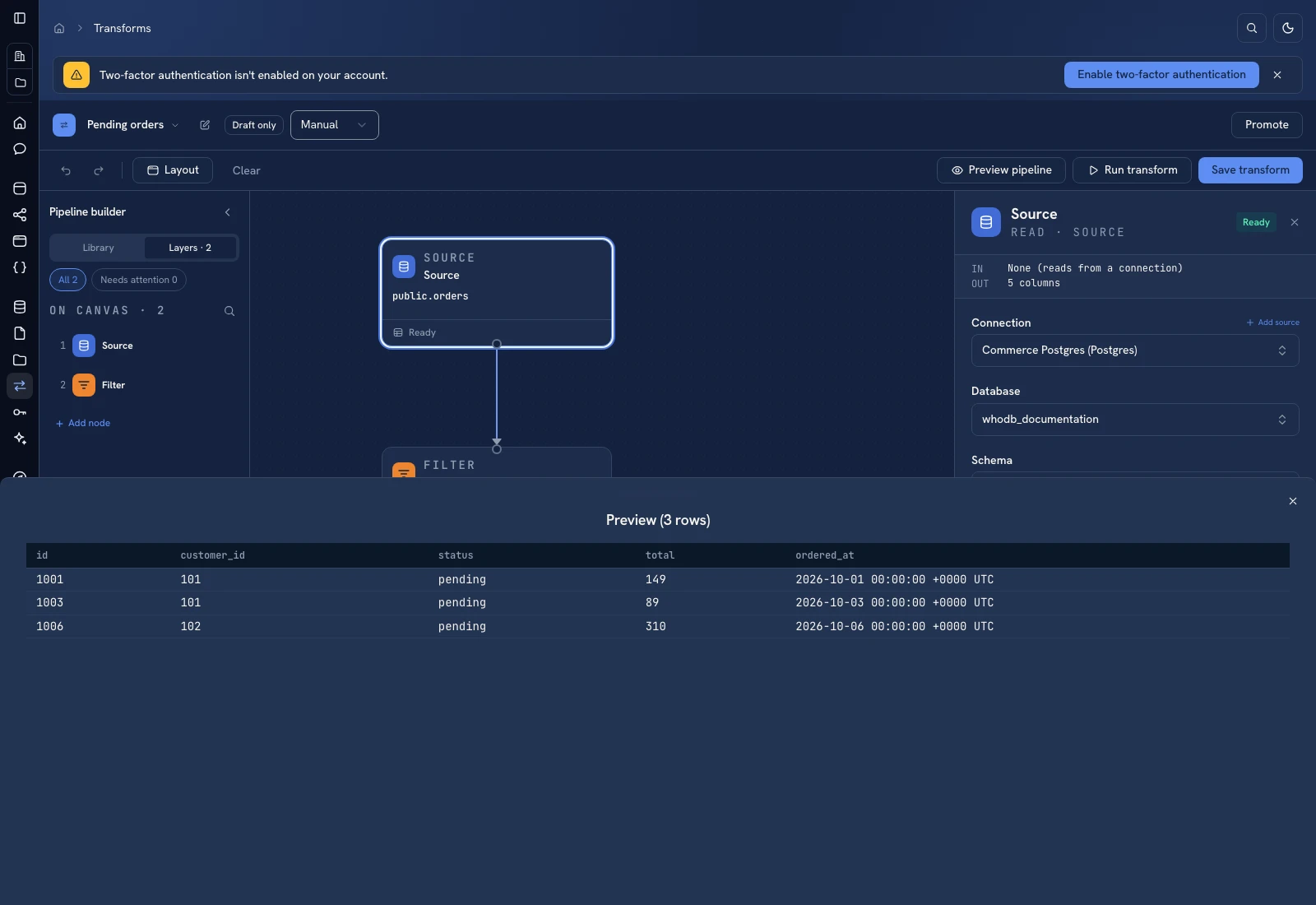 Inspect the filtered result before adding or running a write.
6. Build Order Review#
Open Apps and create a blank app or an entity-based start. Bind Customer/Order read access. Add a Data Table with external_id, customer_id, status, and total; bind its rows to state.rows. Add a Load orders Button and a script that calls ctx.whodb.list('Order') and sets those rows.
Use State and bindings for the exact tree/script example. Save, open Preview, and select Load orders. Check all six orders against the managed data.
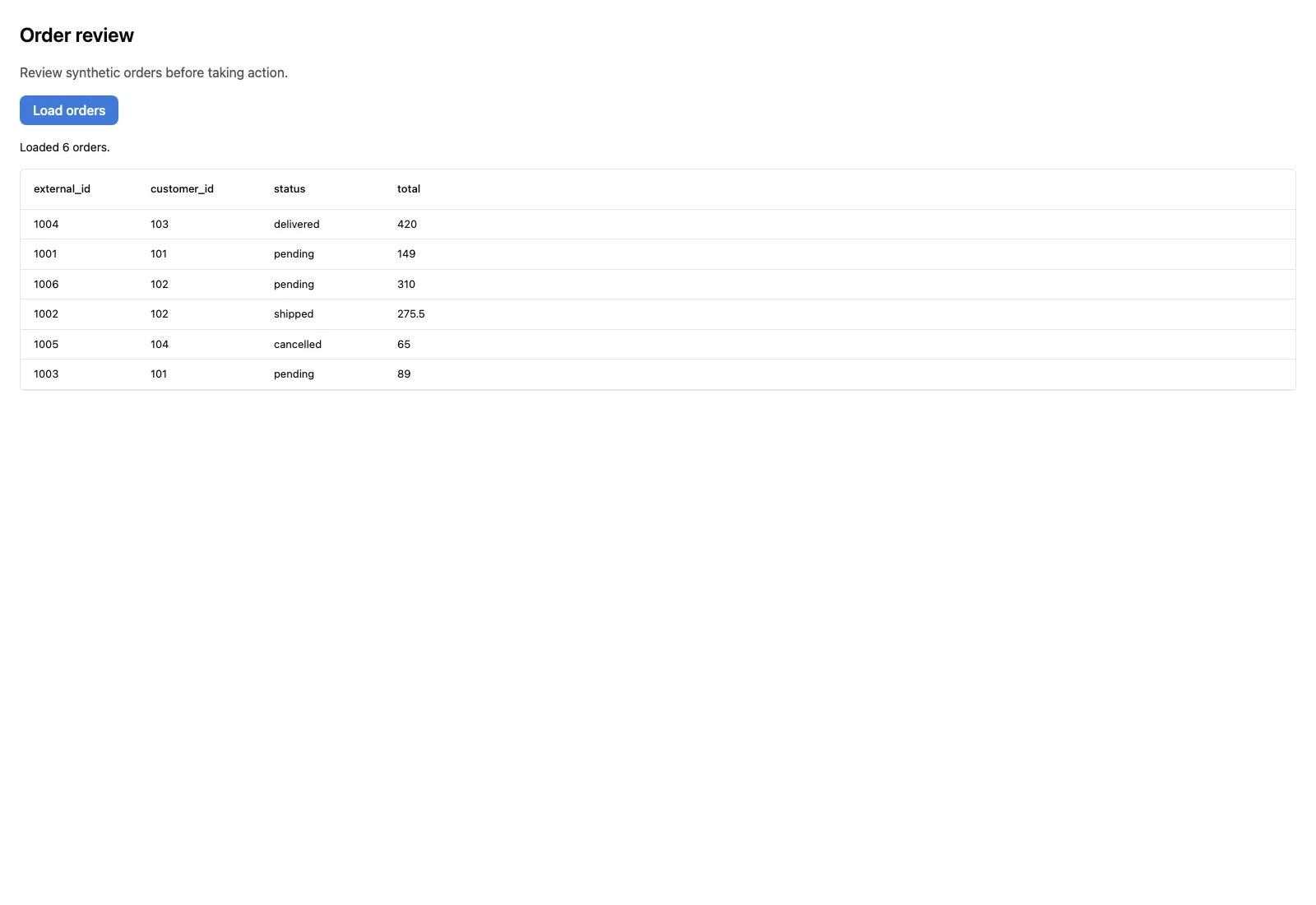 The app preview reads six actual synthetic managed Order records.
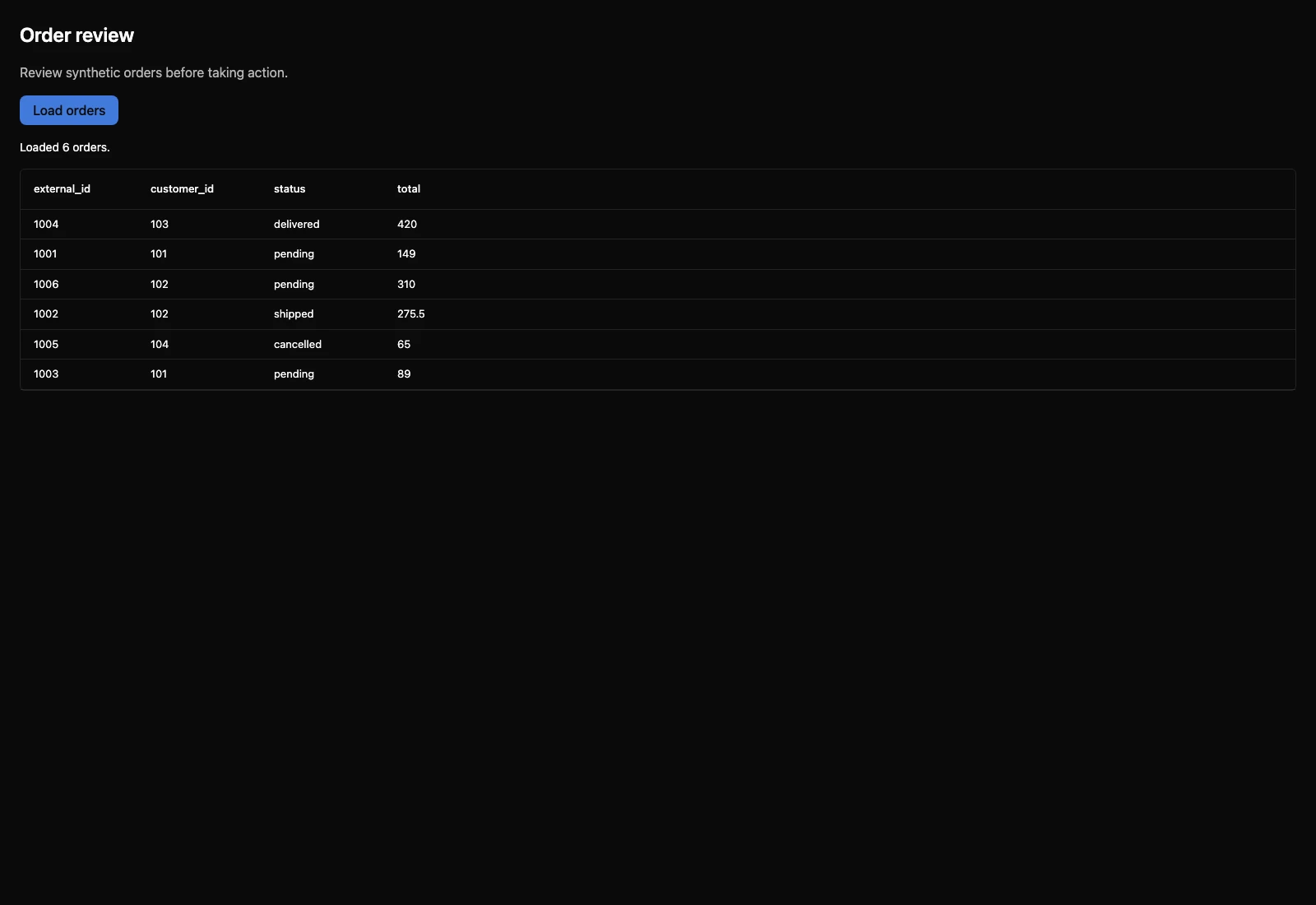 The app preview reads six actual synthetic managed Order records.
7. Add reusable calculation logic#
Create the Python order_total function from Functions. Run Raw input {"quantity":2,"unit_price":149} and verify total 298.0. Bind it to the app only when the UI needs that operation.
8. Release and test another account#
Save and review the app/function drafts. Promote the intended versions, inspect active badges, and share the app plus the permissions needed by its actions. Have the recipient open the published runner and repeat the known record/action checks.
Keep the same record IDs and expected counts as regression cases when you later add schedules, AI enrichment, packages, or offline support.
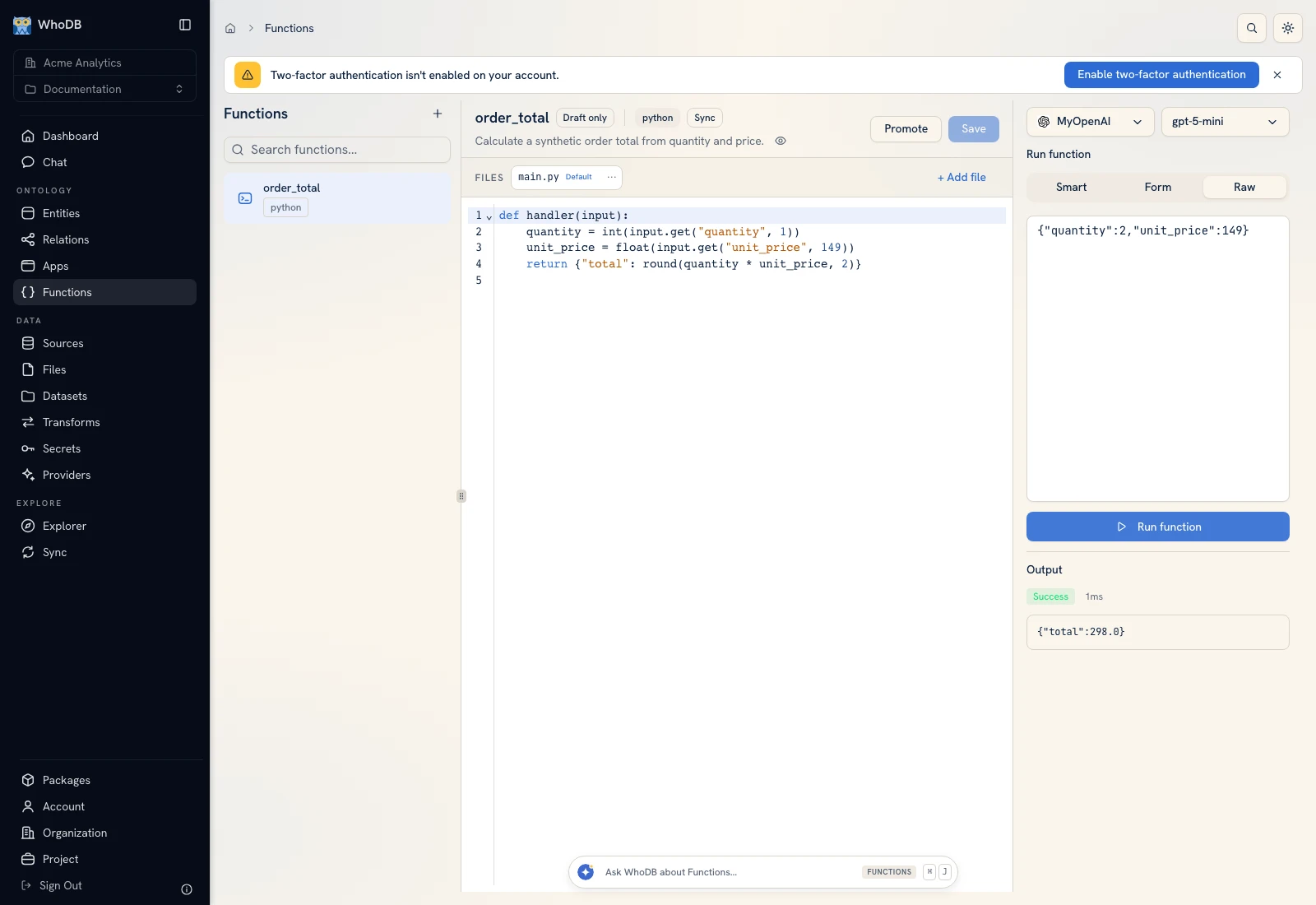 The order_total function returns total 298 for quantity 2 and unit price 149.
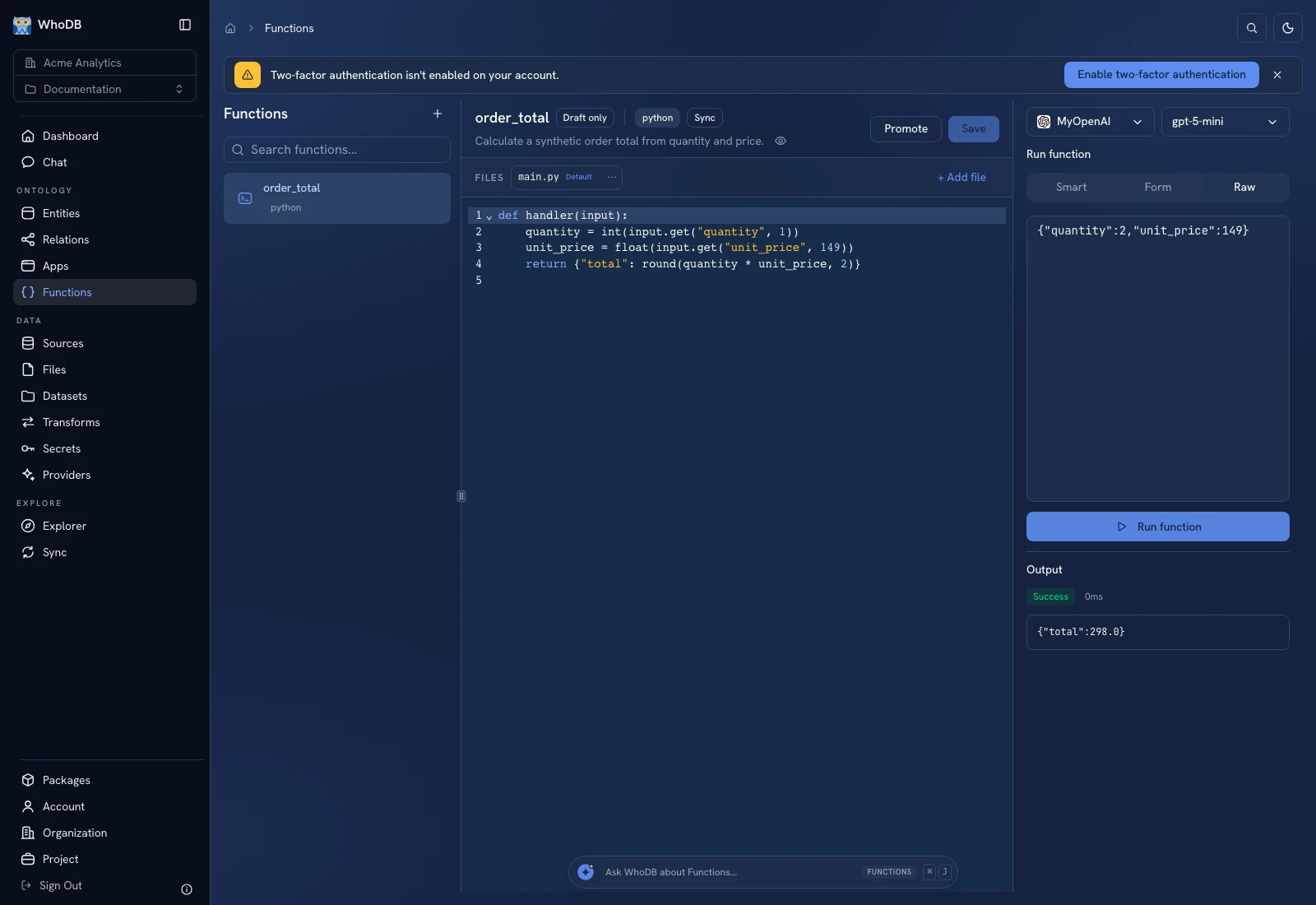 The order_total function returns total 298 for quantity 2 and unit price 149.
Was this page helpful?