
Move from WhoDB Community
Looking for help with your existing Community instance? Use the Community manual, installation guide, or database connection guide. Continue below when you want to bring a connection into Platform.
Where: Community's WhoDB Platform → Import connection action when available, or Platform Sources for direct connection setup.
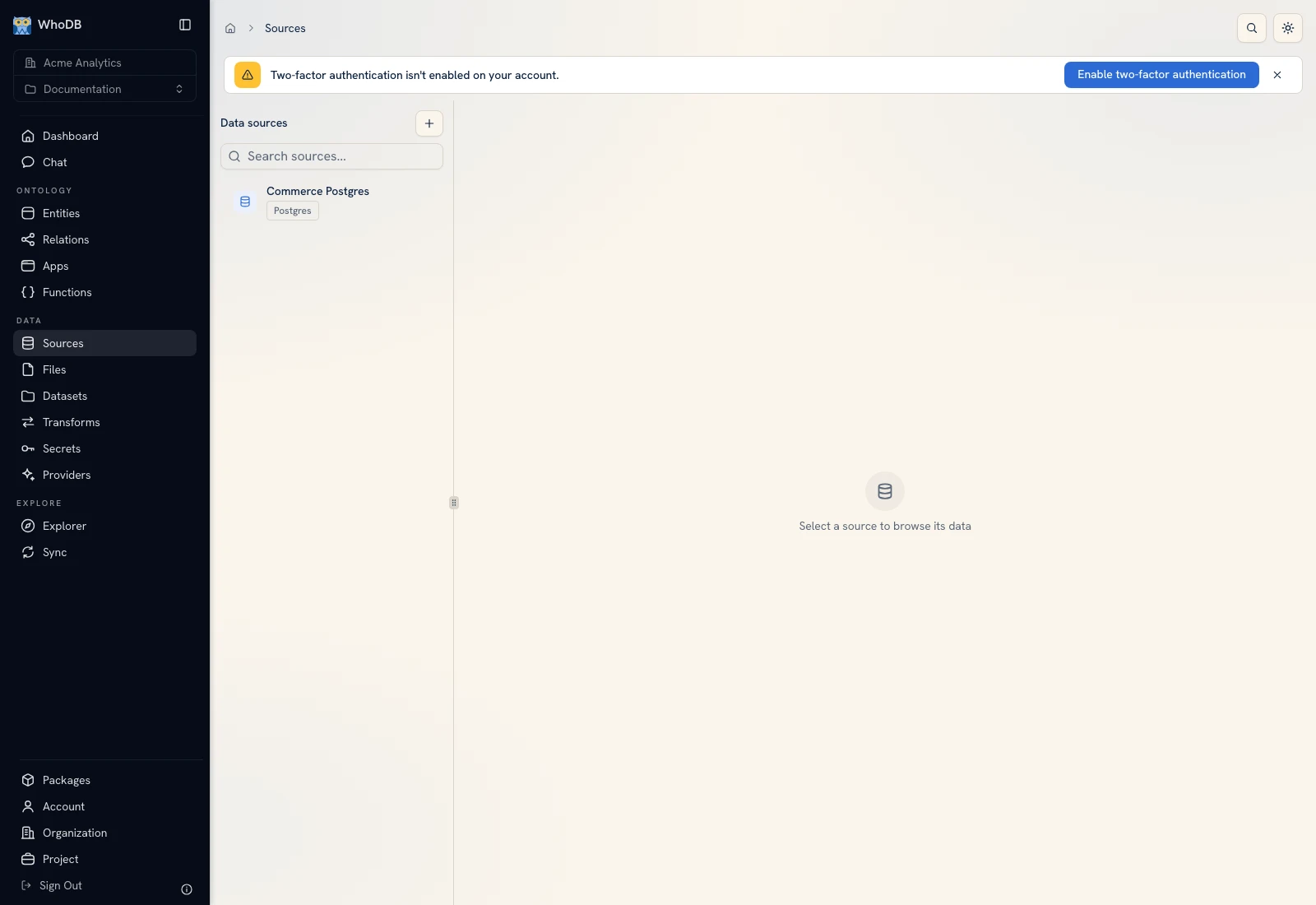 Imported connections become managed sources in the destination Platform project.
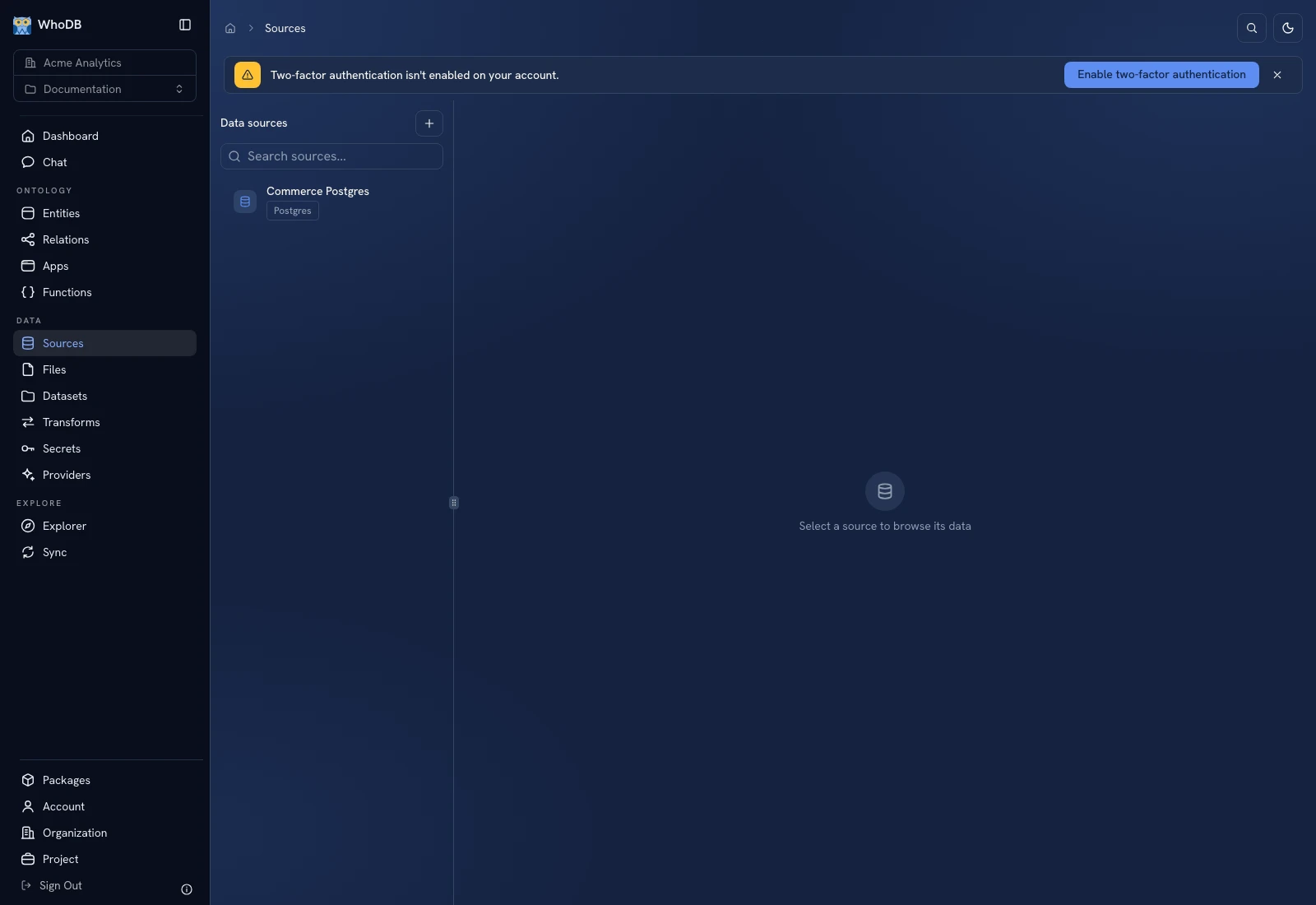 Imported connections become managed sources in the destination Platform project.
Import settings#
- In Community, open WhoDB Platform and choose Import connection.
- Select the saved connections to bring across.
- Decide whether to include passwords and other connection secrets; that option is off by default.
- Choose Import in Platform and sign in in the new tab.
- Choose the destination organization and project.
- Review each configuration, supply missing credentials, and finish import.
- Open Sources in that project and verify a known object and record.
This imports connection settings. It does not transfer external database rows, browser Scratchpad pages, or local query history. The Community connections remain available.
Connect directly when import is absent#
Open Sources → Add Source and select the engine. Enter the connection fields for the Platform runtime. A localhost address or private path that worked from your laptop can fail from hosted Platform because the connection originates elsewhere.
Use Sources to test and save the connection, then Browse to check a known row.
Choose one next outcome#
If you repeatedly run a preparation query, create a transform. If you want business records used by apps and functions, create managed entities and import rows. If teammates need a task-oriented interface, create an app with those models and a tested action.
Keep one record key or aggregate from Community as your verification case. Follow the Orders tutorial before adding schedules, AI, or distribution packages.
Was this page helpful?