
Configure app actions and scripts
Where: app builder → select a component → Actions, or open Logic to trace the workflow.
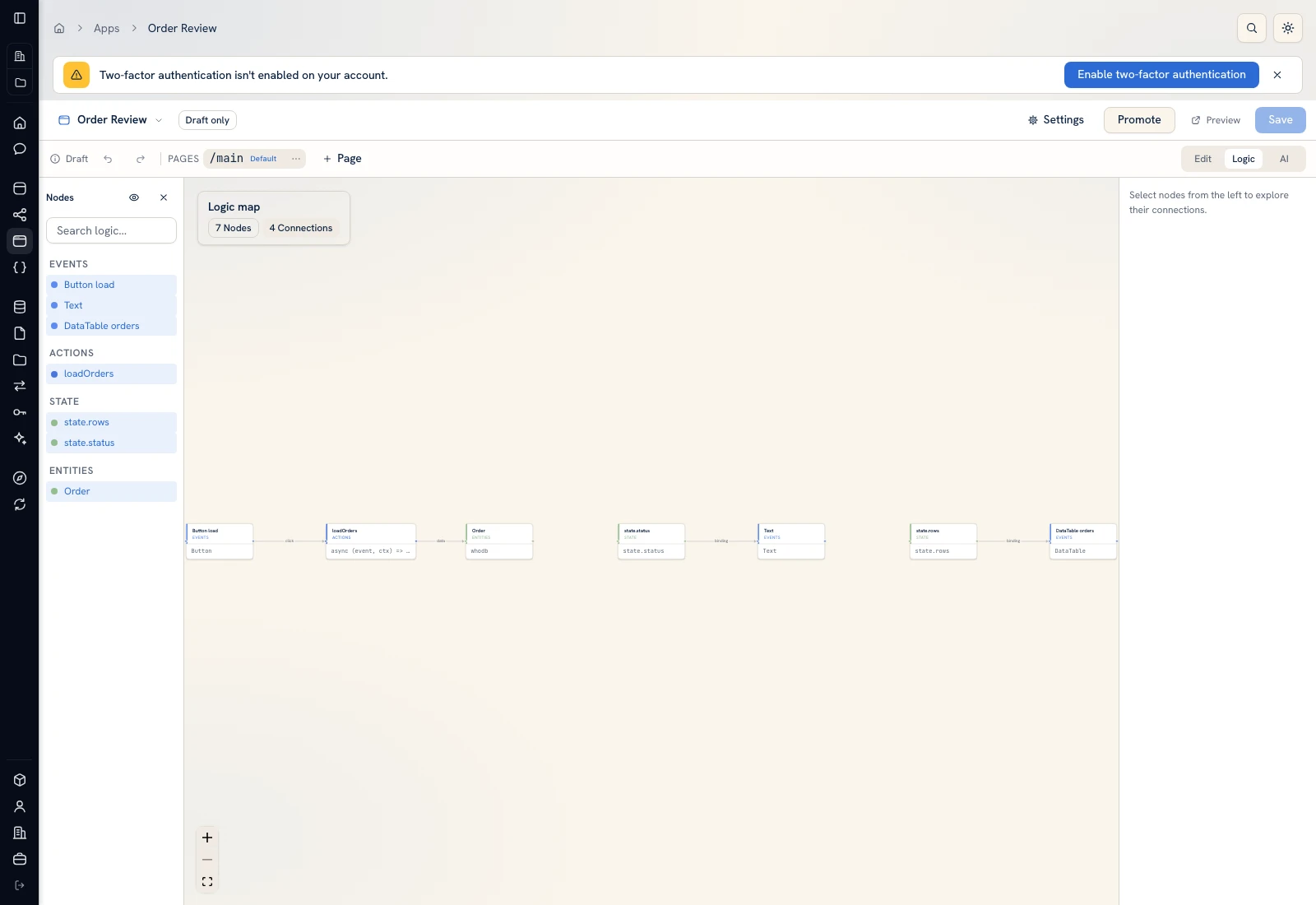 Logic shows the relationships between UI events, scripts, state, and resources.
 Logic shows the relationships between UI events, scripts, state, and resources.
Connect an interaction#
- Select the Button, table, form control, or overlay involved.
- Open Actions and choose the event exposed by that component.
- Choose the action/handler that should run, or create a script when the action needs code.
- Verify input values and state/resource references.
- Preview the app and perform the interaction once with a known record.
Use a simple state change or navigation for the first test. Add a write only after you can trace the event and intended target.
Registered scripts#
Page scripts live under that page's script directory and receive the event and ctx. Use ctx.set for state and ctx.navigate for page navigation. Shared handlers use explicit shared names; keep mutable UI state in page/shared state rather than a script module's top-level variable.
For example, a dialog-opening handler can set a Boolean state flag that the Dialog's visibility binds to. Confirm that its Close or Cancel action resets that flag. An overlay is part of the component tree: put its title, body, and buttons in editable children.
Call a reusable function#
Bind the required function in app Settings, map the expected input, and verify its result in a direct test before exposing the action. A user needs viewing access to the app and execution access to the bound function. Nested function calls need execution access to each target too.
Validate the effect#
A success notification is useful feedback, but inspect the affected record after a write. Test no selection, invalid input, repeated clicks, an empty response, and a denied operation. After an interrupted request that can affect an external system, inspect its outcome before resubmitting.
Use Save and reopen Preview to confirm the handler remains connected after reload. Follow Versions before releasing the changed action to app users.
Was this page helpful?