
Navigate the workspace
Where: the left sidebar on a desktop, or the navigation menu on a phone. You must be signed in and have access to an organization.
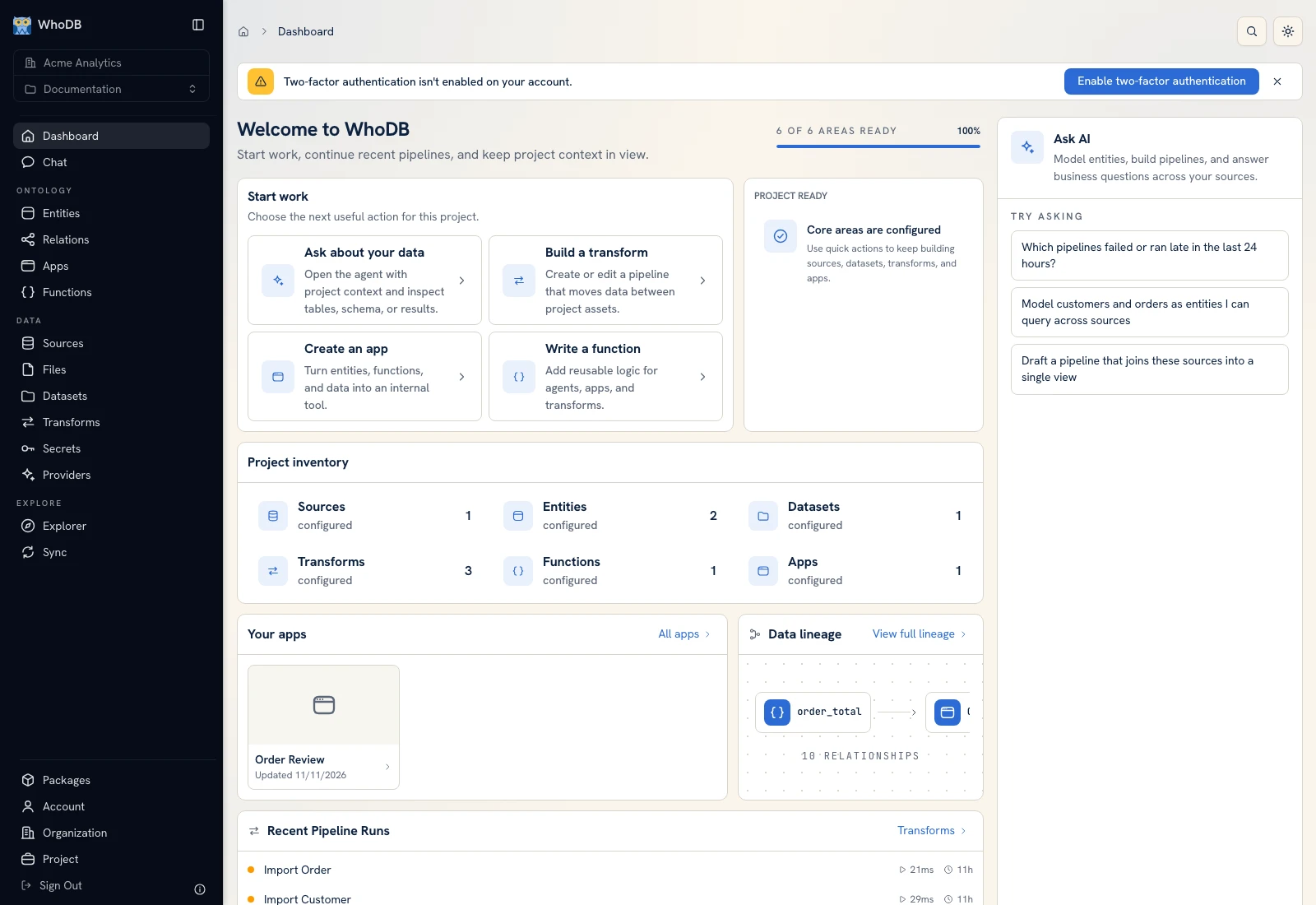 The expanded sidebar and dashboard in the Documentation project.
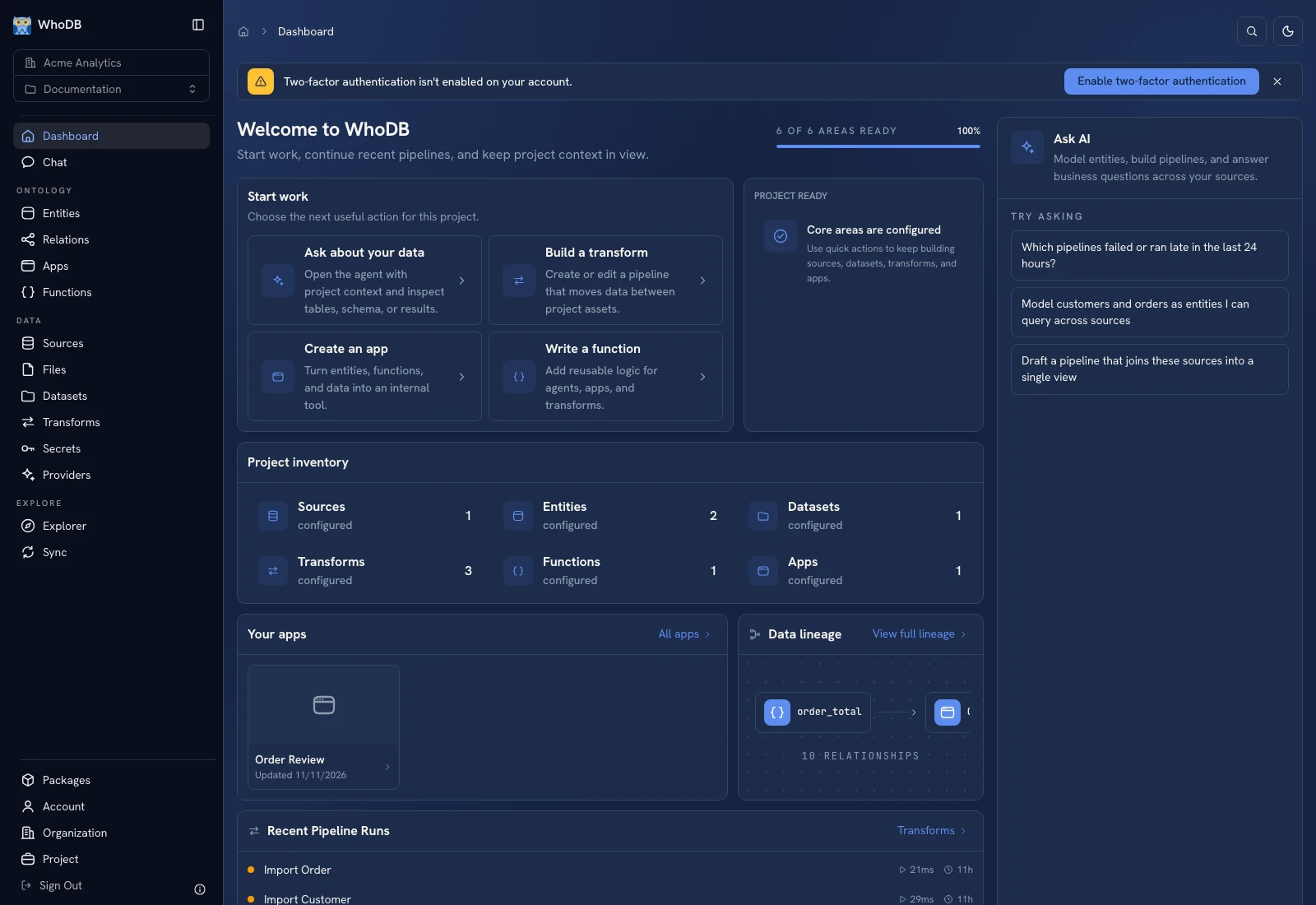 The expanded sidebar and dashboard in the Documentation project.
Select the organization and project#
- Use the organization selector beneath the WhoDB logo. If you belong to multiple organizations, choose the intended one.
- Open the project selector directly below it. Search for and select the project you want.
- Verify the selected names before creating a resource, importing data, or installing a package.
- Use New Project in the project menu when you need a separate workspace and have permission to create one.
A resource created in one project is not automatically copied when you switch projects. Organization settings and packages have organization scope; most data and builder screens have project scope.
Sidebar map#
| Area | What to do there |
|---|---|
| Dashboard | Start a task, inspect inventory, open recent apps and pipeline activity |
| Chat | Investigate data and request work with an assistant |
| Entities | Define business objects, properties, data, behaviour, and sharing |
| Relations | Inspect the graph of links between entities |
| Apps | Create, edit, preview, and open operational apps |
| Functions | Write code, configure access, run it, and inspect results |
| Sources | Connect external systems and browse their objects |
| Files | Upload content, organize folders, inspect previews, and promote tabular data |
| Datasets | Create stored tables, inspect rows, edit schema, and view lineage |
| Transforms | Build and run visual data pipelines |
| Secrets | Store credential values and manage their metadata |
| Providers | Configure AI services used by workflows |
| Explorer | Inspect resource lineage and dependencies |
| Sync | Review offline app changes queued on this device |
| Packages | Publish bundles or install shared workflows |
| Account | Personal overview, security, preferences, access, and Trash |
| Organization | Members, teams, access, API keys, edge devices, billing, backups, and settings |
| Project | Project name, URL, ID, and sharing |
Work in a master-detail screen#
Sources, Entities, Datasets, Functions, and other screens show a resource list and a detail area. Click a named item in the list to load its detail. Searching the list changes which items are visible; it does not change the selected project's identity.
The plus or New… control opens creation. A selected item's action menu contains operations such as Edit, Share, Version history, or Delete according to that resource. Use the screen's own close/back control to return from an editor or sheet.
Collapse the sidebar and change theme#
Use the sidebar toggle beside the logo to switch to the icon layout. Hover icons to see their labels. Use Toggle theme in the top bar to change the application's light/dark appearance. The documentation site's theme is separate from the app's theme.
On a phone, use the navigation menu rather than expecting the desktop columns to fit. Some editing surfaces, including pipeline editing, require a wider screen. Open the same workspace on desktop when the product says editing needs a wider screen.
Was this page helpful?