
Use the app builder workspace
Where: Apps → click the app card, such as Order Review. You need builder access to its implementation.
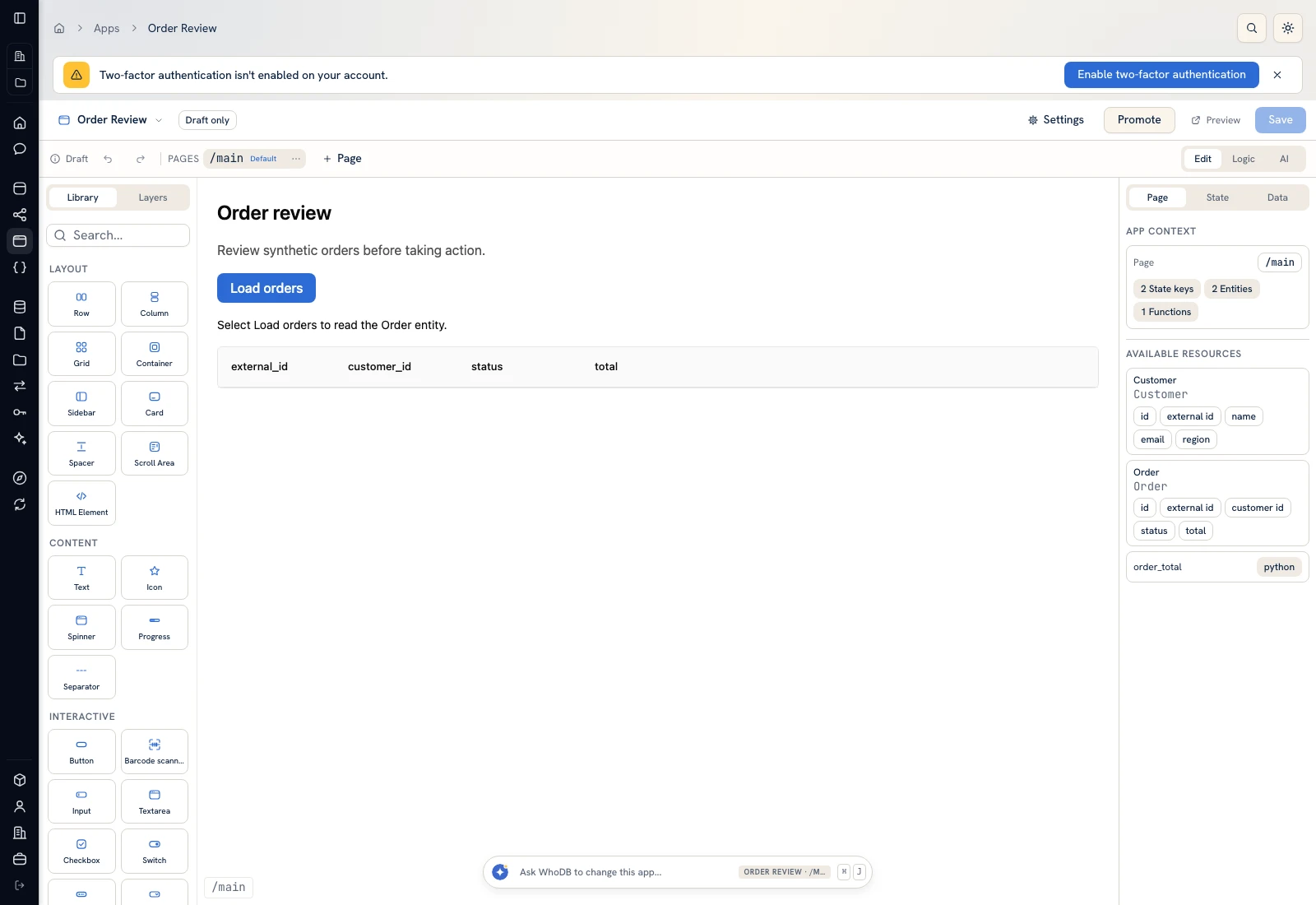 The app builder shows page navigation, editing tools, a live canvas, and available project resources.
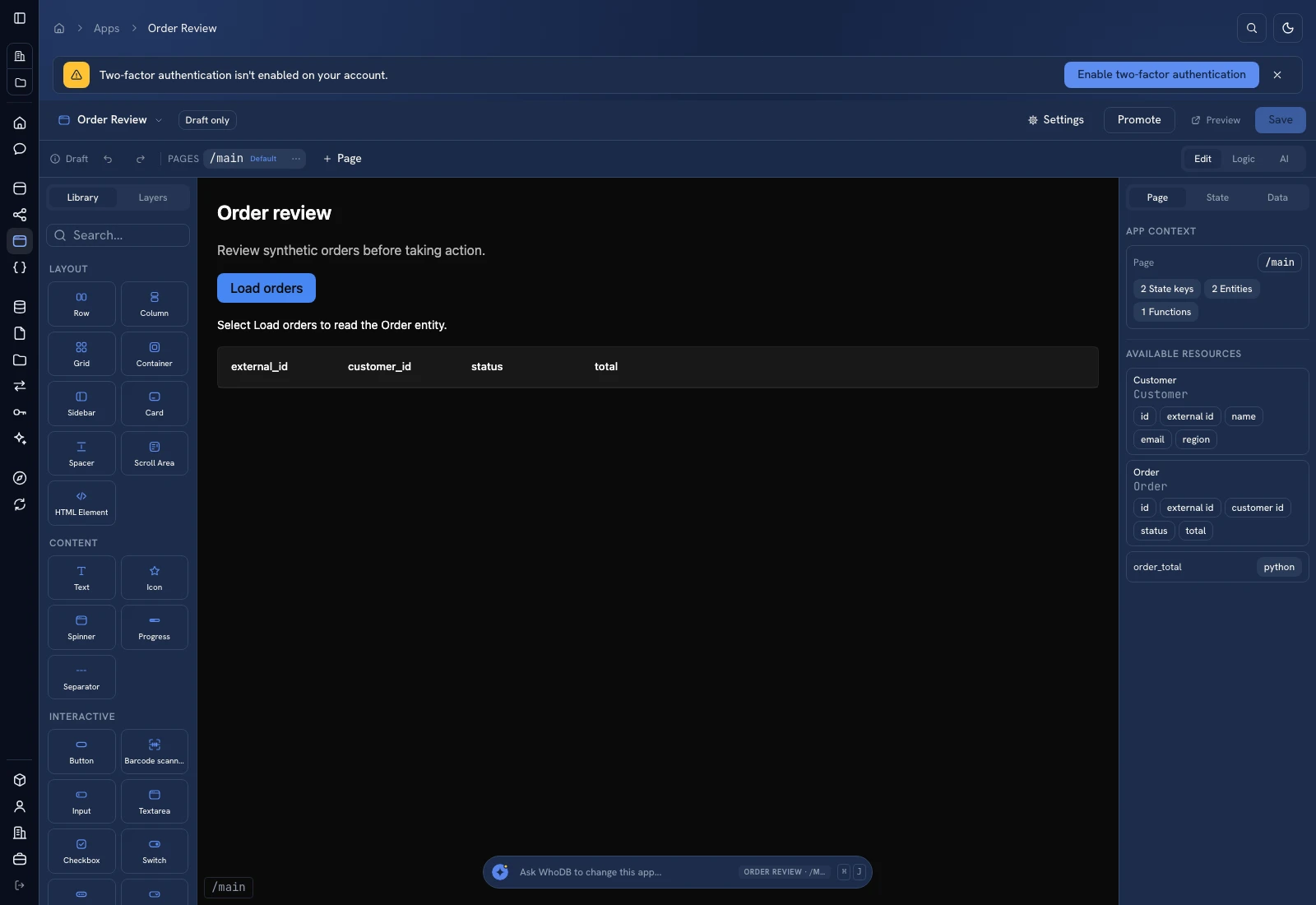 The app builder shows page navigation, editing tools, a live canvas, and available project resources.
Know the main areas#
| Area | Purpose |
|---|---|
| Pages | Select a page, inspect the default route, and open page actions |
| Edit | Select and configure components on the page |
| Logic | Inspect scripts, events, bindings, and their connections |
| AI | Ask the assistant to change the current app |
| Library | Add layout, content, interaction, data, navigation, and overlay components |
| Layers | Select nested nodes and inspect the component hierarchy |
| Page / State / Data | Inspect page context, state values, and available resources |
| Settings | Edit app details, resource bindings, and related options |
| Preview | Exercise the app without treating the builder canvas as the only test |
| Save | Save the current draft changes |
Add and select a component#
- Select the page you want to edit.
- Open Library and choose a component such as Text, Button, Data Table, or Chart.
- Select it on the canvas or in Layers.
- Use its configuration tabs: Style for presentation/layout, Actions for interactions, and Data for value bindings.
- Preview the result and click Save when it is correct.
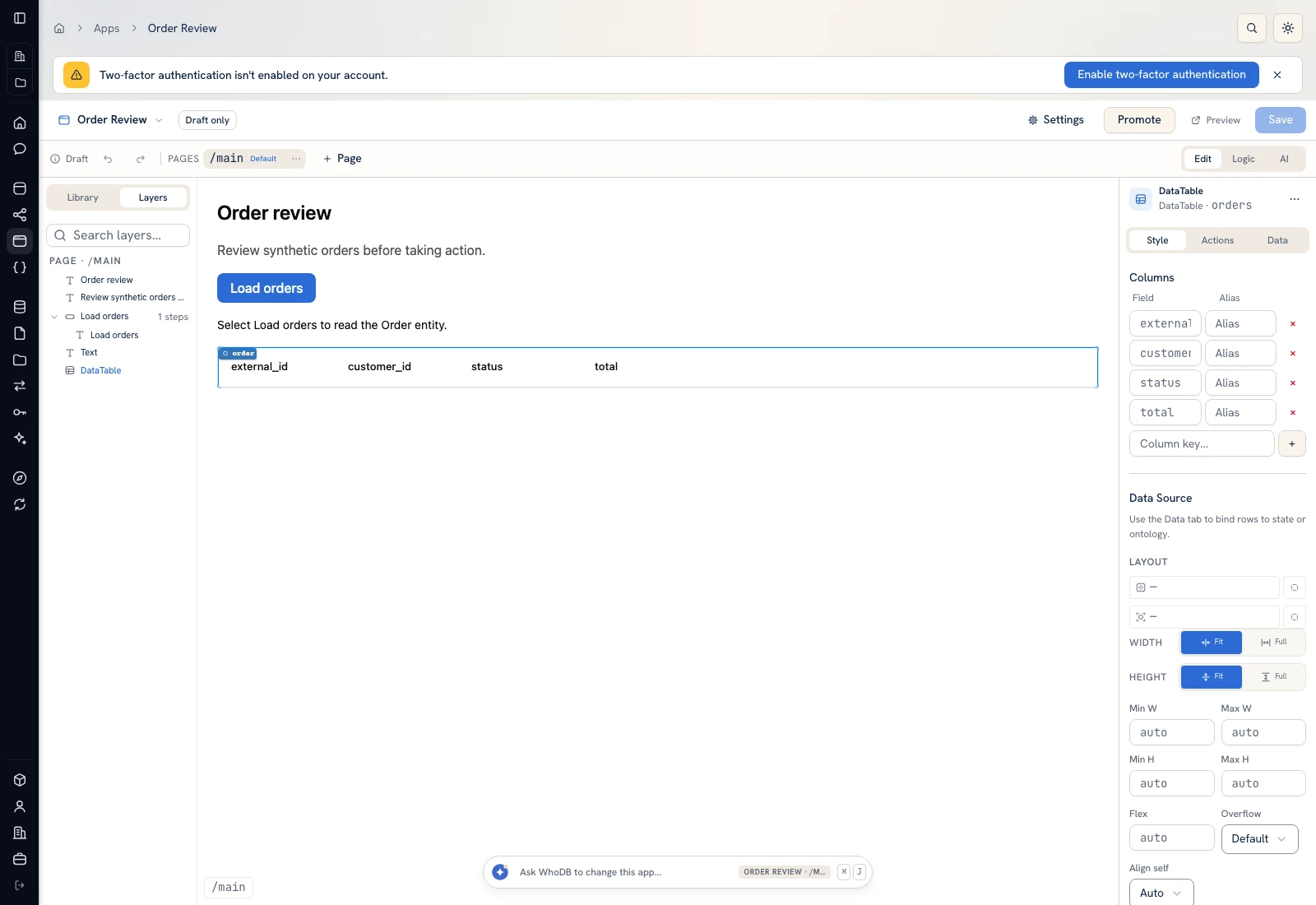 Selecting a component opens its Style, Actions, and Data configuration.
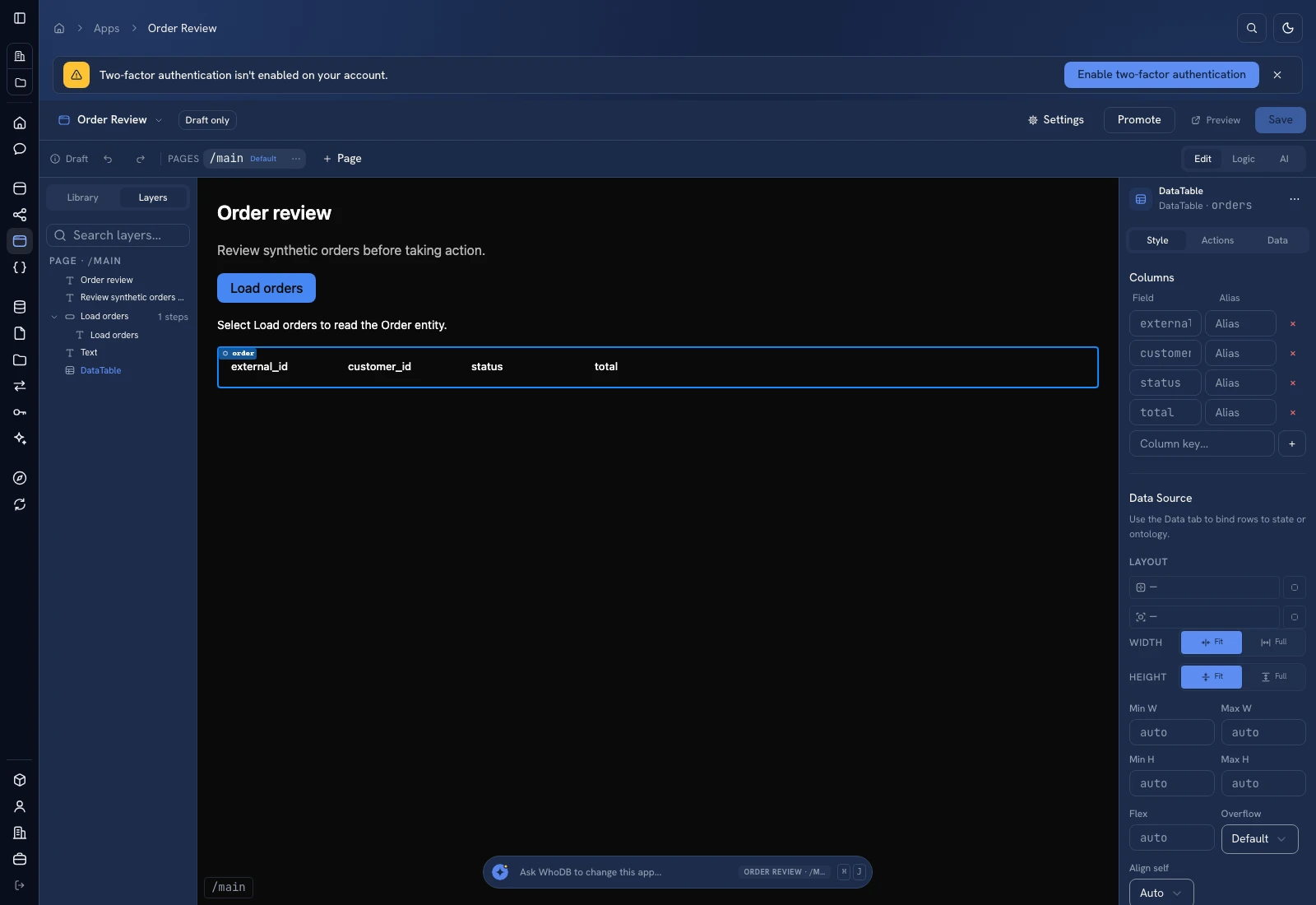 Selecting a component opens its Style, Actions, and Data configuration.
Use Row, Column, Grid, Container, and Scroll Area to express the intended structure. For long desktop workspaces, decide which pane scrolls. Check the longest page instead of assuming the default canvas size proves the runtime layout.
Check what you changed#
Inspect the selected node's identity before editing a property. A component's visible label and the script/binding that drives it are separate. If a value is bound, changing a static property may not change what the user sees.
Use State and bindings to trace values, and Actions and scripts to trace interactions. Builder edits affect the same underlying page files rendered by the runtime; save and reload to check persistence.
Work across sizes and themes#
Preview at a phone width and in both app themes. Keep navigation usable and let data tables scroll within their intended container. A page that fits at desktop can still hide an action on a phone. The app's theme is separate from the documentation theme.
Was this page helpful?