
Create a dataset from a file
Where: Files → open a tabular file → the action to create a dataset. Begin with an uploaded CSV, JSON, Parquet, or workbook supported by the file preview.
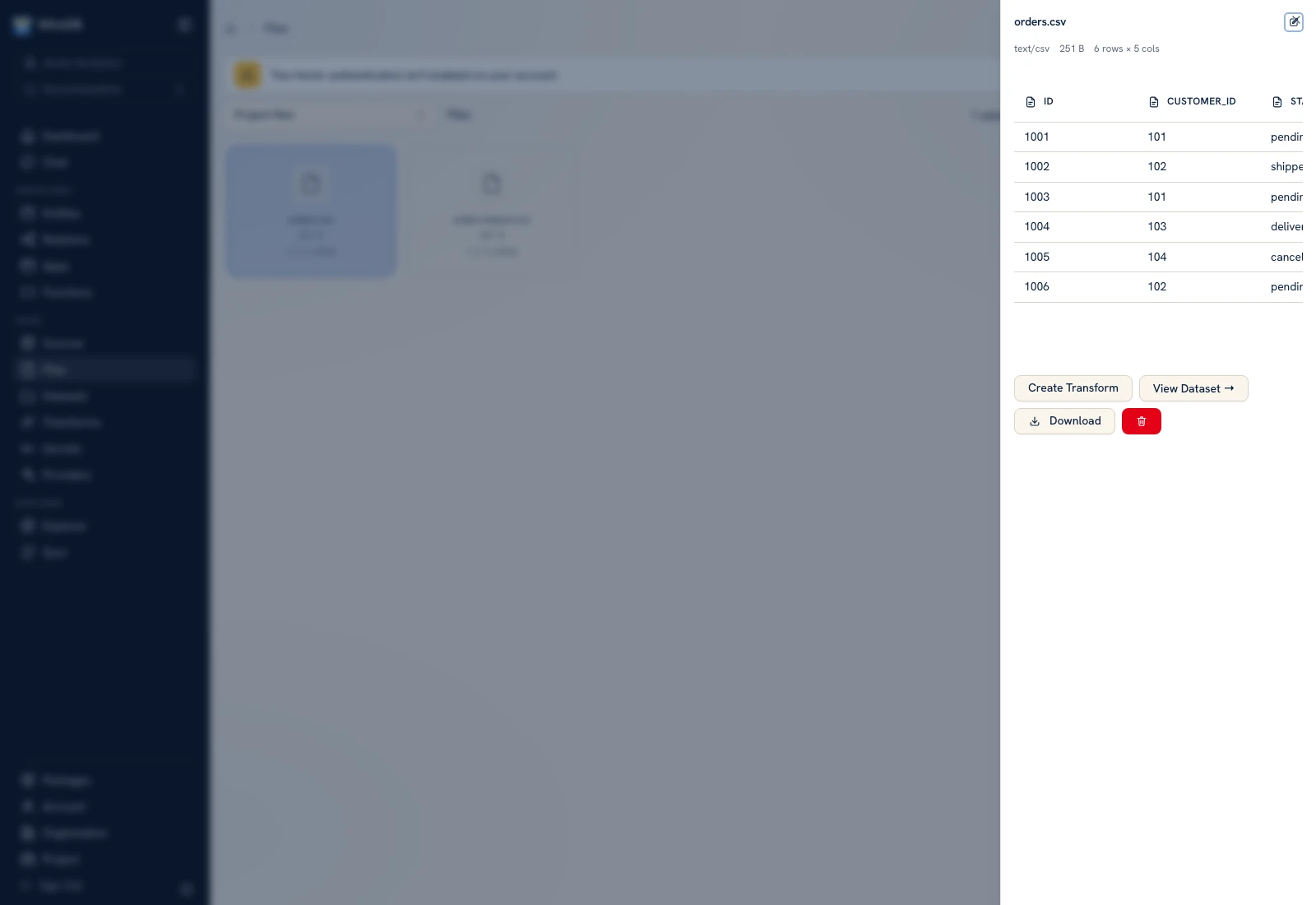 Check the source file's headers and sample values before creating a dataset.
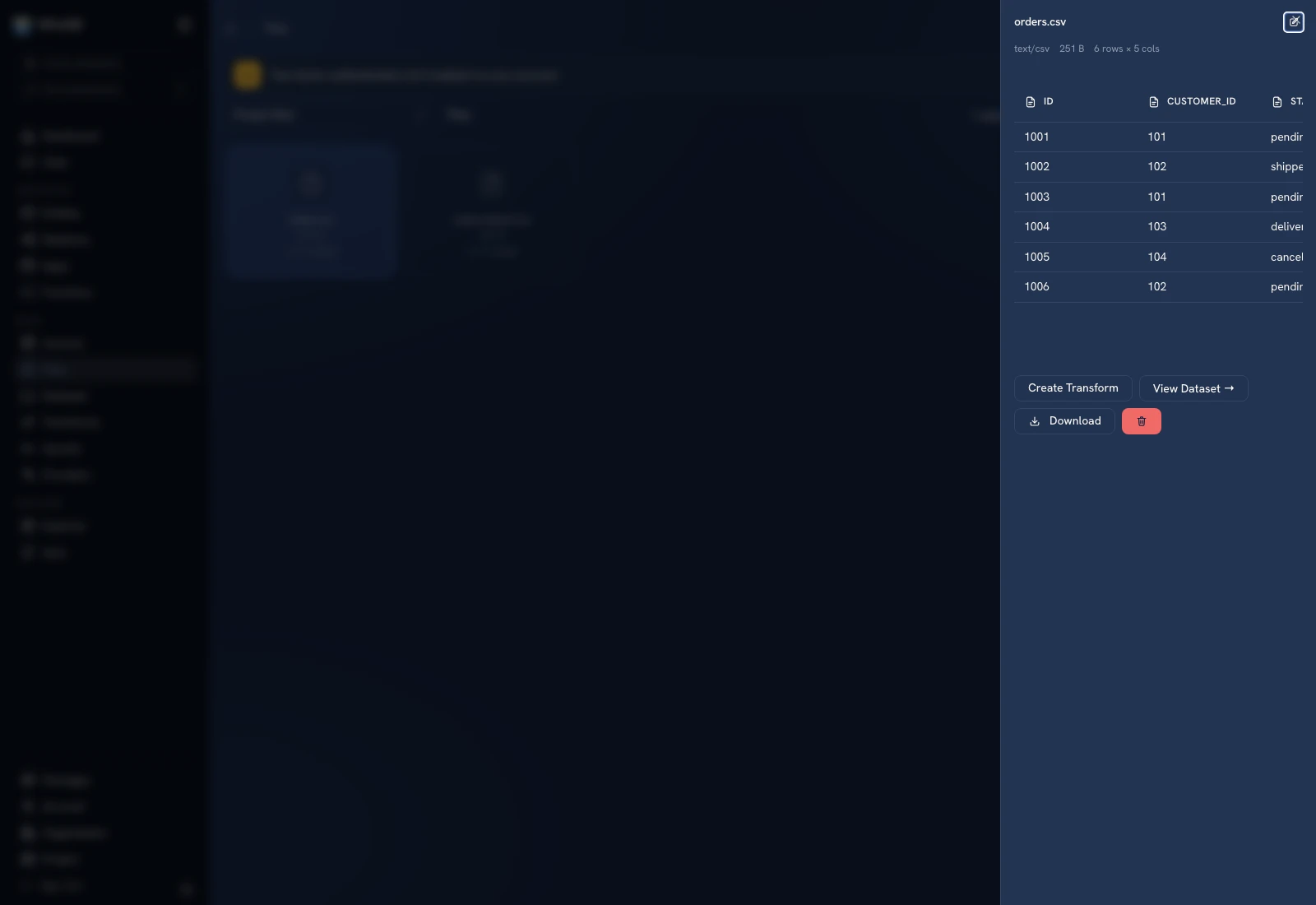 Check the source file's headers and sample values before creating a dataset.
A file already linked to a dataset offers View Dataset instead of the create action. For a fresh practice run, upload an unpromoted copy such as orders-import.csv.
Map the file#
- Open
orders.csvor your own tabular file. - Choose the create-dataset action.
- In Create Dataset from…, enter Dataset name and an optional description.
- If sheets are offered, select the correct one before editing column mappings.
- Review each source column's destination name, data type, nullable setting, and primary-key setting.
- Select Operational or Analytical storage according to the workload and your instance's available services.
- Confirm creation and open the resulting dataset.
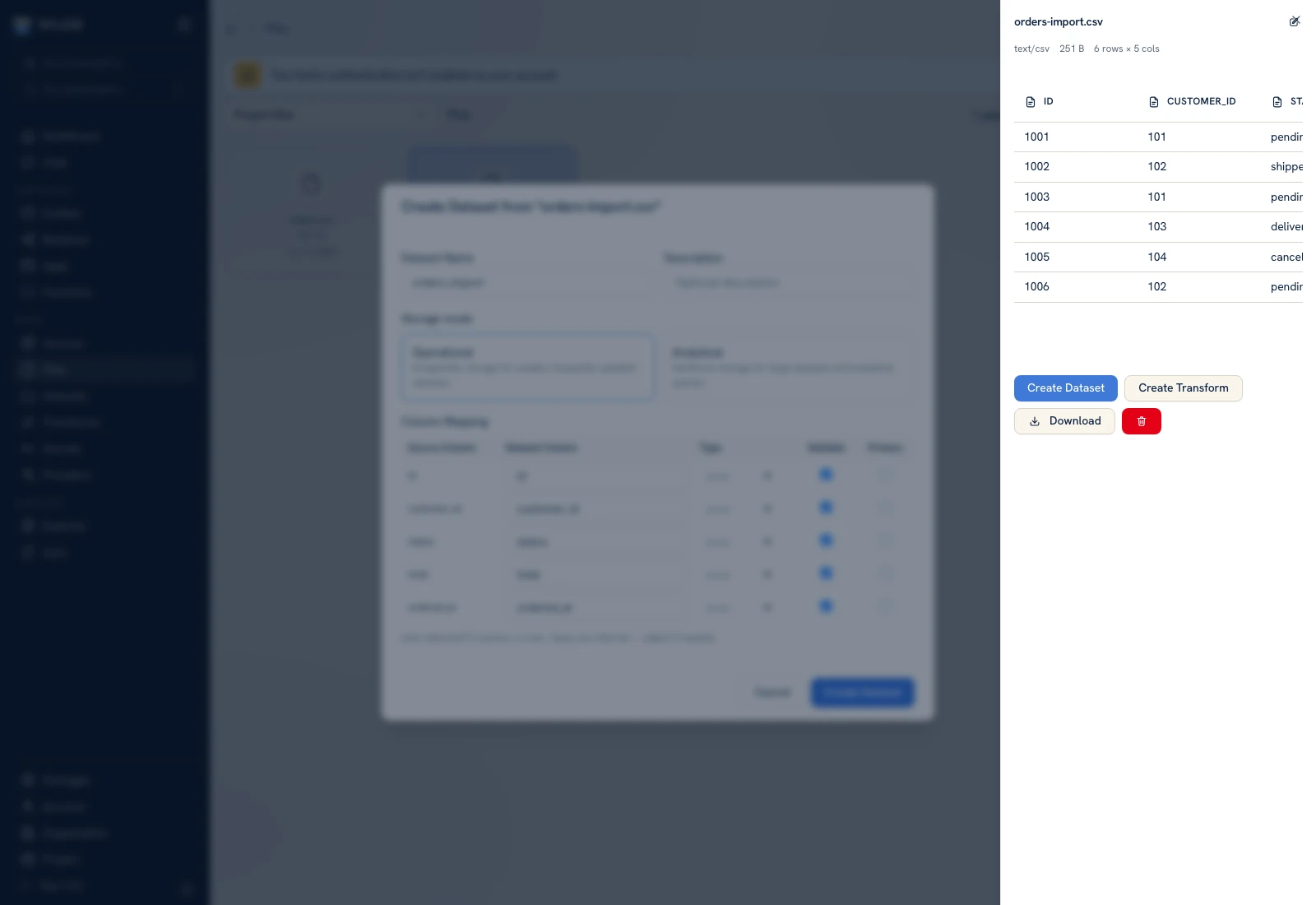 The promotion dialog lets you review the destination schema and storage before writing rows.
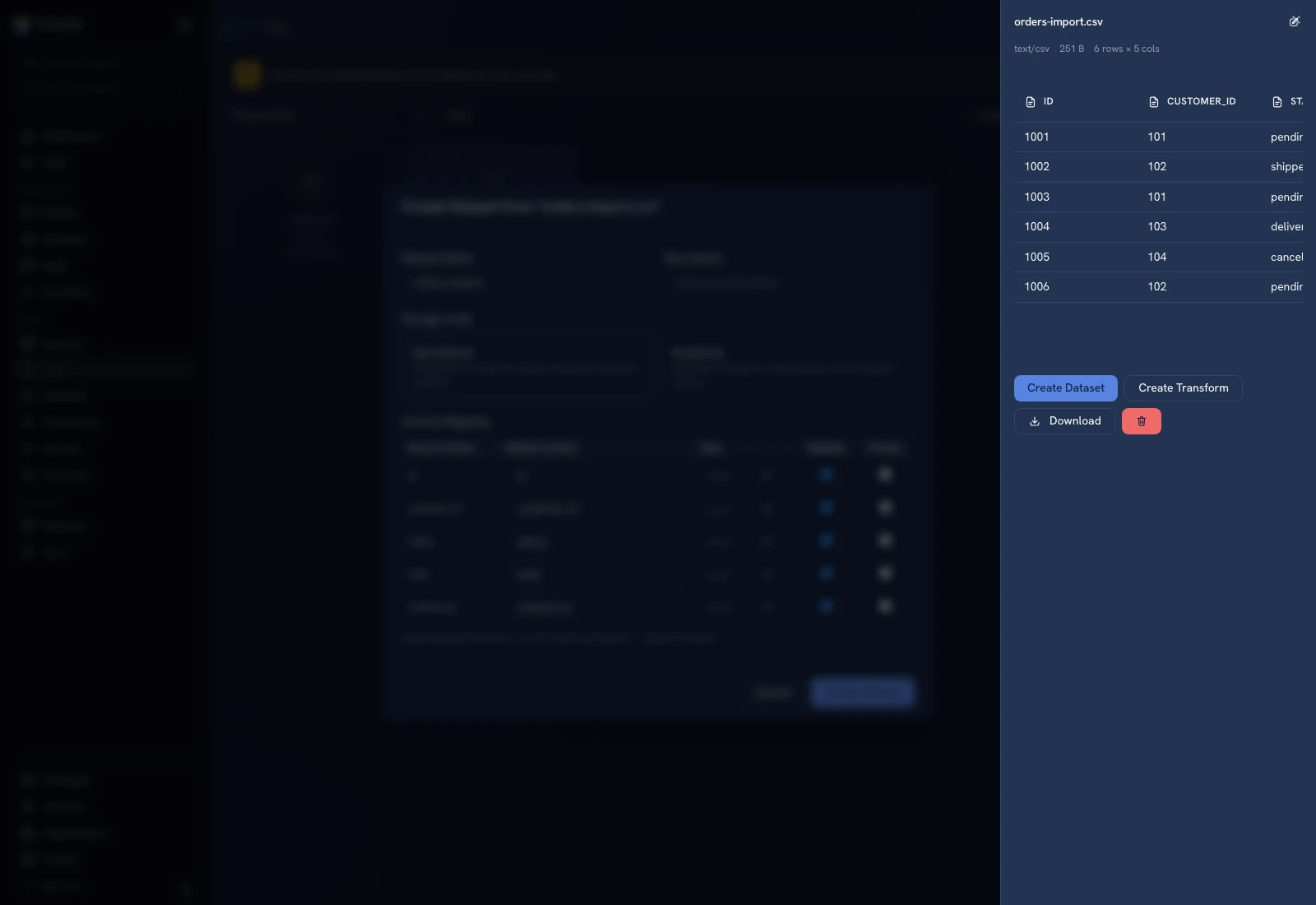 The promotion dialog lets you review the destination schema and storage before writing rows.
Example mapping#
| File column | Dataset column | Type to verify |
|---|---|---|
| id | id | Integer |
| customer_id | customer_id | Integer |
| status | status | Text |
| total | total | Numeric/float appropriate to the workflow |
| ordered_at | ordered_at | Date |
The UI infers an initial mapping. Correct it before confirming when the values need a different type. Keep numeric-looking identifiers as text when leading zeroes or exact string identity matter.
Verify the destination#
Open Datasets → order_snapshot. Confirm all five columns and all six example rows are present. Check order 1001, then verify another row and an unusual value from your own file. The source file and the created dataset are separate resources; a later replacement of the file is not evidence that this dataset refreshed.
To refresh data repeatedly, configure a transform. To expose the rows as business objects, create an entity and map a transform output to it.
Common problems#
An empty column list means the file has not produced a tabular preview. Verify the format and sheet rather than creating a schema from guessed headers. If promotion fails, check the dataset name, required fields, chosen storage availability, and the error returned by the form.
Was this page helpful?