
Connect a source
Where: sidebar → Sources → Add Source. In an empty project, start with New source. You need project creation permission, external credentials, and network reachability from Platform.
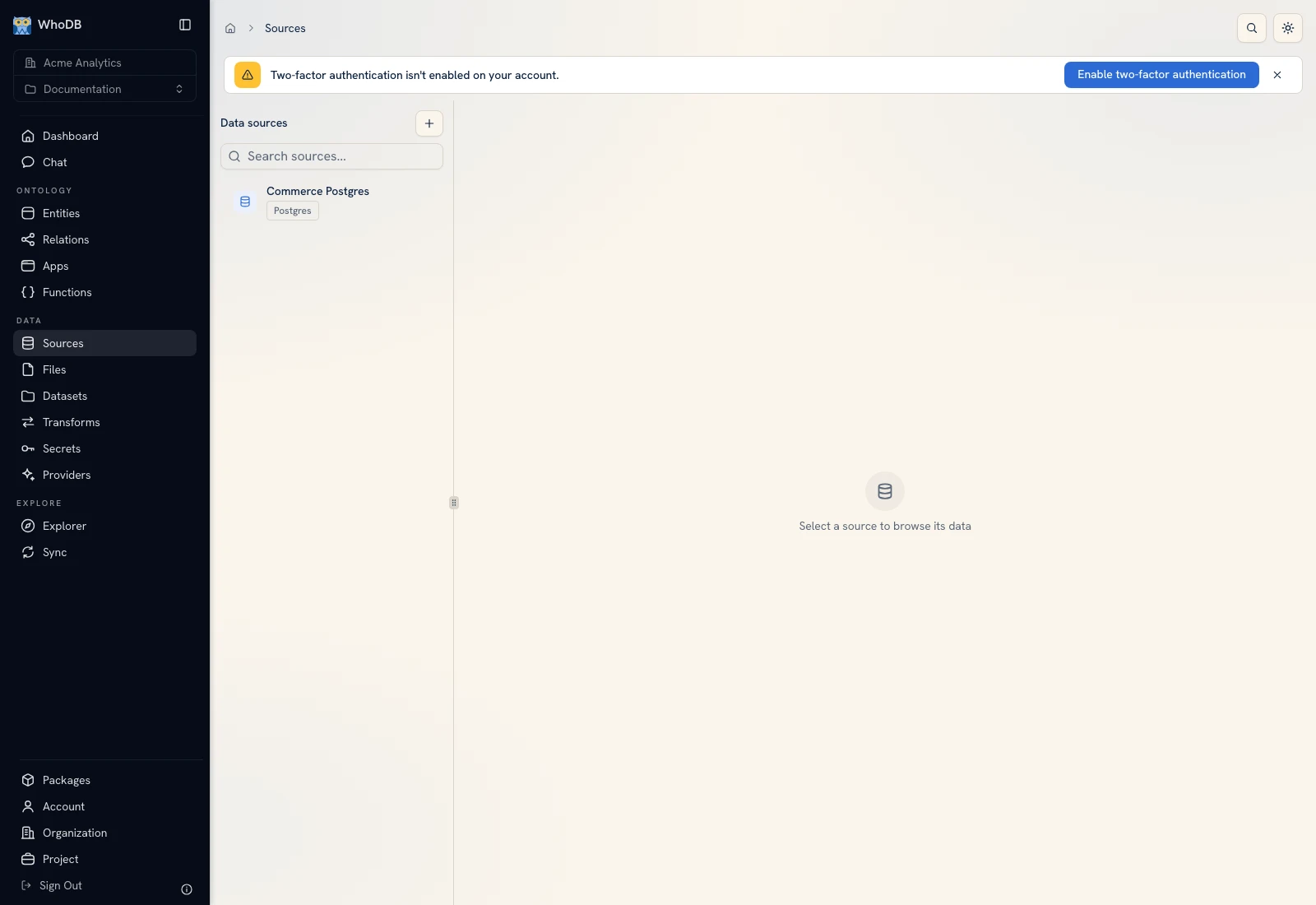 The Sources screen lists the project's connections and opens the selected source's browser.
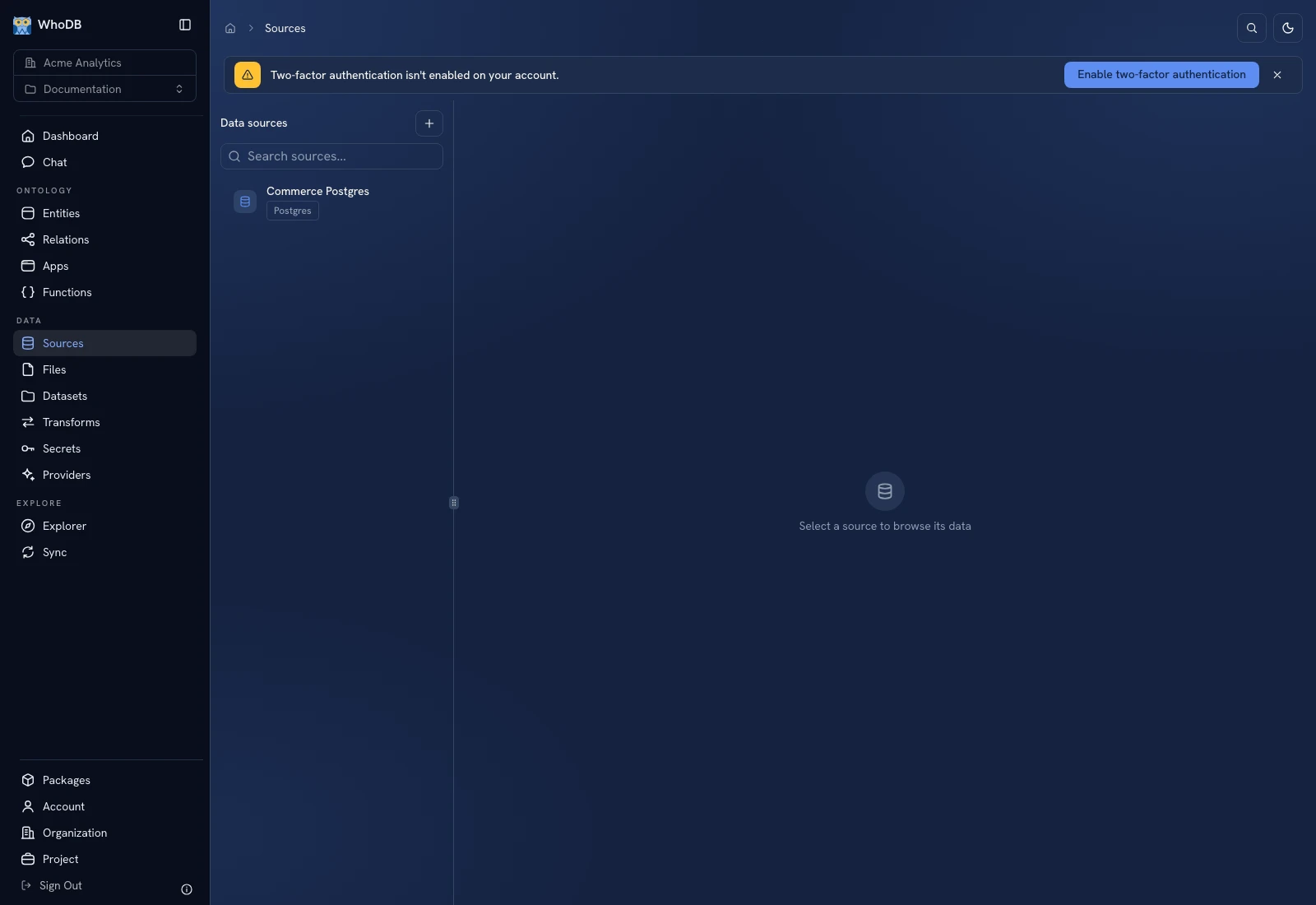 The Sources screen lists the project's connections and opens the selected source's browser.
Step 1: choose the engine#
- Open Add Source.
- Use Search engines… to find the connector. Category filters include Database, Cache, Search, Object store, File store, and Analytics.
- Select the engine that actually hosts your data. PostgreSQL and MySQL are different choices; a spreadsheet is uploaded from Files instead.
- Click Continue to open Connect.
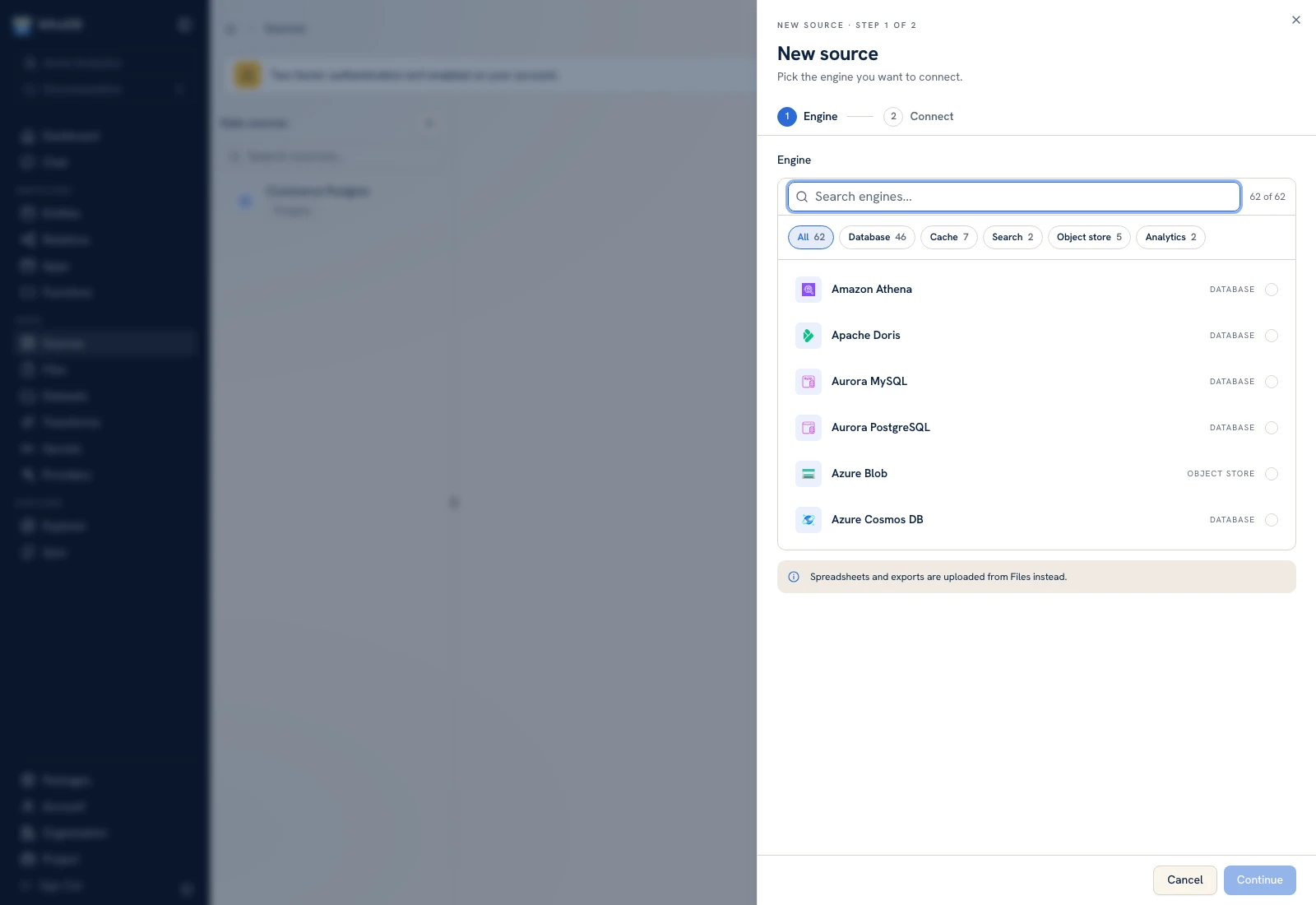 The Engine step lets you search and filter the connector catalog.
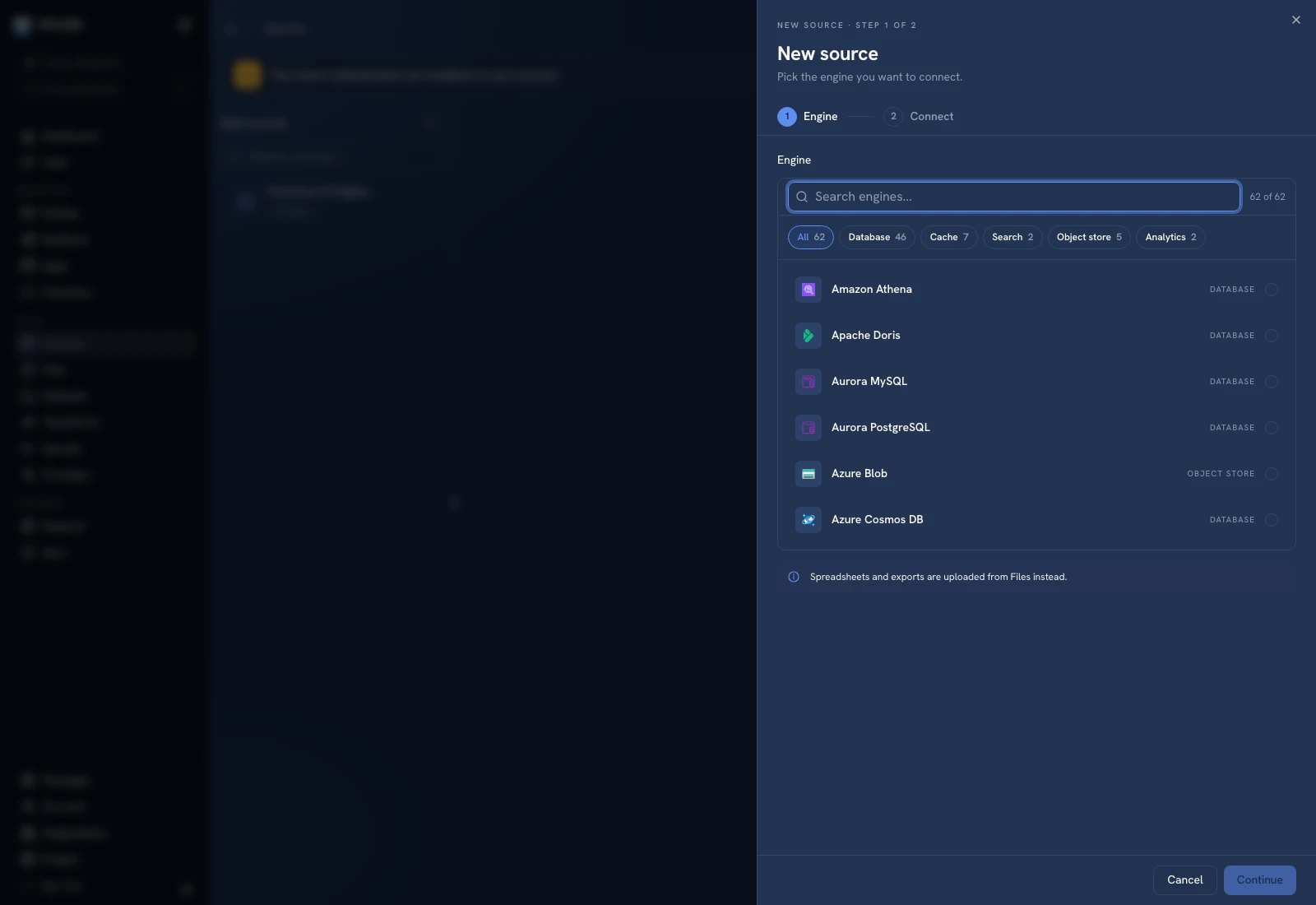 The Engine step lets you search and filter the connector catalog.
Step 2: supply connection details#
Give the source a recognizable name, for example Commerce Postgres. Fill the fields requested by the chosen connector. The form is connector-specific; do not expect every source to have a host, username, and database.
| Common field | What to enter |
|---|---|
| Name | A label people can recognize in this project |
| Hostname | Address reachable from the Platform runtime |
| Port | Port where that service accepts connections |
| Username | External account authorized for your workflow |
| Password | That account's credential, when the connector uses one |
| Database | Database or catalog requested by the connector |
| Advanced | Connector-specific settings, including TLS-related settings where exposed |
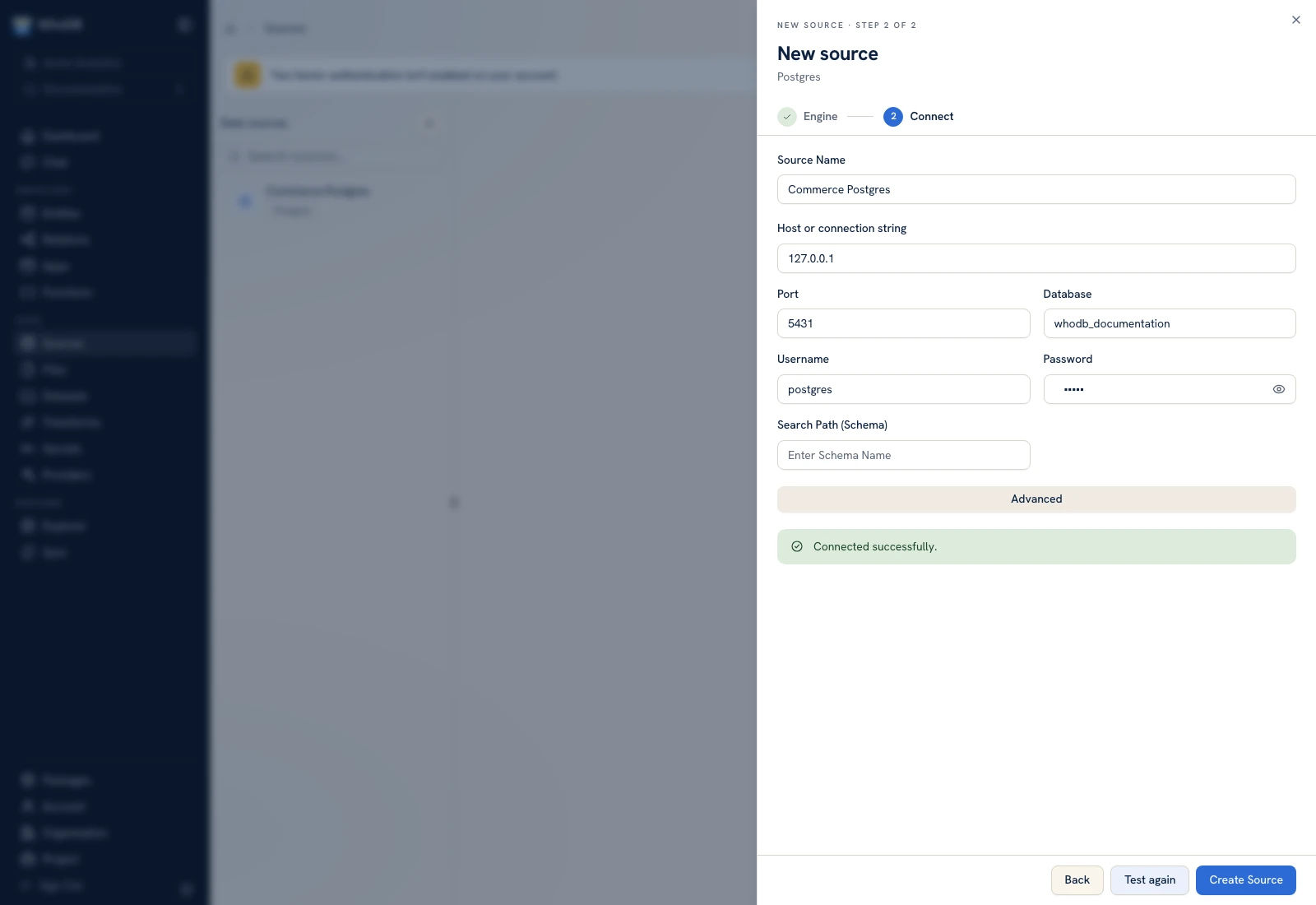 The selected engine's connection form and the Test connection and Create Source controls.
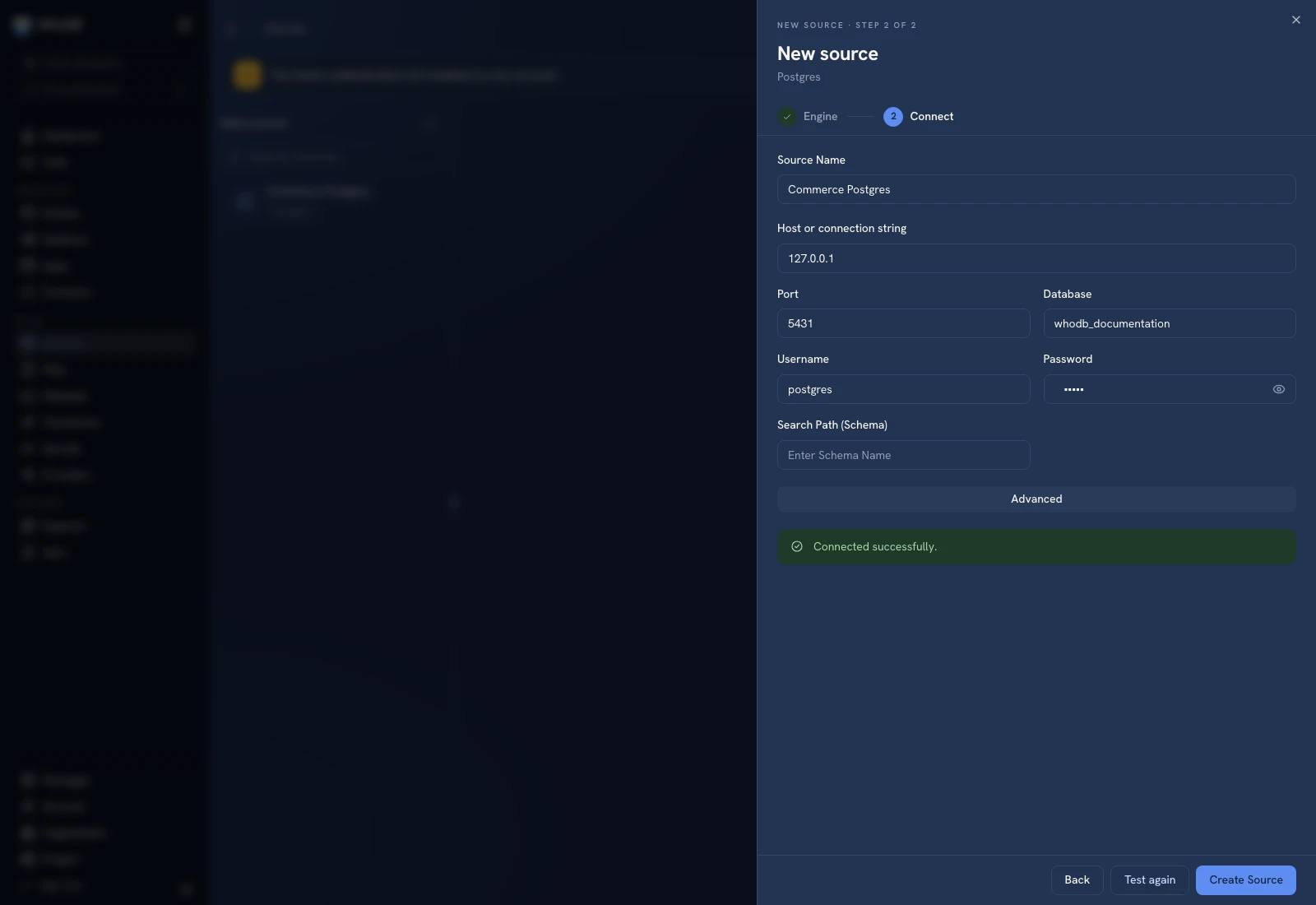 The selected engine's connection form and the Test connection and Create Source controls.
Test, then save#
Click Test connection. A successful test shows Connected successfully. If it fails, check the displayed error, correct the settings, and click Test again. Testing does not create the source. Click Create Source when you are ready to save it.
Select the resulting item and browse an object. Confirm that the actual fields and rows needed by your workflow are readable. External account permissions and connector capabilities apply in addition to Platform sharing.
Addresses and credentials#
For a hosted instance, localhost identifies the server running the connection, not your laptop. Local paths and private endpoints require an arrangement reachable from that runtime. Check with the instance administrator when the source is on a private network.
The local documentation fixture uses a disposable PostgreSQL database. Its development hostname and credentials are not hosted service settings. Do not paste credentials into Chat, app labels, or source descriptions.
Change or remove a connection#
Use the source's Edit action to update settings, or Share to grant resource access. Follow Manage sources before changing a source used by transforms. Delete archives the source and can interrupt its consumers; it is different from deleting rows in the external database.
Was this page helpful?