
Inspect lineage with Explorer
Where: sidebar → Explorer, or a resource's View Lineage action. Explorer is the platform resource-dependency view; Relations is the entity-link view.
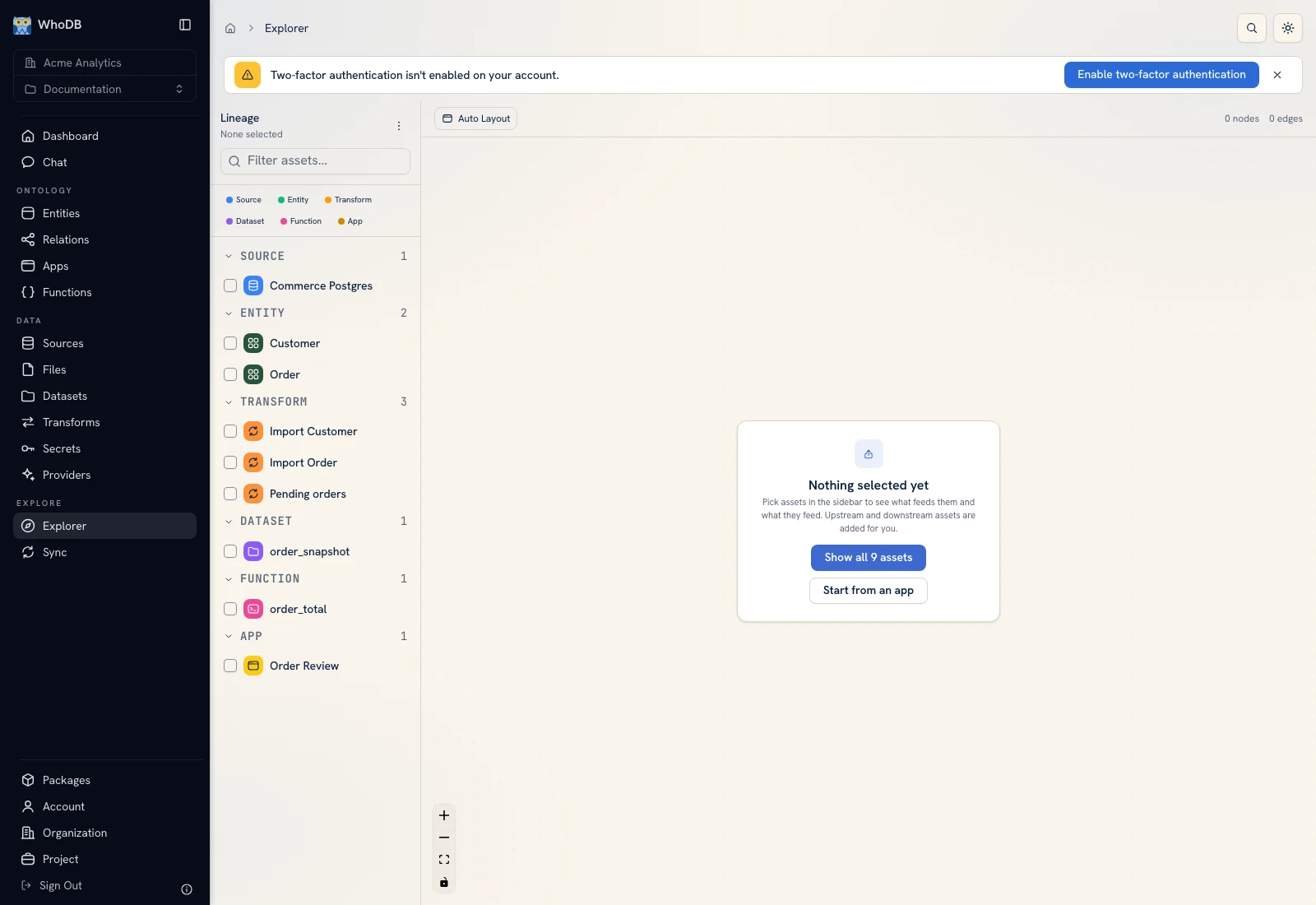 Explorer visualizes the available resource lineage in the selected project.
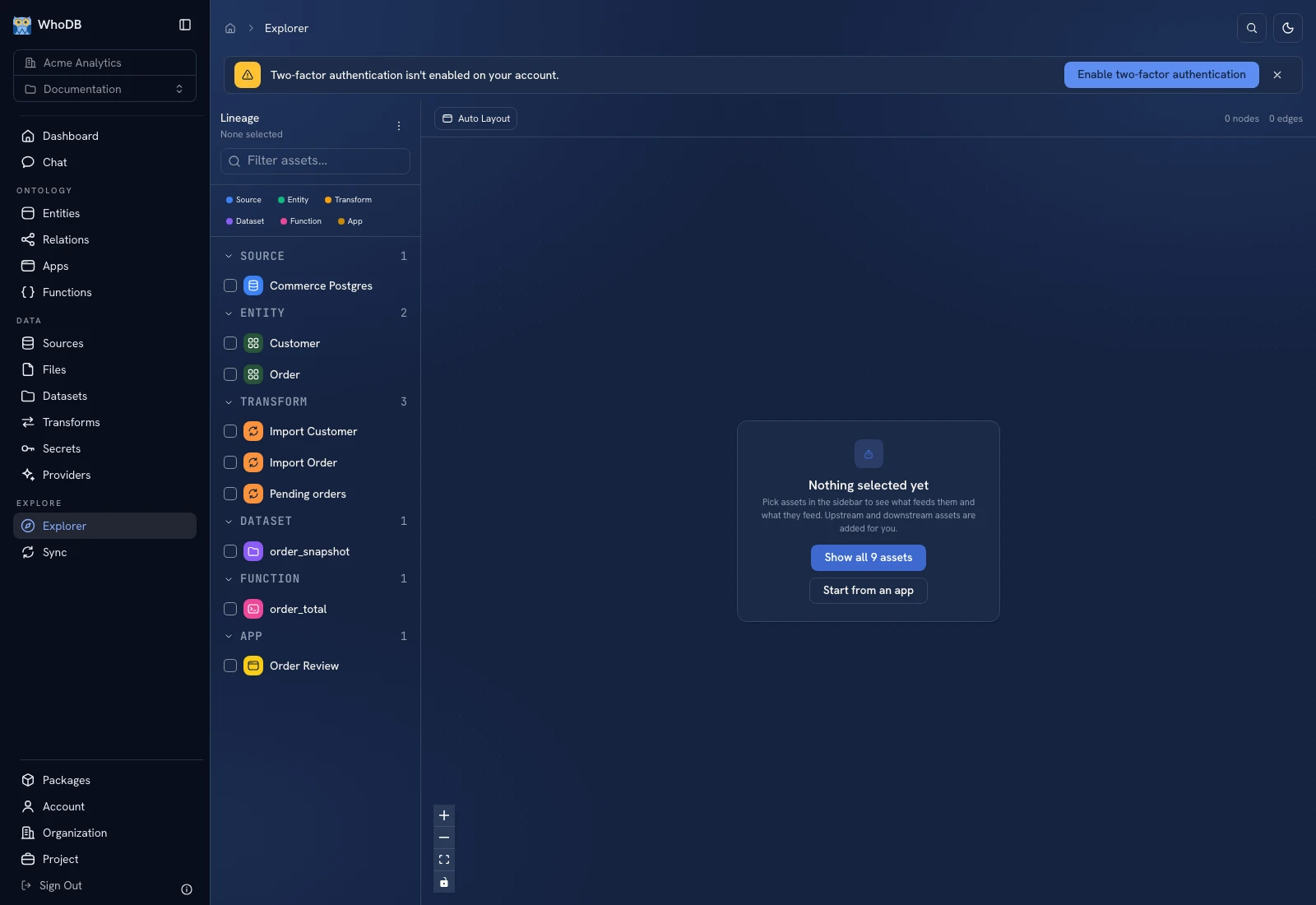 Explorer visualizes the available resource lineage in the selected project.
Start with a resource#
Open Explorer and locate the source, dataset, entity, transform, function, or app involved in your question. Use the graph's available search/focus and navigation controls. A resource's View Lineage action can take you directly to its neighborhood.
Inspect connected nodes to understand inputs and consumers. Use upstream relationships when checking where data came from and downstream relationships when reviewing the impact of a change.
Verify a dependency#
For the example, inspect Commerce Postgres, the import transform, and its managed entity output. Open the transform and compare its actual node configuration with the graph. A line is useful evidence of a recorded dependency; the node configuration and run result explain what happened.
Do not interpret an entity relation as an execution lineage event. To check how Order links to Customer by business keys, open Relations. To check which pipeline wrote Order, inspect the resource lineage.
Before changing a resource#
Find its consumers before changing a source object path, dataset schema, function contract, or entity property. Check the saved/active version of each consumer that matters. Preview or run a small validation case after the change.
Missing graph data#
Confirm the project, access rights, selected root, completed workflow runs, and lineage provider configuration when applicable. A provider's saved metadata alone does not prove an event was published and read successfully.
If a node is absent, inspect the resource itself before creating a duplicate to make the graph look complete.
Was this page helpful?