
Account security and preferences
Where: sidebar → Account. Security changes apply to your personal account rather than just the selected project.
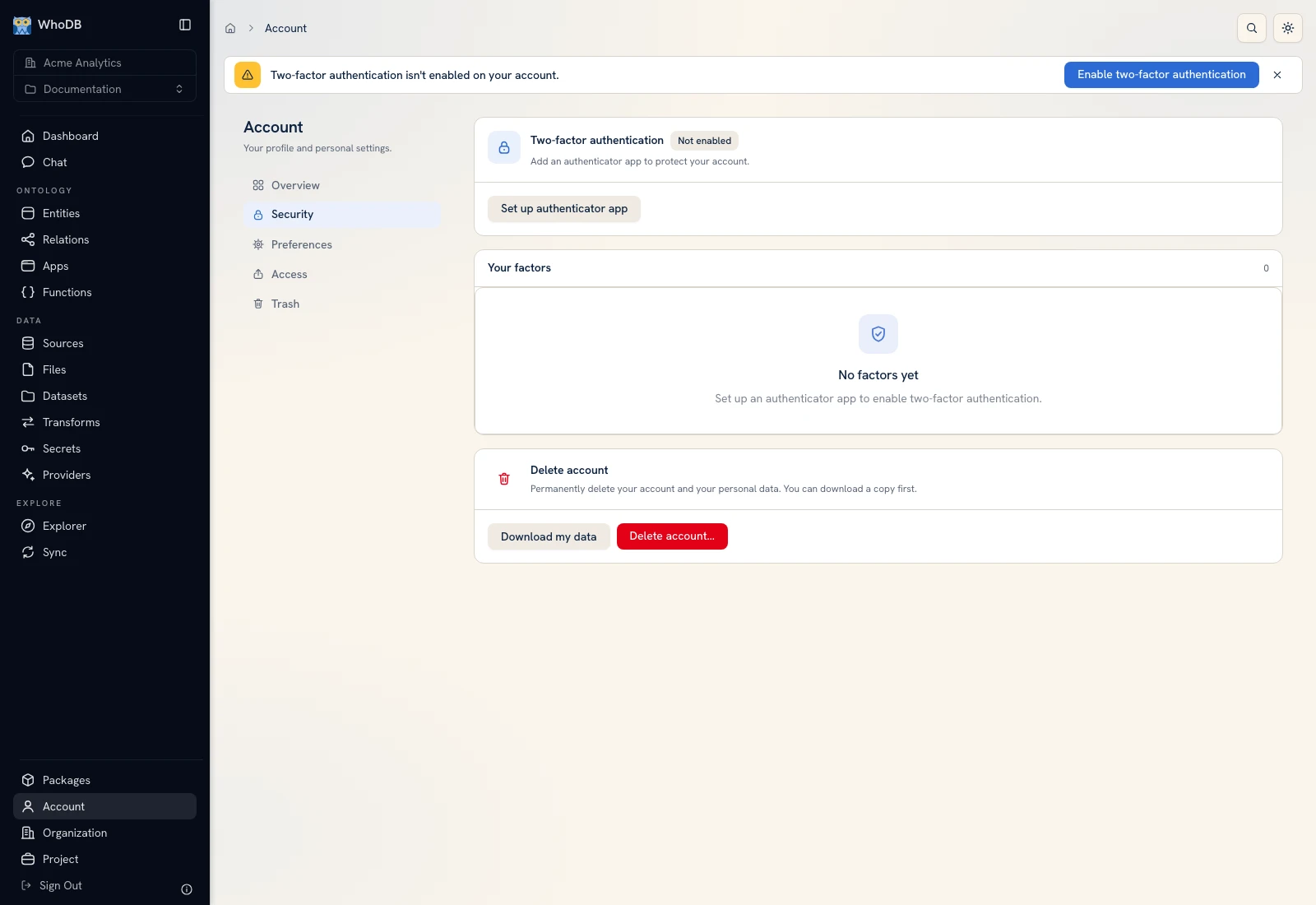 The Security tab exposes second-factor status, credentials, and account controls.
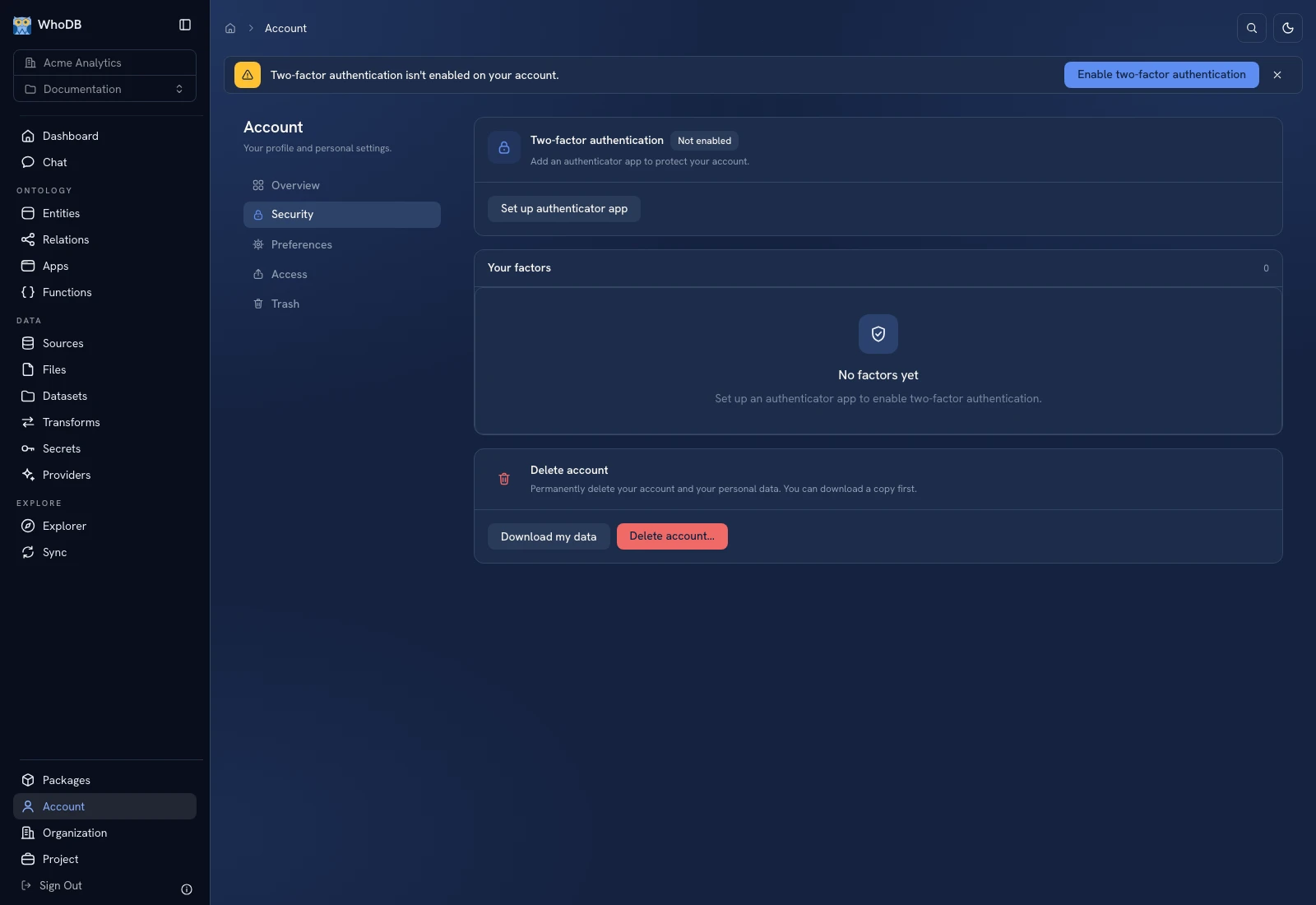 The Security tab exposes second-factor status, credentials, and account controls.
Set up two-factor authentication#
Open Security and choose the authenticator setup action. Follow the identity provider's enrollment page: scan/store the authenticator setup information on your device, enter a current code, and finish. Return to Account Security and verify the enabled status and registered credential.
Store backup/recovery codes outside WhoDB when the provider offers them. They are credentials: do not include the actual codes or enrollment secret in screenshots, support messages, or project files.
The workspace warning Two-factor authentication isn't enabled on your account links to the same security setup path. Dismissing a warning does not enable the factor.
Review credentials#
Inspect registered authenticator credentials and labels. Remove a credential only when you have another working sign-in/recovery path. Test a fresh sign-in after an intended enrollment change.
Preferences#
Open Preferences for the personal UI settings offered by the instance, including appearance and other settings. Change a setting through the UI and inspect the resulting screen. App themes and the documentation site's theme are separate from this preference.
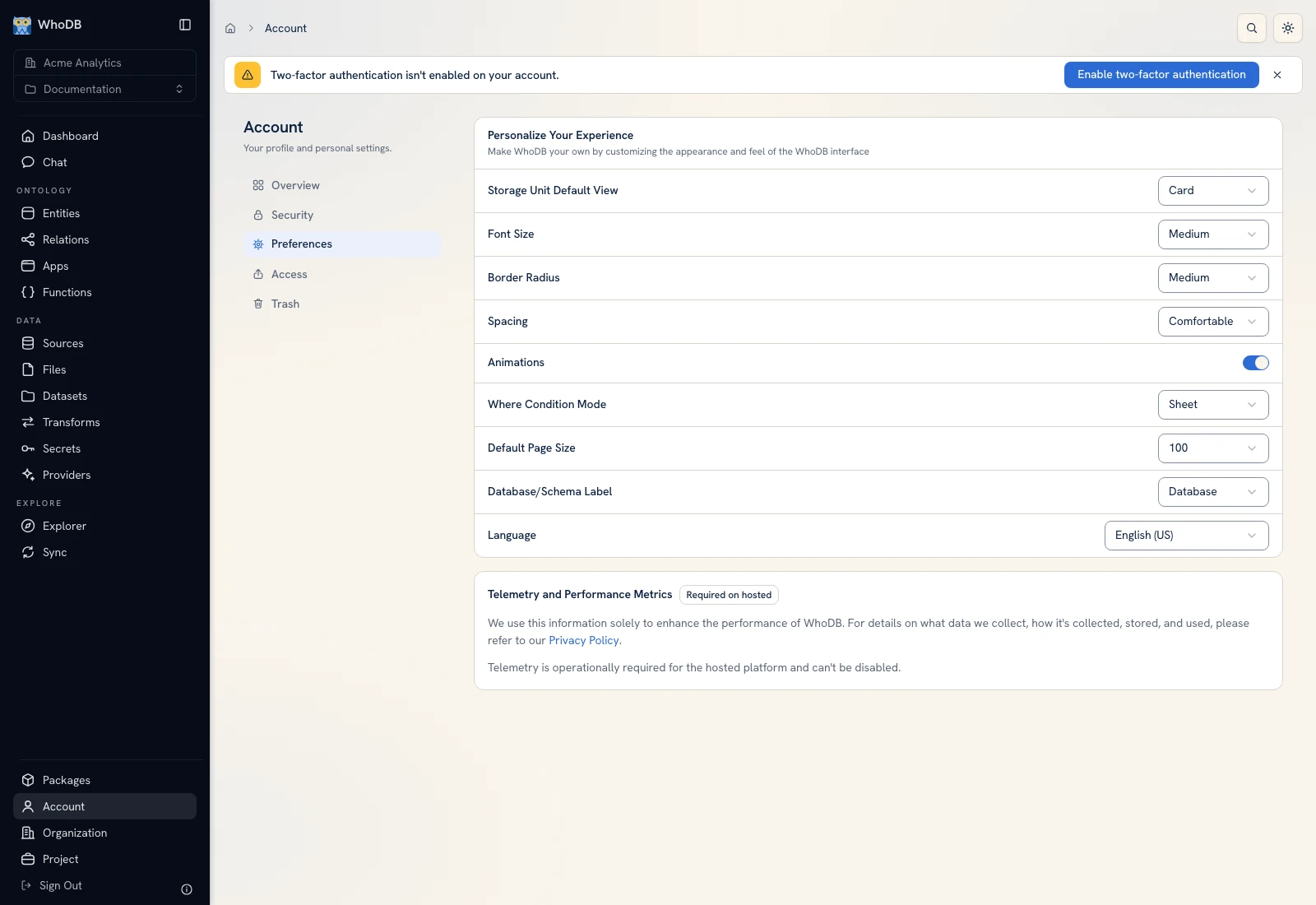 Account Preferences controls the user's personal workspace experience.
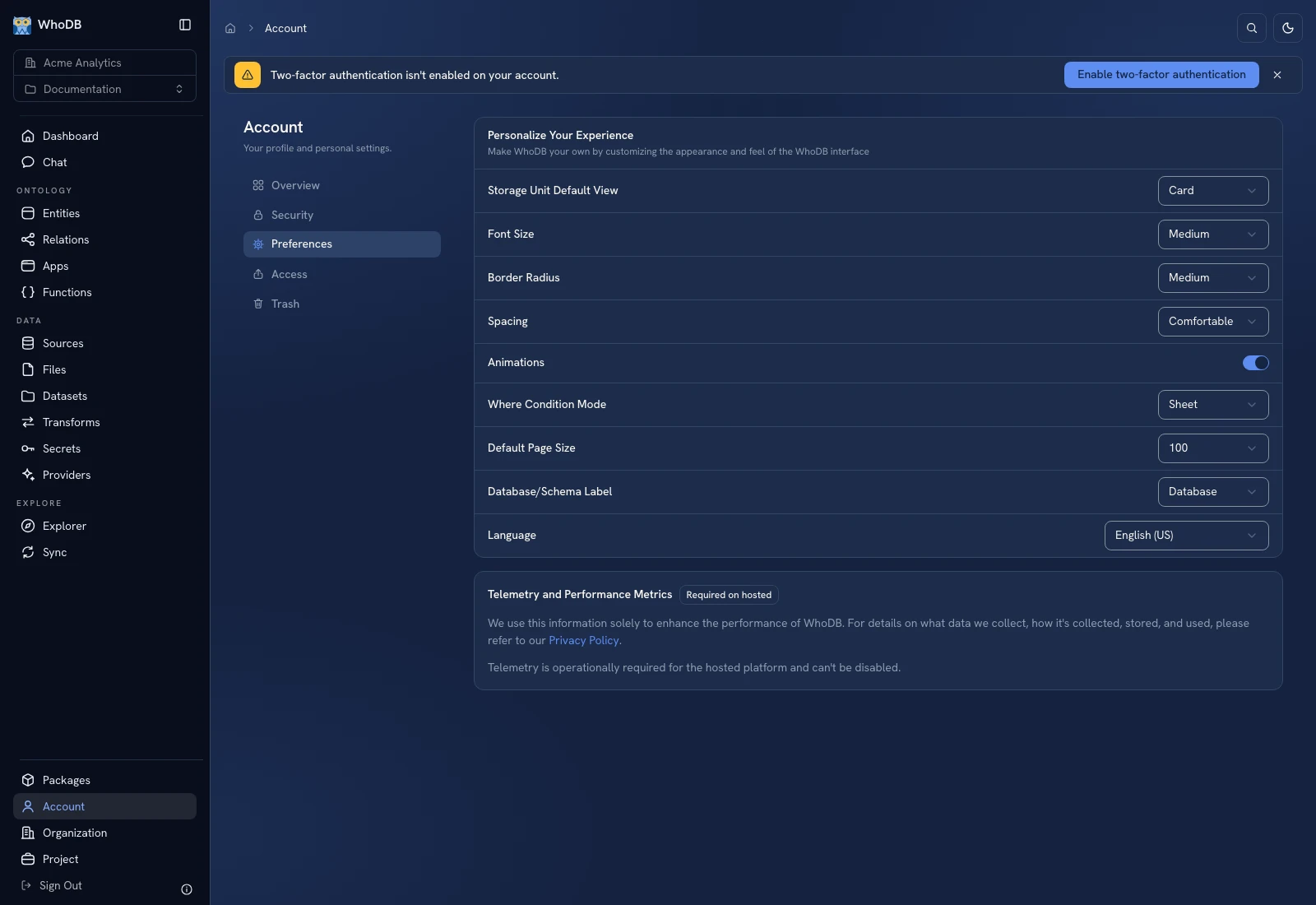 Account Preferences controls the user's personal workspace experience.
Export or delete the account#
Security offers Download my data and Delete account…. Read the deletion preview: owned organizations can be deleted with the account, affecting their members and stored backups. The flow separately asks for acknowledgement of organization/backups consequences and may require an email confirmation.
After confirmed scheduling, signing in again before the stated deletion date cancels deletion as described by the UI. Organization deletion and backup deletion have their own scope/timing. Review Backups and download needed archives and recovery keys before destructive actions.
Was this page helpful?