
Create and inspect relations
Where: define links in an entity's create/edit form; inspect them in sidebar → Relations. Both entity types must exist before linking them.
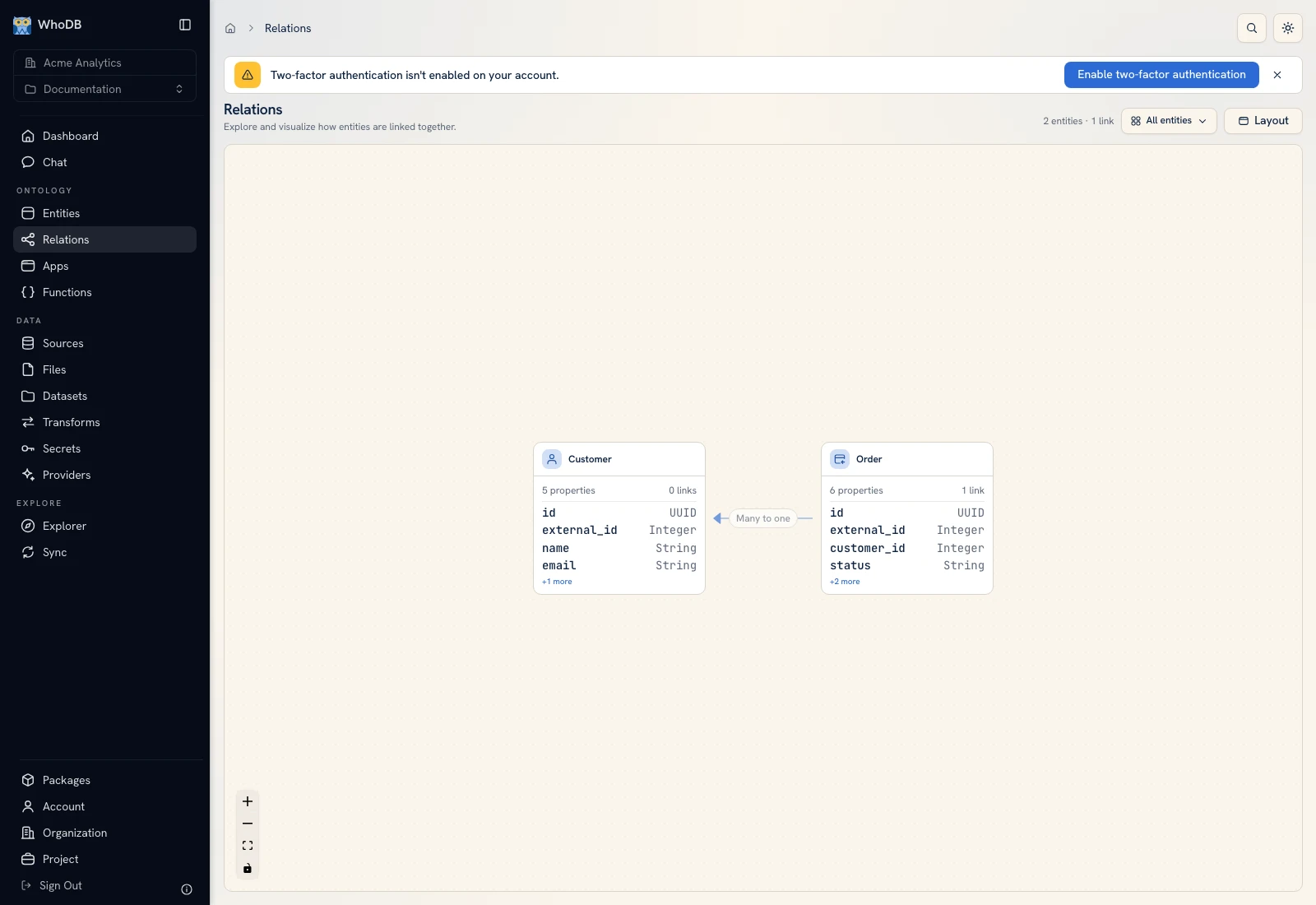 Relations visualizes the configured Customer and Order link.
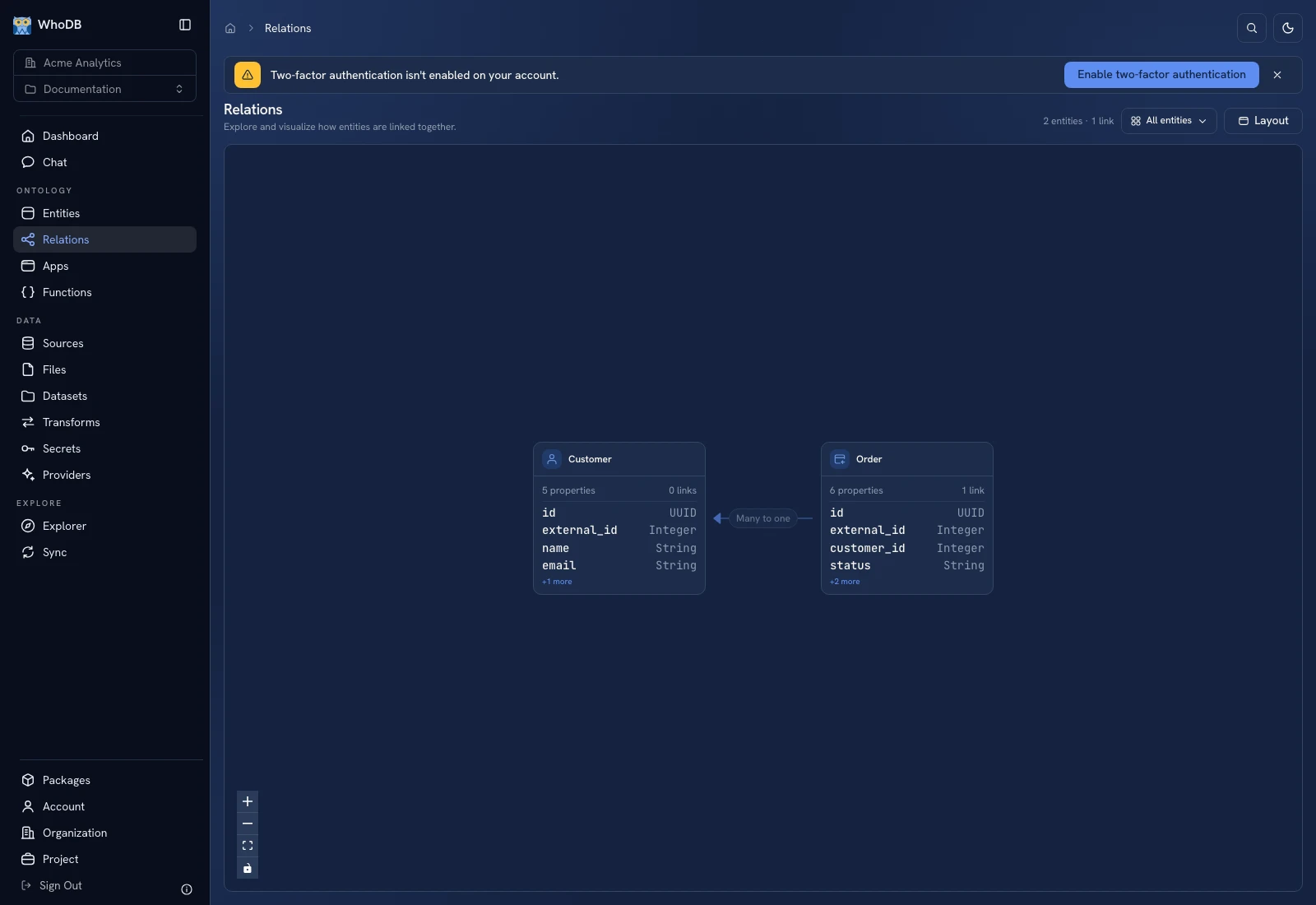 Relations visualizes the configured Customer and Order link.
Add a link to an entity#
- Open Entities and select the entity that owns the outgoing link, such as Order.
- Choose Edit, then open the Links section or step.
- Click Add Link.
- Set the link API name and display names.
- Select the target entity and cardinality.
- Configure the source foreign-key property and the target matching property. For many-to-many links, review the join table and its source/target column fields.
- Save the entity.
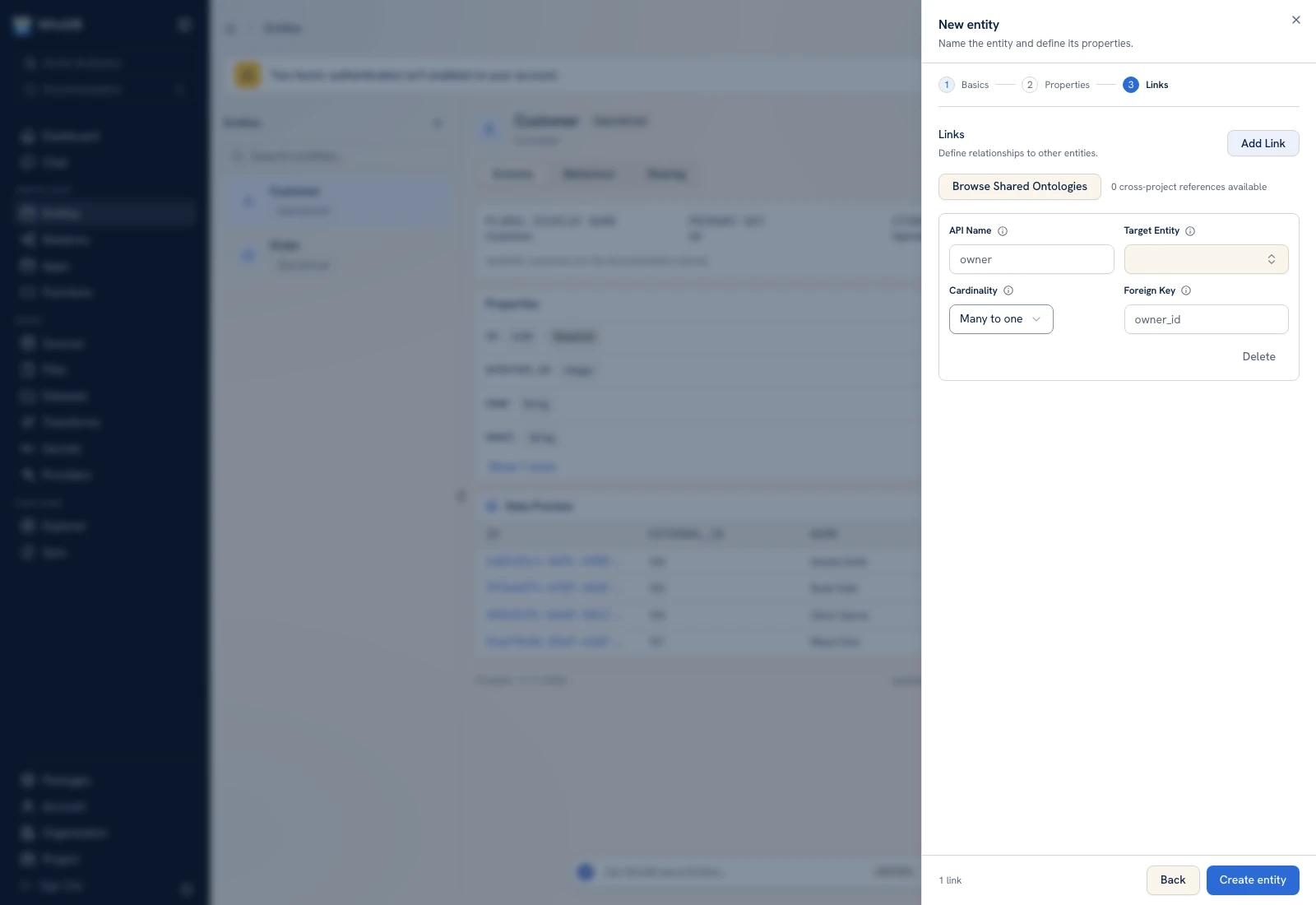 Link configuration names the target entity, cardinality, and matching fields.
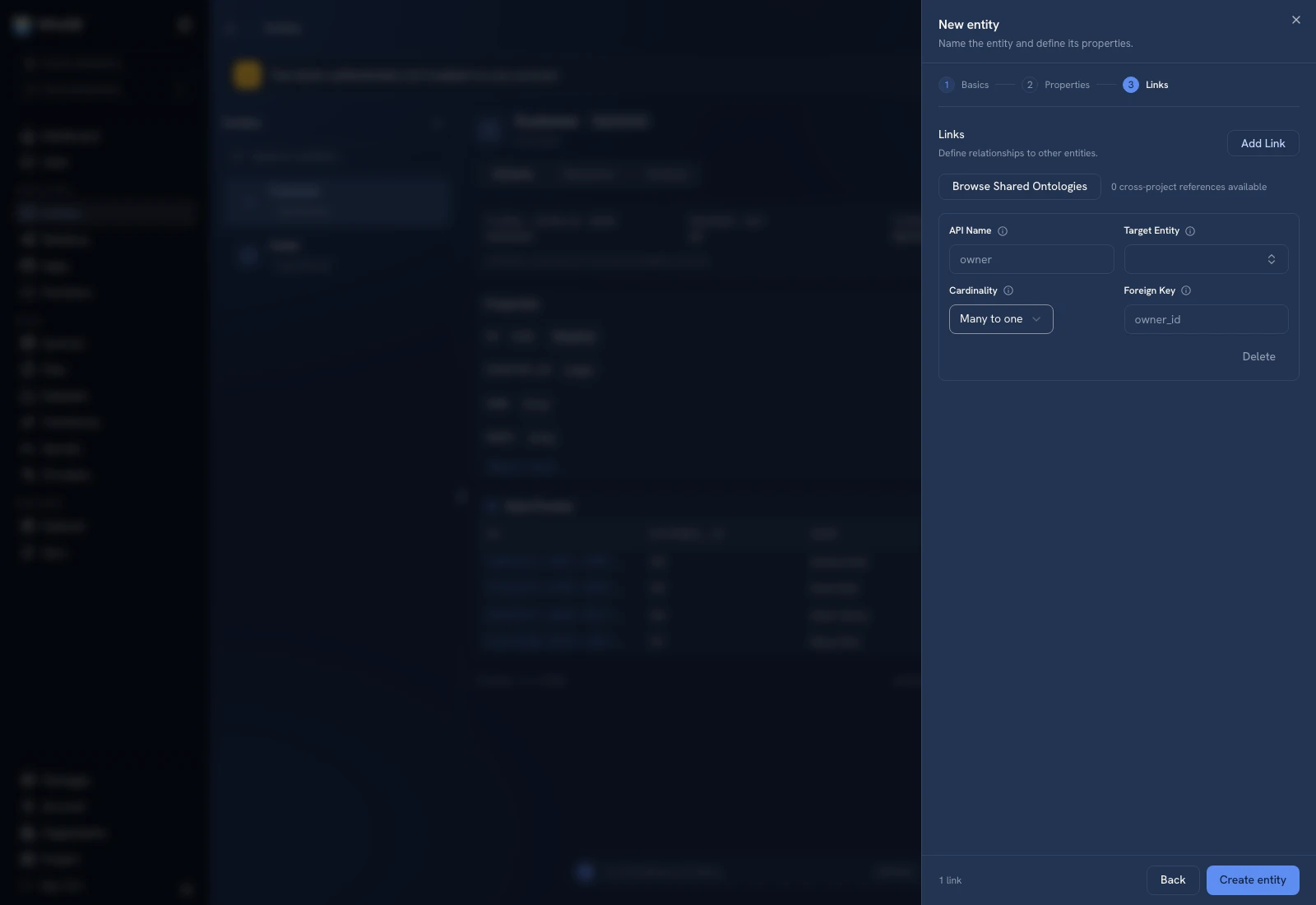 Link configuration names the target entity, cardinality, and matching fields.
Choose cardinality#
| Cardinality | Example |
|---|---|
| One to one | One profile for one account |
| One to many | One customer has several orders |
| Many to one | Several orders refer to one customer |
| Many to many | Products belong to several categories through a join table |
For an Order → Customer link, many-to-one is often appropriate. Match the order's customer business key to a unique customer business key. If your model uses generated UUID record IDs, do not link an external integer key to that UUID just because both fields are called id.
Inspect the graph#
Open Relations, locate the two entity types, and inspect their connection. Select an entity or relation to review the model details offered by the screen. The graph describes configured business relationships; it does not clean unmatched keys or install an external database constraint.
Verify with records#
Test one known matching record and one with no target. Compare values and types on both sides. If a relation returns multiple unexpected matches, inspect uniqueness of the target property. If it returns none, inspect nulls, string/integer differences, whitespace, and whether the target rows were imported.
Cross-project targets use an ontology reference and additional access checks. Use Sharing and references rather than assuming local links cross a project boundary automatically.
Was this page helpful?