
Connect app state and data
Where: app builder → State or Data, then select a component's Data tab. Start with the resource bindings available to this app.
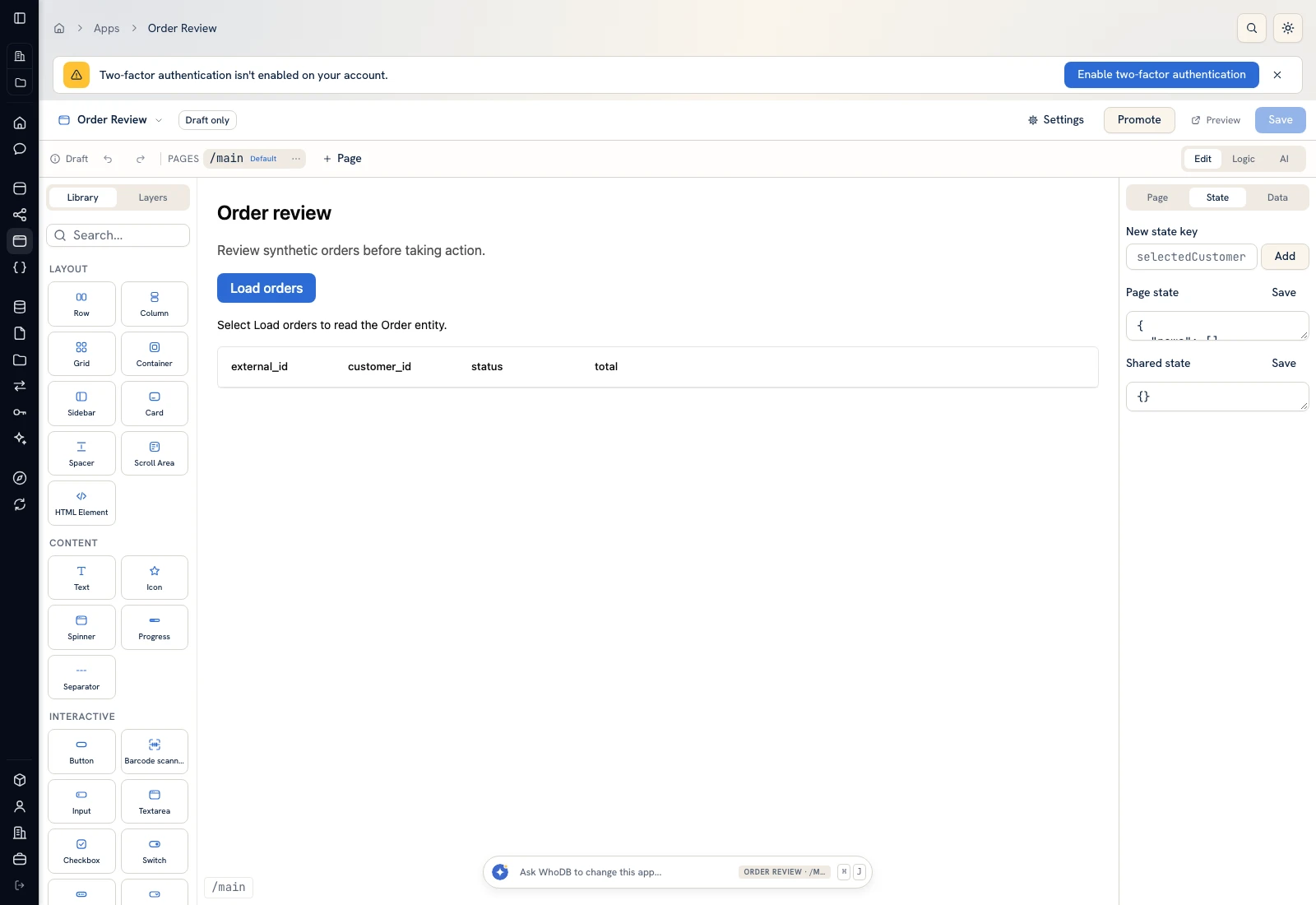 The state view exposes the data used by page components.
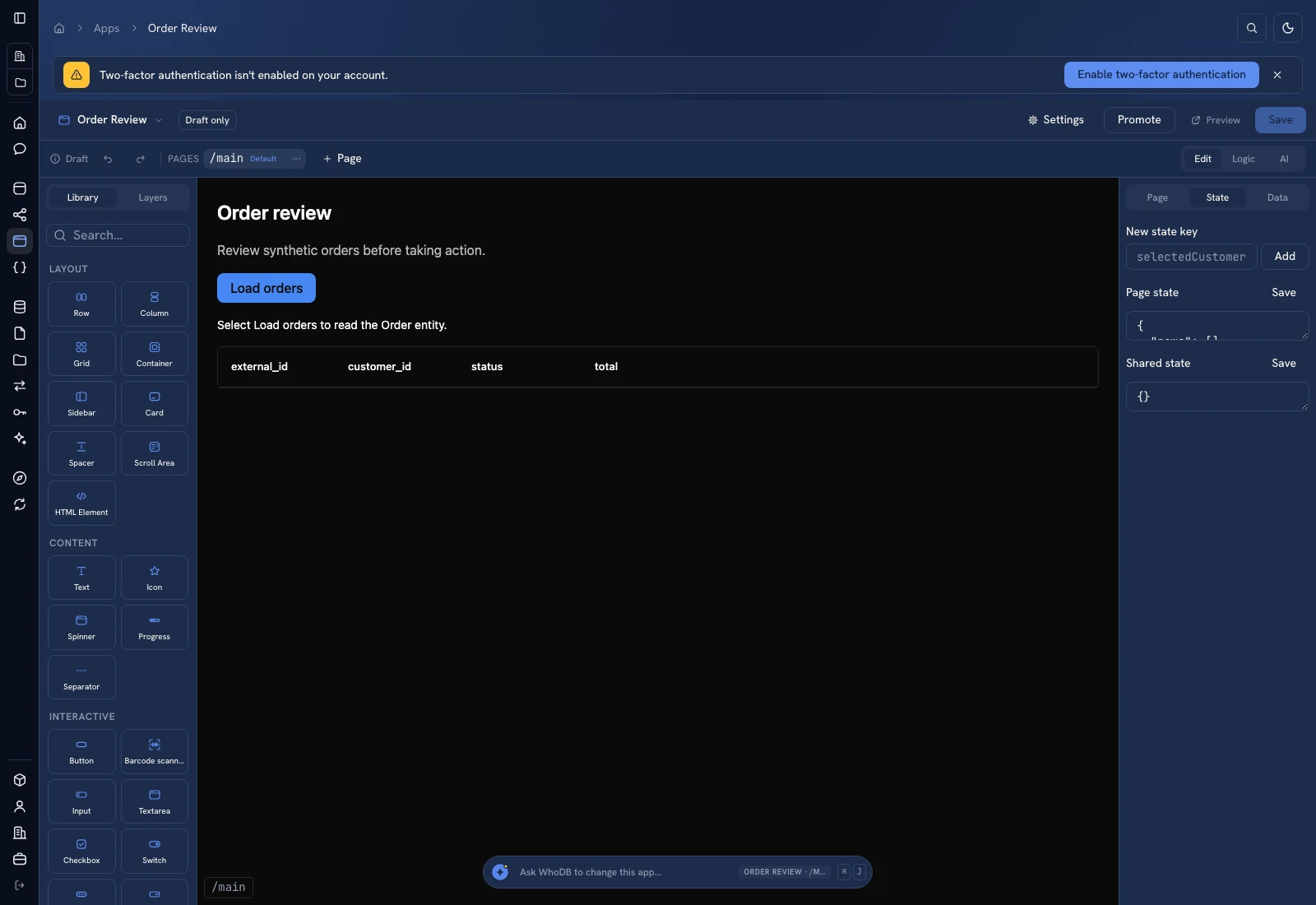 The state view exposes the data used by page components.
Create a small state model#
Keep UI state explicit. The example Order Review page uses rows for records and status for its loading message. Shared state is reserved for values needed across pages.
A page state file is a JSON object:
JSON
{
  "rows": [],
  "status": "Select Load orders to read the Order entity."
}
State must remain valid JSON. Do not paste a JavaScript expression into the state JSON editor and expect it to execute.
Bind a component#
- Select the Data Table or other component on the canvas/Layers.
- Open Data in its configuration.
- Bind the relevant property, such as table rows, to the state expression.
- Check the component's declared columns and record key.
- Preview and load actual records.
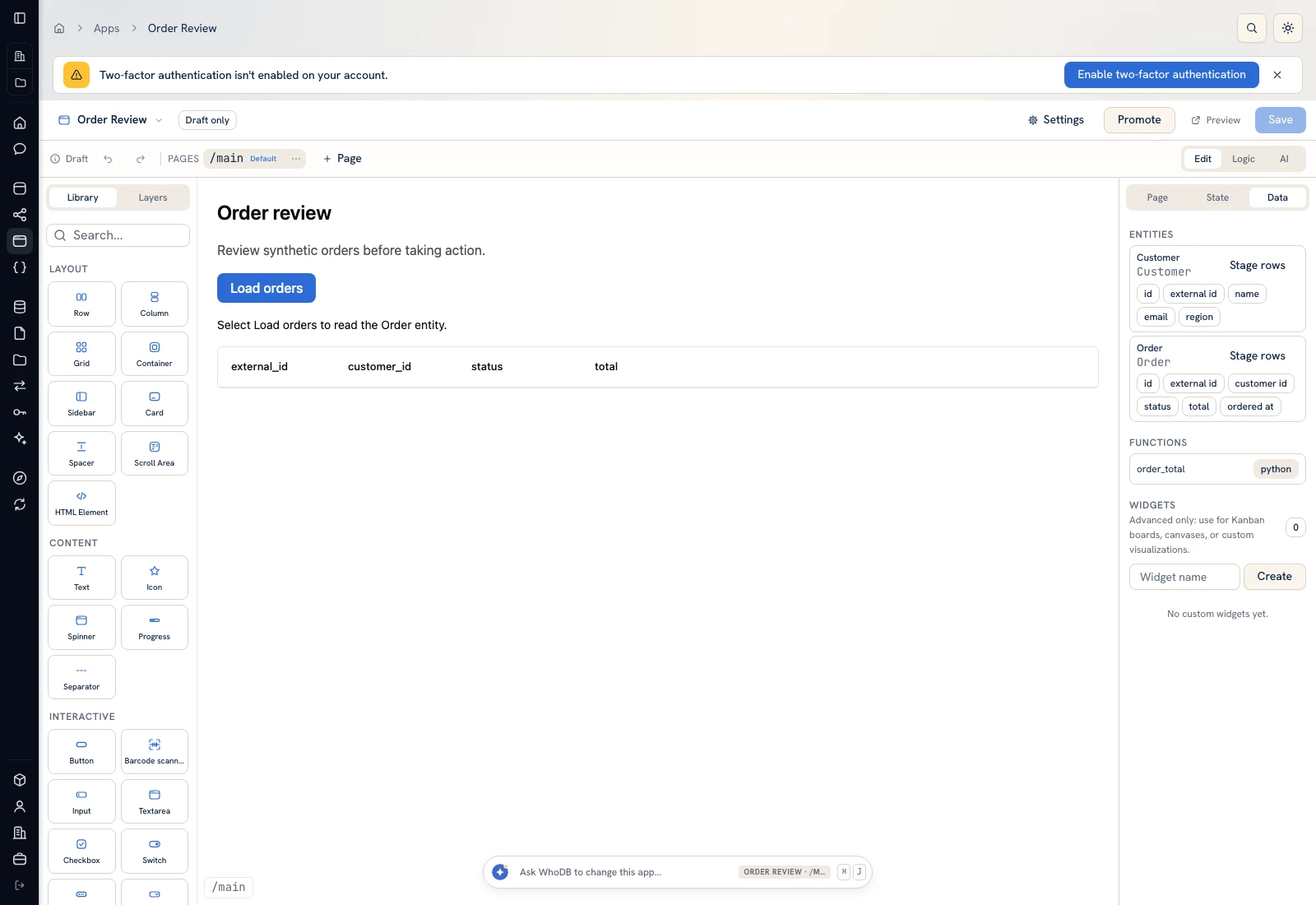 The builder's data area exposes resources and bindings for the selected app.
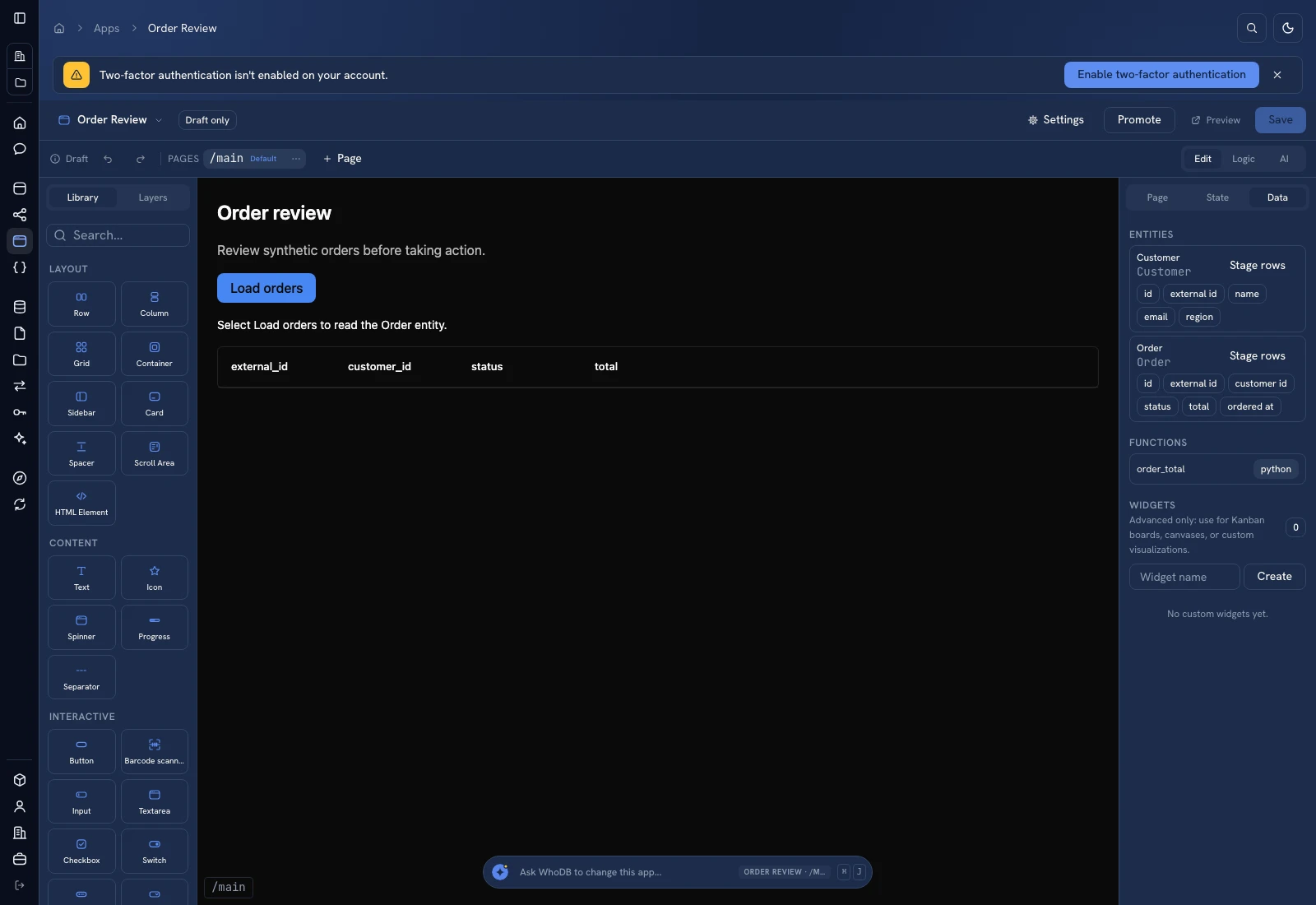 The builder's data area exposes resources and bindings for the selected app.
For the tree-based Data Table used by the fixture, columns are field-name strings and rows are bound to page state:
JSON
{
  "id": "orders",
  "type": "DataTable",
  "props": {"columns": ["external_id", "status", "total"], "rowKey": "id"},
  "bind": {"rows": "state.rows"}
}
Load records#
A registered click script can read the bound entity and update state:
JavaScript
async (event, ctx) => {
  const result = await ctx.whodb.list('Order');
  ctx.set('rows', result.rows);
  ctx.set('status', 'Loaded ' + result.rows.length + ' orders.');
}
Configure the Button's click action to invoke that script. The entity must be bound to the app and available under the caller's permissions. The function does not create an entity simply because its name appears in the code.
Verify#
Compare a displayed external order ID, status, and total with Entities → Order → Schema → Data Preview. Test a zero-row response and a permission failure. Keep loading, empty, and error messages understandable so a user does not confuse “not loaded” with “no records exist.”
Was this page helpful?