
Organizations, projects, and personal settings
Where: the sidebar's organization/project selectors, Organization, Project, and Account. Administrative roles and resource roles are different.
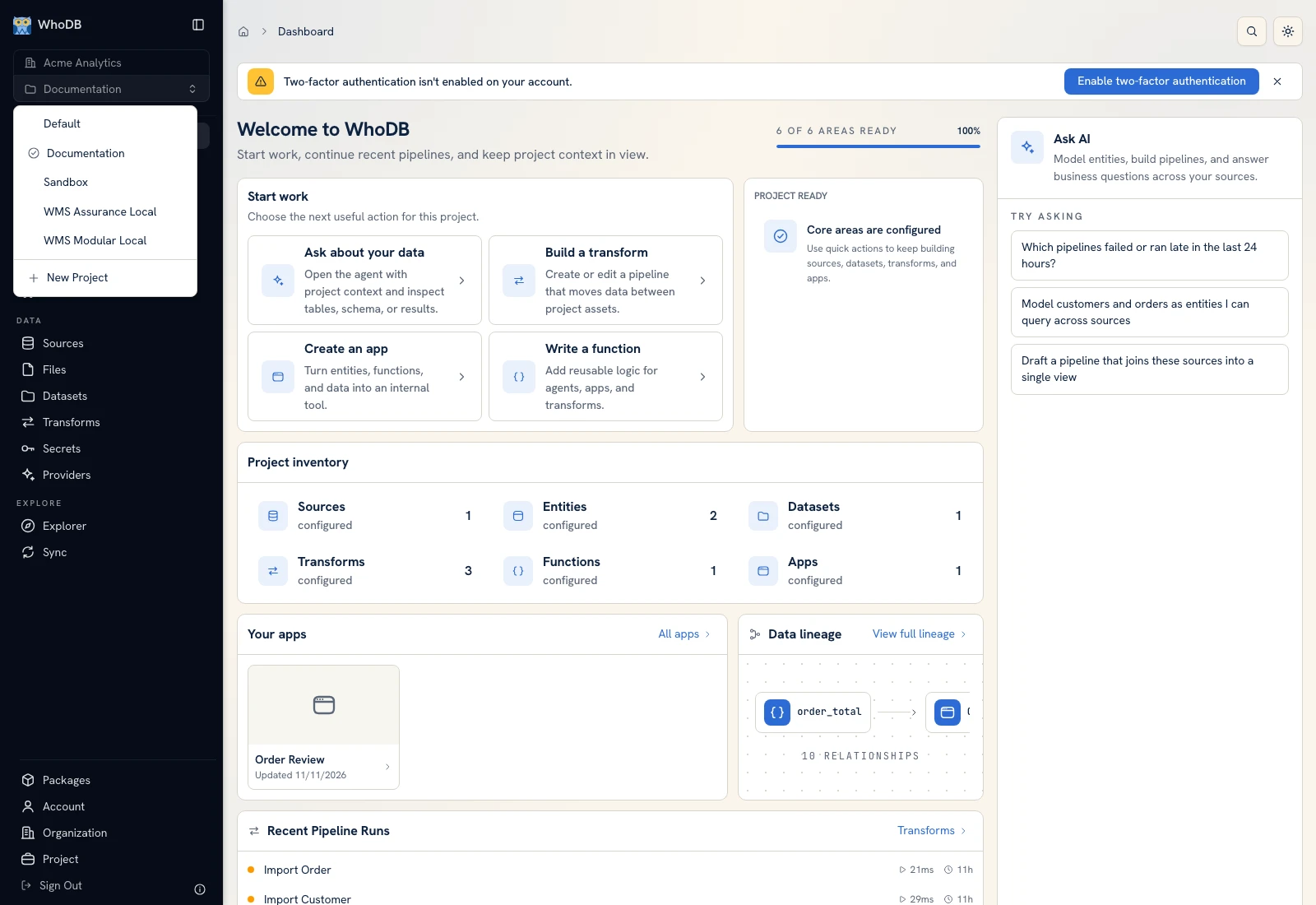 The project selector changes the working project and offers project creation when permitted.
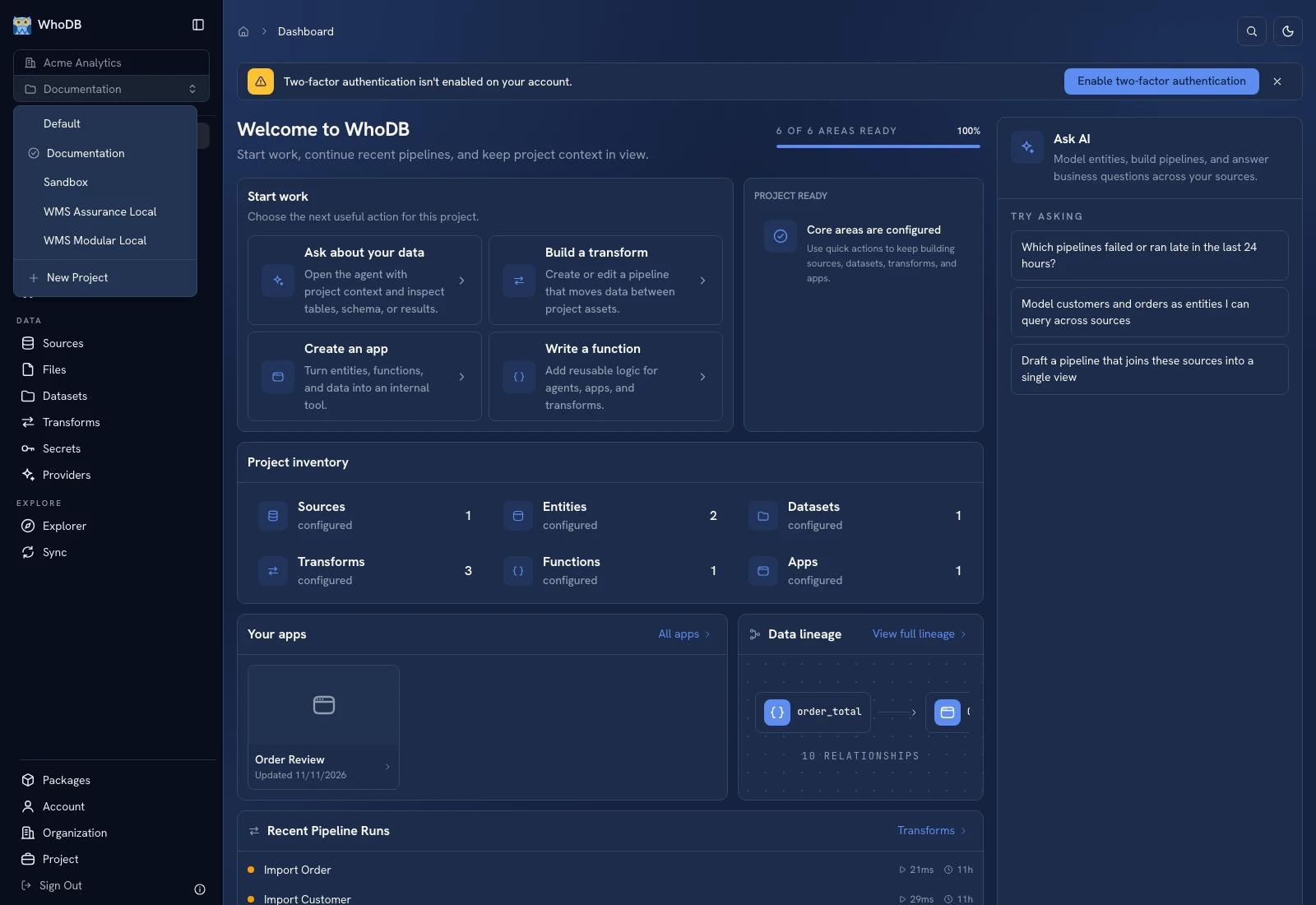 The project selector changes the working project and offers project creation when permitted.
Create a project#
Open the project selector and choose New Project. Enter Project Name and, where shown, Description, then create it. Select the resulting project and confirm its name before adding resources. Use a project to group one coherent workflow and its sources, models, functions, apps, and files.
Edit a project's name or URL#
- Select the project in the sidebar.
- Open Project → General.
- Review Project name, URL slug, and Project ID.
- Change the intended field and click Save changes.
- Verify the new name/URL and update external bookmarks when the slug changed.
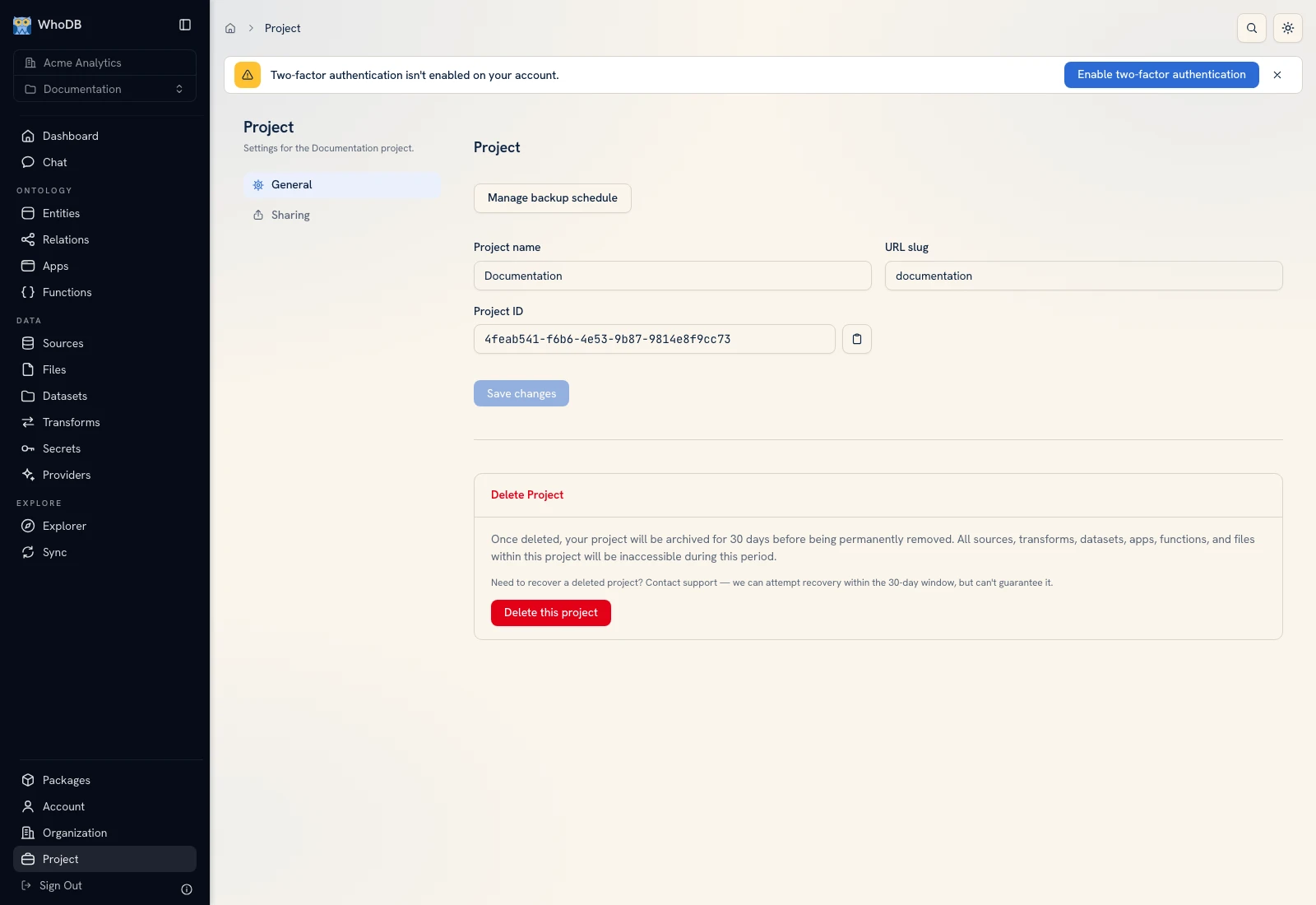 Project General exposes the name, URL slug, immutable ID, and deletion area.
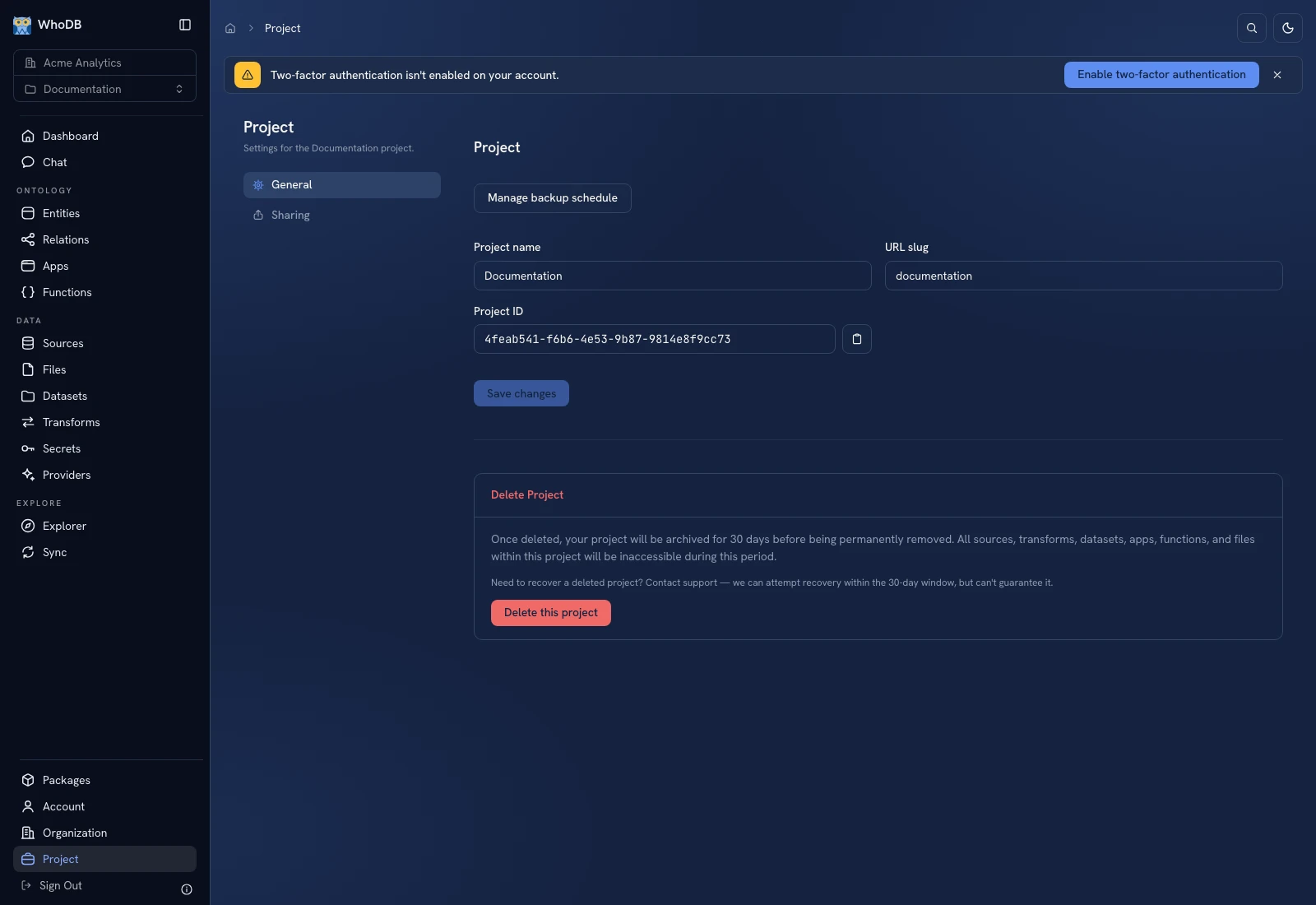 Project General exposes the name, URL slug, immutable ID, and deletion area.
Use Project → Sharing for general access and direct grants. Organization → Access is an organization-wide view of direct resource grants, not merely the current project's member list.
Organization versus Account#
Organization includes Members, Access, Teams, API keys, Edge devices, Billing, Backups, and General. Account includes Overview, Security, Preferences, Access, and Trash. Use Organization for team administration and Account for personal settings and recovery views.
Deleting a project, organization, or account has different scope and recovery behavior. Read the on-screen confirmation and Trash or Account security before starting a destructive operation.
Was this page helpful?