
Map and write pipeline outputs
Where: add Output in the transform builder and click the node. You need permission to write the destination, and its storage runtime must be available.
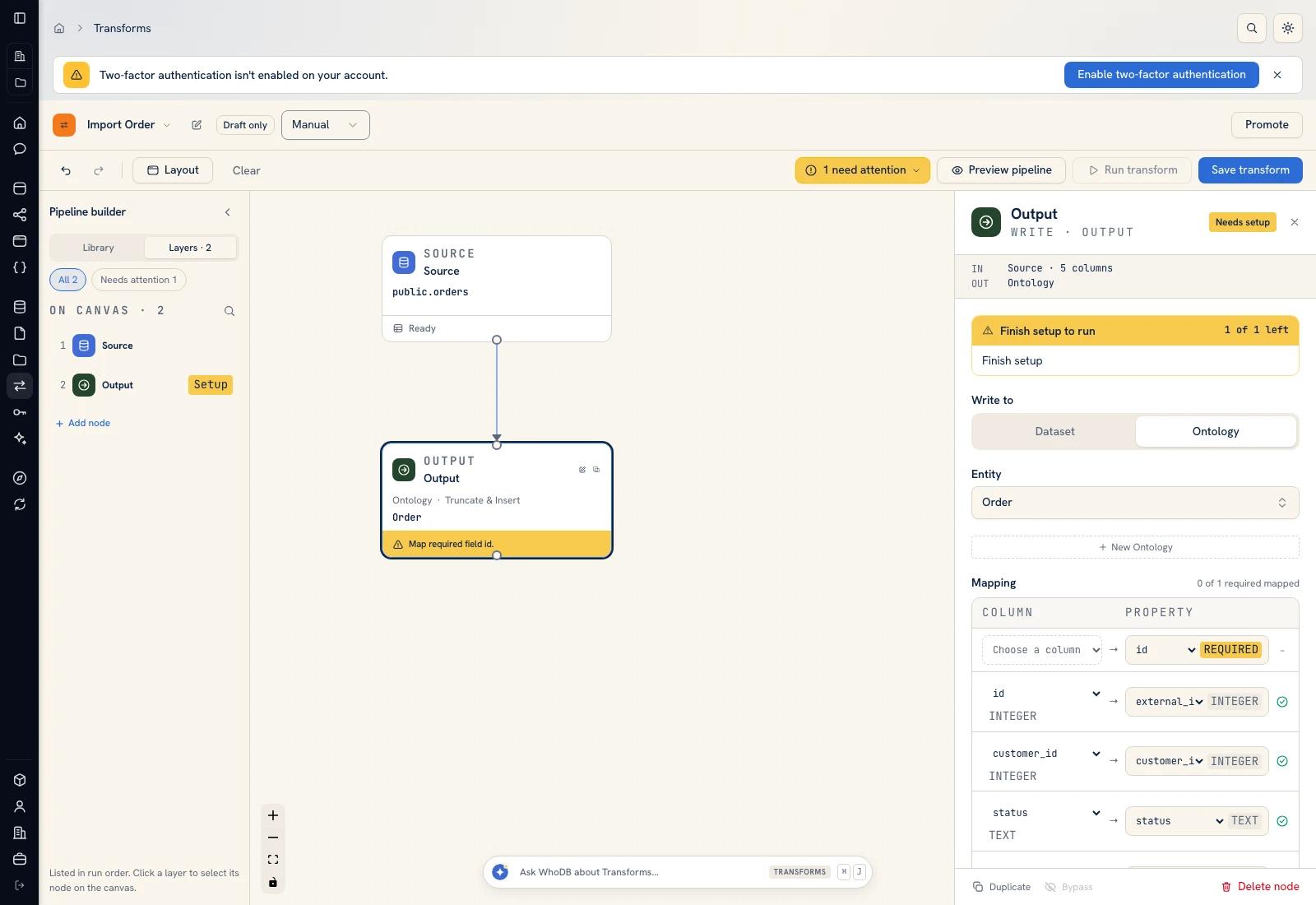 The Output panel chooses the destination and maps upstream fields to its schema.
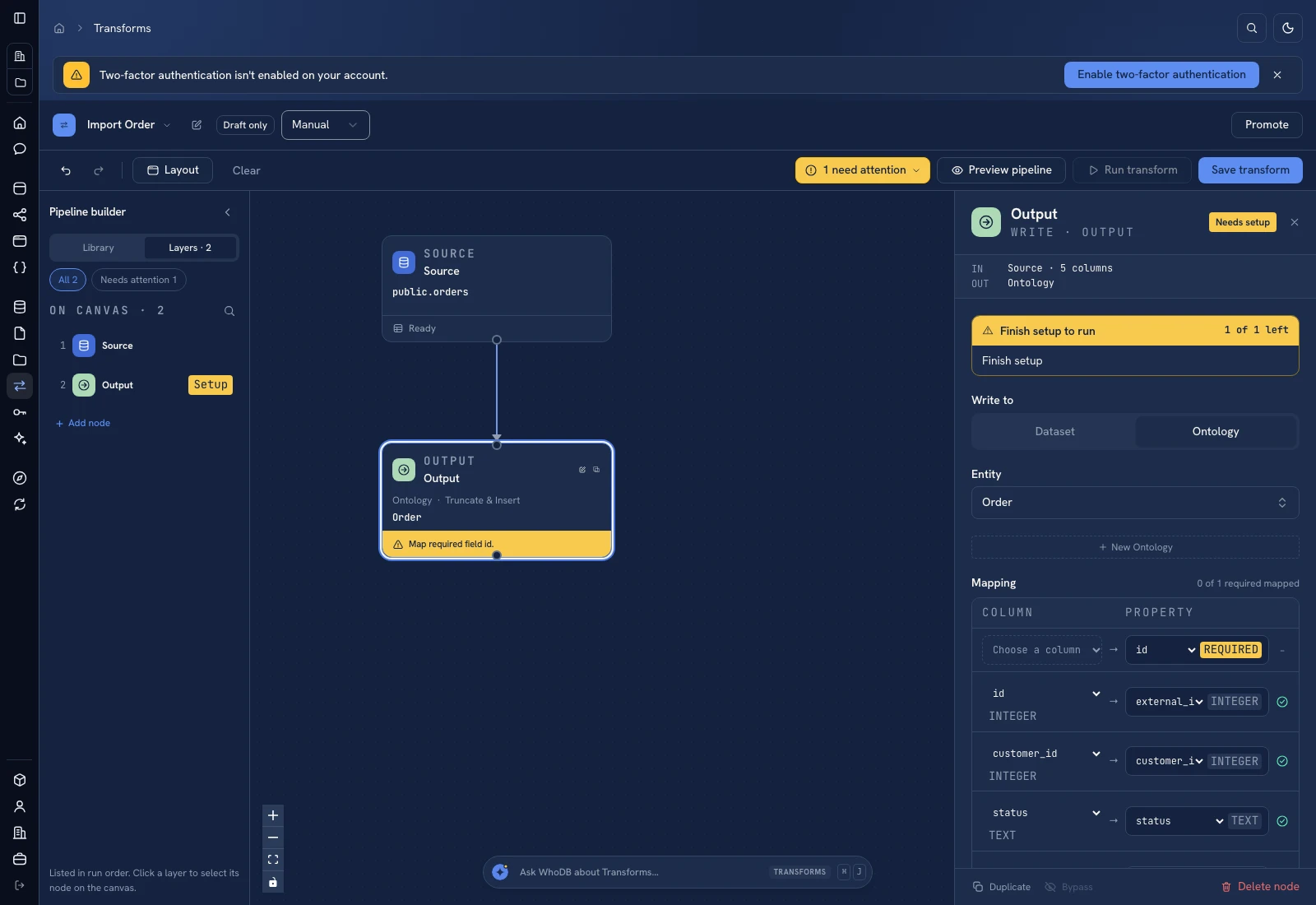 The Output panel chooses the destination and maps upstream fields to its schema.
Select the destination#
- Set Write to to the supported destination kind.
- Choose the dataset or managed entity.
- Review the upstream columns beside the destination fields.
- Use Auto-map by name for matching names, then correct nonmatching fields manually.
- Resolve every required mapping before running.
For a managed entity with generated UUID identity, map an external integer key to a business property such as external_id, not to the backing id UUID. The error invalid input syntax for type uuid often means this distinction was missed.
Choose the write mode deliberately#
| Mode shown by the destination | Meaning to consider |
|---|---|
| Append | Add incoming rows; repeated runs can add duplicates |
| Create or replace | Replace the output as described by that destination; inspect schema and existing-data consequences |
| Replace rows / Truncate & Insert | Remove current destination rows and write the new set |
| Upsert | Match by a configured key and update or insert records |
Not every destination exposes every mode. Entity output provides Upsert and Replace with destination-specific handling; dataset modes are shown by the dataset output configuration. Use the labels actually displayed for the chosen target.
Preview, run, and verify#
Preview the upstream result first. Check the exact records to be written, then save and run the transform. After a successful run, open the destination Data view and inspect the known keys and counts. Previewing is not proof that rows were written.
Replacement is appropriate only when the input is the complete intended replacement set. Do not replace an entire entity with the first page of a bounded preview or an accidental filter result.
Handle mapping problems#
A type mismatch identifies a source column and a target expectation. Correct the source transformation or destination mapping and preview again. A missing required mapping needs an actual value; leaving a field blank does not turn it into an optional property.
For incremental loads, review the key, the source's update range, and rerun behavior. Test the same small input twice and inspect whether the destination stays correct.
Was this page helpful?