
Upload and organize files
Where: sidebar → Files. Check the organization and project before uploading. You need permission to create files in that project.
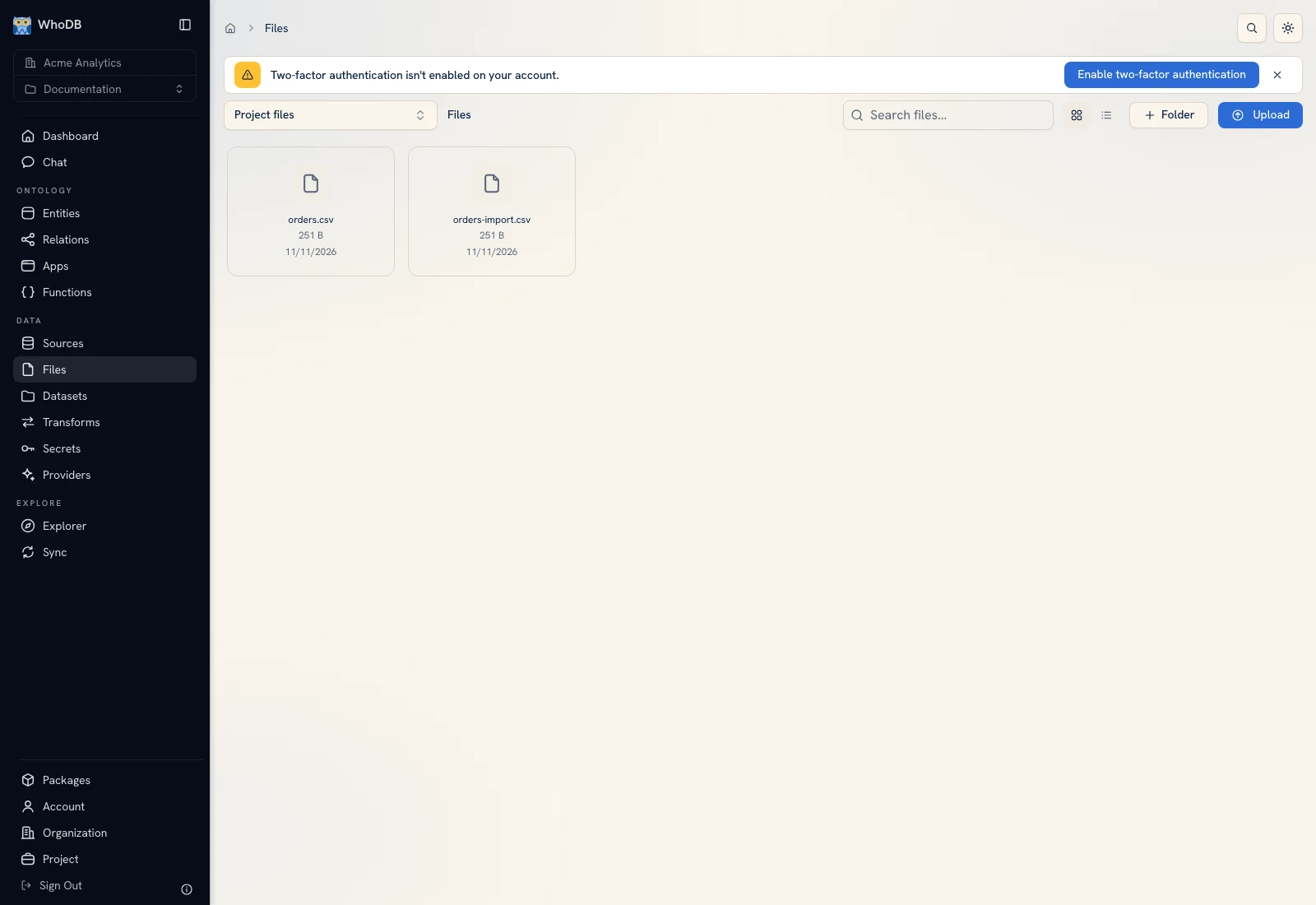 The Files workspace holds orders.csv and displays file metadata.
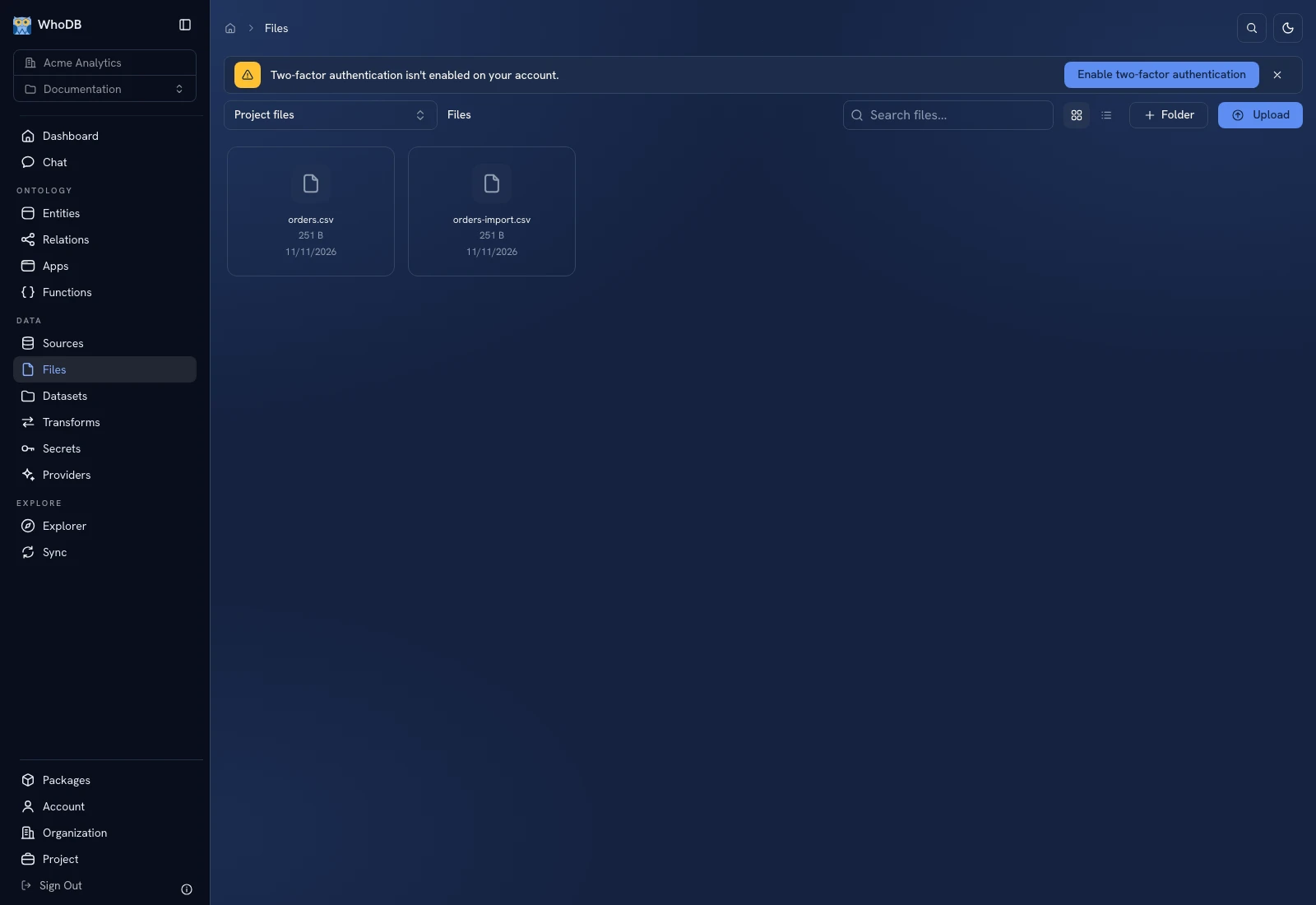 The Files workspace holds orders.csv and displays file metadata.
Upload a file#
- Open Files.
- Click Upload files or Choose files, or drop the file onto the upload area.
- Select the content from your computer and wait for the upload result.
- Confirm the file appears in the intended folder. If the UI reports an upload failure, read the message before retrying.
- Open the file to inspect its preview.
The example orders.csv contains six synthetic rows. You can download it and use it for the walkthrough. Uploading content does not automatically create a dataset, entity, or recurring transform.
Organize folders#
Click New folder, enter Folder name, and choose Create folder. Open the folder before uploading when that is the desired destination. Use breadcrumbs to return to its parent. Multi-selection and the file action menu provide the operations available for the selected items; check the selection before moving or deleting content.
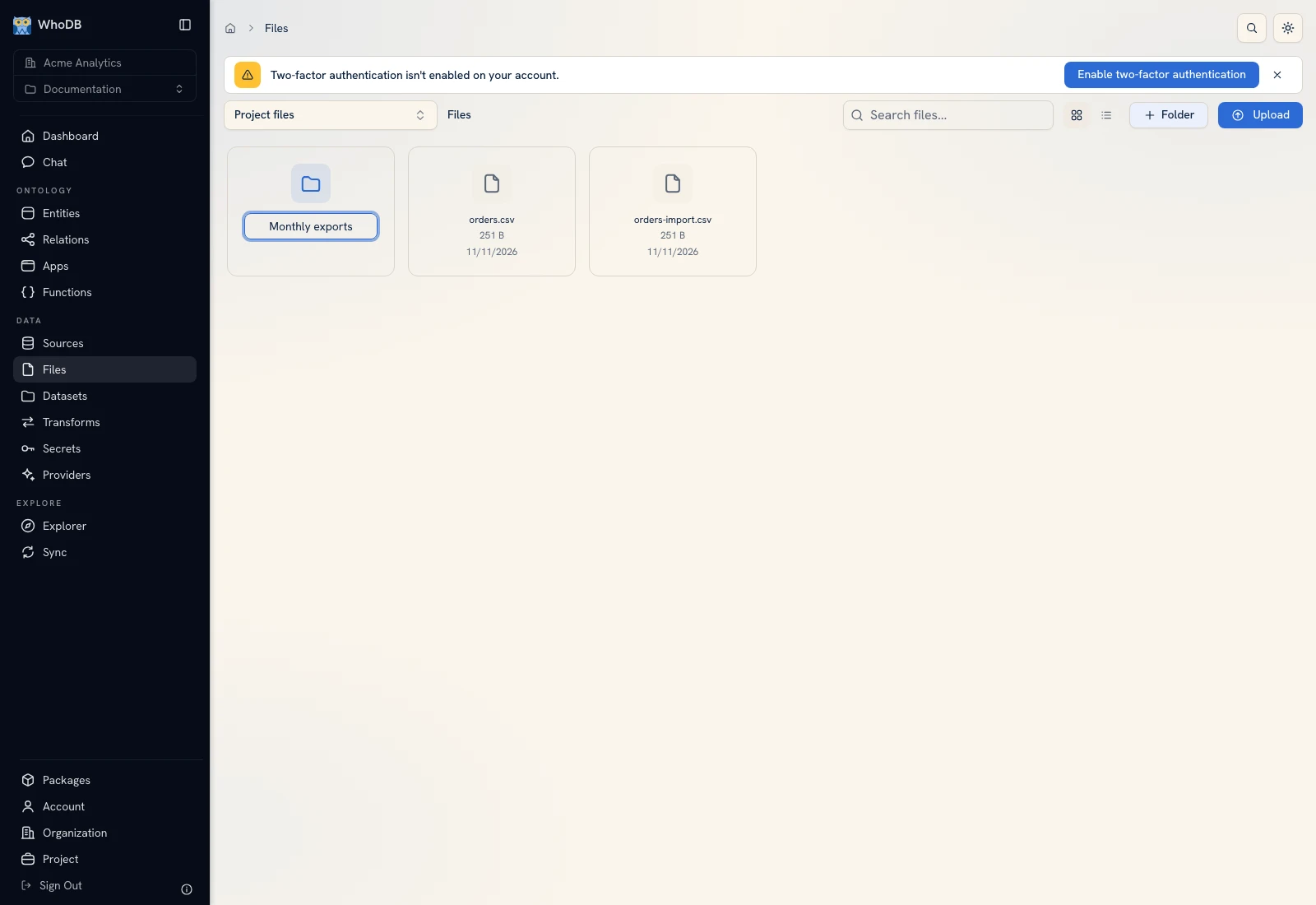 The New folder dialog creates a folder in the current location.
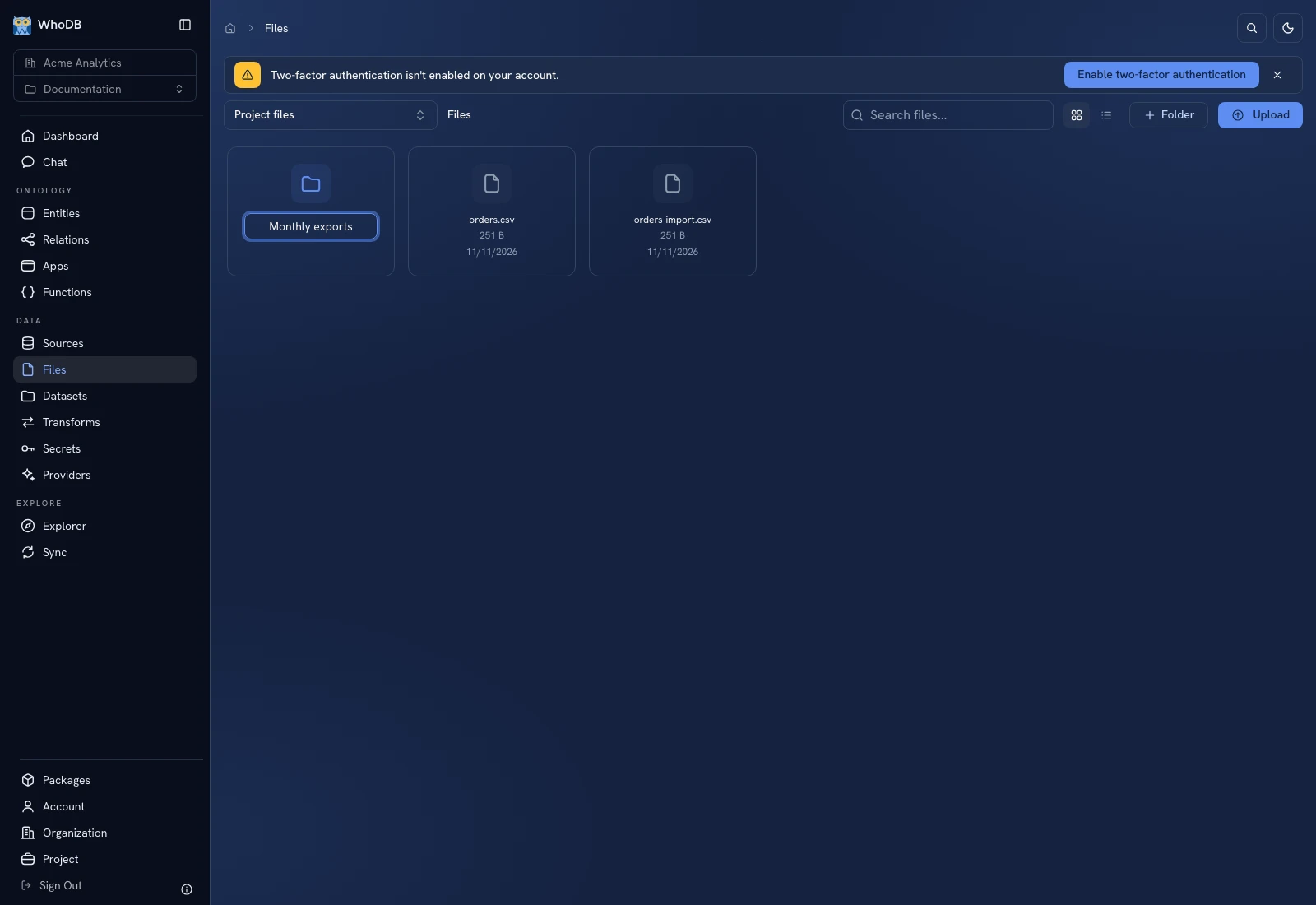 The New folder dialog creates a folder in the current location.
Inspect a tabular preview#
Open orders.csv and check headers, total rows, and sample values. For a workbook, choose the intended sheet. Verify IDs with leading zeroes, empty values, dates, and decimal amounts before promotion.
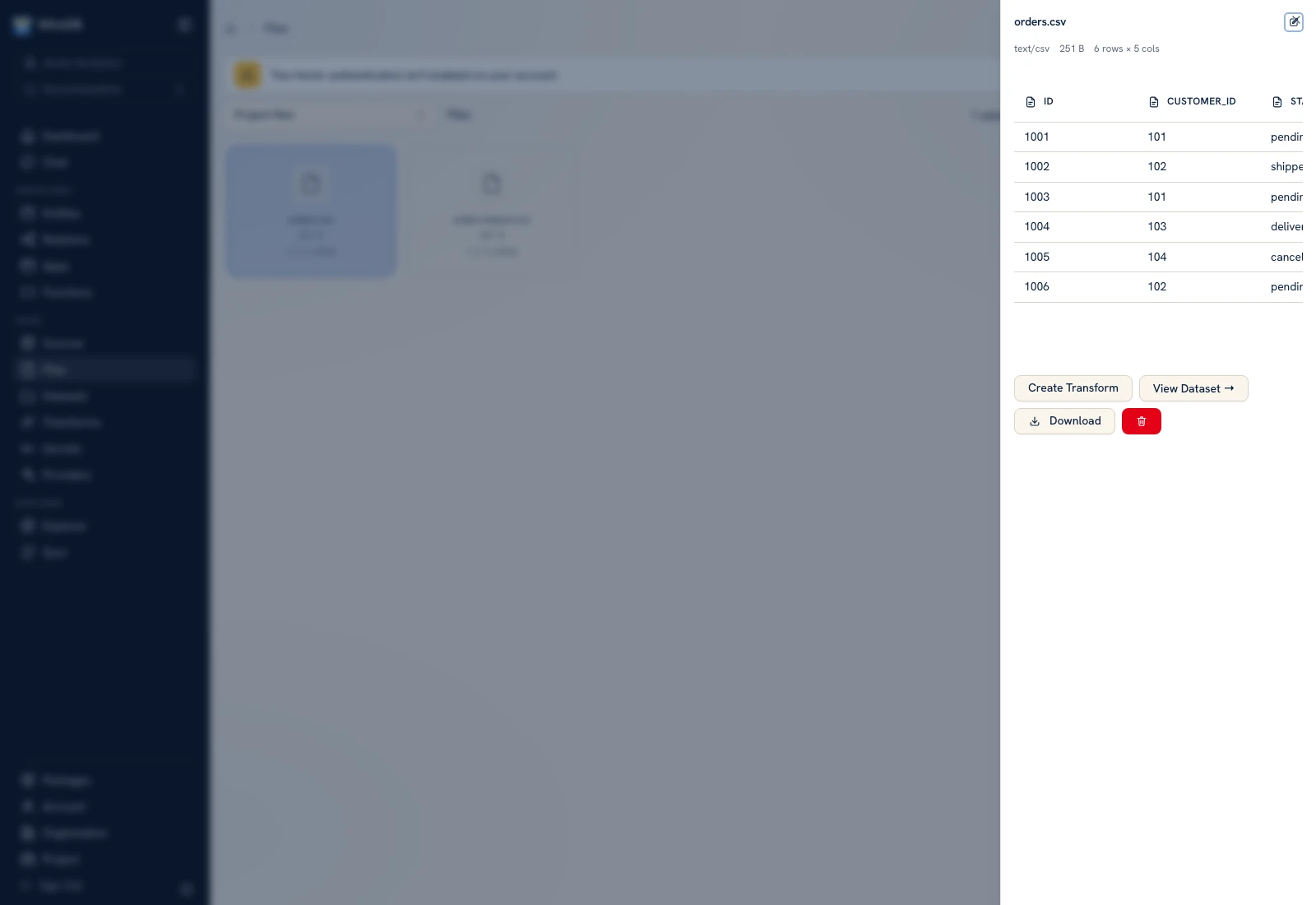 The file preview displays parsed columns and synthetic rows before dataset creation.
 The file preview displays parsed columns and synthetic rows before dataset creation.
Choose the next action#
| Goal | Action |
|---|---|
| Query uploaded rows as a reusable table | Promote to a dataset |
| Extract text from a PDF or image | Create a transform using OCR |
| Classify or extract structured fields | Configure a provider and an AI transform |
| Reuse the file in a pipeline | Add a File input node to a transform |
A file can be content used by another workflow. Keep its access and the consumer's permissions in mind when sharing the result.
Was this page helpful?