
Select, filter, branch, rename, and calculate
Where: select the corresponding node in a transform. Connect an input first so its columns are available.
Select columns#
Add Select, choose Keep selected or Drop selected, and tick the columns. The selected order matters where the UI describes output ordering. Keep a key column until you have finished validating the pipeline.
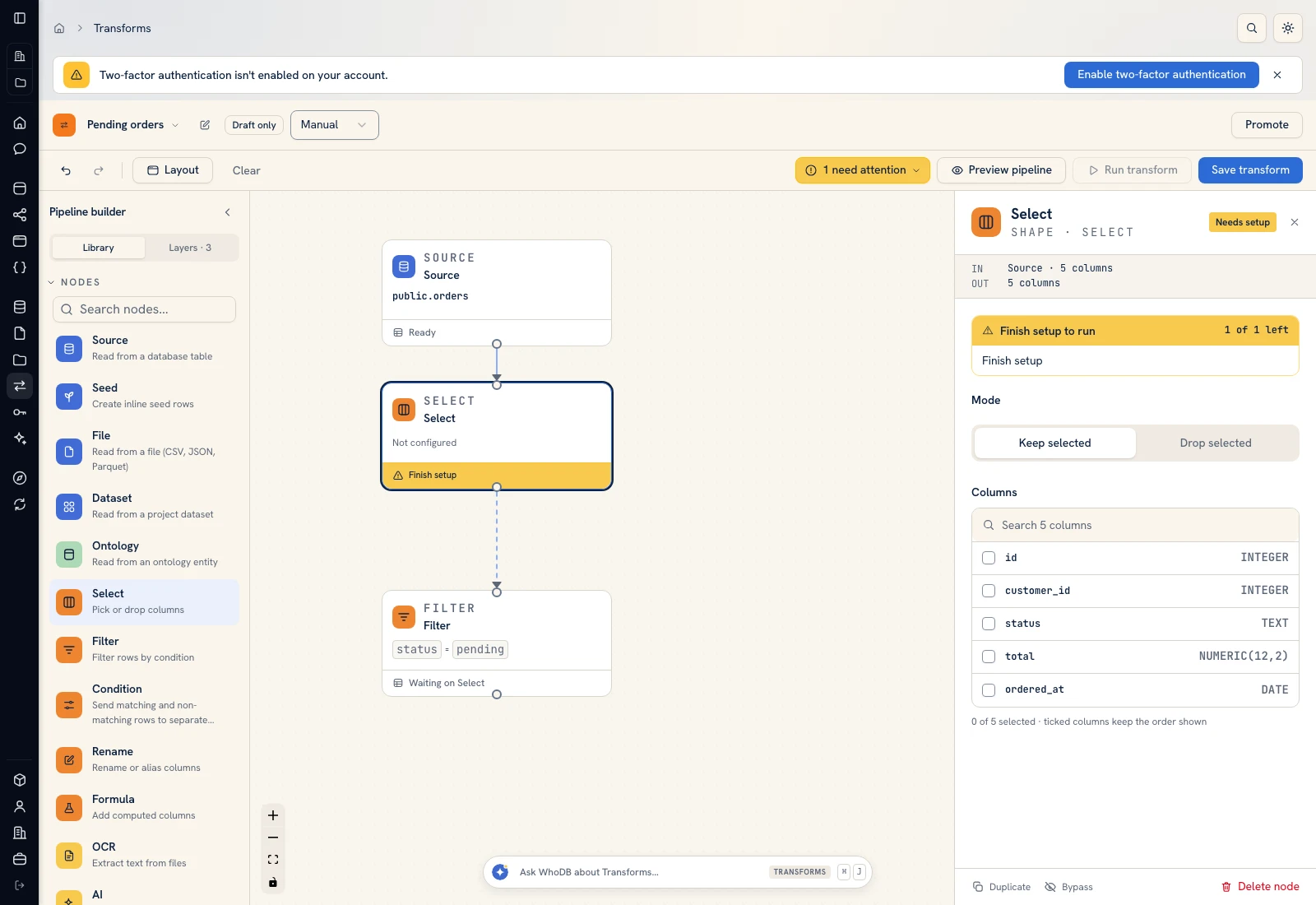 Select configuration chooses which upstream columns remain in the output.
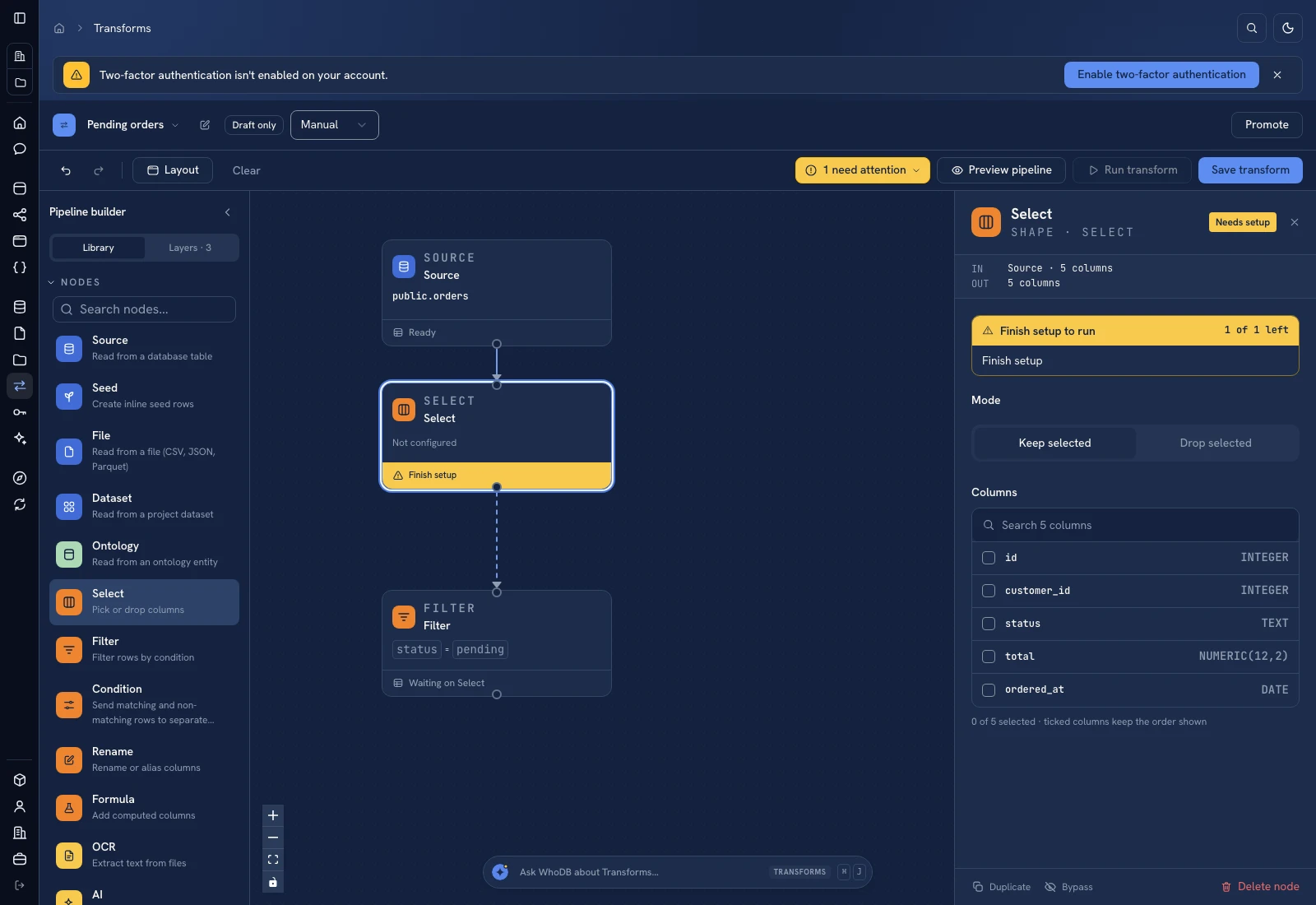 Select configuration chooses which upstream columns remain in the output.
Filter rows#
Add Filter. Use Add condition, choose a column and operator, and enter a value appropriate to that column's type. Choose All conditions for an AND-style rule or the available any-condition option when one matching rule should suffice.
For the example, keep rows where status equals pending. Six source rows contain three pending orders: 1001, 1003, and 1006. Preview to confirm those exact keys, rather than accepting the correct-looking row count alone.
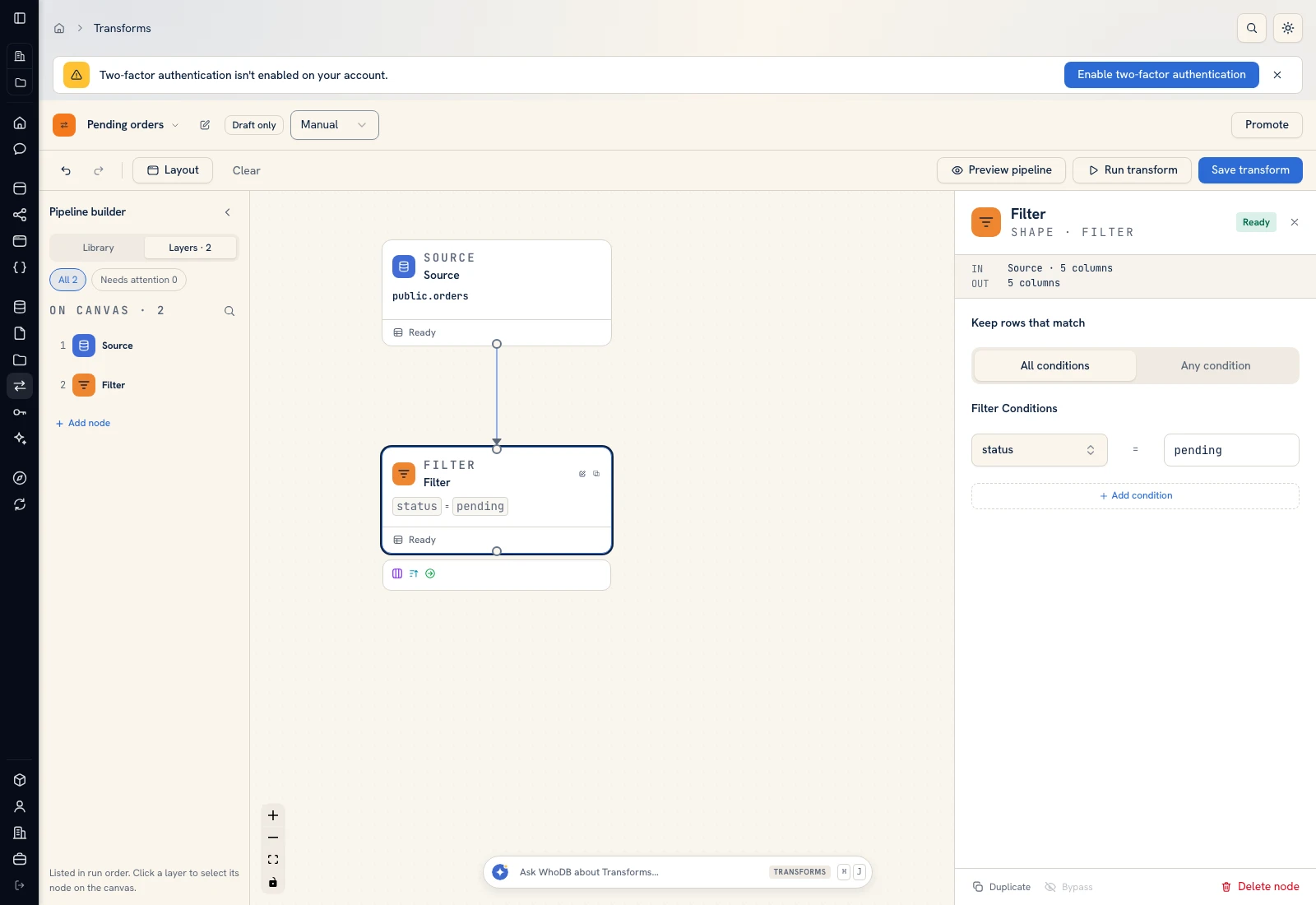 The Filter node's conditions determine which rows continue through the pipeline.
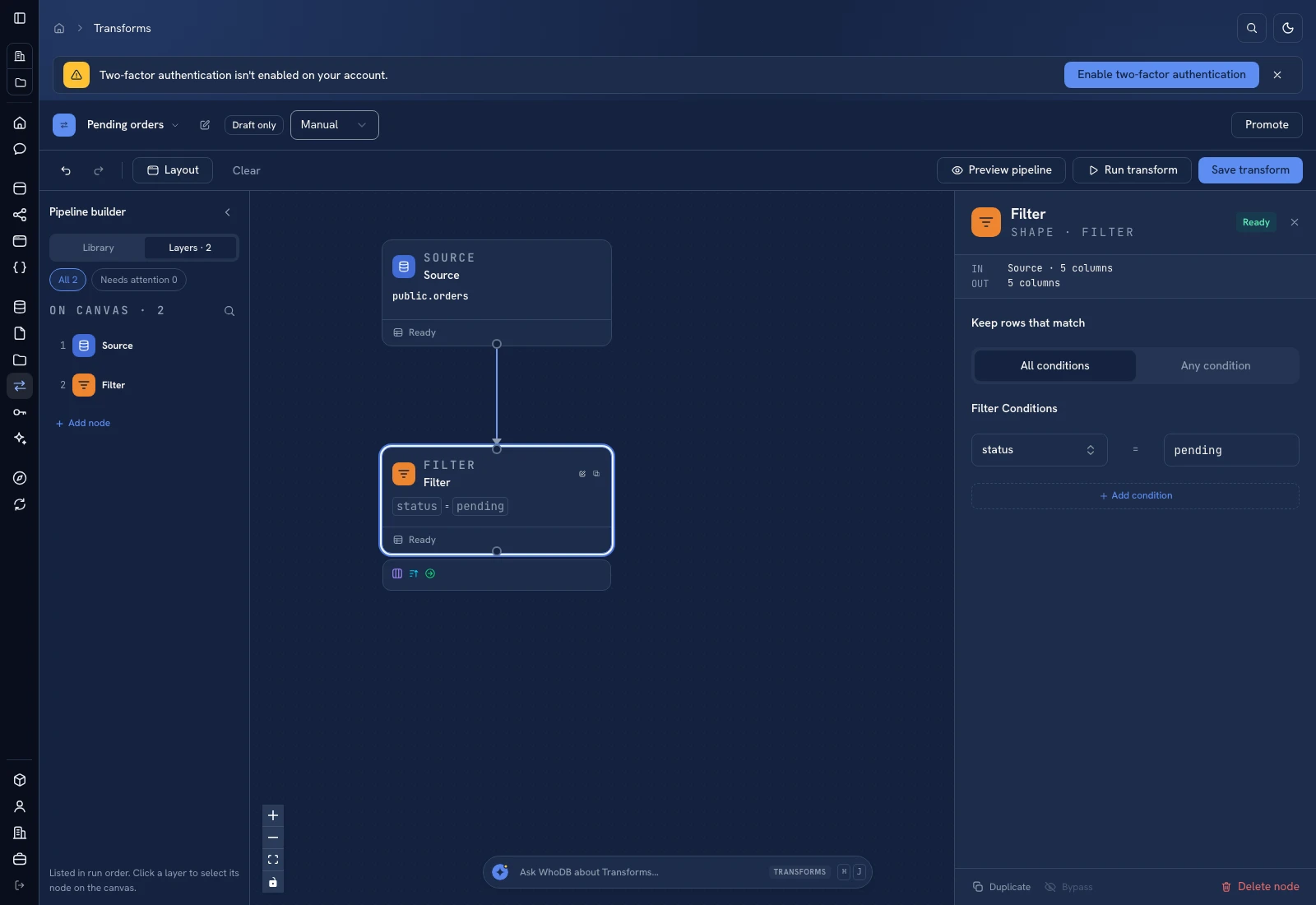 The Filter node's conditions determine which rows continue through the pipeline.
Branch with Condition#
Use Condition when both matching and nonmatching rows need a destination. Configure its rule and connect the two output handles separately. Label or inspect both branches so rejected rows do not disappear unintentionally. A Filter has one continuing stream; a Condition has two routes.
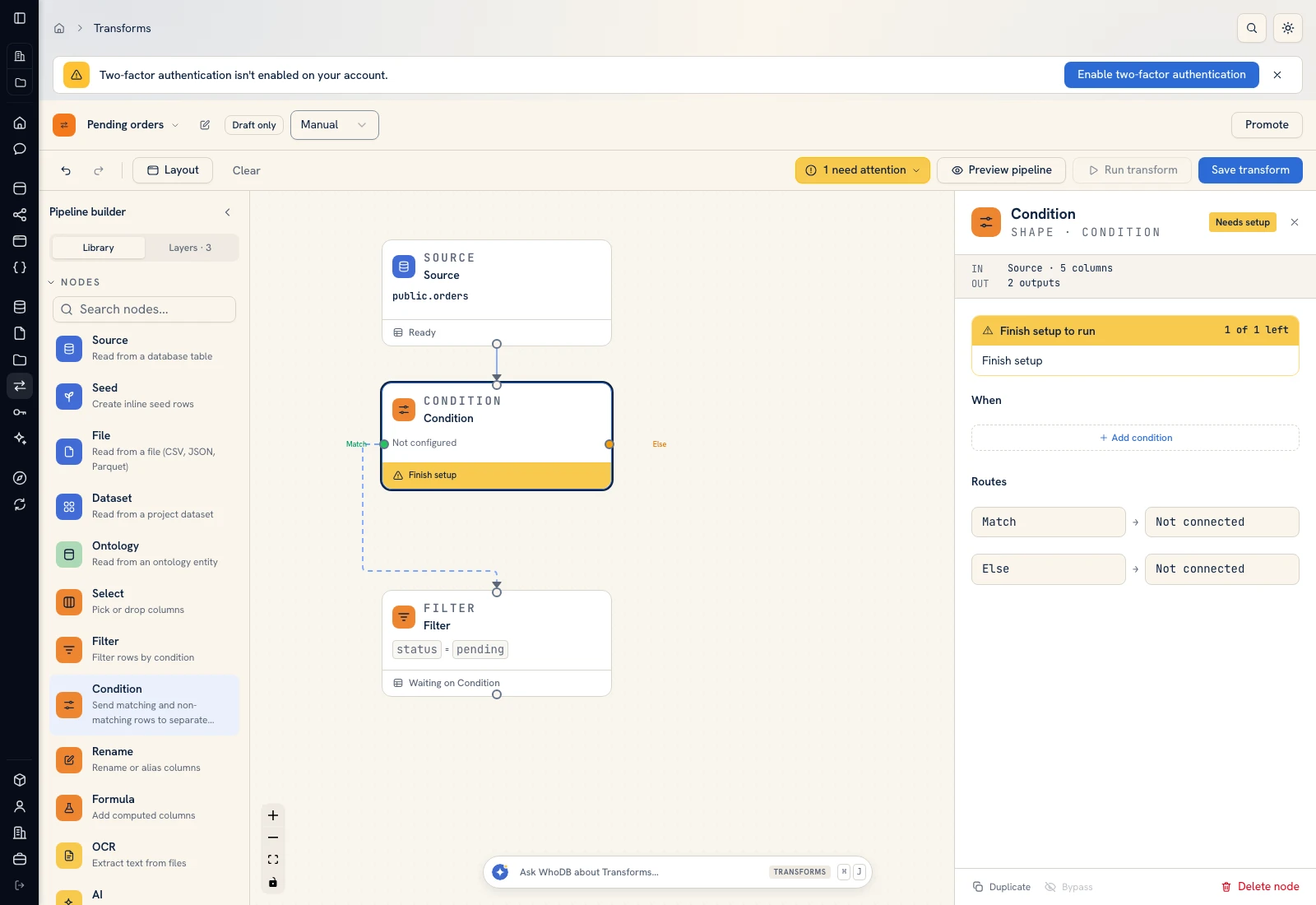 Condition exposes separate matching and nonmatching paths.
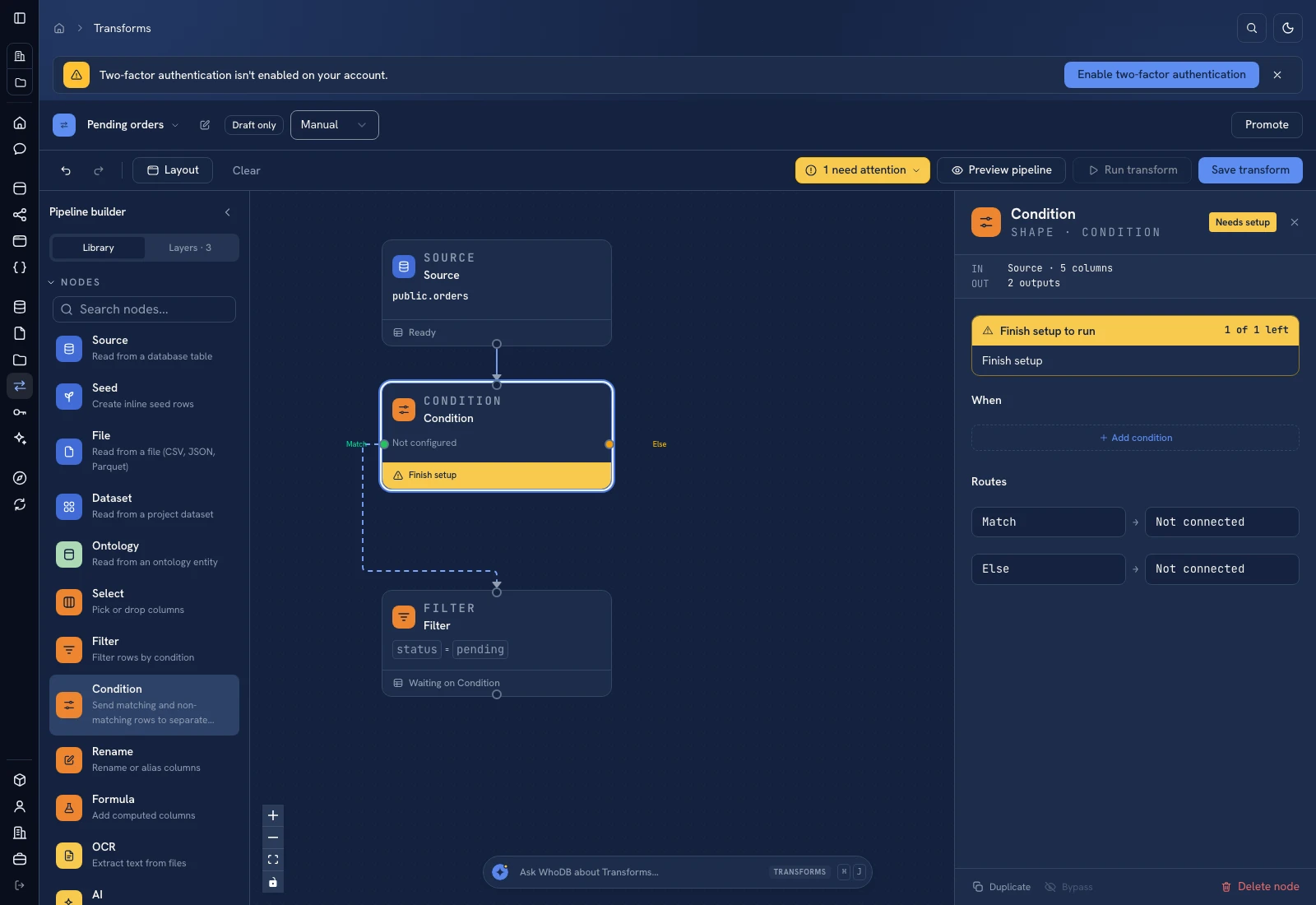 Condition exposes separate matching and nonmatching paths.
Rename columns#
Add Rename and use Add rename to map an upstream name to New name. Review the selected naming style when shown: As typed, camelCase, or snake_case. After renaming, update downstream references to the new names.
Add a Formula#
Add Formula, choose whether to create a new column or replace one, enter Column name and Expression, and use Insert column to refer to upstream fields. An arithmetic expression such as quantity * unit_price is useful only when both columns exist and have the intended types.
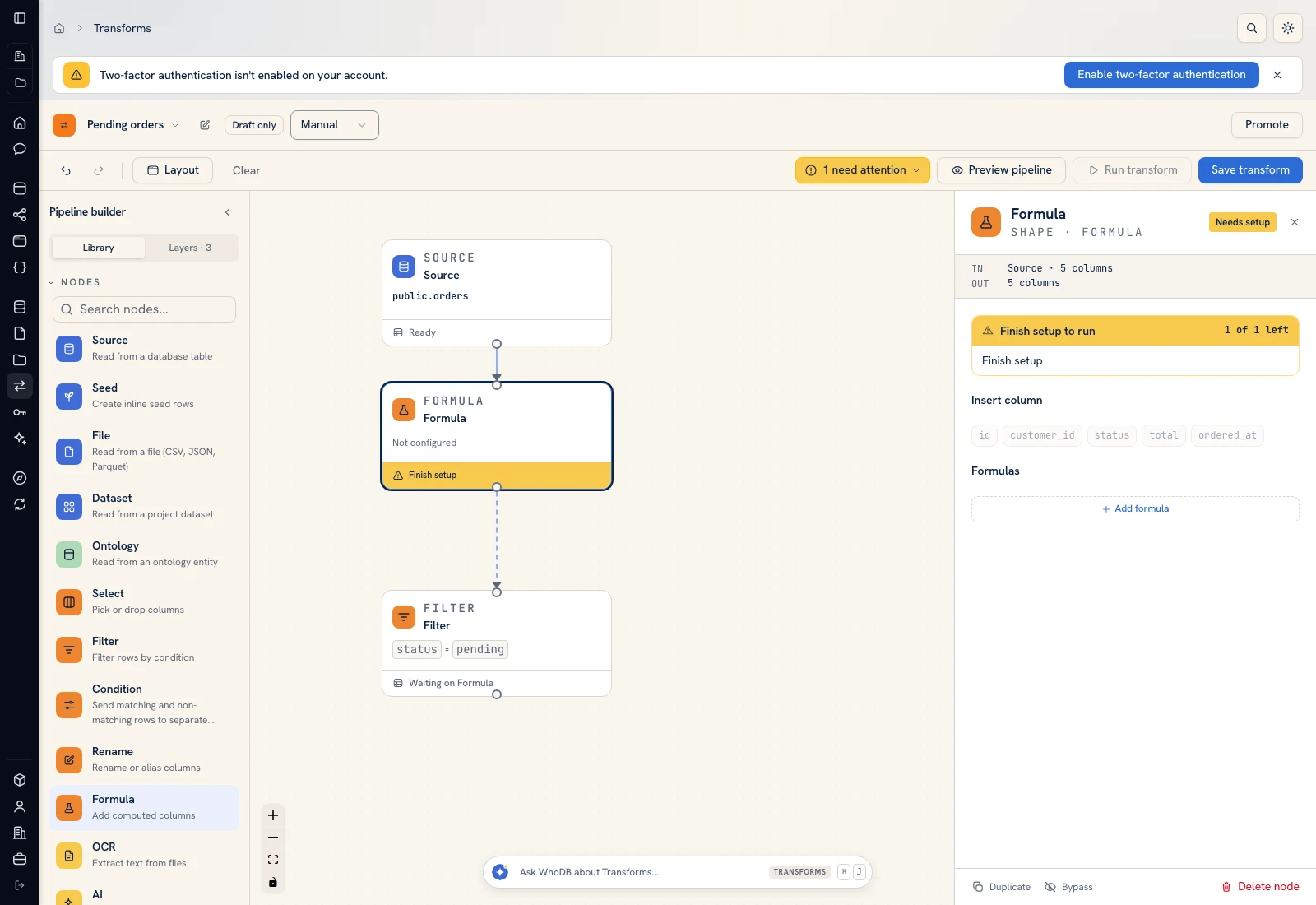 Formula configuration names each calculated column and its expression.
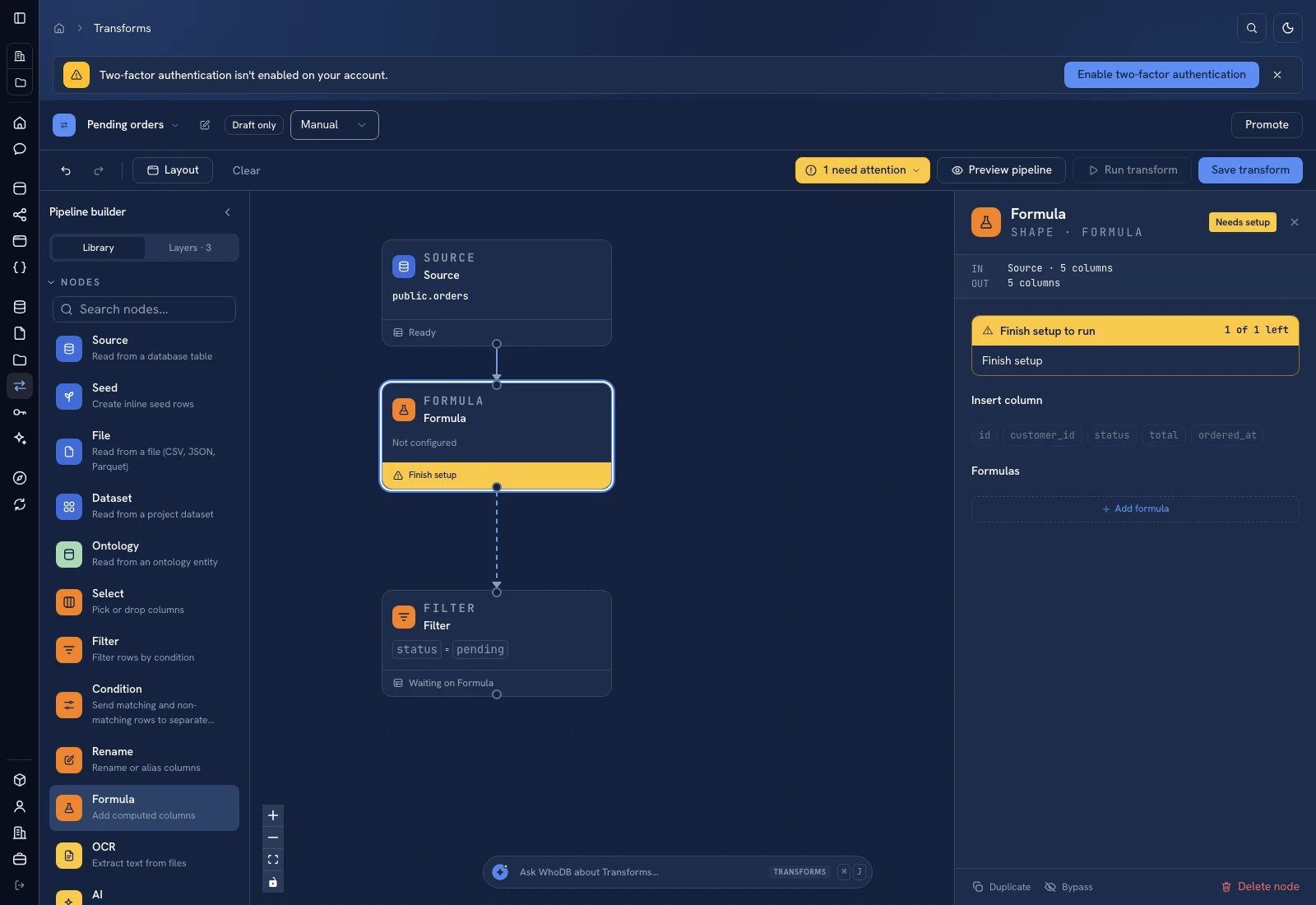 Formula configuration names each calculated column and its expression.
Preview immediately. If the product says Column not found, inspect Available columns and correct the name at that node. Do not rename unrelated upstream fields merely to make an old formula compile.
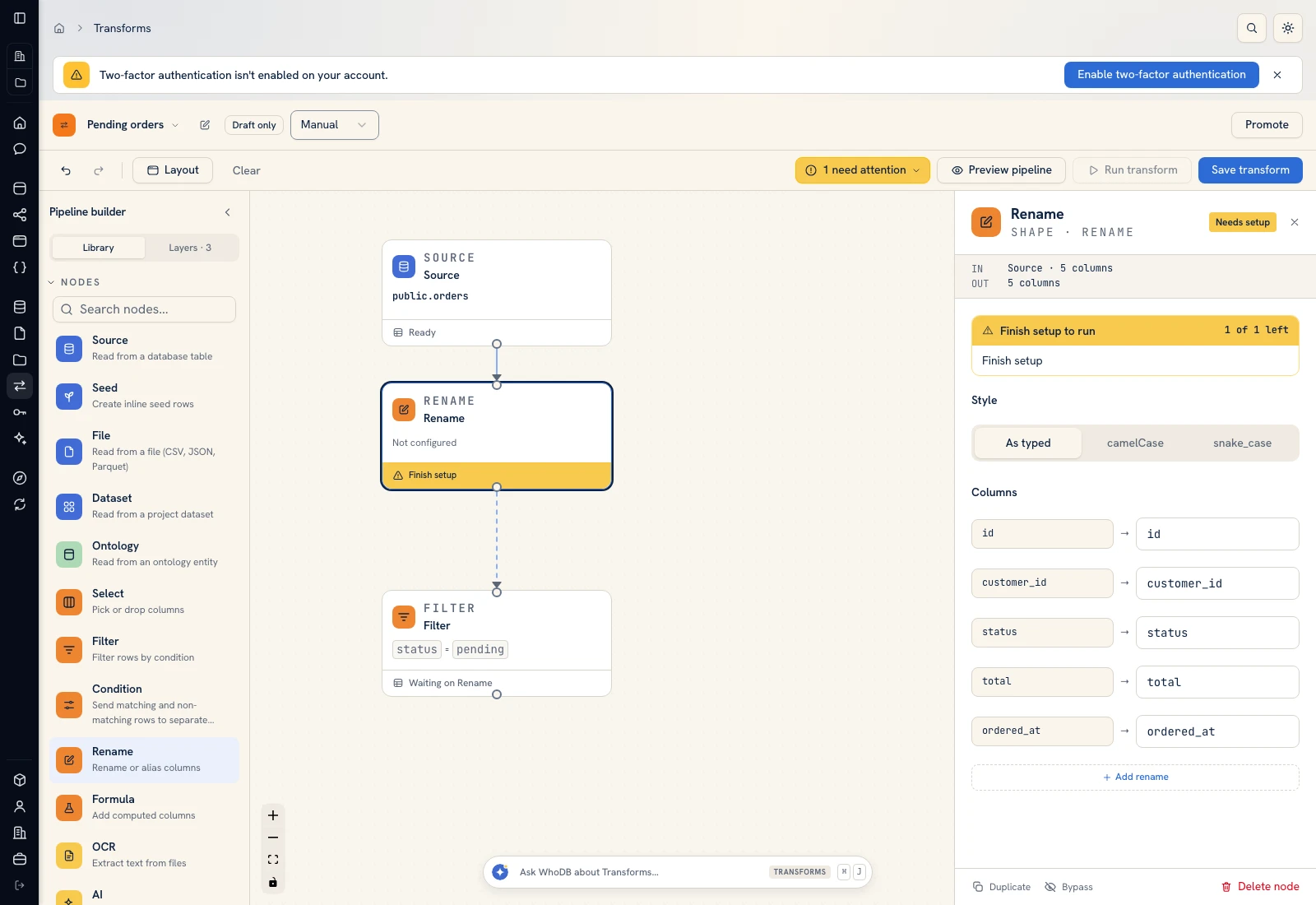 Rename maps upstream column names to the intended output names.
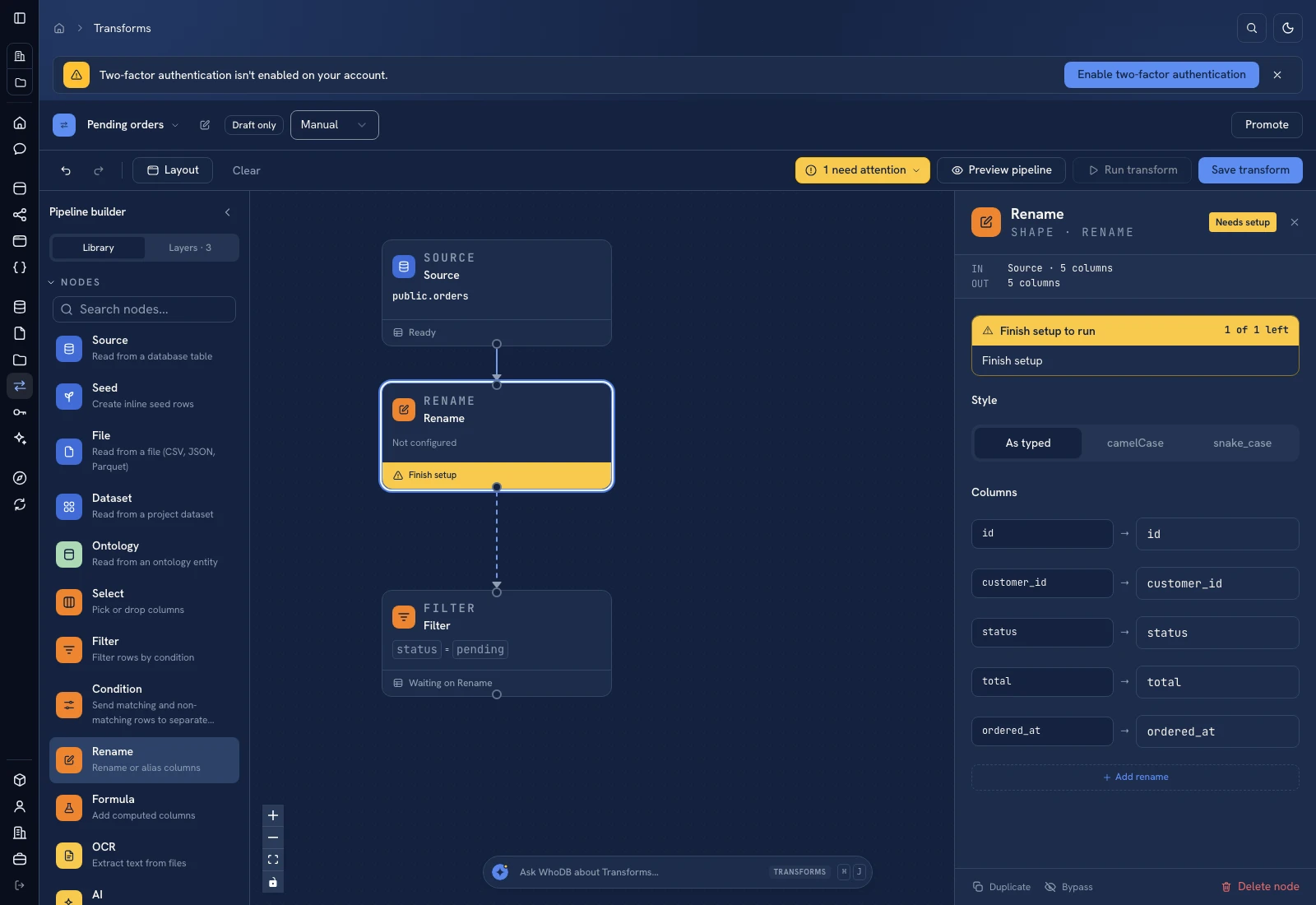 Rename maps upstream column names to the intended output names.
Was this page helpful?