
Use offline apps and resolve Sync conflicts
Where: use an eligible app's offline controls; review its queued work in sidebar → Sync on the same device. Offline eligibility is part of the app and entity configuration, not a property of every remote operation.
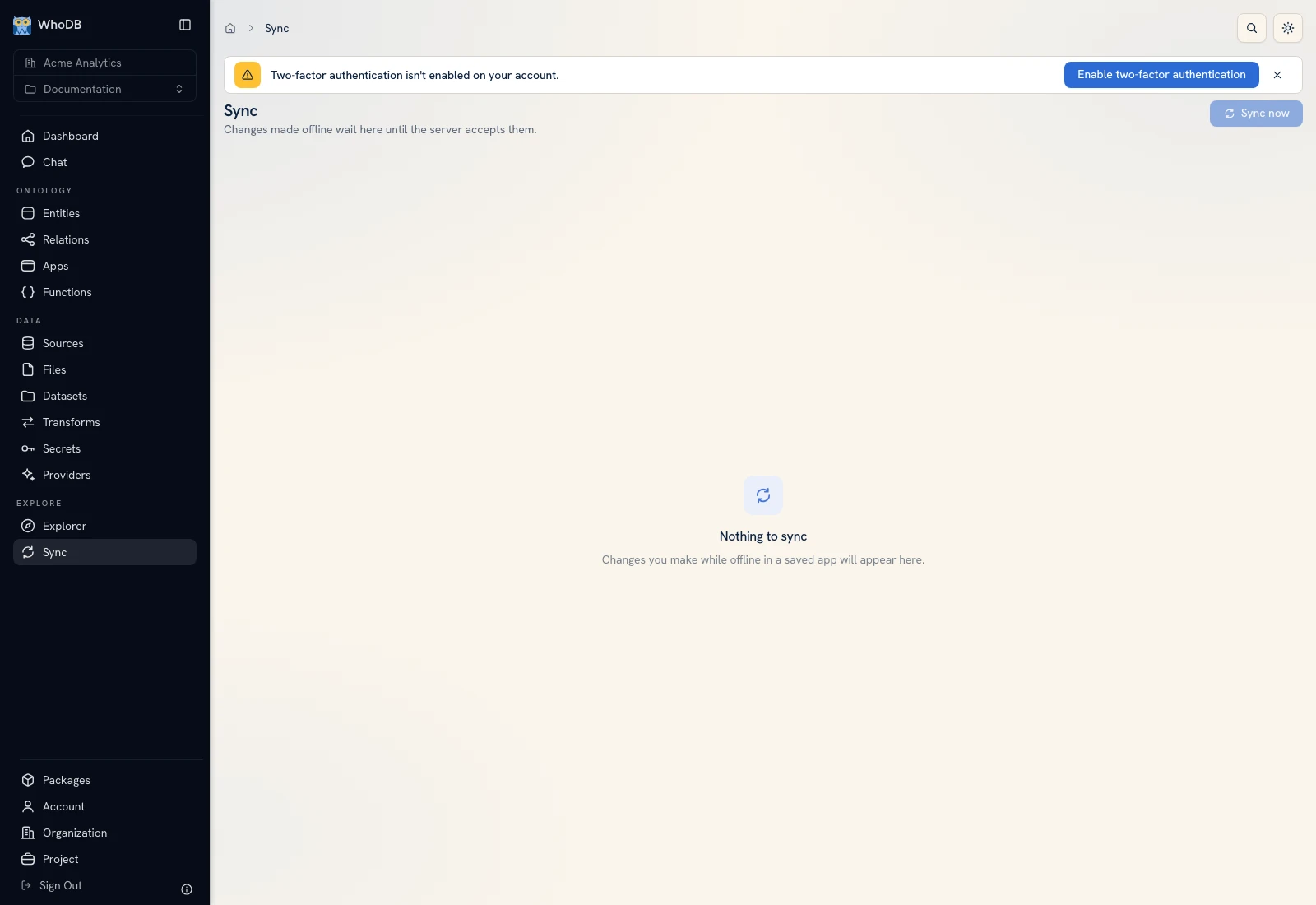 Sync reviews the current device's offline queue and its pending, conflict, and failure states.
 Sync reviews the current device's offline queue and its pending, conflict, and failure states.
Prepare the app while online#
Open the app's Settings and inspect Available offline. The UI explains plan eligibility and which bound entities support offline writes. WhoDB-managed operational entities without behaviour support the eligible write path; read-only offline data and behaviour-constrained entities have different restrictions.
Publish the intended version. Open the app on the target device while online and use Save for offline use when offered. Inspect Saved on this device, the saved version, and refresh controls. A loaded shell alone does not establish that this app's resources were saved.
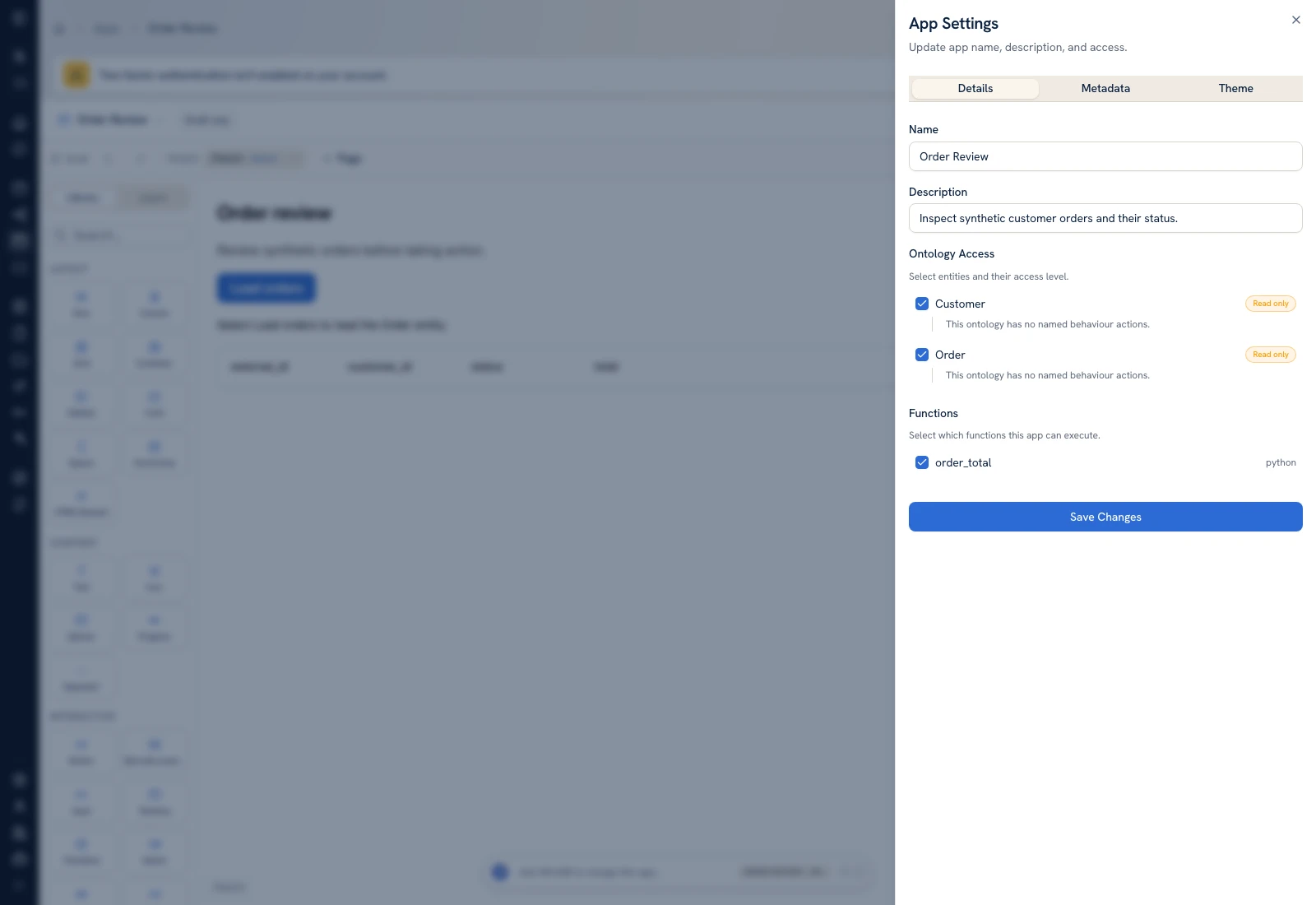 App settings expose resource bindings and offline availability.
 App settings expose resource bindings and offline availability.
Test the intended action#
With synthetic records, disconnect the device and perform the exact operation. Check whether the app reports a queued write or an unavailable action. A function/API action can require a connection even when some entity rows are cached.
Keep record identity and values intact when inspecting offline work. Do not assume a second device has the same queue or saved app copy.
Resolve after reconnecting#
- Reconnect and open Sync on the device where the change was made.
- Sign in if the session requires it.
- Inspect pending, sent, conflicted, and failed entries.
- For a conflict, review the current server row and compare it with the local change.
- Choose the appropriate retry, discard, or force action.
- Verify both queue status and the resulting server record.
Discarding removes a queued local operation. Forcing a conflict can overwrite the competing server change, so inspect the values first. A retry is not a reason to ignore a repeated permission or validation error.
Versions and sign-out#
A saved app update can wait while queued changes still depend on the old version. Resolve the queue before assuming a new published copy is active on that device.
Resolve unsynced work before Sign Out. The product warns that signing out discards queued changes; clearing browser storage can also remove local app/queue data. Treat the queue as device state that needs explicit completion.
Was this page helpful?